
Environment variables are simple settings that control how programs run on your computer. You can use them to change the way software behaves (without editing the actual code). ZSH or Z shell is a command-line shell used in Unix-like systems. It offers features like advanced auto-completion, customization options, command history, spelling correction, etc. In ZSH, you can easily set environment variables, either temporarily or permanently, depending on your needs. Let’s learn how we can do this using a step-by-step demonstration.
Environment Variables in ZSH
In Zsh, environment variables (ENVs) are key-value pairs that configure and control how programs and processes run. They provide essential information to the system and guide program behavior.
Environment variables are case-sensitive, which means uppercase and lowercase letters are treated differently. Environment variables are usually written in all capital letters to make them easier to recognize.
Temporary vs Permanent Environment Variables
Temporary variables remain active only for the duration of the current terminal session. Once you log out, close the terminal, or restart your system, they are automatically cleared. On the other hand, permanent variables are stored in configuration files like “~/.zshrc”. You can set an environment variable permanently by adding it to the configuration file, like “~/.zshrc.” This ensures the variable is automatically set and available every time you start a new terminal session.
How to Set Temporary Environment Variables
The export command is the easiest way to temporarily set the environment variables. It creates an environment variable for the current terminal session. You can use the following syntax to create a temporary environment variable in ZSH:
export VARNAME=VARVALUEFor instance, running the following export command creates a variable MTE and assigns it a value of “7”:
export MTE=7
Let’s use the printenv or echo command to verify the variable creation:
echo $MTE
Alternatively, we can use the set command to set temporary variables:
set varName=varValueWith a set command, we can set multiple values of a variable. But in that case, we need to separate each value with a colon “:”, like this:
export VARNAME=VAL1:VAL2:VAL3If you want to specify a space-separated value for the variable, wrap the value in quotation marks:
export VARNAME="MAKE TECH EASIER"How to Set Permanent Environment Variables in ZSH
To keep an environment variable active permanently, add it to the “.zshrc” file. If the file doesn’t exist, you can create it using any text editor.
Let’s execute the command below to create a new “.zshrc” file or edit an existing one in the Nano editor:
nano ~/.zshrcNow use the export command to add a new variable to the environment permanently:
export VARNAME=VALUEReplace VARNAME and VALUE with the respective name and value:
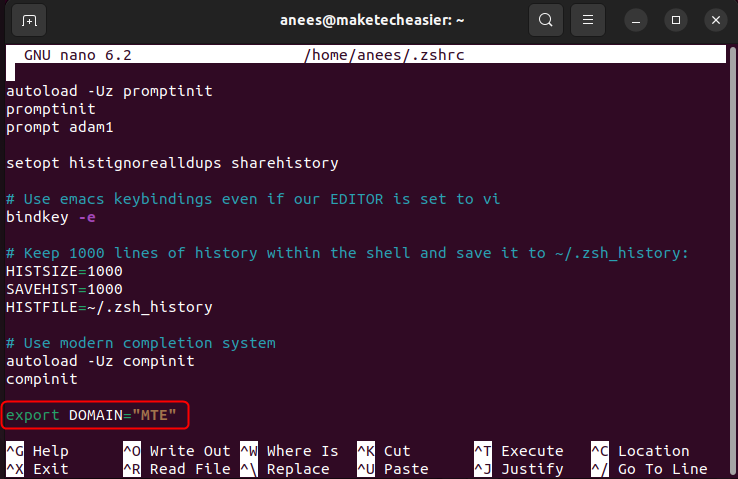
Save and exit the file. Use the source command to apply the changes from the “.zshrc” file without restarting the terminal. Alternatively, you can close and reopen the terminal to start a new session with the updated changes:
source ~/.zshrc
Finally, you can verify the permanently set environment variable using the echo command as follows:
echo $VARIABLE_NAME
Similarly, you can use the printenv command to check the environment variables:
printenv VARIABLE_NAME
Alternatively, you can use printenve without any argument to get an overview of all variables in the current environment:
printenv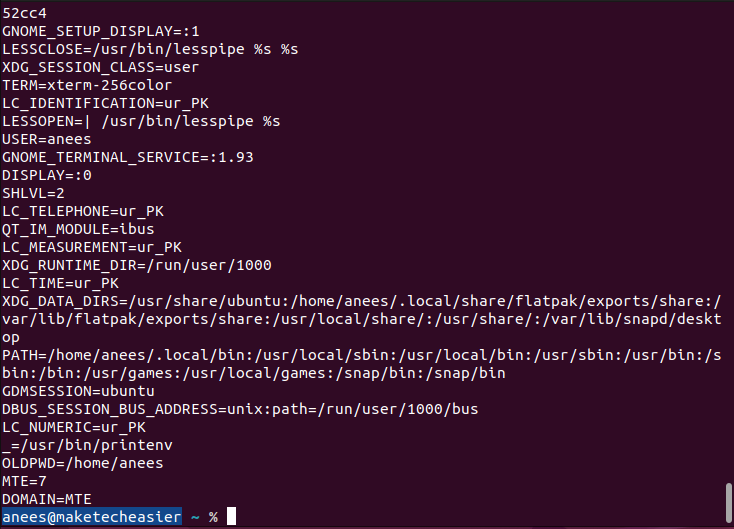
Best Practices for Managing Environment Variables in ZSH
Here are some recommended practices that enhance the variable management in Z Shell:
- Use clear and descriptive variable names that clearly describe their purpose (e.g.,
JAVA_HOME,PROJECT_PATH). - Use uppercase convention to write environment variable names. It makes them easy to recognize and avoids confusion with regular shell variables.
- If a value contains spaces or special characters, wrap it in double quotes to prevent errors. For example:
export DOMAIN="MAKE TECH EASIER" - Run
source ~/.zshrcafter making updates to apply them immediately without restarting the terminal. - Create a backup copy of your “.zshrc” file before making changes, especially if you are unfamiliar with the syntax.
This way, you can efficiently set an environment variable in ZSH.
Wrapping Up
Setting environment variables in ZSH is a simple yet effective way to control how your system and applications behave. Whether you need a temporary change for the current session or want a variable to stick around permanently, ZSH makes it easy to manage them through commands like export or by editing the “.zshrc” file. Just make sure to use clear and descriptive names, wrap values in quotes when needed, and properly apply the changes using source. Also, make sure to understand how you can set and list environment variables in Linux for better management of your system’s configurations.








