
Having YouTube and YouTube Music in the same subscription is nice, but Google refuses to keep your interests and likes separate between the two. If you’re like me, you’re tired of the overlap. Just use this simple YouTube hack to separate YouTube and YouTube Music for good.
Why Separate YouTube and YouTube Music
Unless you’re using YouTube mainly to watch music videos, you don’t want everything you do on YouTube affecting your YouTube Music recommendations. You also don’t want the songs and artists you’ve liked on YouTube Music taking over your YouTube recommendations.
I rarely used YouTube Music until I found a hack to separate the two. Otherwise, all of my recommendations for Music were just lofi, nature sounds, and other focus/relaxation type sounds. When I want to listen to music, I want mainly rock and pop.
Despite users complaining for years, Google still refuses to unlink the two. There are now two ways to ensure you have no more overlap between the two streaming platforms.
Create a Second Google Profile Under the Same Account
A little known hack lets you create a second Google profile without creating a second Google account. If you’re YouTube premium subscriber and only have the individual plan, this is a game changer. You can still use your premium benefits across both platforms, such as ad-free and offline listening, without the need for a second premium subscription.
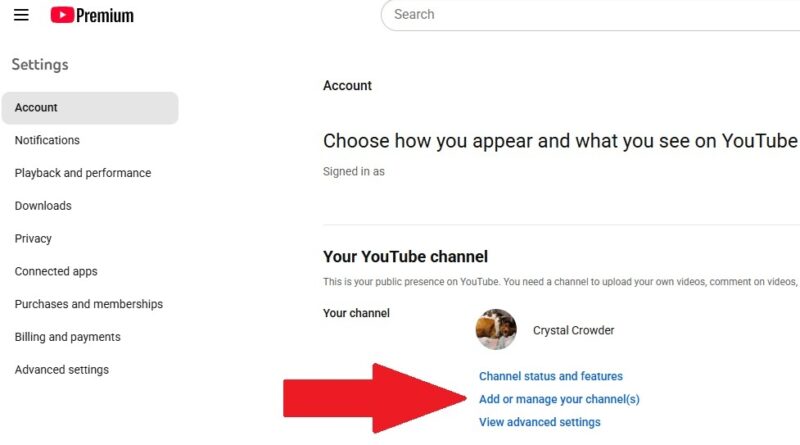
Start by logging into your YouTube account. Click your profile icon and select Settings -> Add or manage your channel(s).
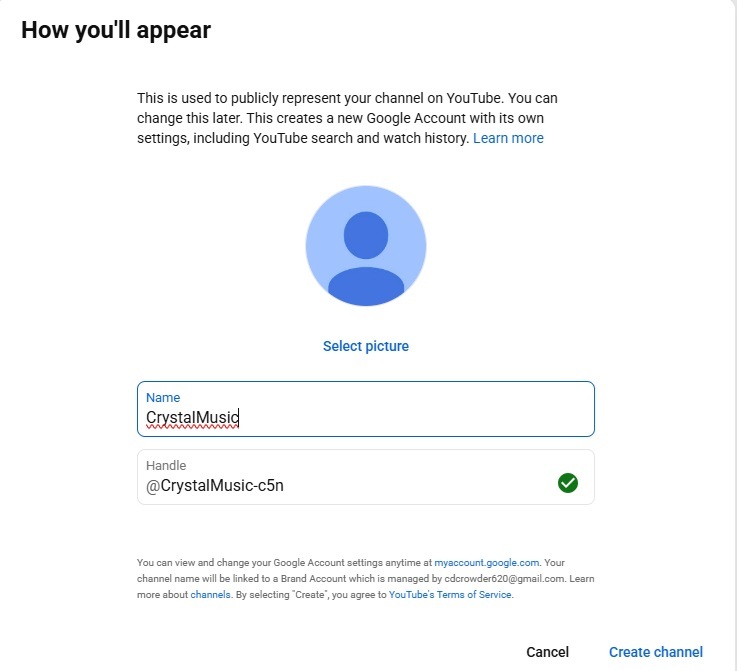
Click Create Channel. Your channel serves as your new profile or identity. To YouTube and YouTube Music, this looks like a completely new user. Add a name and handle. It really doesn’t matter what you use, but I like adding “music” to the name just so it’s easy to tell that it’s my YouTube Music profile. Click Create channel to finish.
Switch Accounts on YouTube Music
Once you’ve got your new YouTube channel, open the YouTube Music app (mobile or web). Click your profile icon and select Switch account. Select your new channel profile. You’ll see both profiles under the same email address.
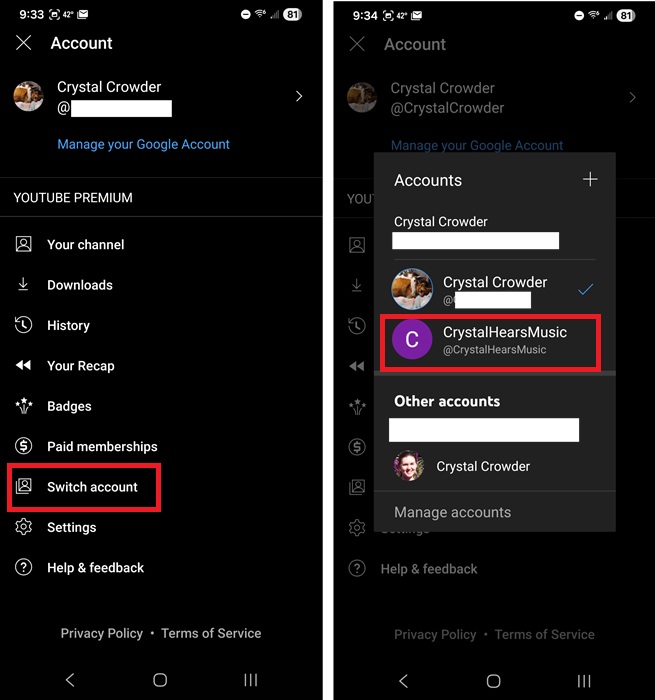
If you’re using both YouTube and YouTube Music on the same device, switching accounts on one app won’t switch accounts on the other. This ensures each app has its own profile, keeping the two separate, yet still technically linked under one email address.
The only exception is you can’t use separate profiles on YouTube and YouTube Music in the same browser window, even if you’re using different tabs. You must use two browser windows, one for each service.
Use the Hack for Multiple YouTube Profiles Too
Another use I’ve found for this hack is to have multiple YouTube accounts under the same email address. Google lets you create numerous YouTube channels, aka profiles. So, if you want one YouTube account for music videos, another for tutorials, and yet another to share your own videos, create new channels for each.
Remember, each profile is a stand-alone account in Google’s eyes. None of your likes, preferences, playlists, or history carries over.
The One Downside
If you’re a long-time YouTube Music user, there’s one major downside. Since both profiles are under the same email address, most music streaming transfer tools don’t work properly. You’ll have to manually copy your playlists from one profile to another.
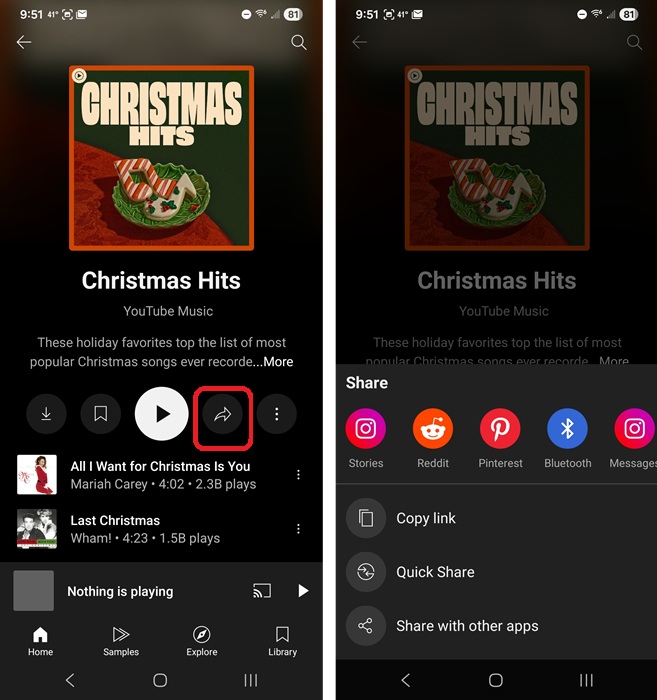
The easiest method is to tap the Share icon on any playlist on YouTube Music and send it to yourself via text or email. Then, while you have your newly created YouTube Music profile logged in, open the share link, and save the playlist to your library. All playlists must be public for this to work.
The good news is, it’s easy to train YouTube Music’s algorithm to quickly give you great recommendations to start building new playlists.
Create a Second Google Account
If you’re a free user or a YouTube Premium subscriber on a family play, create a new Google account with a new email address. Since family plans let up to six users have their own accounts on one plan, you can add your second account as one of the six users, if you have free slots left.
For those who have numerous playlists they don’t want to manually move over, this is the easier option to separate YouTube and YouTube Music. But, Premium users on individual plans don’t have this option.
If you choose this method, then you can use playlist transfer tools to move your music between your YouTube Music accounts.
Either method you choose ensures you can finally use YouTube and YouTube Music as two separate apps versus the annoyingly interconnected mess they usually are.








