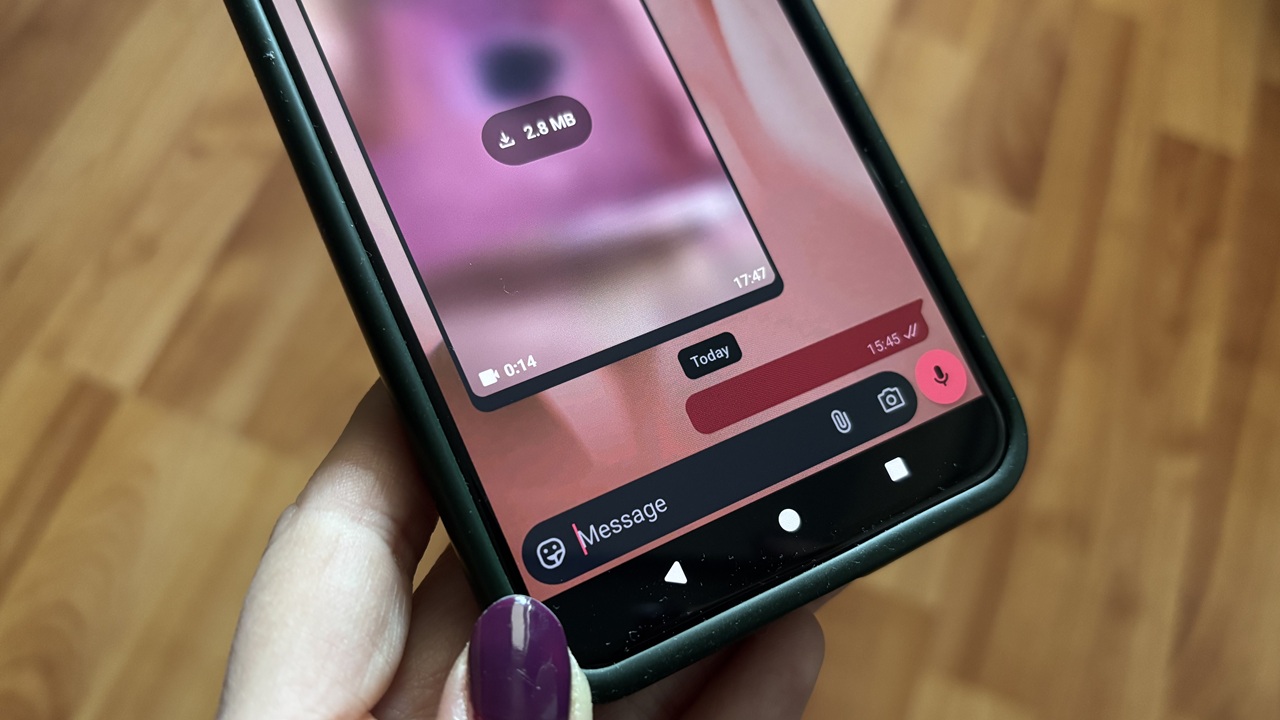
If your social media conversations are starting to feel a bit dull, try playing a harmless prank on your friends by sending them a blank message. The chats will surely spring back to life as everyone will attempt to figure out what your cryptic message means. Here’s how to pull it off in popular apps such as WhatsApp, Instagram, Snapchat, and more.
Good to know: learn how to create a fully custom AIM Style WhatsApp status within seconds.
Why Send a Blank Message to Your Friends
Sure, sending blank messages is a fun way to mess with your friends and leave them scratching their heads, but it can actually have a few other uses, too.
One potential use is to bring attention to a message you’ve sent earlier. A blank reply can quietly draw attention back to something you said without adding extra noise to the chat.
At other times, sending a blank message can serve as a way of expressing disappointment, almost like saying you’re left without words.
In a group chat, blank messages can be a simple way to visually separate different threads or parts of the conversation.
1. Use a Unicode Character
WhatsApp and other similar apps don’t allow you to send empty texts. However, you can trick them into doing so by using special Unicode characters.
While there are multiple blank characters to choose from, some might yield the desired results while others won’t. For instance, all these examples worked in my case.
- Zero Width Space (U+200B)
- Left-to-Right Mark (U+200E)
- Braille Pattern Blank (U+2800)
I suggest installing an app like UnicodePad on Android or Unicode Pad Express on iPhone so that you can access more unique characters, not just the blank space.
On your Android phone open the app relevant for your platform. Tap on the grey search box underneath Emoji.
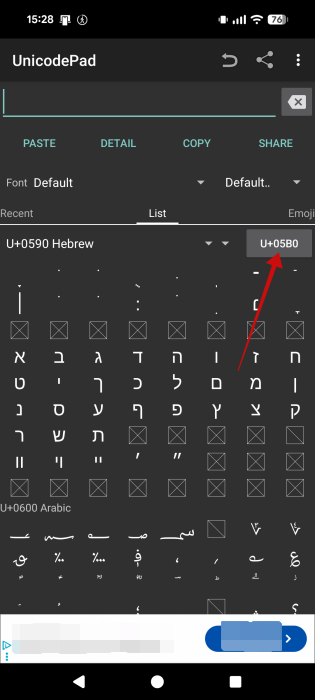
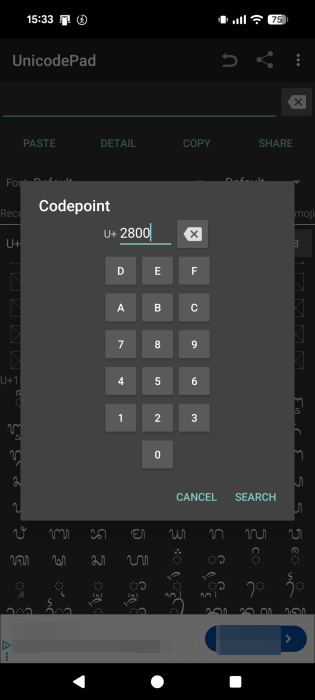
Enter one of the unicodes from above and press Search.
You’ll be taken straight to the code. Next tap Copy at the top. Then press Share.
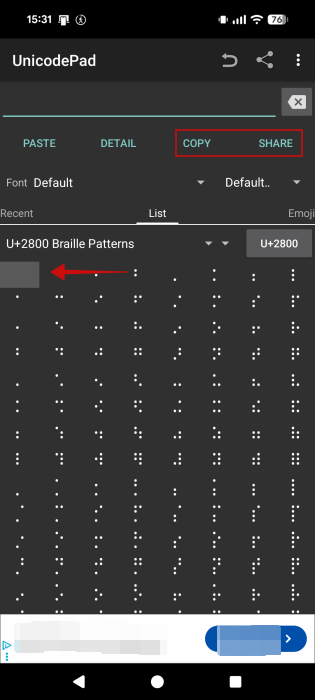
Select WhatsApp or another app from there. Find the person or group you want to send the empty message to and press the Send button. Some codes might yield the message that WhatsApp can’t send en empty message. If so, change to anther code.
You have unleashed your mystery text. Here’s how it looks on WhatsApp and Instagram on Android.
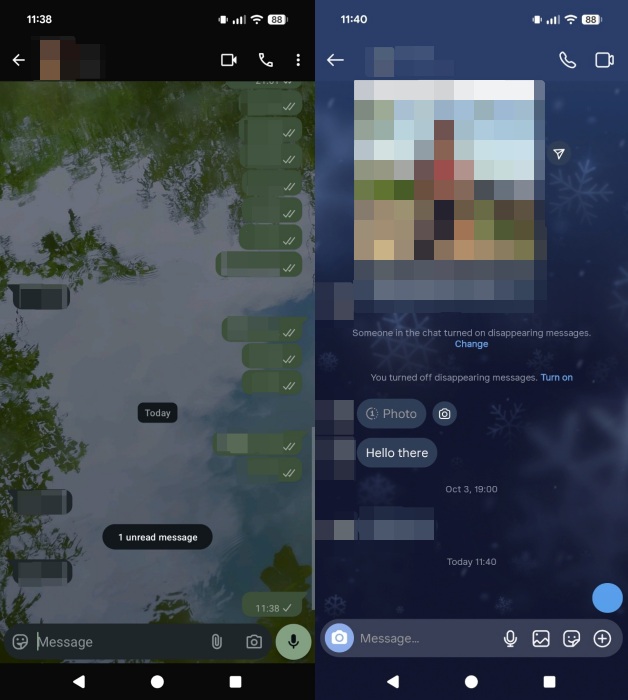
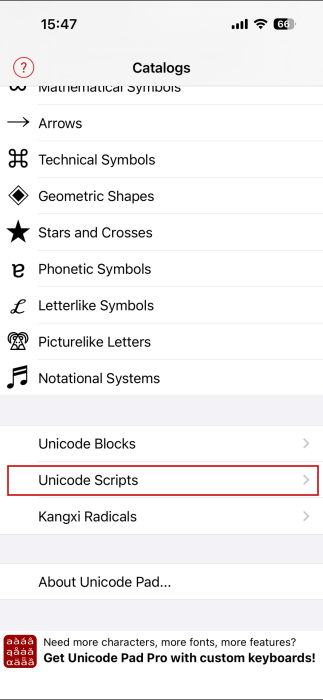
On iPhone, open the Unicode Pad Express app and navigate to Unicode Scripts section at the bottom of the Catalogs page.
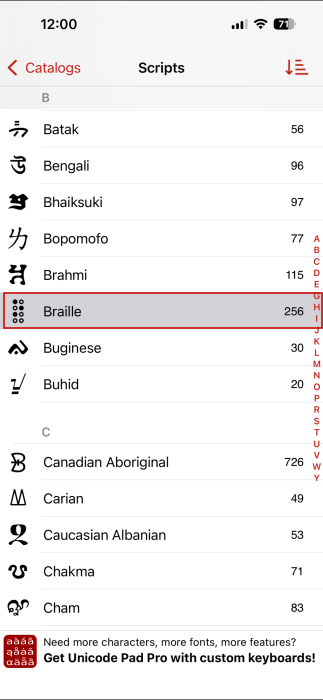
Find the Braille option and tap it.
The first symbol you’ll see is the Braille Pattern Blank. Tap it.
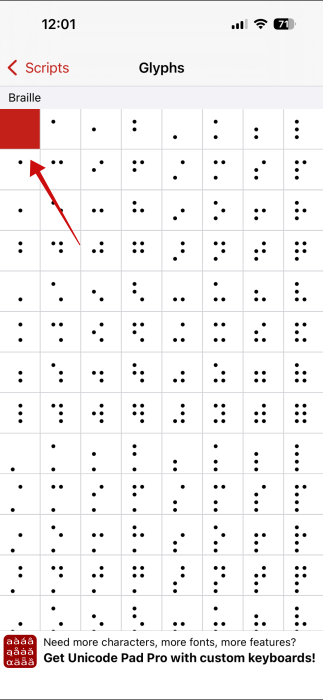
Press Copy in the upper right corner.
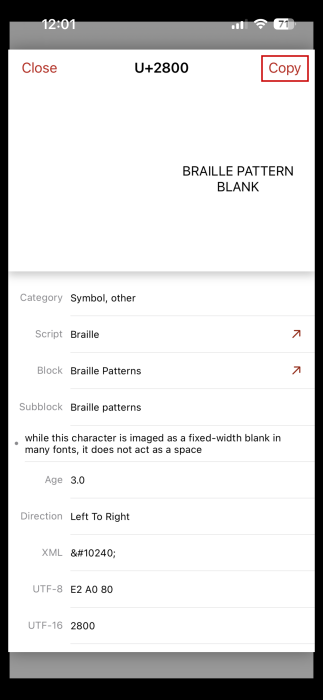
Now you can paste the code in any chat app. It even works in Messages.
You can also send a blank message from the web. If you already know the Unicode character. For instance, for the Braille Pattern Blank one. If you’re using a Windows PC, copy this in a Word document, select it and press Alt + X.
The code will transform into a blank space. Copy it in WhatsApp or any other app and send it.
2. Try a Thrid-Party Website
If you don’t feel like installing an dedicate app to access unicode characters, there are numerous third-party websites that can generate blank messages for you.
For instance, you can try InvisibleText. This webpage lets you choose how many blank spaces you want to include in your message. If you want to send longer empty messages, this is the perfect choice.
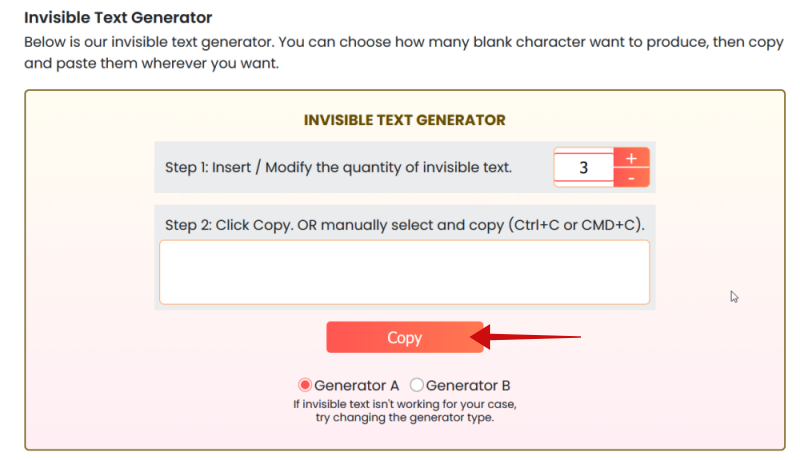
Once you’ve set the quantity, press the Copy button. Then proceed to paste your message in a messaging app.
FYI: don’t like MetaAI in WhatsApp? Learn how to disable it.
3. Ask Meta or Another AI to Help
This method allows you to send a blank text without leaving the app you want to text from. So if it offers direct access to an AI chatbot, you can try this. WhatsApp, for instance, has Meta AI. You can also add ChatGPT in WhatsApp, as well as Perplexity, and chat with the AI directly from the messaging app.
In this case, I turned to Meta AI for help. I tried several prompts and questions, but the one that eventually worked was: “Generate a single en quad character so I can send a blank message”.
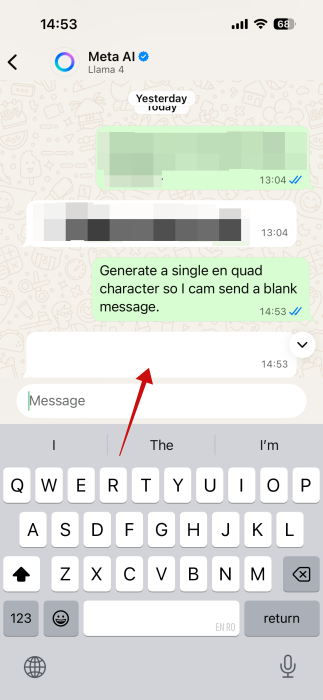
Once Meta AI generates the blank space, copy it and then paste it into another conversation in WhatsApp. You can also paste it in other apps if you want.
If this doesn’t work for you, try asking Meta to “Generate a zero-width space character” instead (this prompt worked for me on Android). Or have the AI display even more whitespace characters and see which works for you.
Feeling inspired to keep the fun going? Continue reading our guide on the best Chrome extensions to prank your friends.








