All the latest Android phones contain a Block list to filter unwanted calls. This helps you avoid disruptions from scammers, stalkers, and robocall agents. However, we sometimes need to reach a person who got blocked by mistake. Our guide explains how to see blocked numbers on your Android phone and unblock them to ensure critical calls get through.
The way you check blocked numbers on Android depends on your device and the app you use. Each method lets you scroll through your blocked list and quickly add or choose a number to unblock.
1. Default Phone App
The preinstalled Android Phone app is most commonly used to manage your list of blocked numbers.
Open the Phone app on Android. Tap on the three-dot icon in the upper right corner, and select Settings.
Go to Blocked numbers.
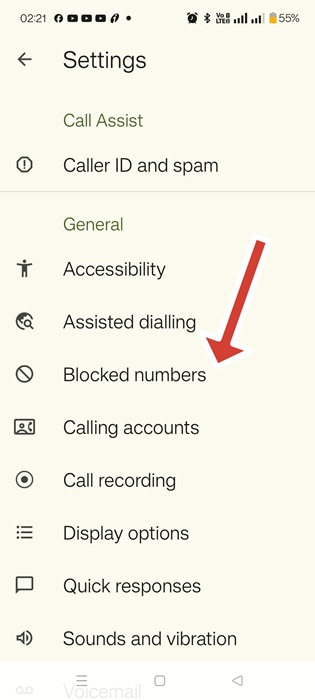
Scroll through the list that you see, with the newest calls first. Tap X next to a number to unblock it.
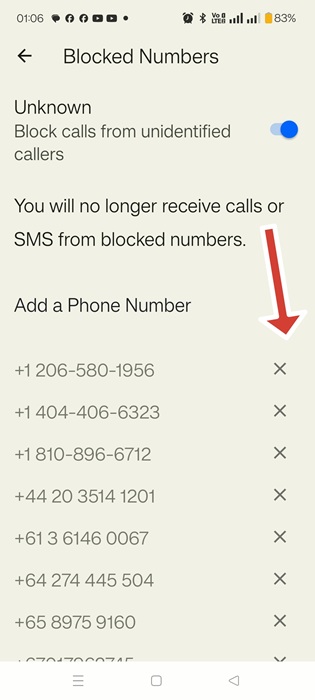
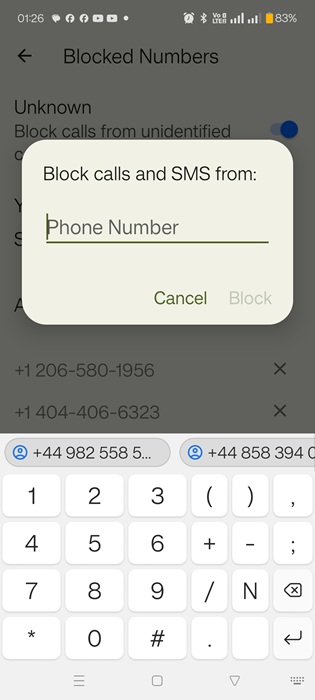
Tap Add a Phone Number to enter a number you want to block for calls and texts. On newer devices, you can pick one from a list of recent calls at the bottom.
Click Block to confirm.
Related: learn the differences between Samsung Galaxy and other Android devices.
2. Default Phone App (Samsung Galaxy)
Samsung Galaxy’s default Phone app takes a slightly different approach to managing blocked numbers.
Launch the Samsung Phone app. Tap the three-dot icon and go to Settings.
Tap on Block numbers.
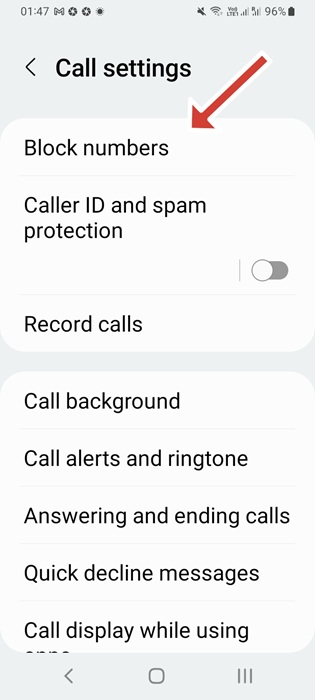
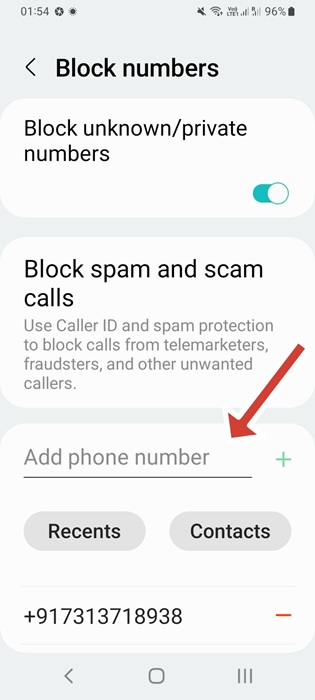
Look under Block spam and scam calls. At the bottom, you’ll see a scrollable list of blocked numbers. Tap the minus (-) sign to unblock one.
To add a number to Block list, click the plus (+) sign, and select from Recents and Contacts.
On the related Samsung Messages app, go to Settings from a three-dot menu. Select Block numbers and spam -> Block messages. Here, you can again click minus (-) to unblock a phone number.
Related: the Google Phone app comes with a built-in call recording feature.
3. Phone by Google App
The blocked numbers can also be checked and managed from the Phone by Google app. Its procedure is similar to the default Phone app on Android devices.
Open the Google Phone app. Click the 3-dot menu on top followed by Settings.
Tap on Blocked numbers. From a vertical list of phone numbers, click the X icon to unblock any of them.
Click Add a phone number to have a new entry. in Block list.
Tip: get up to speed on how to change the default account for contacts.
4. Google Contacts App
The Contacts app in Google Play is another easy way to access all of your blocked numbers in one place.
Open Contacts. Navigate to the Organize tab followed by Blocked numbers.
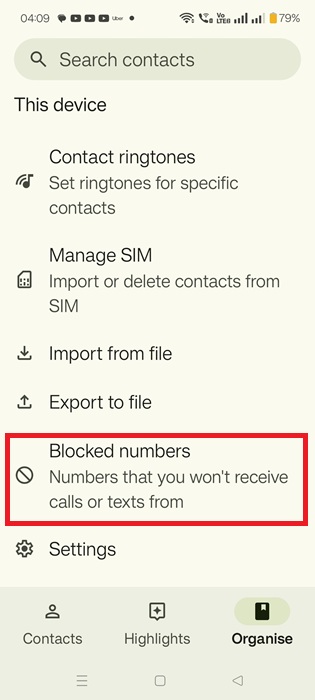
The next screen has a similar appearance as the blocked numbers in the default Phone app. Just click X to remove a number from the block list. And you can add numbers to it with similar options.
5. Google Messages App
Google Messages doesn’t have a separate list for blocked numbers. Instead, you can view a list of blocked messages (complete with phone number/contact name).
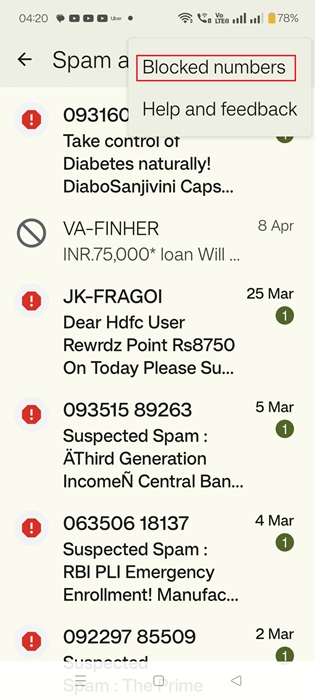
Open the Google Messages app on your phone. Tap on the three-bar icon at the top and select Spam and blocked.
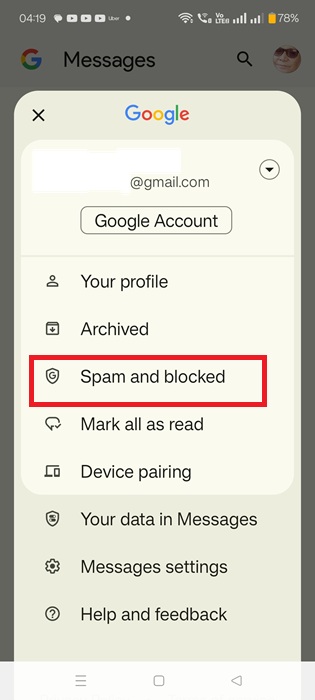
You will see your blocked messages right below this. Click a three-dot button on top tight and select Blocked numbers. It will take you to the next screen where you can unblock any numbers, and add to the list.
Tip: check out the best tips for using the Google Messages app that you might not know about.
6. WhatsApp
To see and manage blocked numbers on WhatsApp on Android, follow these steps:
Open WhatsApp on your phone. Tap on the three-dot icon at the top followed by Settings.
Go to Privacy followed by Contacts.
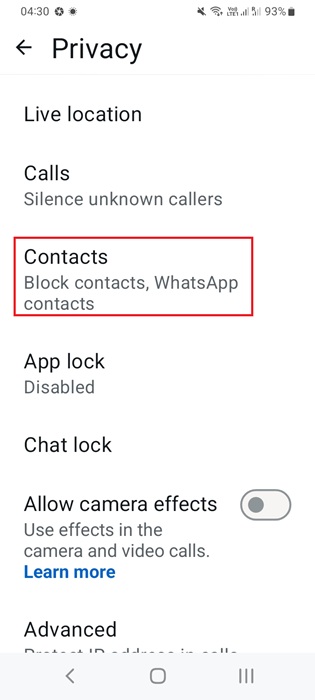
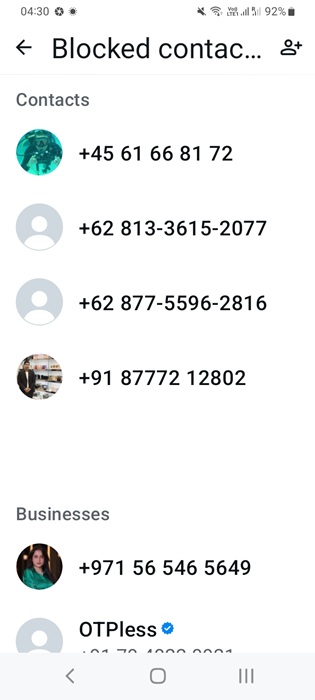
In the next screen, you will find a Blocked contacts menu. It gives you a total number of such contacts. Scroll through the various numbers that cannot reach you on WhatsApp. Just click on any of them to find an Unblock option for that number.
In this guide, we saw how you can see all the numbers you have blocked in Android. You can also block Internet access to specific apps. Further, there are many ways to record a call on Android and iPhone.
Frequently Asked Questions
What happens when you unblock a number?
When you unblock a number, that person can once again start calling and messaging you.
Can you see missed calls from blocked numbers on Android?
While some Android phones show missed calls from blocked numbers in the recent calls list, not all phones have this feature. On Google Pixel and Samsung Galaxy’s Phone App, go to Recents, click the 3-dot menu, followed by Showed blocked calls.
Will a contact be deleted after blocking it?
No, the contact won’t be removed from your Android phone if you block them but will still show up in your contacts list.








