If you have been leaving your comments on other Instagram accounts, after some time, you may be wondering where you have left your mark. All it takes is a few taps to view all of your comments on Instagram in one convenient place.
1. View Instagram Comments from Your Activity
In the past, Instagram made it difficult to view all your comments. Now, it works similarly to Facebook, where you can view a list of your activity, including comments.
Open Instagram, tap your profile icon, tap the hamburger menu at the top right, and tap Your activity. Tap Comments and scroll through to see both the original post and your comment on it.
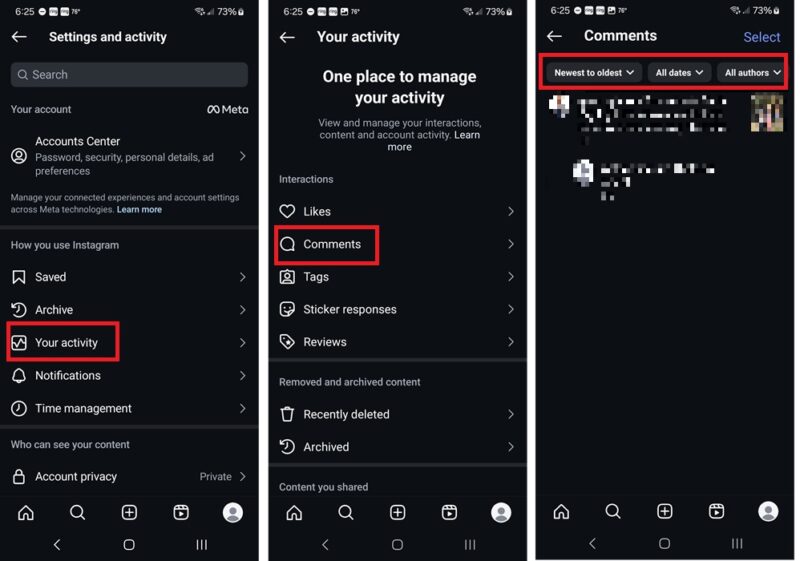
If you have hundreds or thousands of comments to comb through, there is a way to make it easier to find what you’re looking for. Just use the filters at the top of the Comments window.
The three filters let you:
- Sort by date – Newest to oldest / Oldest to newest
- Filter by date (my favorite) – Select from past week, past month, past year, or a custom range. If you’re looking for something very specific, opt for a custom date range to narrow down your options.
- All authors – If you only want to view comments on Instagram you’ve made on specific accounts, select All authors and select the author(s) you want to view.
Make sure you hit Apply when using a filter or it won’t work.
While you’re viewing this list, delete any comments you’d rather not have public anymore. Long tap on any comment you’ve made to select. Checkboxes appear beside every other comment. Check any you want to delete and tap Delete at the bottom.
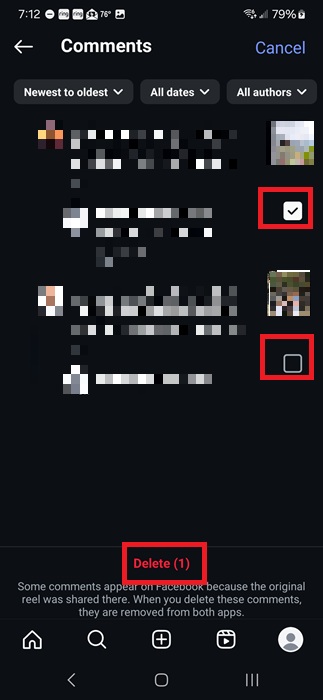
This removes your comment from both Instagram and Facebook posts if the creator originally posted their content on Facebook.
Deleting is permanent. Deleted comments will not save to your Recently Deleted section in Your Activity.
2. View Comments on Stories
Since Instagram Stories auto-delete after 24 hours from public view, you only need to view your comment history for the last 24 hours. Tap your profile icon, select the hamburger menu, tap Your activity, and select Comments. Filter from Newest to oldest. If you’ve been particularly active during that 24-hour period, you may have to scroll a little. You can also filter by Author if you remember who the author(s) was.
Currently, Instagram doesn’t have a way to filter comments specifically Stories, posts, or Reels.
Please note that if a creator adds their Story as a highlight on their profile, your comments remain visible after the 24-hour period.
3. Download Your Instagram Data
If you’re planning to leave Instagram and want to save all your comments on Instagram or you just want an easy way to view years’ worth of comments, download your Instagram data.
Your download goes far beyond just your comments and also contains information such as your past messages, settings, posts you have liked, profile info, photos, videos, and archived Stories.
Tap your profile icon, select hamburger menu at the top right, and select Your activity. Scroll down to the bottom of the screen and tap Download your information. This is also where you can transfer your information if you’re switching to a new Instagram account.
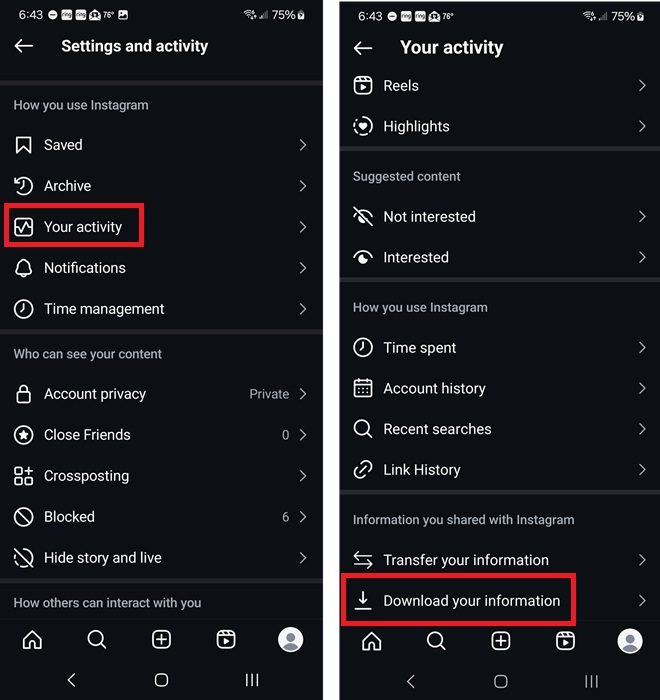
Tap Download or transfer information. If you only want to download comments on Instagram, tap Some of your information and select Comments. This is ideal if you just want to save a copy of your witty comments for yourself.
Or, if you want everything, tap All available information. The latter may take a while to prepare and download, especially for older accounts. Tap Next when you’re ready.
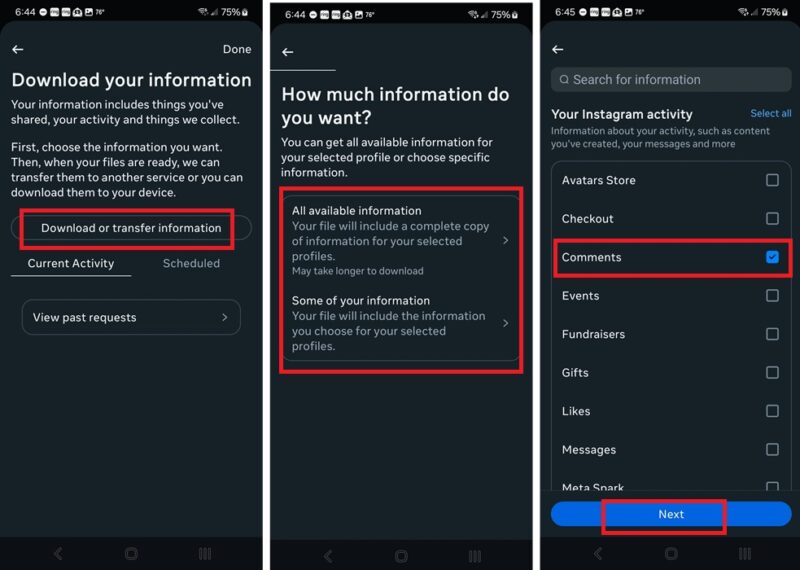
Choose where you want to store the download. This can be on your local device or a cloud destination. Currently, you can choose between Google Drive and Dropbox. You can even set up a schedule to regularly backup your Instagram data. Then, select a date range from the Date range drop down. Tap Create files to start the process.
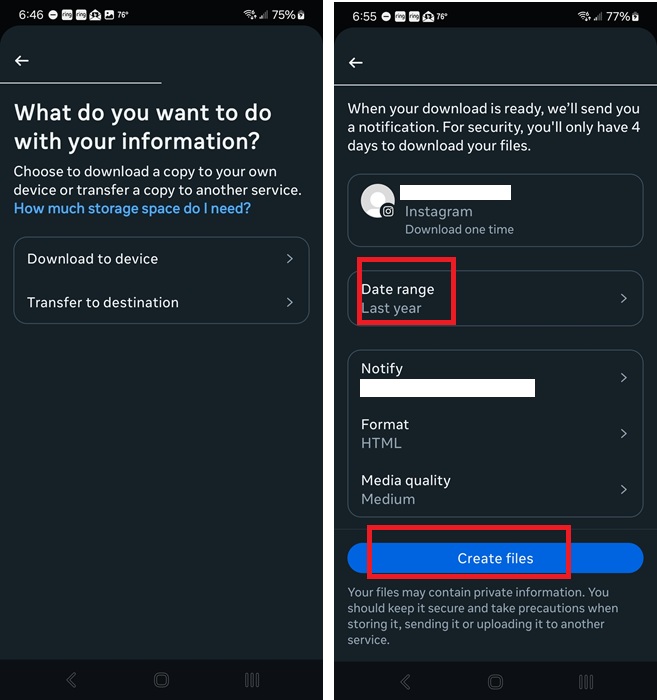
You’ll get a notification at the email address associated with your Instagram account when the download’s ready. Download the file as soon as possible after receiving the notification. You only have four days to do so.
Your notification should take you to the download. If not, go back to the Your activity section in the Instagram app and tap Download your information. Your file will be listed there.
For those with numerous comments, you can now open your downloaded file and use the find function in your browser of choice (within the menu or Ctrl + F / Command (⌘) +F) to find comments using keywords.
Use these steps if you want to just download Instagram Stories and Highlights. You can also download chat history and other data on Facebook.
4. Check Out Posts You’ve Liked
Another method to see your comments on Instagram is to check the posts that you have liked. It’s not as effective as the other methods, but is an alternate way.
Since people have a tendency to leave a comment when they like a picture or video on Instagram, there’s a good chance you’ll find at least some of your comments this way. Plus, this method lets you filter likes by content type – posts, Reels, and Threads – to better narrow down results.
Tap your profile icon, select the hamburger menu, and tap Your activity. Select Likes.
Just like when viewing Comments, use the filters to narrow down your results.
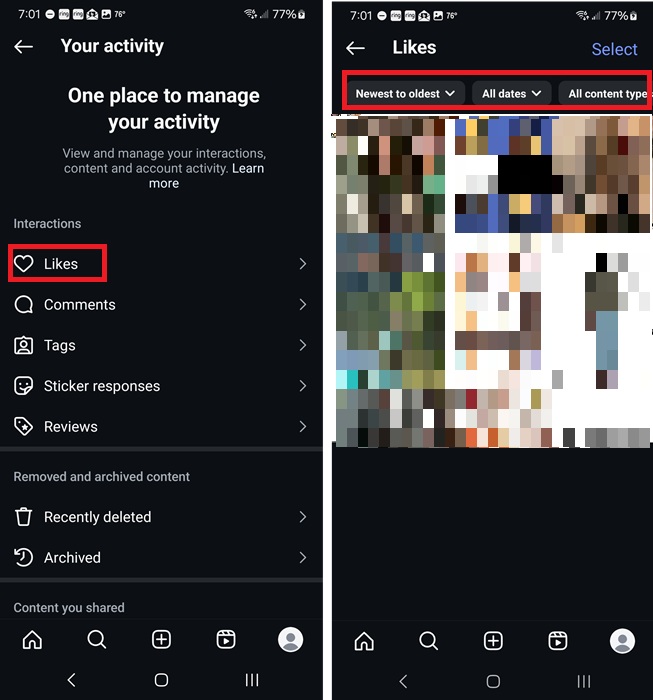
Choose between:
- Newest to oldest / Oldest to newest
- Date range (including a custom range)
- All content types (choose a content type)
- All authors (choose one or more authors)
Of course, the downside is you may not have left comments on everything you’ve liked. But, if you’re struggling to find a particular comment using the other methods, this might be a good alternative.
Now that you’ve got your comments all in one place, learn how to upload videos to Instagram from your PC.








