
We often recommend using a password manager to save and manage your passwords. However, some of the password managers store your credentials online, which can increase exposure to data breaches and broaden your attack surface. If you’d rather keep full control of your passwords, check out these methods to securely save passwords offline.
Keep a Hard Copy of Passwords
For a complete air-gapped solution, it’s hard to beat the reliability of a hard copy. You just print your passwords or write them down and save them somewhere safe. Everyone has legal documents they store in a secure place; adding a password page to it shouldn’t be a problem for most people.
Most hacking attempts are made online – it’s very unlikely that any hacker would break into your home to steal passwords. The big downside to this method is inconvenience. The hard copy will need to stay at a safe, stationary place, as carrying it around is very risky. You’ll have to physically access it when you need to log in.
It’s also vulnerable to damage like any other physical document, so safe storage is necessary. Metal engravings might be a better choice for very important passwords.
Create an Encrypted Vault on Local Storage
Storing passwords in a notes app is a bad idea, even offline. But you can safely store your passwords in a note if you encrypt it and ensure it stays offline on local storage. This will make it easier to access the passwords when needed, while ensuring no one accesses them without your encryption password.
The encrypted vault is extremely secure against most types of attacks, like password crackers or many forms of infostealers. However, it’s still vulnerable to keyloggers or malware that can take screenshots, like many kernel-level malware.
You have multiple options to create an encrypted vault, like Windows’ built-in encryption or using a file compression tool to create an encrypted archive. We recommend VeraCrypt for strong local encryption because it supports modern ciphers and robust container formats. Here’s how to use it:
Click on Create Volume in VeraCrypt and select the option to create a standard encrypted vault.
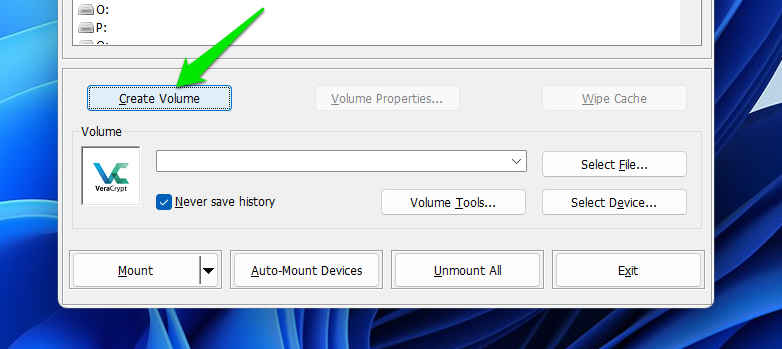
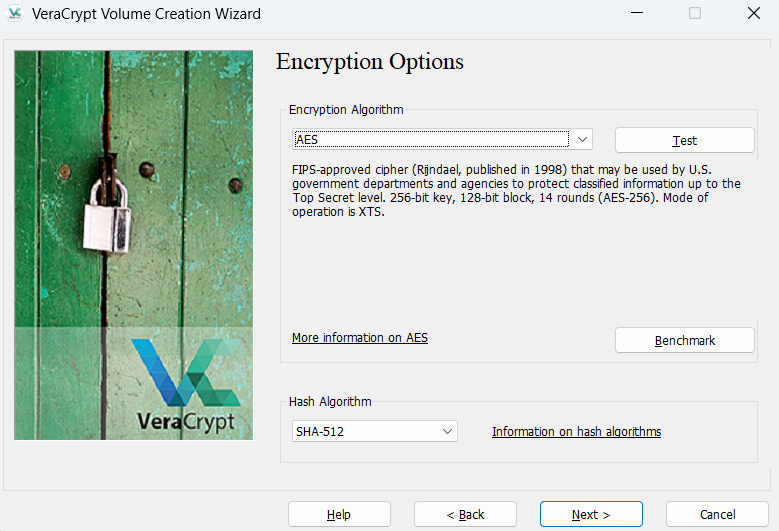
You can then choose the volume save location and select the encryption algorithm (the default is fine for most users). Afterward, choose volume space and a strong password to create the vault. Password files require very little storage – allocating 50-100 MB is usually more than enough.
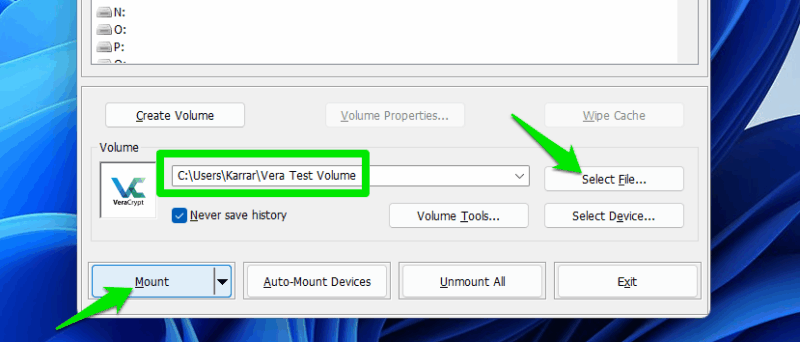
Once created, you’ll have to click on Select File to choose the new volume and then click on Mount. When prompted, provide the password to mount the volume and move the password file to it. When you are done using the volume, make sure you unmount it so it becomes inaccessible.
Store Passwords on an Encrypted USB
If you need to carry around your passwords with you, then an encrypted USB would be a better solution than a local encrypted vault. The encrypted USB will provide security from hackers while letting you access your passwords on any device.
You need to be careful not to use it on an infected device, as the contents will be vulnerable when you decrypt it. Here are multiple methods to encrypt a USB.
Use an Offline Password Manager
If you want the main perks of a password manager without saving passwords in the cloud, then an offline password manager is a good choice. Offline password managers work similarly to cloud password managers, but they store the password database file offline.
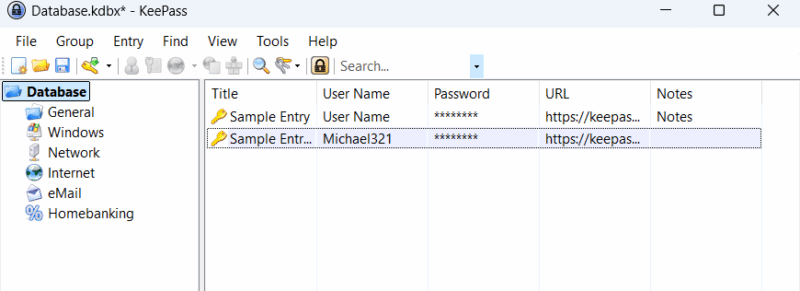
They lack some cloud features, like automatic data sync across all devices or easy data recovery. However, you’ll still enjoy most benefits of password managers, like autofill, password generator, search and organization features, master password, etc.
We recommend KeePass as it’s open source and has great support for plugins to extend functions.
Get a Hardware Password Manager
For the best security while keeping your password offline, a hardware password manager is worth the investment. Similar to hardware security keys, these devices attach to your PC or phone for authentication, but automatically enter your username and password for registered services.
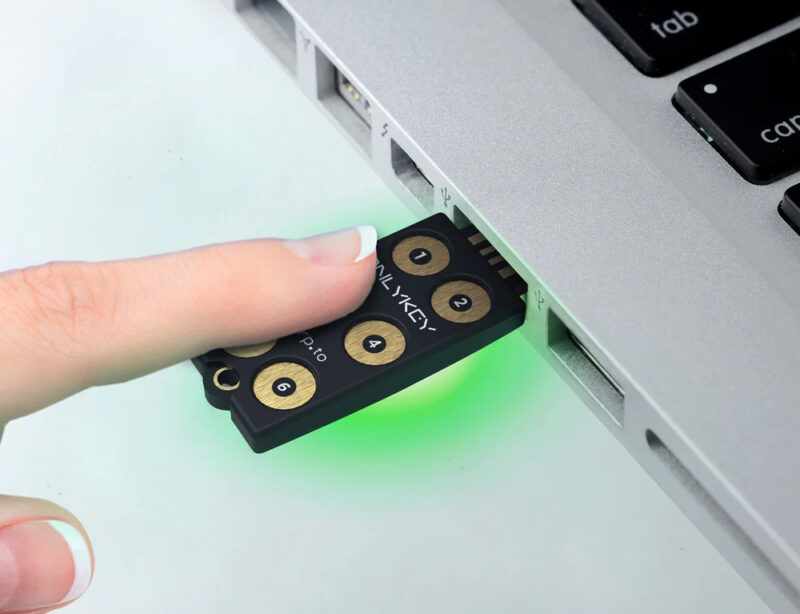
They securely store the passwords in a built-in chip that is encrypted using a PIN. To log in, you need to attach the device and enter the PIN to authenticate. The password manager will then type the login details using its own secure input device. This way, the stored passwords are never exposed to connected devices, and it’s extremely resistant to keyloggers.
You can check out OnlyKey and Nitrokey; they are some of the most popular brands of hardware password managers.
Always keep a separate recovery backup regardless of which offline storage method you choose. And remember, just like password managers, offline methods can also securely hold other sensitive information.








