Meta’s tired of maintaining the Mac and Windows Messenger desktop apps, so the company’s shutting them down in December 2025. If you haven’t set up a way to save your chats to view in the mobile apps or Messenger site, act quickly to make sure you don’t lose any messages.
Save Your Messenger Desktop Chats
To sync your messages between devices and apps, you have to set up secure storage. If you don’t, once the desktop app disappears, so does your chat history. If you’ve already turned on this setting, you don’t have anything to worry about.
Meta sent out notifications to desktop users in early October to let them know about the app shutdown. You might also have gotten a pop-up notification to remind you to set up a PIN to continue accessing your chats.
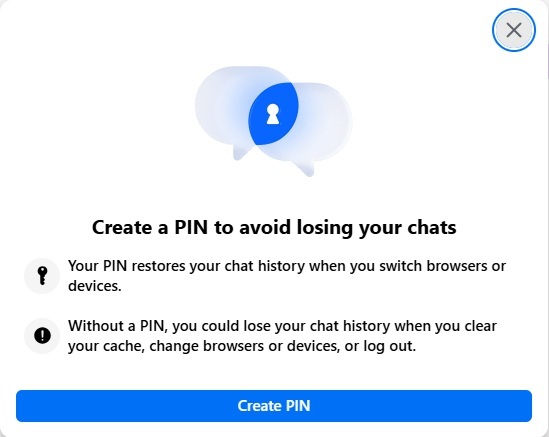
Thanks to the introduction of end-to-end encrypted chats, your chats are stored locally unless you enable this option. Otherwise, you’d use your PIN to gain access to your encrypted chats between devices.
You could either follow the prompts from this notification or set it up from the Messenger desktop app.
Click your profile icon (or gear icon, depending on your version of the app) and select Privacy & safety -> End-to-end encrypted chats -> Message storage -> Turn on secure storage. Add a 6-digit PIN. Make sure it’s something you can remember or you may lose access to your chat history.
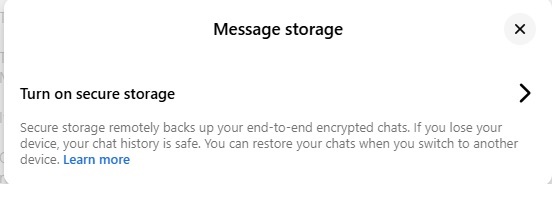
You can also do this in your browser and mobile apps. Once you’ve set things up on one device, your settings are saved across your account. Simply enter the PIN when you log in again to sync your encrypted chats.
Your non-encrypted chats are automatically synced without a PIN. But, if you have encrypted chats, these may disappear after you clear your browser cache, log out of the Messenger desktop app, or delete the app.
If you aren’t thrilled with the Messenger desktop app shutting down, you can download your entire chat history through Facebook. You can even recover deleted messages. Then, when you’re done, delete your Facebook account and choose a Messenger alternative.
Yes, you could use WhatsApp, but that’s also owned by Meta. So, if you want to move away from Meta completely, try one of these private messaging apps.
How You Can Still Use Messenger on Desktop
Meta announced the Windows and Mac Messenger desktop apps will shut down completely as of December 15, 2025. The app isn’t even available in the Apple or Microsoft store to download any longer. That doesn’t mean Messenger is disappearing though.
You still have several ways to chat with friends, family, and colleagues. You can use the mobile apps for Messenger or the Facebook or Messenger website. You just can’t use the Messenger desktop app.
Of course, there are a few workarounds if you really need Messenger on your desktop. Set up your favorite method after you save your Messenger desktop chats.
Facebook Desktop App
If you have a Facebook account, your desktop app will automatically redirect you to Facebook.com or suggest you download the Facebook desktop app. Using the Facebook desktop app is the most reliable method to use Facebook and Messenger on your desktop. The only downside is there isn’t a Facebook app for Mac, just iPhone, iPad, and Apple TV.
Install the Facebook or Messenger PWA
Another option that Meta started pushing last year was to install the progressive web app (PWA). Think of it as a website and app had a baby. If you’re a Firefox user, the browser finally started supporting PWAs again.
The process varies based on your browser. You can do this for either Messenger.com or Facebook.com. Both sites give you access to your chats.
For Chrome and most Chromium-based browsers, open Messenger.com in your browser and login. Open the browser’s three dot or hamburger menu, select Cast, save, and share, and click Install page as app.
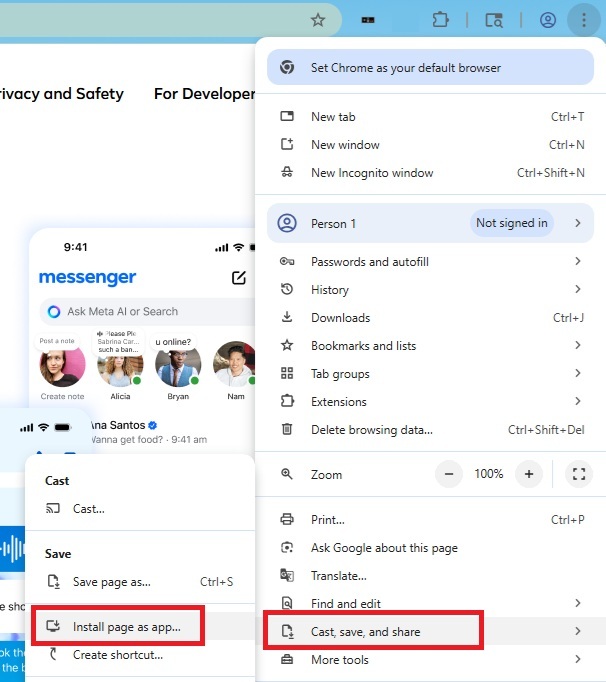
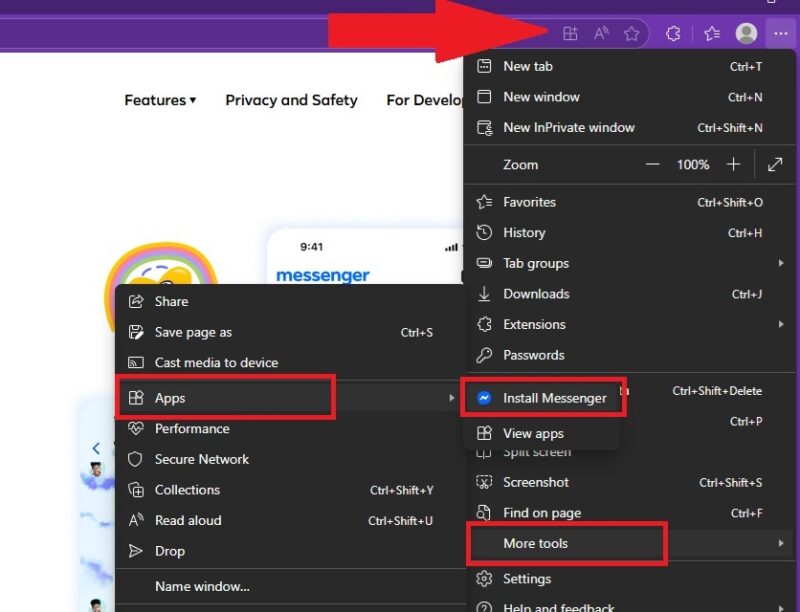
For Edge, open Messenger.com and login. Open the three dot menu in Edge and select More tools -> Apps -> Install Messenger. Alternately, click the Add App button at the end of the address bar.
For Safari, open Messenger.com and login. Select File -> Add to Dock. Give it a name and you’re done.
Can I Use the Messenger Desktop App After It Shuts Down?
Unlike many apps that continue to function even after support ends, Meta is completely shutting down the Messenger desktop apps. When you try to open the app after December 15, 2025, you’ll be redirected to the web version of Messenger or Facebook.
If you don’t have a Facebook account, you’ll be sent to Messenger. If you do have a Facebook account, you’re sent to Facebook. You won’t have any option to turn on secure storage or backup your encrypted chats from the desktop app after the shutdown date.








