Most of us are either an Android or iOS user. If you’re on team Android, you might still run into occasions where you’d like to run iOS apps on Android. It’s not always a straightforward process, but it is possible.
May Not Work as Planned
iOS and Android are fundamentally different. From hardware to the core operating system programming, the two just aren’t compatible. This means apps designed specifically for iOS can’t run natively on Android and vice versa.
Before you get too excited to run iOS apps on Android, you should know that these apps don’t always work well. In fact, many iOS apps and emulators only allow you to upload apps you’ve developed yourself for testing purposes.
Also, these methods may not work on all Android devices, especially newer Android phones. For example, many iOS apps that emulate iOS on Android either didn’t work correctly or at all when I tested with Android 12 and later devices.
Please note there are no actual full iOS emulators available for Android that also give you access to the Apple App Store.
Common issues you may encounter include:
- Very few apps work in the emulator
- Only allows you to upload apps you’ve developed yourself
- Emulator works but doesn’t provide access to the App Store
- Can’t install on newer Android devices
- Requires root access
- Requires complete formatting of Android device to run iOS instead of Android
I highly recommend backing up your Android device, including text messages, before trying any of these methods.
Method 1: Use a Browser-Based App
As long as you have the app build, the easiest way to run iOS apps on Android is to use Appetize.io. The free version only gives you 30 minutes per month, making it only really useful if your testing an app you’re developing. This service doesn’t give you access to the App Store.
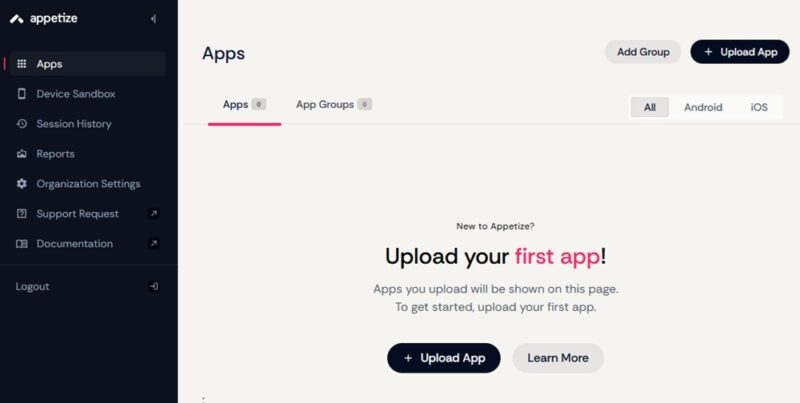
Visit Appetize.io in your favorite browser on Android, sign up for the free account (the demo is only for 60 seconds), then tap Apps in the sidebar. Tap Upload App to upload your app. For iOS apps, Appetize only supports .zip and tar.gz files with your compressed .app bundle.
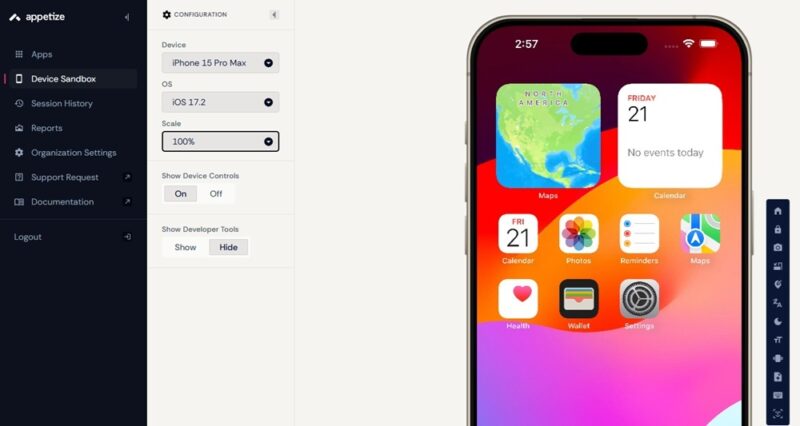
Once uploaded, select Device Sandbox from the sidebar. Then, select your Device, OS, and Scale. When you’re ready, tap Tap to Start to load a virtual iOS device. Any iOS apps you’ve uploaded will be available.
Select the iOS version and device you want to emulate, then tap Tap to Play to start the emulator.
You can also try Appetize.io alternatives, though they work similarly. Browserstack, Saucelabs, Pcloudy, and AWS Device Farm (most generous free trial) are all great options for uploading and testing apps that you have the code for.
Method 2: Download an iOS Emulator App for Android
As I’ve already stated, that aren’t any real or reliable iOS emulators to help you run iOS apps on Android. The ones you’ll find are incredibly glitchy and usually don’t work at all on Android 12 and later. To run these emulators, you will need the following on your device:
- At least 512MB of RAM available
- Android version 2.3 or later
- Available space, the iEMU emulator takes up to 60MB of space, and you’ll need space for the iOS apps as well.
The iEMU emulator is one of the best emulators to run iOS applications on Android. It can be easily downloaded, installed and used. Download it, and follow the steps below.
If you downloaded the apk file using your computer, you will need to transfer the file to your Android device. Tap to open the file on your device. A message will ask you to allow the installation of apps from unknown sources.
This will take you to the Settings. If not, use the next few steps to do this manually. These steps apply to Android 11 and later. But we can also help if you need to enable installation from unknown sources in earlier versions.
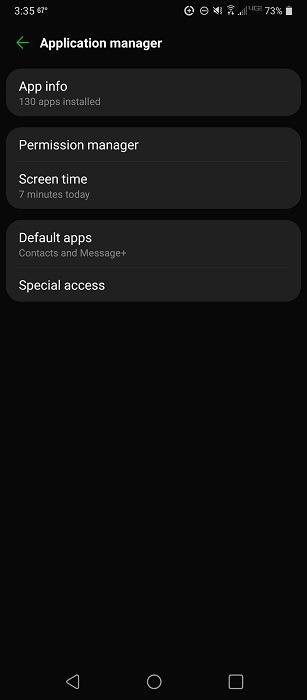
Open Settings on Android, tap Application Manager or Apps, and select Special Access. Depending on your device, you may need to tap a three-dot menu near the top of the screen to view Special Access.
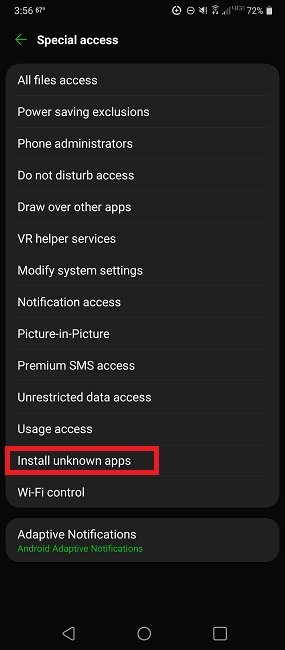
Tap Install unknown apps.
Select iEMU to allow access. Navigate to where you have the iEMU apk file stored, and tap to install it.
After successfully installing the emulator, tap on AIO Downloader from the installed applications.
This app will allow you to download iOS applications and run them using the emulator. In my case, I downloaded the iMusic application. Download the iOS application of your choice, and enjoy running and using it on your Android device.
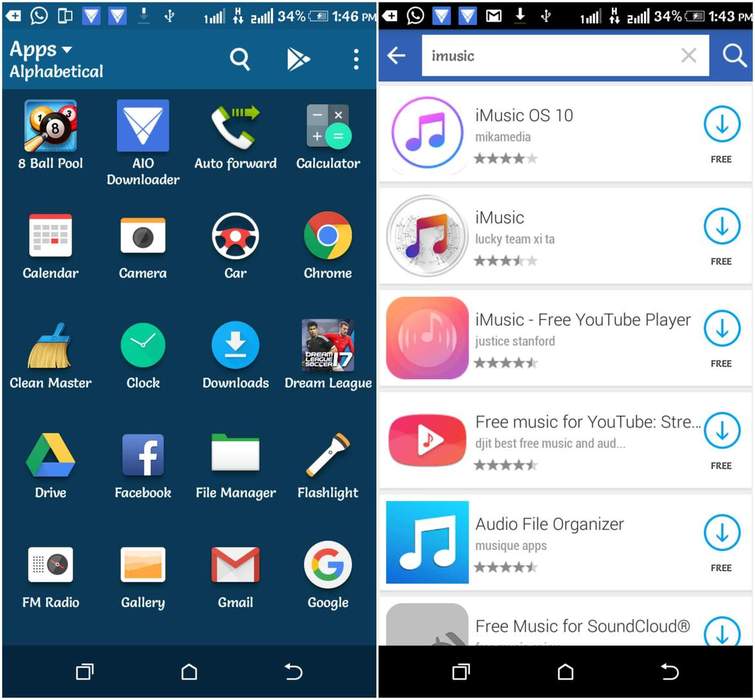
The only disadvantage associated with this emulator is that it only supports .zip and .ipas files.
While other emulators do exist, the process is pretty much the same. However, many emulators haven’t been updated in a while and don’t function on newer versions of Android. For reference, I couldn’t get this to work at all on Android 14 or 15. It only worked on my older Android 11 device.
If you’re only interested in playing older iOS games, try touchHLE. The developer admits that getting it to run correctly on Android is challenging though.
Exploring Other Options
You have two other options for running iOS apps on Android, but these are workarounds more than emulation.
For the first method, check the details in the App Store for any apps you want to run on Android. See if there is a website with a web version of the app. For instance, access Apple Maps by visiting the web version on your Android browser. Then, add the shortcut to your Android home screen.
The other option is to find Android alternatives to the iOS app you want. In most cases, an exact or nearly exact alternative is available, though you might have to try Google Play Store alternatives for more options.
Both of these methods are safer than trying to install sketchy emulators that rarely work. You can also make your Android device look like an iPhone and view iPhone emojis on Android.