Are your contacts unable to see your profile picture on WhatsApp? There could be several reasons for a missing WhatsApp profile photo. You might have changed profile photo privacy settings, accidentally blocked a user, or there could be a bug in the app. Whatever the cause, our tutorial will help you restore the missing WhatsApp profile picture.
Good to know: learn about the best ways to avoid malware in WhatsApp.
Things to Do First
The first thing you should do to ensure that it is not a software bug/issue is to restart your phone. Doing so could fix any temporary issue or bug causing the profile picture to disappear.
If all goes well, the profile photo should be restored after the restart. If not, try the following methods to get the profile picture to appear again.
In addition, check the App Store or Play Store for any WhatsApp update, and make sure you update it to the latest version. There could be a bug in WhatsApp and the latest version might fix the issue and restore your profile picture.
1. Ask the Other Person to Add You as Contact
Since you can message someone on WhatsApp without saving their number, it’s possible that the person who can’t see your profile photo hasn’t added you as a contact.
Inquire if that’s the case and ask them to add you as a contact, first on their phone via the Phone app. Then they can search for you on WhatsApp via the New Chat function. The profile picture should be visible now.
2. Remove Contact
Alternatively, you can try doing the same on your end. Check if you’ve added the contact to your device. If you have, try re-adding the contact to your phone by first deleting it and then saving their number under a new contact.
Once you have re-added it, relaunch the WhatsApp app by removing it from the list of recent apps, then opening it again.
3. Check Profile Picture Privacy Settings
WhatsApp offers a privacy setting that lets you decide who can see your profile picture. It’s possible that you might have accidentally changed the setting to Nobody so that others can’t see your profile photo.
To change the WhatsApp profile picture privacy settings, launch WhatsApp on your phone. On Android, tap on the three-dot icon at the top right and select Settings. On iPhone, tap on the Settings tab at the bottom.
Navigate to Privacy -> Profile photo.
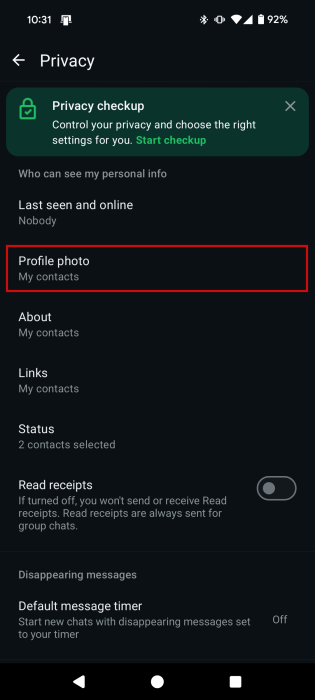
Select one of the following privacy settings based on your requirement.
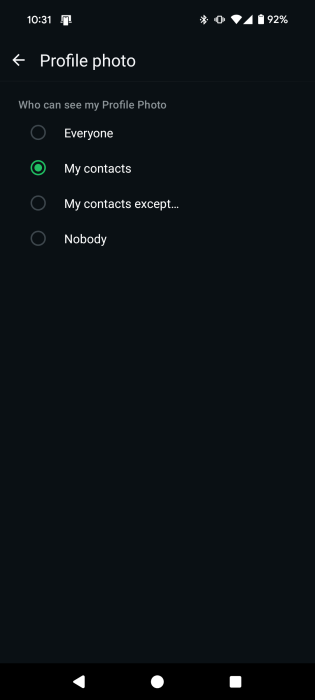
In our opinion, the safest option is to go with My contacts.
- Everyone: anyone who has saved your phone number will see your profile photo on WhatsApp
- Contacts: only the people whose name is saved in your contacts will see your profile photo
- My contacts except: all your contacts except the people added to the exception list will see the photo
- Nobody: no one can see your profile photo.
Tip: here’s how to use WhatsApp’s Meta AI effectively.
4. Add Profile Picture Again
If the picture fails to upload properly or you’ve accidentally removed it, it won’t be visible to other people. You can try to fix this by re-adding the picture. Before proceeding, make sure you check that your Internet connection is working fine.
Tip: here are some tips to help you fix mobile data not working on Android.
On Android, open WhatsApp Settings again and tap on the profile picture icon.
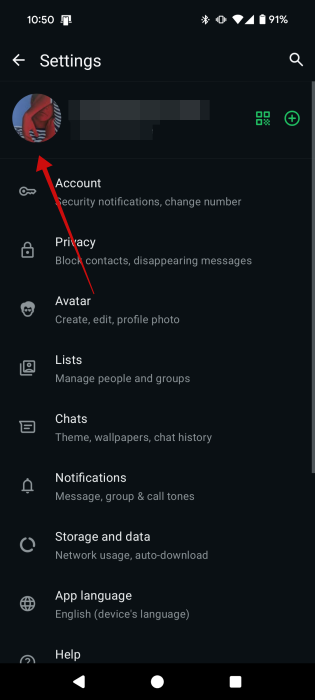
Tap the Edit button underneath the image on your Profile page.
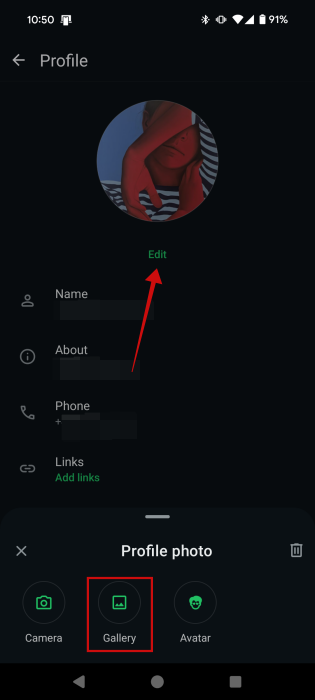
Select Gallery from the menu at the bottom to re-upload your profile picture.
Note: you can opt for the safest route and delete the picture first by pressing the Trash icon and then uploading the image.
On iPhone, tap on the profile picture at the top of the Settings page.
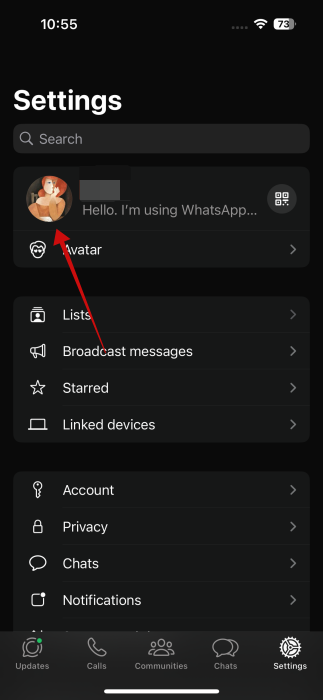
Press Edit underneath your profile picture on the next screen.
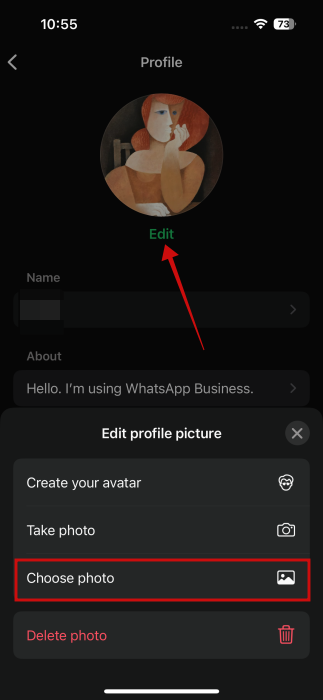
Select Choose Photo from the menu and select your image.
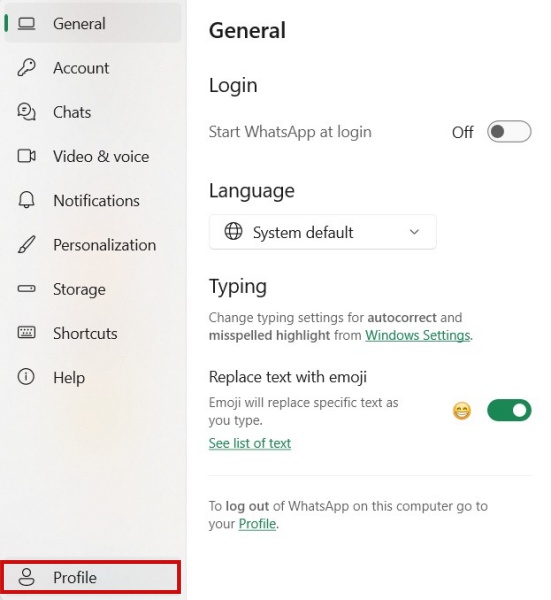
If you’re using WhatsApp on PC, click the gear icon on the lower left side.
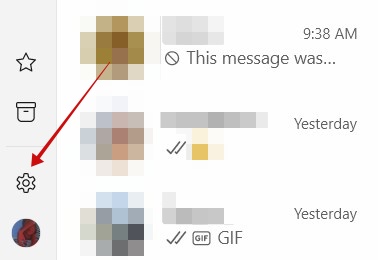
Select Profile at the bottom.
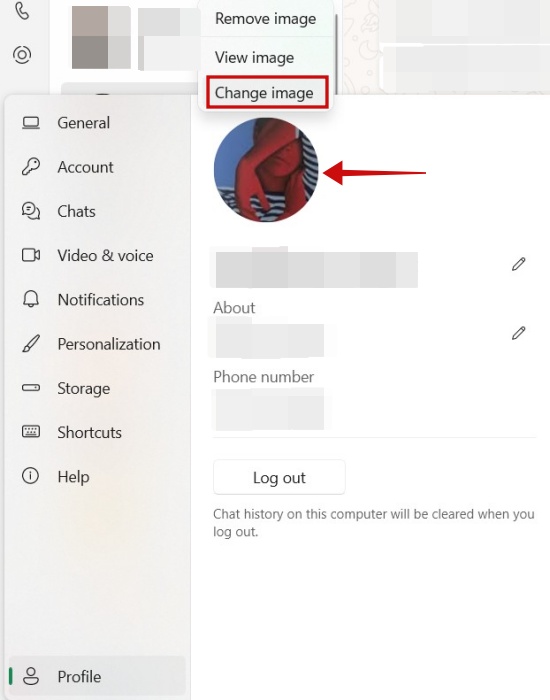
Click on the profile image and select Change image to re-add your photo.
5. Grant Permissions to WhatsApp
For WhatsApp to show your profile picture to your contacts, you need to have granted photos/storage and contacts permissions for the app. If you neglected to do so, your image might not be visible.
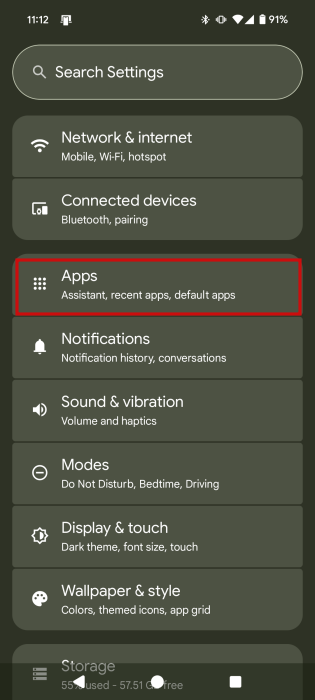
On Android, open the Settings app and navigate to Apps.
Select WhatsApp from the list of apps.
On the next page, access Permissions.
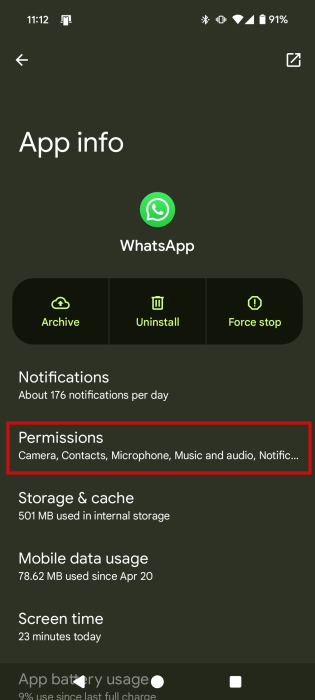
Swipe down to the Not Allowed section and see if you can spot Contacts and Photos and videos/Storage. If so, tap on each.
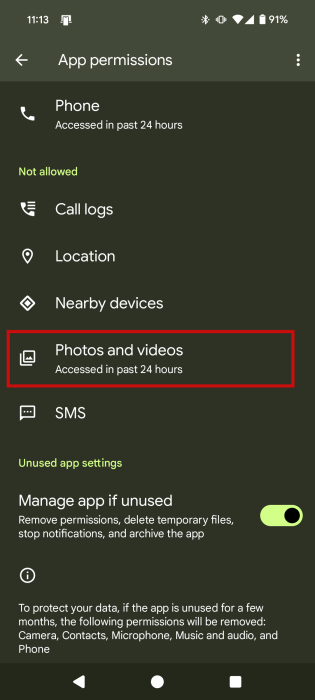
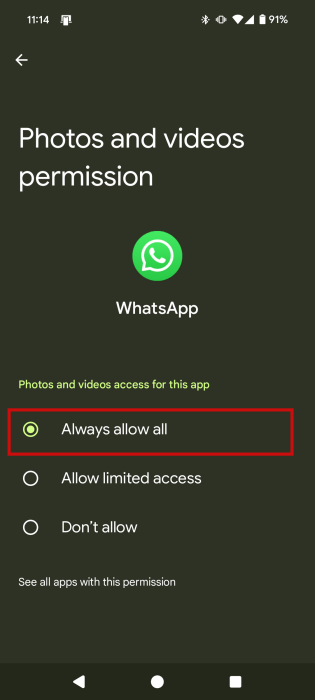
Switch the permission to Allow or Always Allow All.
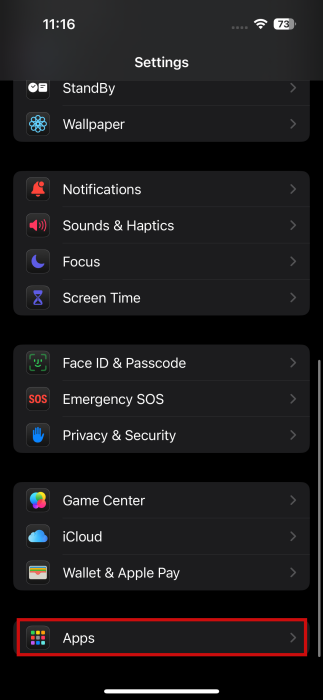
On iPhone, go to Settings -> Apps.
Select WhatsApp from the list.
Tap on both Contacts and Photos on the next page.
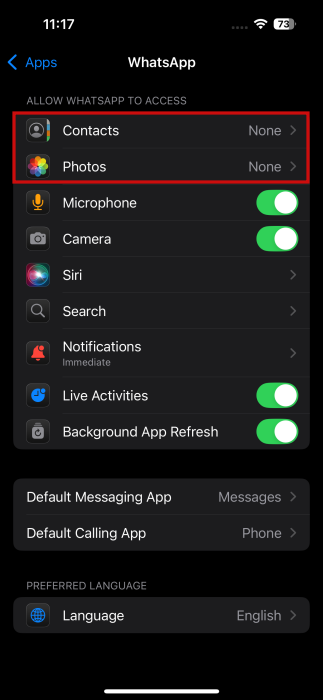
Grant them Full Access.

6. Clear Cache (Android)
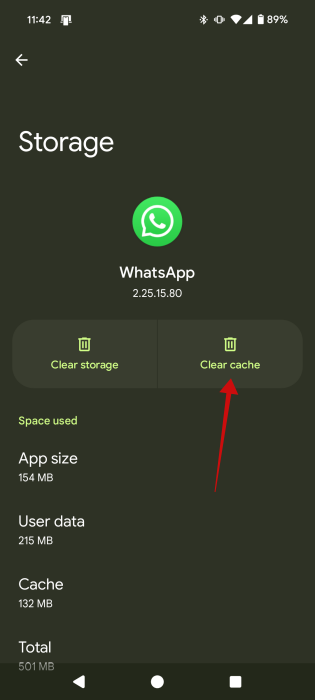
On Android, also try the well-known trick of clearing the cache of the WhatsApp app. Clearing the cache will not delete your WhatsApp chats or files. Instead, it will remove temporary files that might be causing problems with your profile picture, thus fixing the issue of the missing WhatsApp profile picture.
Go to Settings -> Apps -> WhatsApp -> Storage & cache.
Tap on the Clear cache button.
Restart your phone.
FYI: you can now access ChatGPT from WhatsApp. Here’s how to add it to your app.
7. Unblock Contact
Is there any specific contact who can’t see your profile picture on WhatsApp? You might have accidentally blocked them, and blocked users can’t see your profile picture or last seen or online statuses.
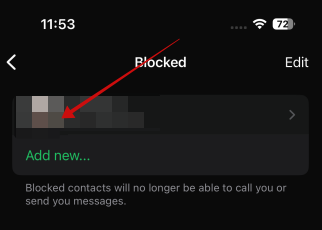
To check the blocked list and unblock a user on WhatsApp, go to Settings -> Privacy -> Contacts.
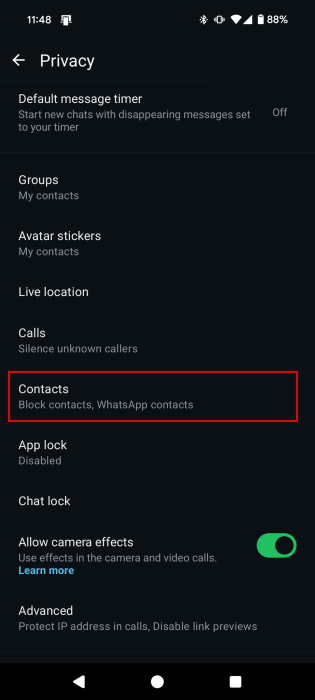
Select Blocked contacts.
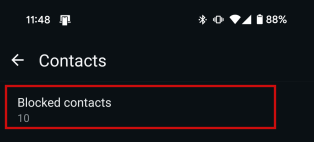
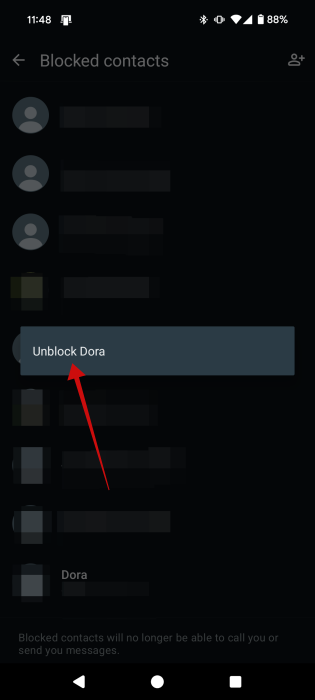
Here you will see all of your blocked contacts. On Android, tap on the contact you want to unblock and select Unblock [name] from the pop-up window.
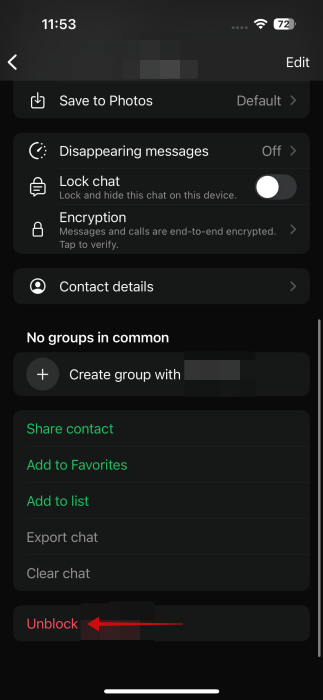
On iPhone, tap on the contact in question.
Select Unblock [name] at the very bottom.
8. Refresh Contacts (Android)
WhatsApp might have a problem generating your contact list correctly, and so, affected contacts might not be able to view your profile pic. To correct this error, open the WhatsApp app and press the New Chat button in the lower right.
Tap the three dots in the upper right corner and press Refresh.
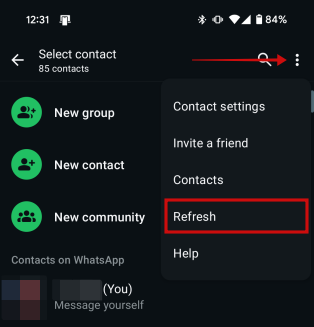
Select the contact in question once the list is refreshed. You’ll be taken to your chat window. Ask them whether they can see your profile picture now.
Tip: here’s how to find your saved WhatsApp files on desktop.
9. Reinstall WhatsApp
If nothing helps you restore the profile picture on WhatsApp, you must uninstall and then reinstall WhatsApp on your phone.
Note: create a WhatsApp backup before uninstalling WhatsApp so you won’t lose your WhatsApp chats.
On Android, long-press on the WhatsApp icon until the shortcut options appear on the display. Then try moving the icon on the home screen. You should see the Uninstall option appear at the top. Drag and drop it over it.
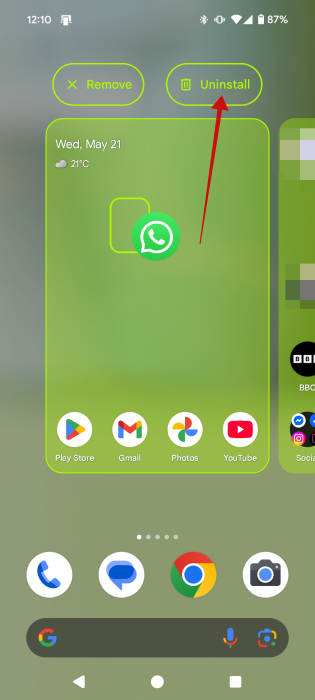
Press OK in the pop-up to uninstall the app. Go ahead and restart your phone.
Once this is done, open the Google Play Store and download the WhatsApp app again on your device. Proceed to log in with your phone number.
On iPhone, long-press the WhatsApp icon and select Remove App. Press Delete app in the pop-up. Restart your phone.
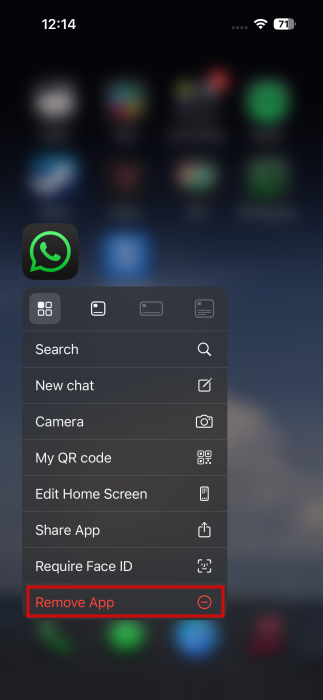
Then go to the App Store and get WhatsApp again.
On desktop, you’ll have to go through your device’s Settings app to uninstall the WhatsApp desktop client. On the other hand, if you’re using WhatsApp web, then you just need to refresh the browser. Or you can try accessing WhatsApp in a different browser.
Tip: on iPhone, you can easily scan documents with WhatsApp. Here’s how to scan your first.
Frequently Asked Questions
Why can’t I see someone’s profile picture but can see their online status?
If you can see someone is online but can’t see their profile picture, then they haven’t blocked you, but they may have either removed their profile picture or changed its privacy setting.
How can I change a profile photo in WhatsApp groups?
Open a WhatsApp group and tap on the group name at the top to go to the group info screen. Tap on the profile picture icon at the top and select the desired photo. On some devices, you may have to tap Edit before you can make the profile picture editable.
How can I hide my online status from others and upgrade my privacy?
Go to WhatsApp Settings -> Privacy -> Last seen and online, then select Same as last seen for Who can see when I’m online. Select Nobody for Who can see my last seen.








