
It isn’t uncommon for Instagram algorithms to flood your feed with stuff you don’t care about. Random ads, weird reels, or posts from accounts you barely know. If your feed’s a mess, it’s time to reset your Instagram algorithm to clear out the clutter and get content you actually like. We’ll show you how to reset your Instagram algorithm and make your feeds clean without breaking a sweat.
Why Reset Your Instagram Algorithm?
The Instagram algorithm tracks and learns from what you like, comment on, or watch to suggest fresh feeds. However, it gets it wrong sometimes. Say you accidentally liked a cat video once, and now it thinks that’s what you like. So, it’s all cats on your feeds, all the time.
Hence, resetting your Instagram algorithm wipes the slate, clearing out those odd suggestions from your Explore page, Reels, and main feed.
Besides, it doesn’t unfollow anyone, so your friends’ posts are safe. It just gives Instagram a fresh chance to figure out what you actually like. If your app’s acting up, check how to fix Instagram not working.
Reset Your Instagram Algorithm
If you’re ready to reset your Instagram algorithm, follow these simple steps:
Open the Instagram app and tap your profile picture in the bottom right. Hit the three-line Menu in the top right corner. Scroll to What you see and tap Content Preferences.
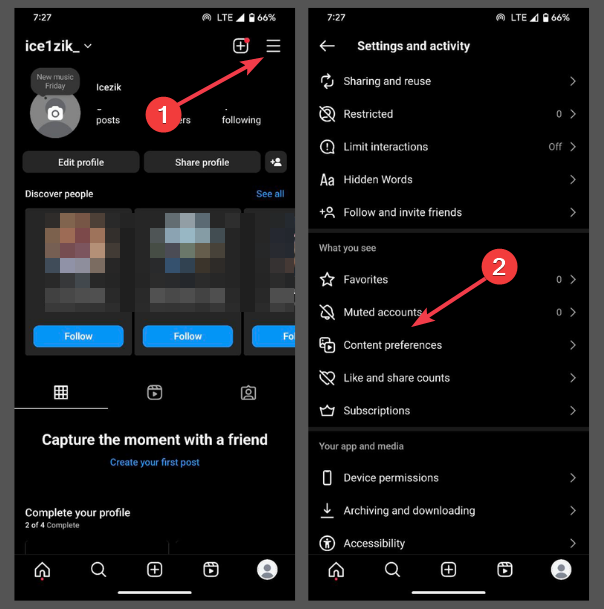
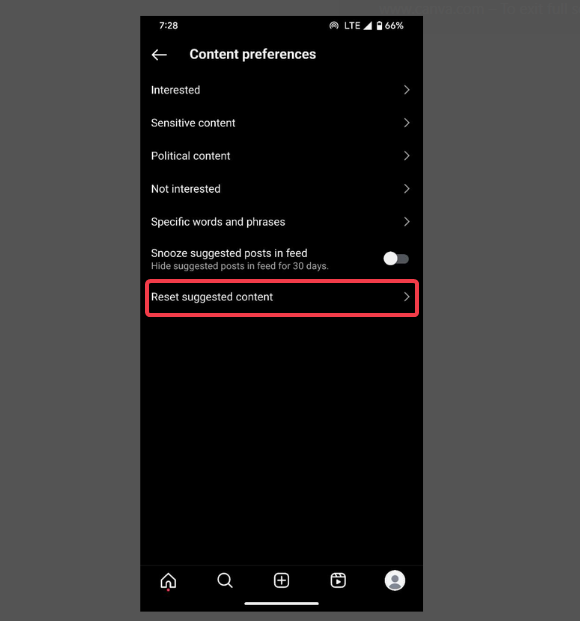
Alternatively, just click the three dots on a suggested post and choose Manage content preferences. Then, select Reset Suggested Content.
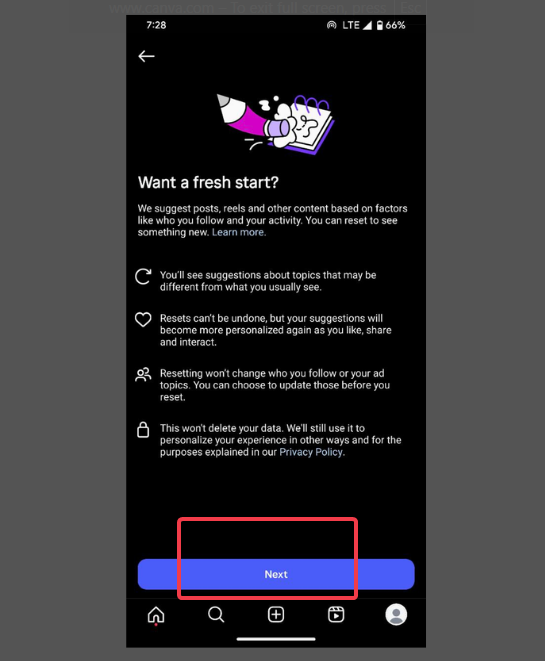
In the new prompt, select Next.
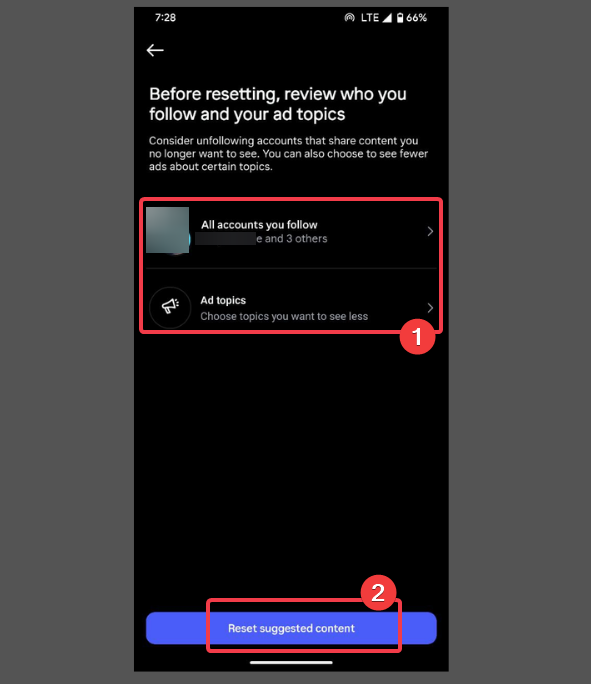
Now, review who you follow by clicking All accounts you follow, or Ad topics. Then, press Reset suggested content for a fresh start.
Note: Once you reset, there’s no going back. So, be ready for a totally new vibe of generic content that Instagram deems safe.
After resetting, you may encounter errors like “Couldn’t Refresh Feed.” Try these Instagram fixes for feed errors to get things running smoothly.
Tips to Train Your New Algorithm
After you reset your Instagram algorithm, you need to guide it to show what you actually want to see. Try these tips to make the process easier:
Be picky about posts you like, comment on, or share. Only click on posts you want the Instagram algorithm to keep suggesting.
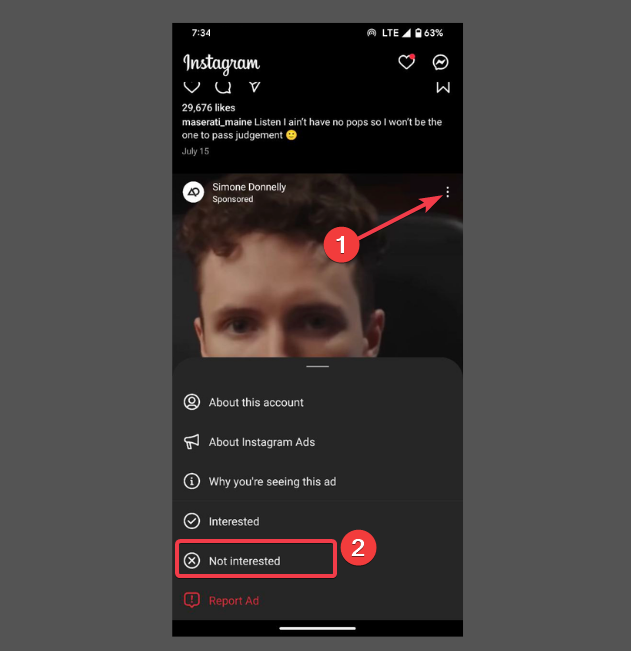
If you see a post you don’t like, tap the three dots and select Not Interested to tell Instagram to skip similar stuff.
Tweak Settings by going to Content Preferences -> Sensitive content and click less. Or Political content and turn off Suggest political content.
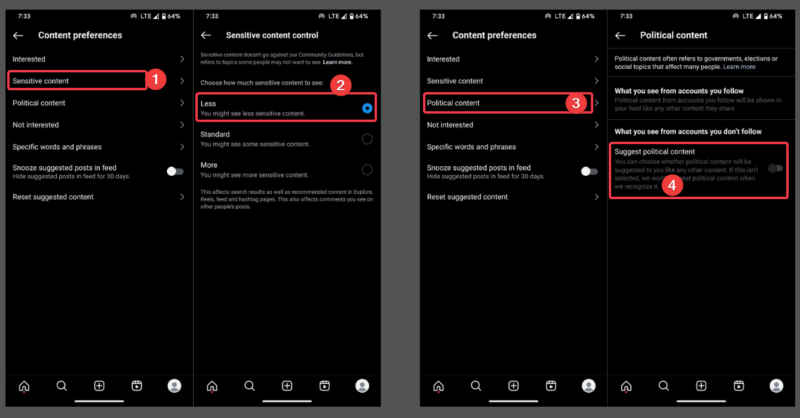
Also, you can strictly focus on posts from people you follow by turning off suggested posts for 30 days to keep your feed clean.
Resetting your Instagram algorithm is like giving your app a do-over. It clears out your junk and lets you rebuild a feed you love. It’s fast, simple, and puts you in charge.
So, keep engaging with posts you care about, and your feed will reflect it. And remember, if it ever gets messy again, just follow these steps and tips to reset your Instagram algorithm again and start over. Feel free to share how your new feed looks in the comments below.








