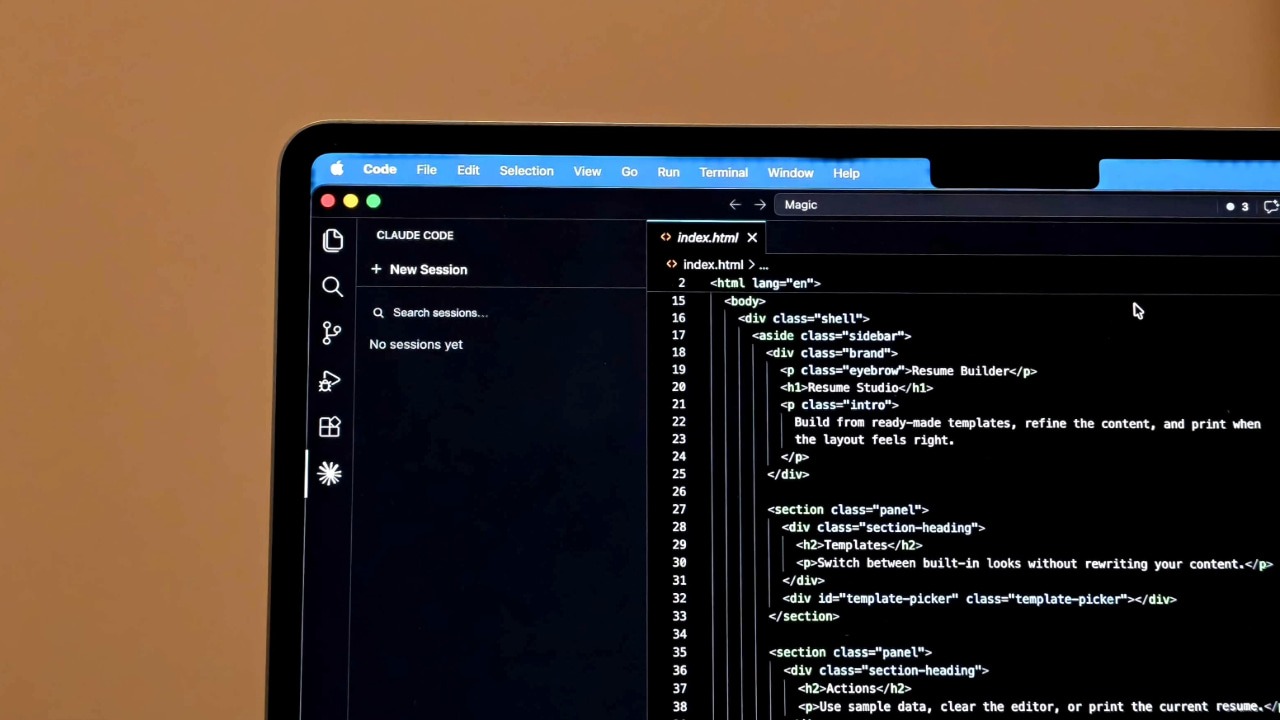
I started out using Claude Code as my main coding assistant, and it checks a lot of boxes. It runs locally, reads your files directly, and integrates with your Git setup. It also supports a massive context window and even experimental features like agent-based workflows for large refactors. But it also uses a lot of tokens. In one of my tests, it burned through roughly four times more tokens than Codex for a similar frontend task. On a $20 per month plan, that adds up quickly. You can hit limits much faster than expected, especially if you are working continuously. So I decided to ditch it altogether and switch to Codex instead, and I am not regretting that decision.
Claude Code Is Good But Has Issues
Claude Code remains a strong tool, especially for complex work that needs full context. Its interactive, developer-in-the-loop approach can catch mistakes on complicated refactors. Because it runs on your machine, it can use any local tools or custom hooks you’ve set up, and it never sends your code to the cloud by default. You can even write a CLAUDE.md file with project-specific instructions, and Claude Code will read it every time.
But these features come at a price. One issue is token usage. Claude Code’s outputs are very detailed, which means it consumes many tokens. For example, in a Figma-style generation task, Claude burned 6.2 million tokens versus Codex’s 1.5 million for similar results.
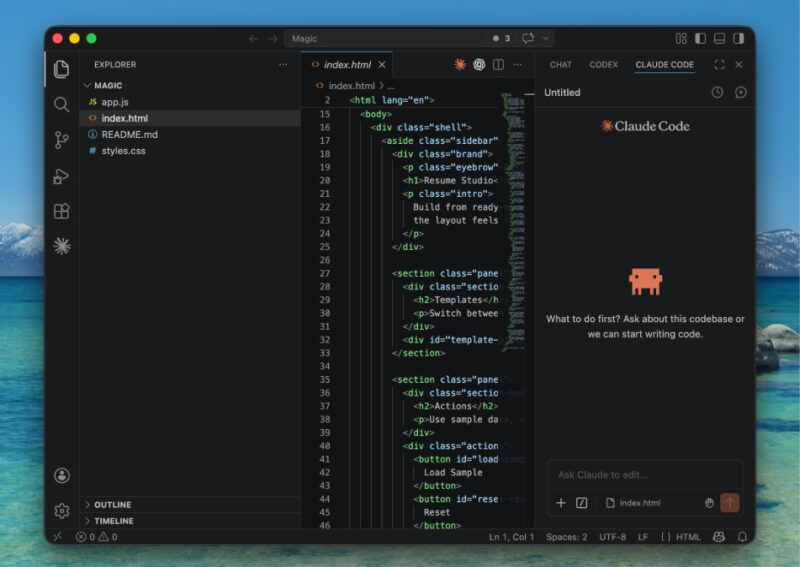
Another challenge is the interactive workflow. Claude Code shows you each planned change and waits for your OK before proceeding. This keeps you in control but means you can’t set it loose on a task without checking in. For quick fixes or writing simple functions, that can feel like overhead. In practice, I found myself saying “No, continue” a lot, which interrupted my flow. Lastly, Claude Code’s Pro plan has fixed usage caps. Under heavy use, the $20 plan often ran out, pushing me to the more expensive Max tier.
Codex Turned Out Better Than I Thought
The newest Codex has closed many of the gap I saw with Claude Code. For one, it feels very capable at autonomous coding tasks. You describe a goal in English, and Codex will plan and execute it on its own. In my tests, Codex handled things like generating boilerplate, refactoring functions, and even whole features quite well.
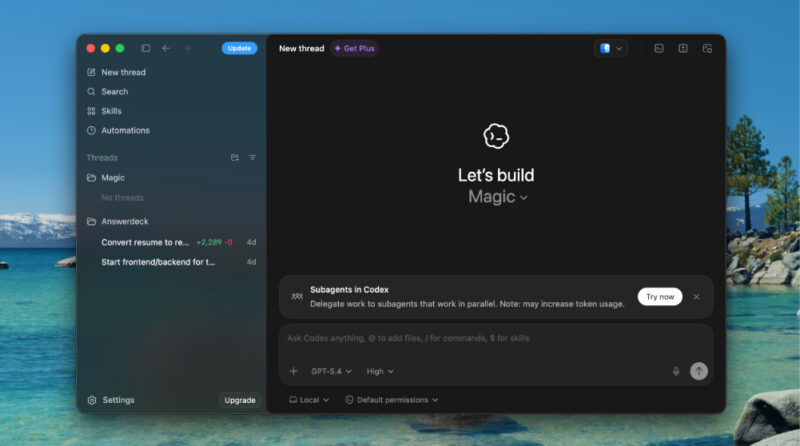
It also has a bigger context window than I realized – it pulls in your whole repo when working, and uses a diff-based context strategy so it can carry on long sessions without losing track. I found Codex’s outputs often excellent. It usually produces shorter, working code rather than lengthy commentary.
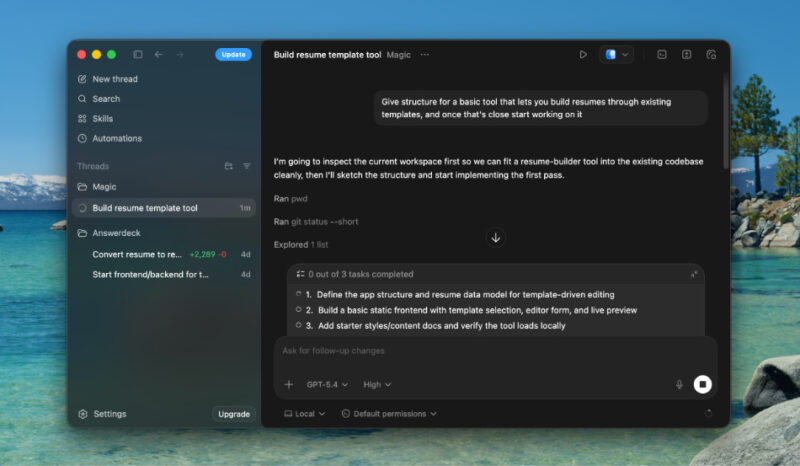
Claude often tries to match the original structure with lots of comments, whereas Codex “just solves it” with minimal text. For example, when I asked Codex to write unit tests or fix bugs, it delivered patches quickly. It can even raise pull requests automatically through GitHub integration. This was a game-changer for me in code review and CI/CD – I could tag @Codex and get automatic reviews or fixes without writing any pipeline myself.
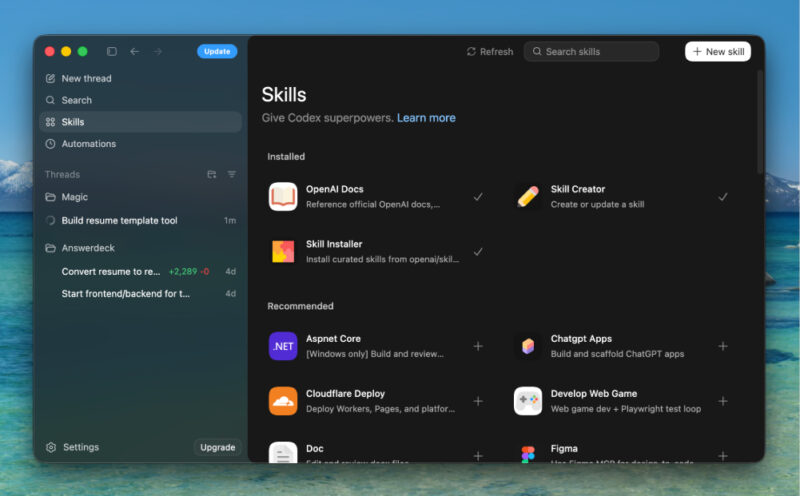
You can also use the Codex CLI, which is open-source and easy to install. You simply run:
npm install -g @openai/codex
codex "refactor this module to use async/await"
The CLI has modes like “suggest” and “full-auto”, so you can choose how much autonomy to give it. Also, a nice touch is that Codex reads AGENTS.md if you have it, which is an open standard, so any existing project instructions carry over. Finally, whereas Claude Code has limited official tooling, Codex now has an official VS Code extension and a macOS app (Windows support is coming). This means you can use Codex in the cloud or on your machine interchangeably, giving you flexibility Claude Code doesn’t offer yet.
Using Codex Inside VS Code
One of the best parts of Codex for me has been its VS Code integration. The official extension drops an AI chat panel right into your editor.
I installed the extension from the VS Code Marketplace by adding the OpenAI Codex extension. It showed up as a Codex icon in the sidebar. Clicking the icon opened a chat panel, which prompted me to log in with my ChatGPT account (Plus or Pro) or an API key. Once signed in, Codex started in Agent mode by default, meaning it can read files in your open project, run commands, and even write code after asking for permission.
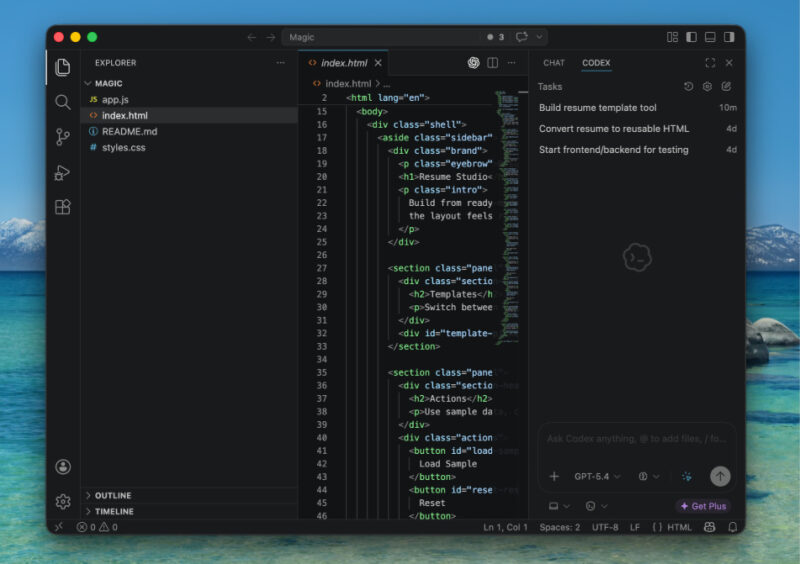
From there, I could ask coding questions in plain English. For example, I might highlight a function and ask it to explain what it does, or type something like “write tests for all endpoints.” The extension is context-aware, so it reads open files and highlighted code to give relevant answers.
When Codex suggests edits, the extension shows a diff. It also integrates with Git, which makes it easy to manage changes. I commit first, ask Codex to make changes, then review the diff. If everything looks good, I merge, otherwise, I revert.
You can also tweak approval modes. The extension lets you choose between Chat-only, where no code changes are made, Agent mode, where it asks before making changes, and Full Access, where it makes changes without prompts. I mostly keep it in Agent mode because it strikes a good balance between convenience and safety.
If you’re still not sure which AI tool you should pay for, our comparison of ChatGPT Plus and Claude Pro should help. While you’re at it, check out these 12 ChatGPT alternatives you can try for free.