If you are a seasoned Mac user, you will know that you can use the “Cmd + arrow” shortcut keys to move the cursor to the front or end of the line. For Windows and Linux users, you will be more accustomed to the Home/End button to move the cursor. If you have just got yourself a new Mac and was wondering why the Home/End button don’t work, here’s the fix.
1. In your Mac, open a terminal (Applications -> Utilities -> Terminal) and type the following command:
defaults write com.apple.Finder AppleShowAllFiles ON
Next, on your dock, press “Ctrl + Alt + click” on the Finder icon and select the Relaunch option.
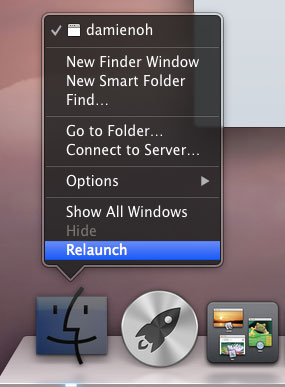
This will reveal the hidden files and folders in Finder.
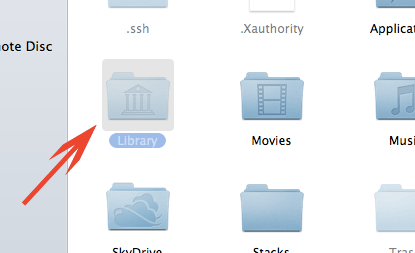
2. Open the Finder and go to your Home folder. Look for a fade out “Library” folder. Open it and search for a “KeyBindings” folder. If it doesn’t exist, create it.
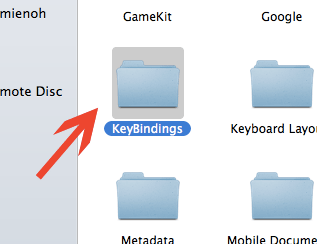
Inside the “KeyBindings” folder, check for a file call “DefaultKeyBinding.dict”. If it exists, open it with a text editor. If not, create one in your text editor. Paste the following lines to the end of the file.
{
        "\UF729"  = "moveToBeginningOfLine:";                   /* Home         */
        "\UF72B"  = "moveToEndOfLine:";                         /* End          */
        "$\UF729" = "moveToBeginningOfLineAndModifySelection:"; /* Shift + Home */
        "$\UF72B" = "moveToEndOfLineAndModifySelection:";       /* Shift + End  */
}
Save the file. That’s it. Your Home/End button should be working now.
To turn off the display of hidden files in Finder, in the terminal, type:
defaults write com.apple.Finder AppleShowAllFiles OFF
Relaunch the Finder and all the system files/folders will now be hidden.
What are the annoyances you face when you switch to Mac?