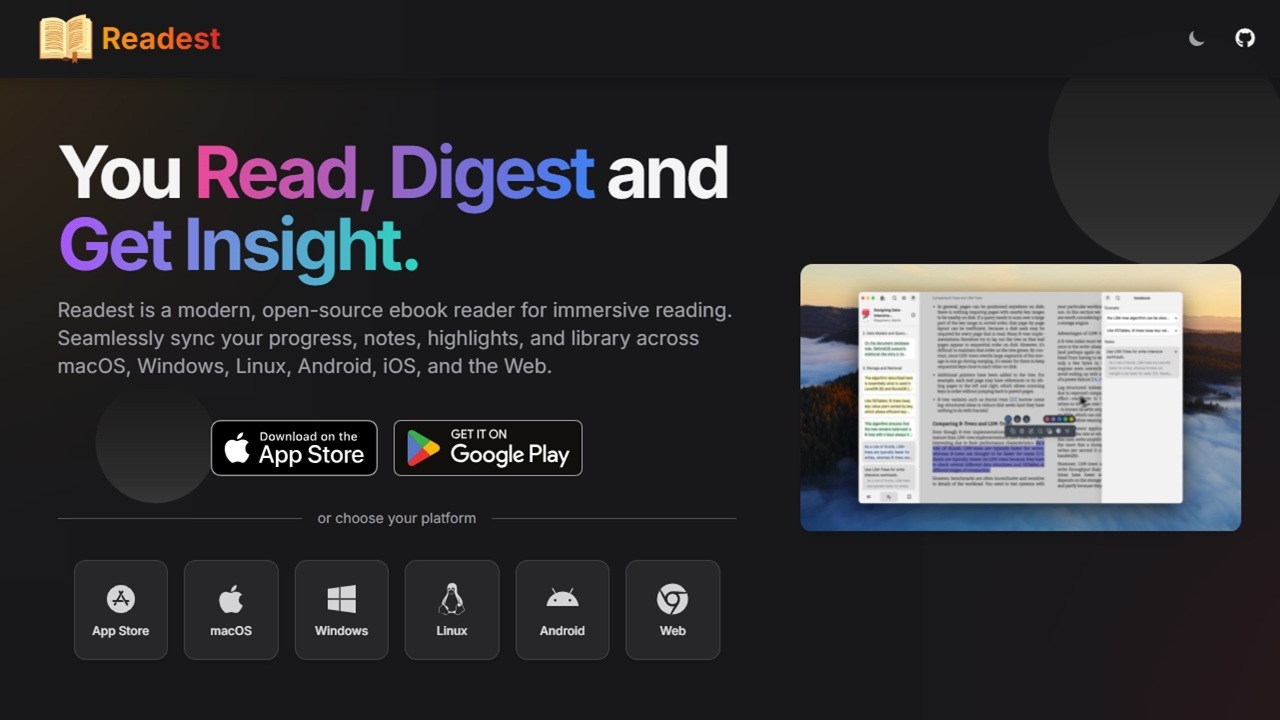
There’s no shortage of ebook reader apps, but finding one that does everything you want is the hard part. What if there was a free, open-source, cross-platform option? That’s why Readest has become my go-to ebook reader app, easily replacing everything else.
Cross-Platform and Syncs Between Devices
Many ebook reader apps only work on a few platforms. But, Readest works on Windows, macOS, iOS, Android, Linux, and the web. While that makes it attractive enough, the sync feature makes it perfect if you tend to read on multiple devices.
I personally love the Kindle app and how it syncs my library and progress between devices. But, I only use it for Kindle books. It’s a disaster at managing any other ebooks.
Readest gives me a similar cross-platform and syncing experience to Kindle, but for the numerous other ebooks I buy and download from other sources, including free ebook sites.
It’s free to sync up to 500MB of data in the cloud. I suggest only uploading a handful of books at a time to ensures you don’t need a premium plan.
Open the Readest app on whatever device you’re using, click the hamburger menu at the top, and uncheck Auto Upload Books to Cloud. Then, go back to the menu and select Sign in. Create a free account.
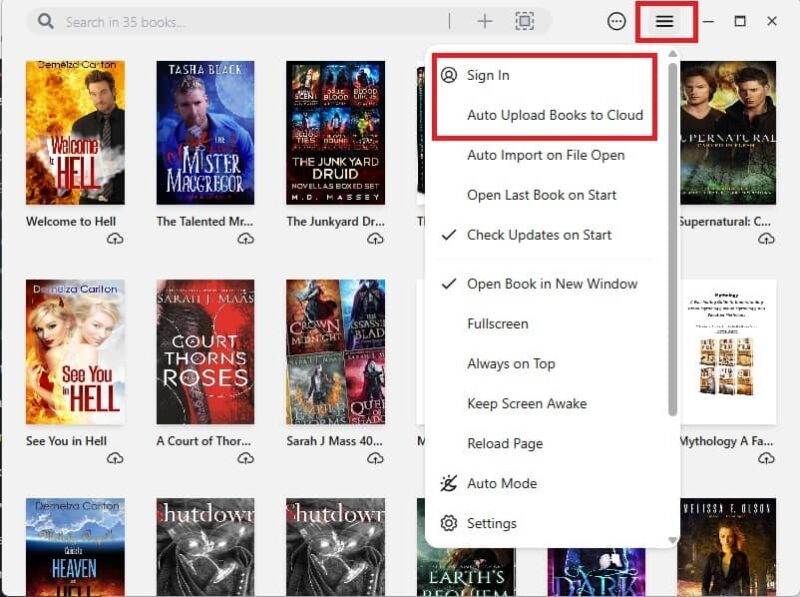
Click the little cloud icon below any book to upload it to the cloud. It’ll then show in your library on other devices. I prefer to store everything on my desktop PC, then upload several books at a time from there.
Be patient. It sometimes takes a few minutes for everything to sync.
The only downside is there isn’t an easy way to just remove a book from the cloud. Instead, you must delete the book from the library on the device you uploaded it from. This removes it everywhere it’s synced. Then, re-upload it to your library. It won’t sync automatically unless you have syncing turned on.
Customize the Reading Environment
Any ebook reader app must have customization options for a better reading experience. Readest offers a variety of settings, including adding your own custom content CSS and custom reader UI CSS. Yes, it’s for more advanced users, but it’s nice to have the option.
If you ever used the Linux ebook reader app Foliate, everything might feel familiar. This is because Readest is modern rewrite of the popular Foliate app.
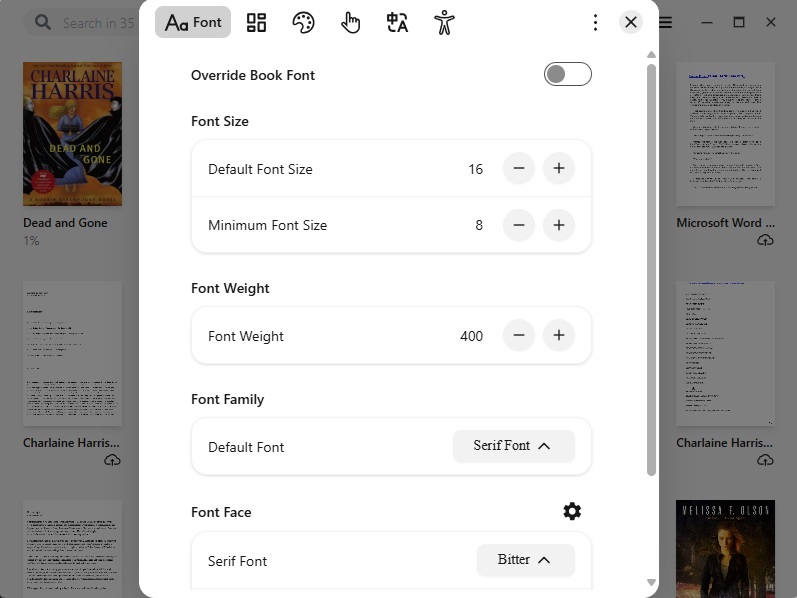
If you don’t want to create custom CSS, Readest provides five other sets of options, including:
- Font – size, type, weight, font family, etc.
- Book layout – spacing, margins, writing mode, etc.
- Theme – mode, colors, highlighting
- Behavior – scrolling, clicking, animation, etc.
- Language – default language and translation
Wide Variety of Built-In Reading Tools
Many apps I’ve tried drastically limit the reading tools for the free version. Readest doesn’t do that. Open any book to take notes, add bookmarks, highlight text, and even perform searches. If you’re a student, you’ll appreciate the highlight and notes features.
One thing you might not expect is built-in AI reading. For now, it doesn’t support PDF files, but that may be added in the future. Otherwise, when your ebook is open in the app, click the headphone icon at the bottom, to the right of the progress bar. If you don’t see this bar, hover your mouse near the bottom of the screen or tap once at the bottom of the screen.
Click the AI button (a green/blue button just above the progress bar) to adjust the AI settings. From here, speed up or slow down the voice, change the voice, pause it, or even set a timer. I highly suggest changing the voice. Having a childlike voice reading urban fantasy as a bit weird.
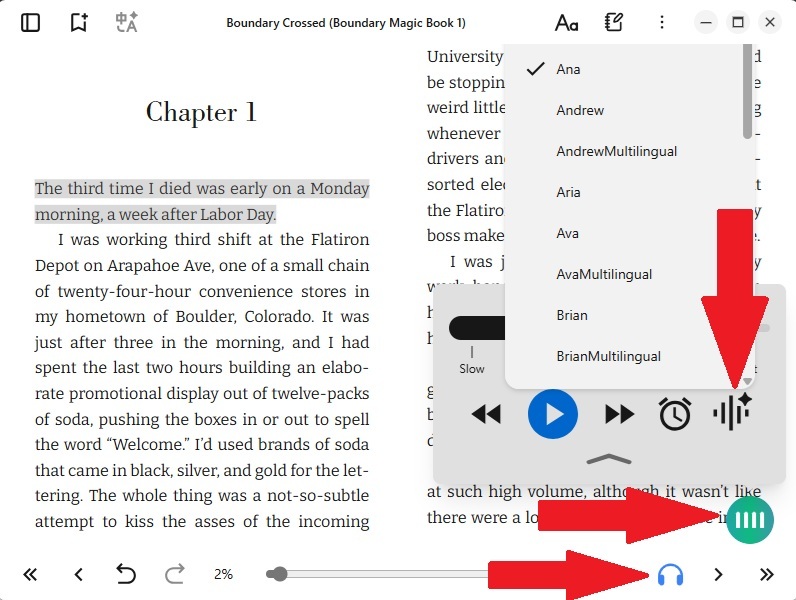
Click the headphones again to turn off the AI reader. Free users only get a limited number of hours, but the amount’s not stated in the app.
But, this still isn’t all that’s included. Select a word or phrase to look up definitions, highlight text, check Wikipedia, have AI help you pronounce it, translate it, or add the excerpt to your notebook.
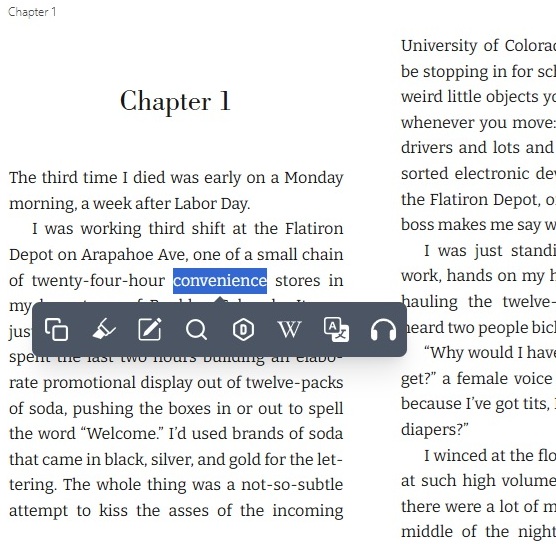
If you’re translating text, free users get up to 10,000 characters per day. You’ll have to upgrade to get more.
Compare Two Books at Once
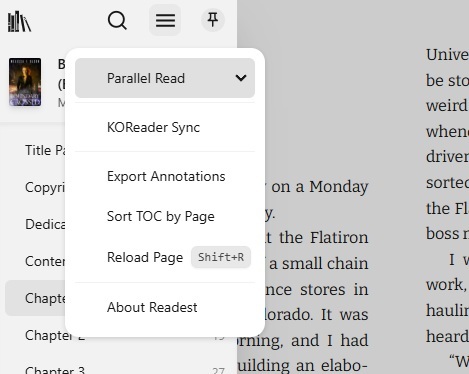
Readest offers parallel reading, or reading two books side by side. This might sound like an odd feature, but I’ve found it to be perfect for learning a new language. It’s also ideal for research or studying.
Open your first book and click the book icon at the top left to open the table of contents. Open the hamburger menu and select Parallel Read. Choose a book from the list. This opens a second pane.
For language learning, you’ll need the book in both languages. Or, you can always just use the translate feature to view passages without using the Parallel Read feature.
Compatible Formats and Premium Options
Readest currently supports EPUB, MOBI, KF8 (AZW3), FB2, CBZ, TXT, and PDF. Some features aren’t available for PDF as that part is still in active development.
So far, I haven’t had any reason to upgrade. But, if you want to sync larger libraries, get more AI reading and translations, or even early access features, you’ll want to upgrade. Plans start at $5/month, making it affordable if you’re an active reader that wants their whole ebook library available in the cloud.
Yes, Readest does have some issues, such as occasional slow loading. However, it offers an incredible amount of features for free and the developer is constantly working on the project to make it even better.
If you’re looking for more ebook reader apps, try these options.








