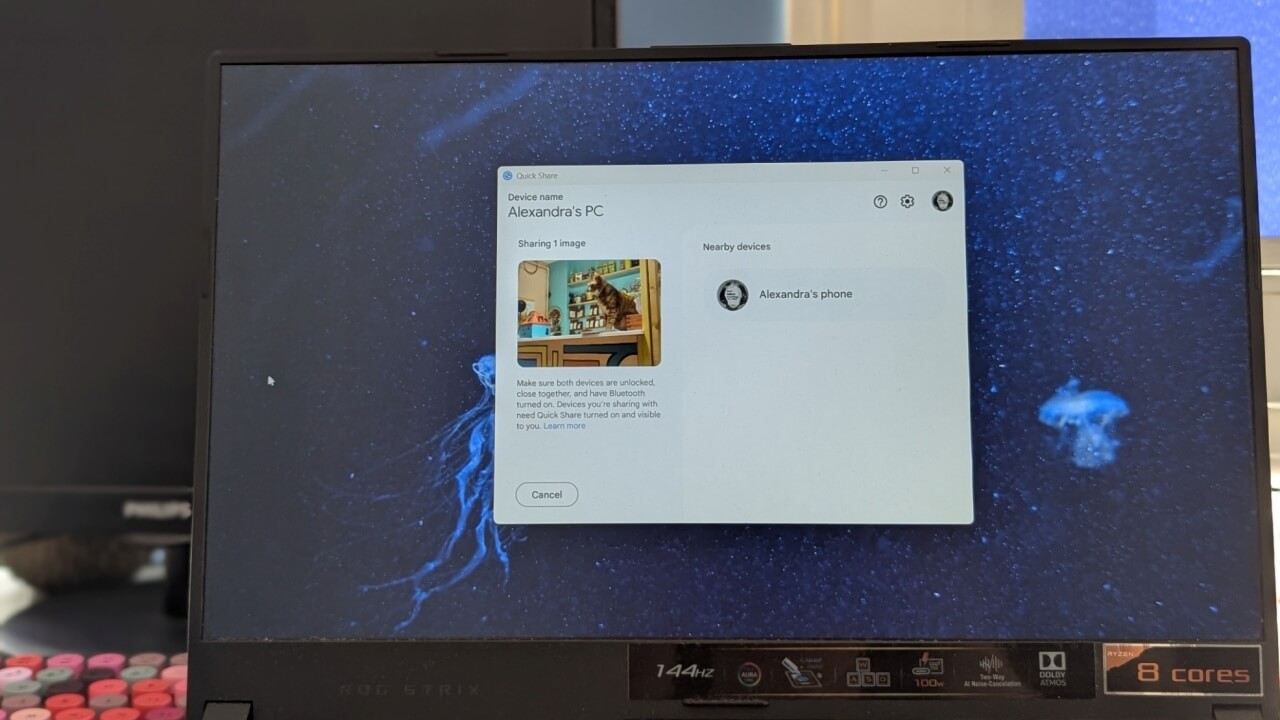
Google has rebranded its Nearby Share feature to Quick Share in collaboration with Samsung, making wireless file sharing on Android faster and more user-friendly. Quick Share now supports file transfers between Android phones, as well as Android to Windows PCs and Chrome OS devices. Learn how to use Quick Share to quickly and easily move files between your devices.
Good to know: improve your Android phone’s privacy by removing the system SafetyCore app. Here’s how.
What Is Quick Share on Android?
Google and Samsung teamed up in 2024 to streamline their file-sharing tools by combining Nearby Share and Quick Share into a cross-platform solution dubbed Quick Share. The feature combines the best of everything to bring a unified sharing experience.
Android’s wireless sharing feature allows Android users to exchange files, apps, and even long videos with one or more nearby devices.
It’s similar to Apple’s AirDrop feature, in that it’s a cross-platform file sharing mechanism covering Android smartphones, tablets, as well as Windows PC and Chrome OS devices. Of course, the feature is specific to Android phones, and is not compatible with Apple iPhones or iPads (at least, not for now,) and vice versa.
Setting Up Quick Share on Android
Before starting a new Quick Share session, first make sure that Bluetooth and location are turned on on your Android phone. The same has to be true on the receiver’s device for the scheme to work.
Now, open the Settings app on your phone and navigate to Connected Devices.
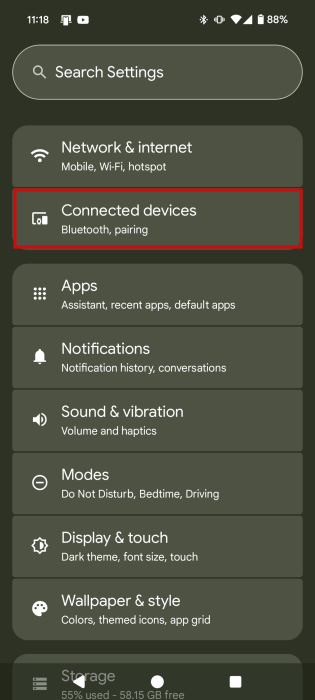
Tap on Connected preferences.
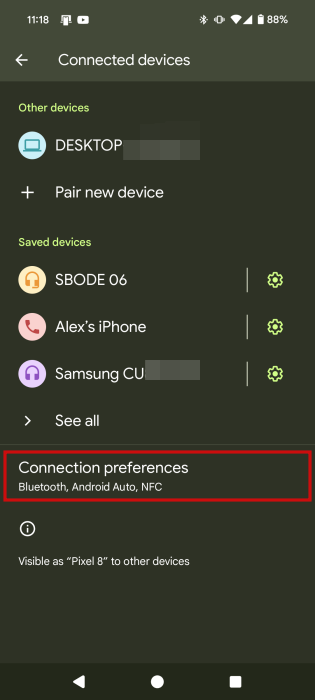
Select Quick Share.
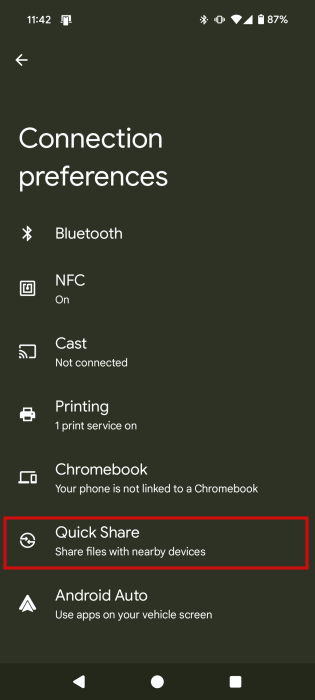
Here you can configure several things. For instance, you can change your device’s name or select from which of your Google accounts you want to initiate the transfer.
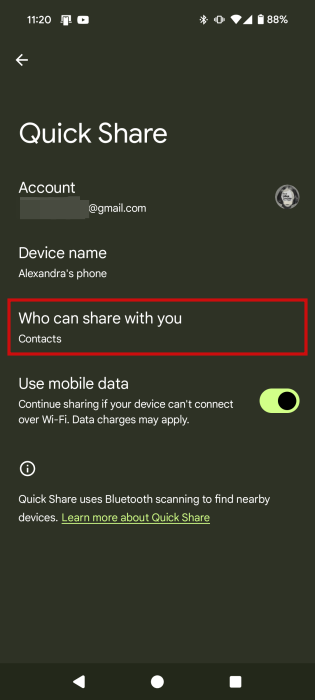
Most importantly, however, you can select Who can share with you.
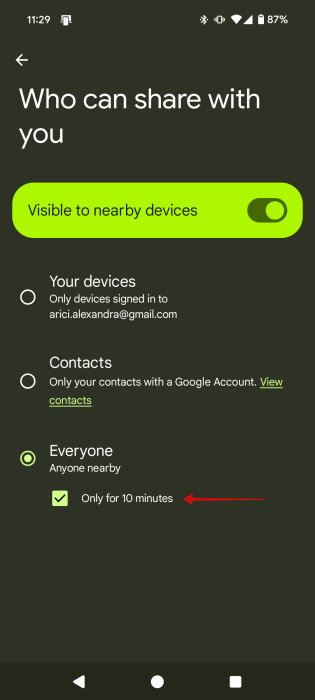
Here you have three options:
- Your devices: lets you share with other devices you own where you’re signed in with the same Google account.
- Contacts: enables you to share only with contacts with a Google account (contacts that are associated with the Google account you’re currently signed in on your Android device.)
- Everyone: share with anyone that’s nearby. Due to privacy concerns, if you decide to use this option, don’t forget to tick the Only for 10 minutes option.
Android’s Quick Share has also recently gained the option to continue an ongoing file transfer even if the sending or receiving device can’t connect to Wi-Fi. To take advantage of this feature, leave the Use mobile data toggle on.
Tip: learn how to view your blocked numbers on Android and manage them from there.
Send Files Between Android Devices
Now you’re ready to start sending your first files using Quick Share. Find something you want to transfer, like a photo or a document. For the purpose of this tutorial, we’re sending a picture.
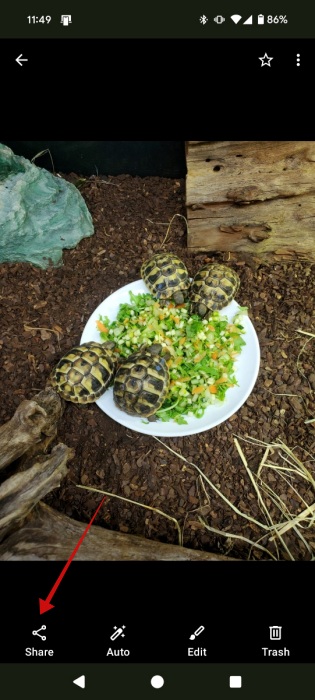
Open the image in your gallery app and press the Share button.
Select Quick Share. If you can’t see the option right off the bat, press the More button.
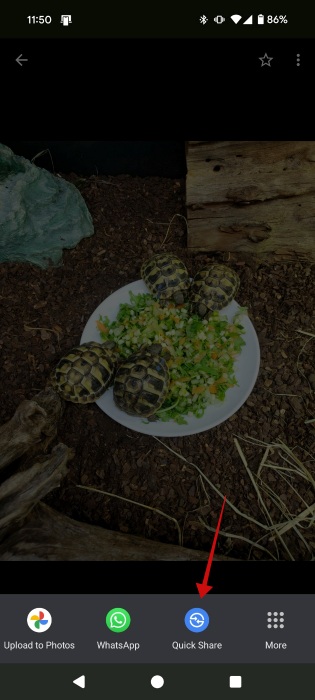
On the next screen, select which device you want to share with from the Send to Nearby devices section. The other device should show up here, but if it doesn’t, instruct the other party to turn on their device’s screen and come closer. Alternatively, ask them to switch their Quick Share settings to allow sharing from Everyone.
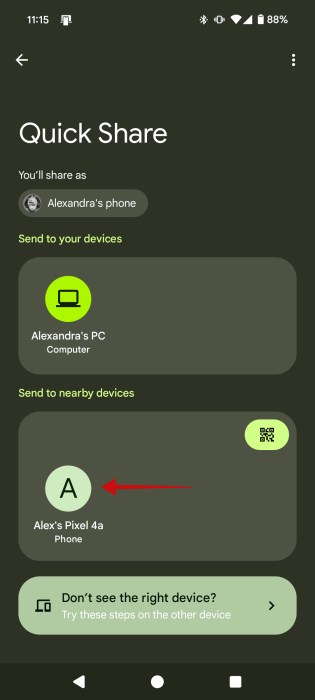
If the device is showing, tap on it. The sharing screen will pop right up.
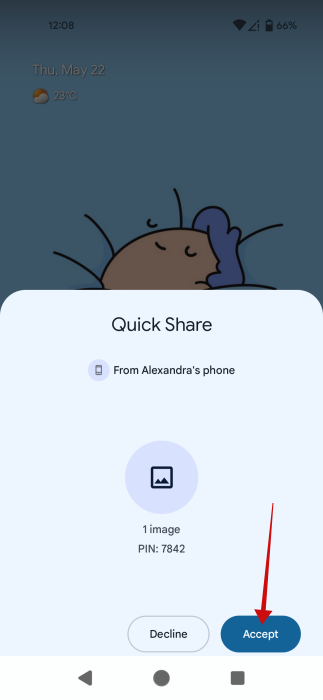
On the receiving device, a Quick Share pop-up will appear from the bottom, alerting you that another device wants to share with you. Press Accept to receive the file. If you find the request suspicious, you can always Decline.
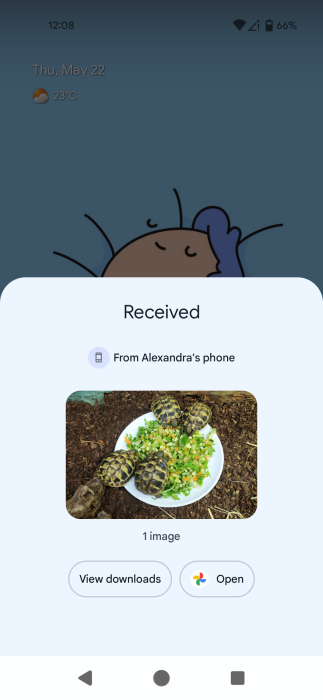
Once the file downloads on the receiving device, you’ll see a Received notification with options to Open the file and View downloads.
There’s also the option to generate a QR code for the file you want to share.
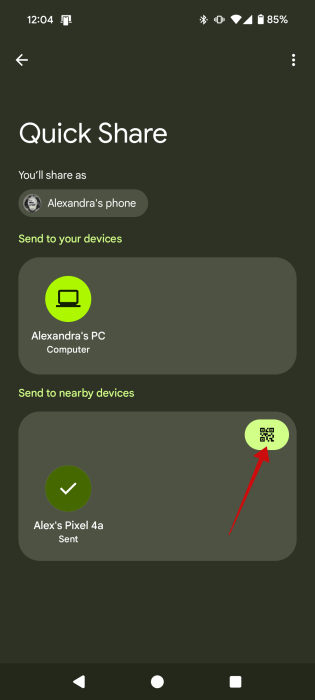
The other person can simply scan the QR code with their device to initate the file transfer between the two Androids.
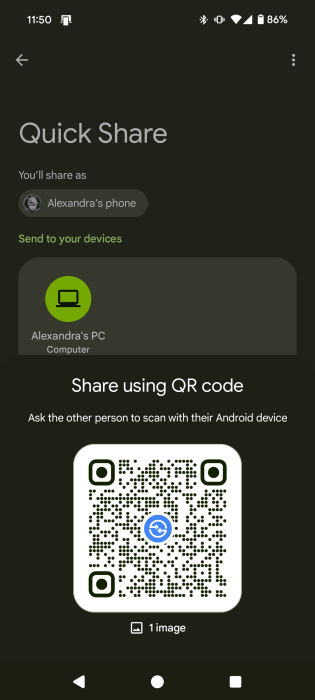
Tip: if you’d like to learn how to use Quick Share on Samsung devices, check out our detailed guide.
Send Files Between Android and Windows
With Quick Share, you can also easily transfer files between Android and Windows. For that, you will have to download Quick Share for Windows (10 and 11) on your PC. Unfortunately, Quick Share is not officially available on Mac or Linux at the moment. Although Google is reportedly working to extend Quick Share’s availability on Mac. In the meantime, Mac and Linux users might want to check out RQuickShare – a Rust implementation of Quick Share for their operating system.
Go ahead and install Quick Share on your laptop. Launch the program and log in with a Google account. We’ve opted to use the same one we have on our main phone.
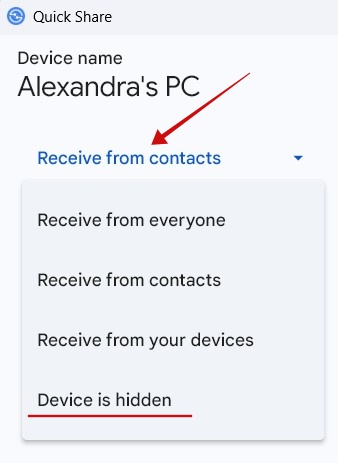
On the “Set Up Quick Share” screen, go ahead and select who can share with you in the Receiving section. The options are the same as above, with an additional one called Device is hidden. Click the arrow to change between them.
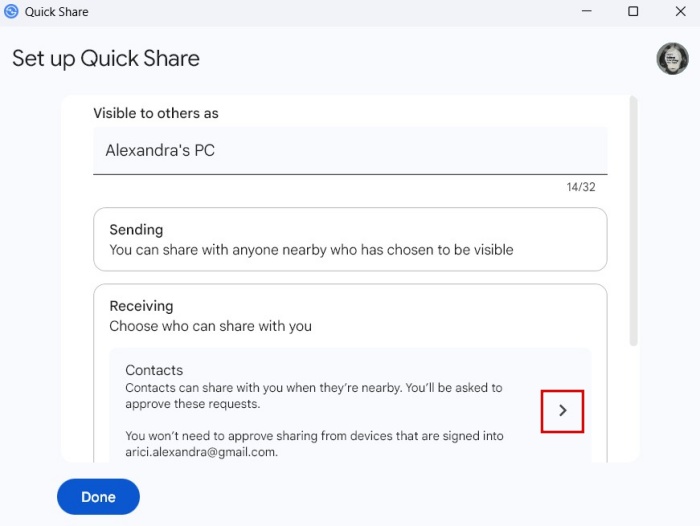
You can also rename your device if you want to, and then press Done.
Next, you’ll be taken to the main Quick Share screen. The PC is now ready to receive files.
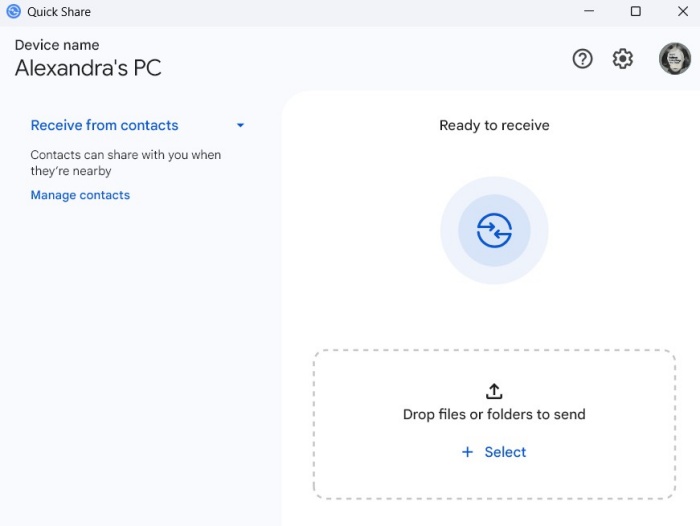
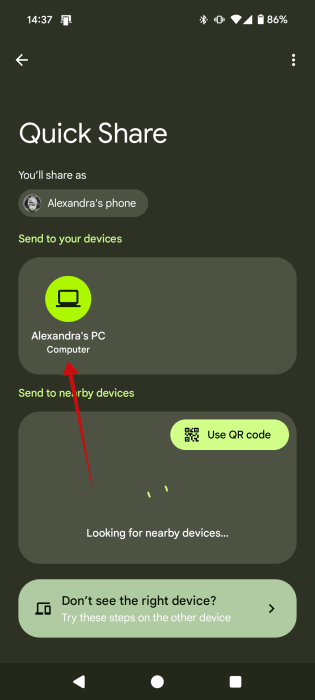
On the Android phone, open a file. In this case, we’ve opened up a GIF. Press the Share button like before and select Quick Share.
On the next screen, tap on your PC when you see it. Since we’re logged in with the same Gmail account on both phone and PC, we’re seeing the computer in the Send to your devices section.
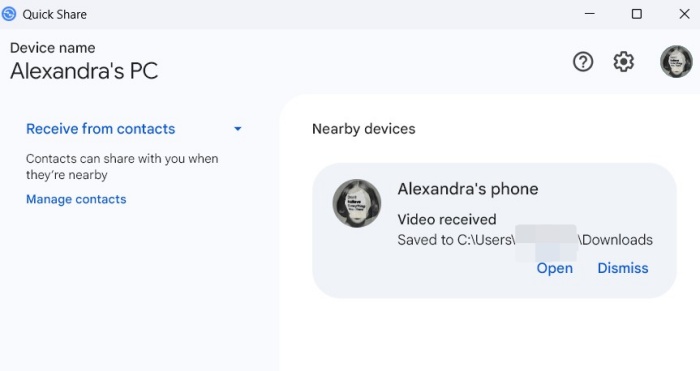
You’ll immediately see in Quick Share on PC that you’ve received a file. You can Open it from there.
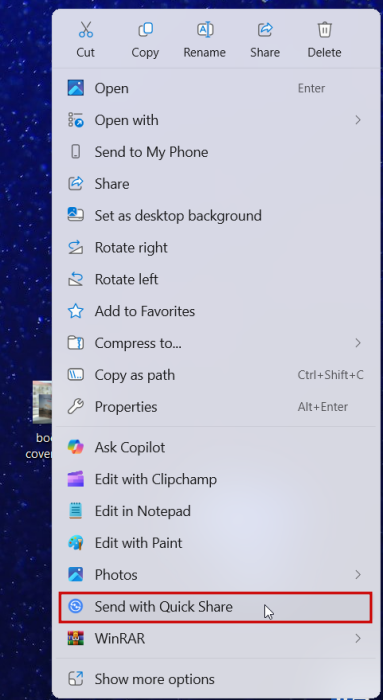
On the other hand, if you want to send something from PC to your Android phone, it’s also very easy to do so. Find the file in question and right-click on it to bring up the context menu. Select Send with Quick Share.
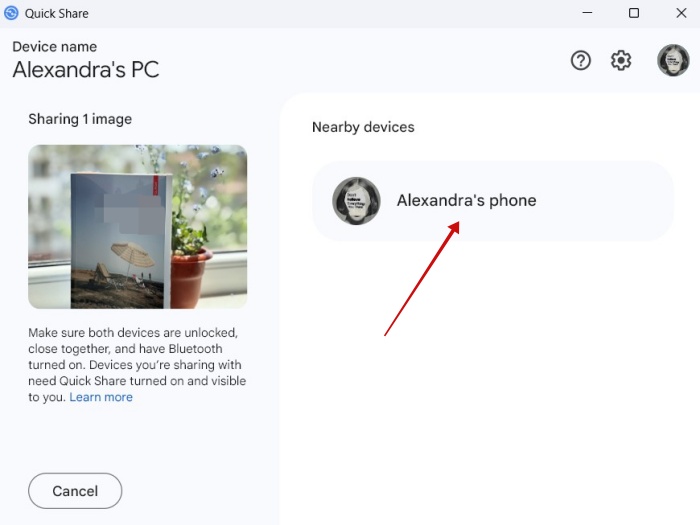
In Quick Share on PC, select your phone to start the transfer session.
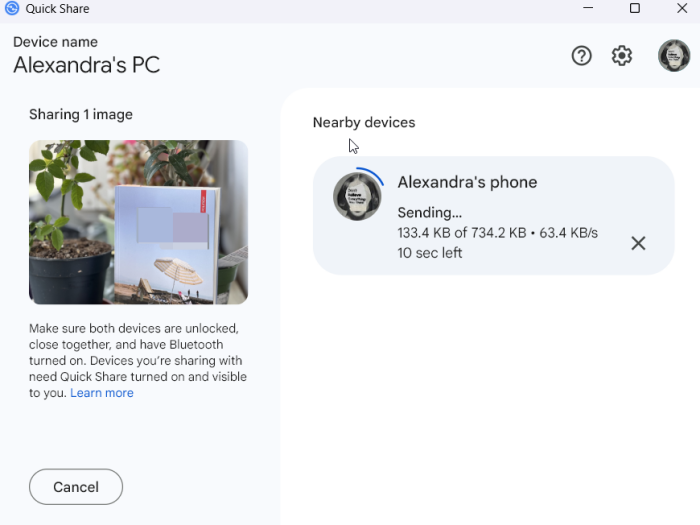
Wait for the process to complete.
You’ll see a Recieved window show up at the bottom of your Android screen.
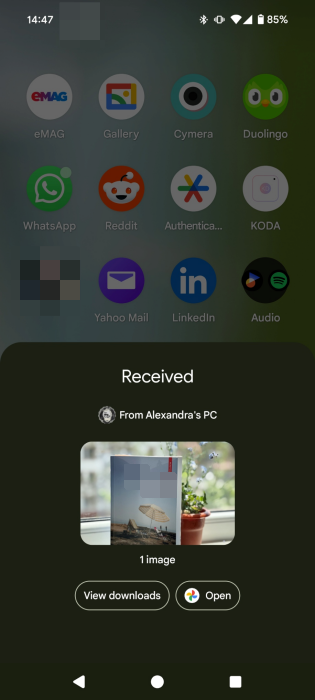
Alternatively, you can drag-and-drop field into Quick Share on PC.
When you’re done transferring files, click under your PC’s name and change the status to Device is hidden.
Send Files Between Android and Chrome OS
Quick Share is also available on ChromeOS laptops. Before starting a transfer, you’ll need to click on the time section in the bottom right corner on your Chromebook to open quick settings.
From there, you should toggle on the Quick Share tile.
Now, when you try to share a file from your Android device, the option to send to your Chromebook should be available.
Alternatively, when sharing from a Chromebook to Android, the Quick Share option should appear in the context menu after you right-click on the file.
If you often need to send files between your Android phone and Windows device, you might want to consider installing Microsoft’s own PhoneLink solution. This also gives you access to your SMS messages, all photos and calls. On the other hand, if you’re trying to send files between Android and iPhone, check these app solutions.








