
Password managers are supposed to protect passwords and sensitive information, but they can sometimes be manipulated to reveal data to attackers. A recently reported DOM-based clickjacking technique can trick some password managers into autofilling credentials into fake forms. Here’s how the attack works and what you can do to protect yourself.
How Password Managers are Vulnerable
A Document Object Model (DOM) exploit allowed the creation of a clickjacking variant that can allow malicious actors to stealthily trigger password managers’ autofill feature to steal sensitive information, including passwords, TOTP/2FA codes, credit-card data, etc. Here’s how the attack works:
- The victim visits an attack-controlled page that shows a normal clickable element, like a cookie consent banner or a “close” button on a pop-up.
- The malicious page secretly places an invisible form at the location of the clickable object by exploiting DOM visibility (setting
opacity:0). - When a user clicks, their installed password manager extension automatically fills in the details the form requests, which hackers can steal.
All of this happens stealthily, and the user never finds out their credentials got stolen. The original report tested 11 of the top password managers, but it’s safe to assume it applies to most password managers that have an autofill function. After the report, several password managers issued patches to add a confirmation prompt for autofills, but some are still vulnerable.
Even then, most password manager patches are simply band-aid fixes, because it doesn’t fix the fundamental problem due to the way browsers render webpages. As 1Password pointed out, “the underlying issue lies in the way browsers render webpages, we believe there’s no comprehensive technical fix that browser extensions can deliver on their own.“.
Apart from updating your password manager extension to the latest version, follow the measures below to protect yourself from these clickjacking attacks.
Disable Autofill in Your Password Manager Extension
Autofill is the main function that this attack exploits. By default, password managers will automatically fill fields when you click on them. You can turn this behavior off to prevent exploitation. Afterward, you’ll have to click a specific button when the field is in focus to manually fill it.
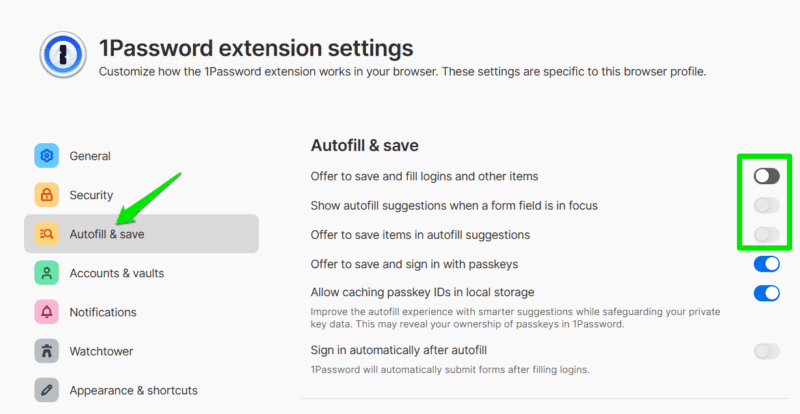
All you have to do is go to the password manager extension’s settings and disable the autofill function. The toggle should be under the Autofill and save (or similar) section that disables autofill on focus.
Set Extensions to On Click or On Specific Sites
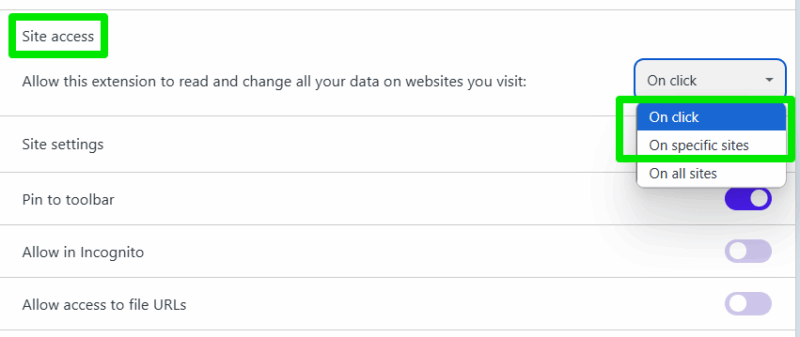
Browsers have an option to force an extension to only activate on a specific website or when the extension icon is clicked. You can use these options to keep the password manager disabled on all websites it isn’t supposed to fill the password field on. This will require some setup or extra clicks, but it will ensure no attack can exploit your password manager.
Open your browser’s Extensions page and open the details page of your password manager. Here, you’ll find the Site access section with On all sites selected by default. You should select On click or On specific sites here, depending on your preference. With On click, the password manager will only activate when you click its toolbar icon, and with the On specific sites option, it will only work on selected websites and stay disabled on others.
Prefer Using Desktop/Mobile App Instead of Extension
These clickjacking attacks are limited to the password manager extension that autofills the information or populates when commanded. If you want to minimize risks and still want to use a password manager, then use the associated desktop/mobile app instead.
Most password manager apps will provide an easy search and copy function to make the manual entry process easier. When you are on a login page, just search and click the copy button next to its entry in the password manager app to use it.
Use a Script Blocker Extension
Most such attacks heavily depend on on-page scripts to function, which is why script blocking is considered one of the best ways to stay safe online. Simply blocking JavaScript is effective for this attack, but we recommend blocking all scripts on untrusted domains for the best protection.
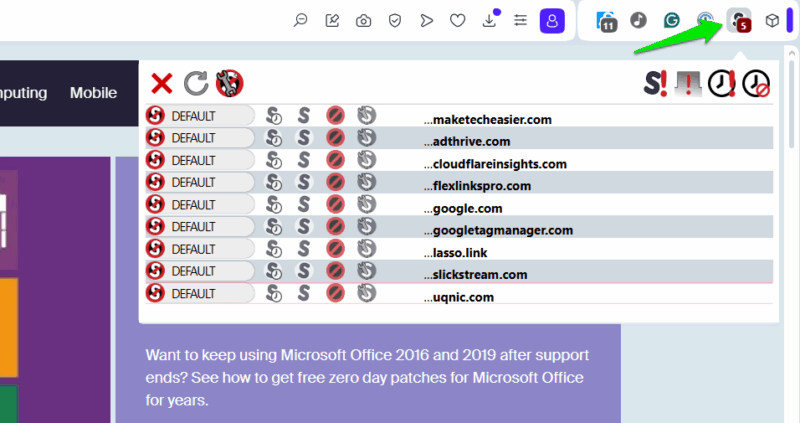
NoScript is a great extension for this purpose, which is available for both Chrome and Firefox. By default, it will block all types of active scripts, including JavaScript, embedded objects, media, etc. You can then only enable scripts on websites you trust.
Bonus: Properly Secure Accounts
The best protection against any credential-stealing attack is to use a secondary protection method that can’t be stolen easily. 2FA is your best bet, but you need a reliable 2FA method; SMS verification isn’t enough. TOTP is a good start, but make sure you have the authenticator app on a separate device. Furthermore, a passkey is better than regular 2FA, especially if you use a dedicated hardware security key.
To minimize the attack surface, try to avoid depending on automatic login solutions. It might be slightly inconvenient to do an extra click or two, but it’s worth the security. This is especially important if you are using password managers to store all sensitive information.








