


Opening multiple pages while browsing in Chrome for Android used to be less than ideal. You either had to navigate to a new page or copy/paste the link into a separate tab. Fortunately, in a recent update, Google added the ability to easily preview hyperlinks in your mobile Chrome browser. In this article, we show you how to preview links in Google Chrome on both Android and your desktop.
Also read: 11 Chrome Flags to Boost Your Browsing
How to Preview Links in Chrome for Android
This feature is available natively in Chrome for Android, so you don’t have to install an extension or do anything else to be able to use it. Not only does the option allow you to keep things neat and tidy while browsing, it also enables you to make sure the link is worth clicking on and won’t take you to a page you really have no interest in.
Here’s how you can preview links in Chrome:
1. Open the Chrome app on your Android page.
2. Navigate to a web page and locate a hyperlink.
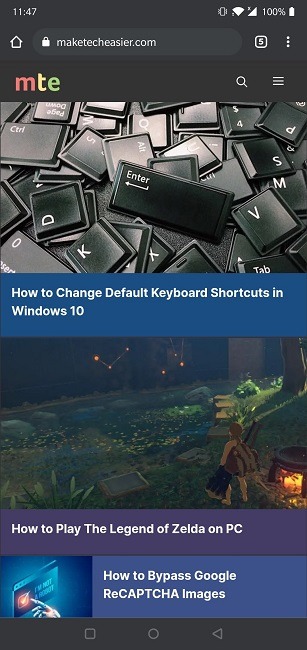
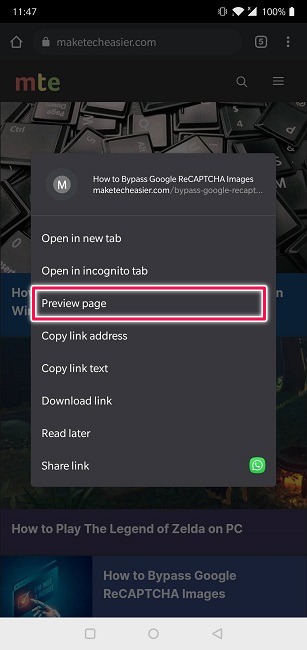
3. Long tap on it until a menu window pops up on the display.
4. Select “Preview page.”
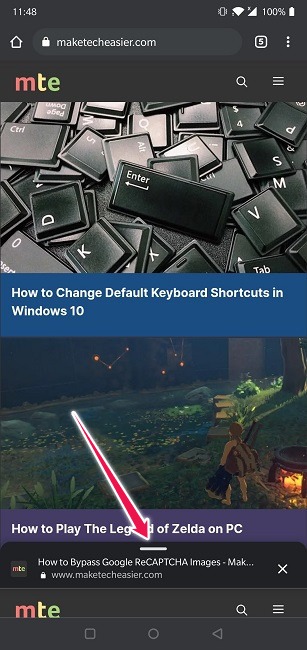
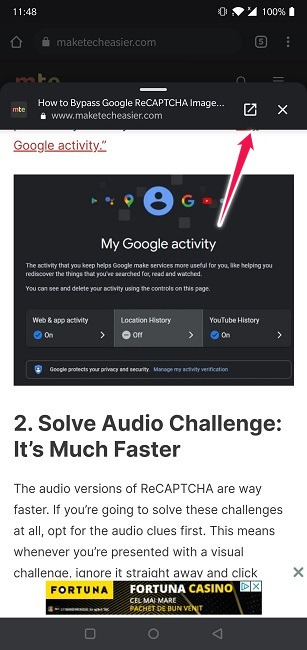
5. A smaller tab will open over the current page at the bottom of the display. Swipe upwards on it to preview the content of the link without leaving the page you’re on.
6. You can scroll through the preview like you would on a normal page. Note that you can’t preview another link from the preview.
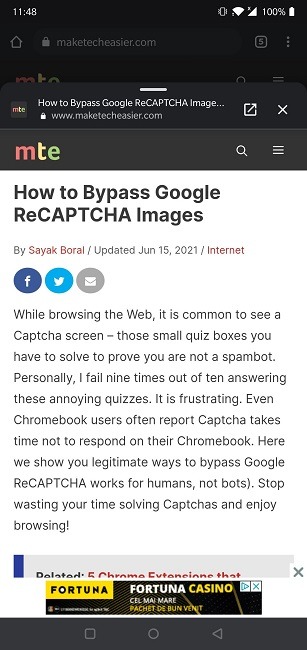
7. If you wish to continue to the full page, simply tap on the arrow icon in the upper right corner. If you decide the link is not worth pursuing, tap on the “X” to close the window and continue browsing the original page.
How to Preview Links in Chrome for Web
You can also preview links in Chrome on your desktop – just keep in mind that it’s not a native feature. Opening new links is much more straightforward on PC, but if you still want to preview them, take into account that you’ll need to install an extension in your browser to be able to do so.
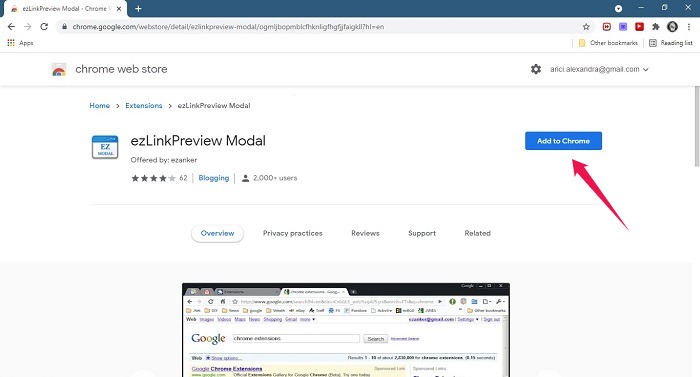
1. Visit the Chrome Web Store and search for the Link-Preview extension.
2. Tap on the “Add to Chrome” button.
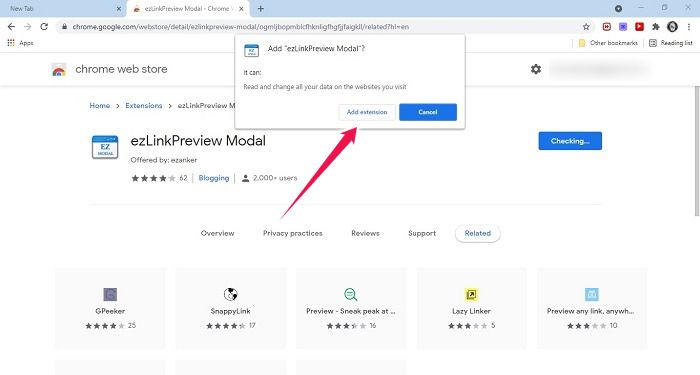
3. Select the “Add extension” option to confirm your choice.
4. Once the extension has been added to Chrome, you can go ahead and start using it.
5. Navigate to a page and find a link you wish to preview.
6. Hover the mouse over the link, and you should see a tiny “EZ” icon in the upper-right corner. It means the link can be previewed.
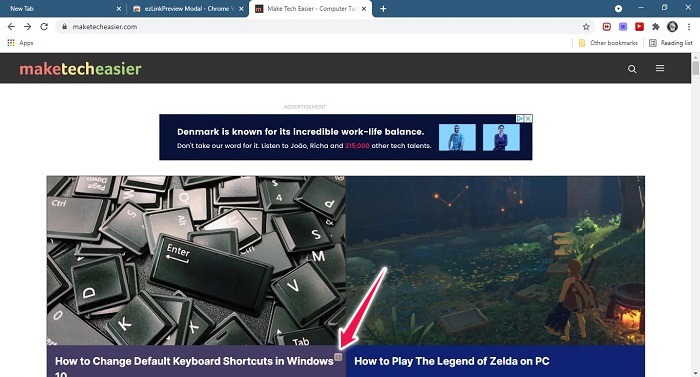
7. Click on the “EZ,” and a new window will open on top of the current one which shows you the content of the link.
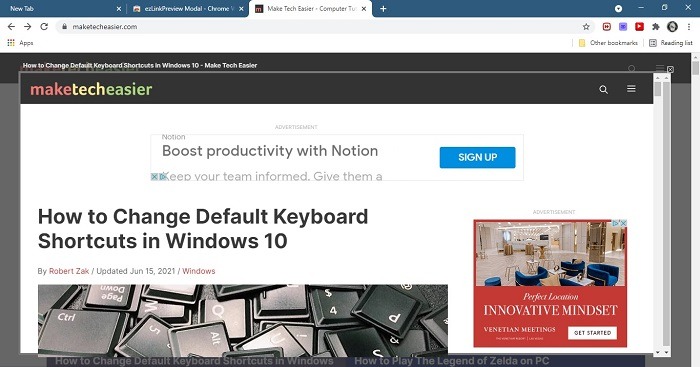
8. You can scroll through it like you would a regular page. What you can’t do is open it in a new tab or window in your browser. The only option is to close it by clicking on the “X” in the right corner.
Now that you know how to preview links in Google Chrome, you may want to check out the best games you can play directly in Chrome. Alternatively, learn how to use Google Assistant in Chrome on your mobile.