If you’re an avid YouTube fan and want to listen to tunes on your Android phone, you know the woes of wanting to play a YouTube video in the background using the official app. While playing a video, the audio will stop the moment the screen is turned off or the focus changes. Fortunately, a few methods are available to address this issue, which we’ll cover in detail in this post.
Good to know: take a look at these Firefox add-ons that can enhance your YouTube experience.
1. Play YouTube in Browser
If you want to listen to YouTube in the background on your Android device, the easiest solution is to install a browser like Brave, Vivaldi, or even Firefox.
These browsers natively offer the option to play YouTube with your screen shut. Just navigate to the YouTube website, search for the video you want to listen to, press Play and then turn off your phone. The music should continue playing in the background.

If you turn your phone back on, you should now be able to spot a Now Playing card on your lock screen from where you can control playback. Or if you don’t lock your phone, you should see it when pulling down the notification shade.
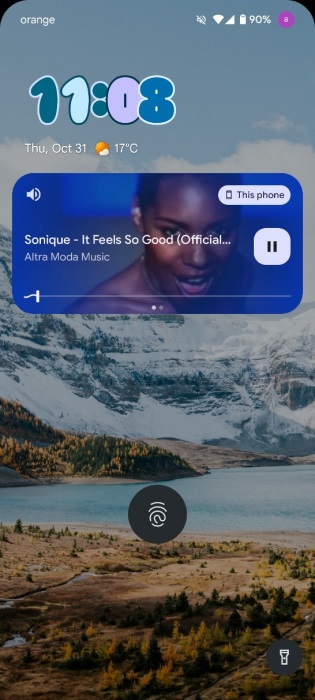
On Firefox, which seems to have quietly added this option recently, music will turn off when you first turn off the screen. Press the power button to turn it back on and press Play on the New Playing card for the music to start up again.
Tip: learn how you can watch deleted YouTube videos.
2. Use the Desktop Mode Trick
If you’re committed to using your Android’s built-in Chrome browser, then you should know that there are a few more steps involved before you can listen to YouTube in the background.
By default, when you navigate to youtube.com in your Chrome browser, it automatically opens the YouTube app (which is a preinstalled app on many Android phones and can no longer be uninstalled).
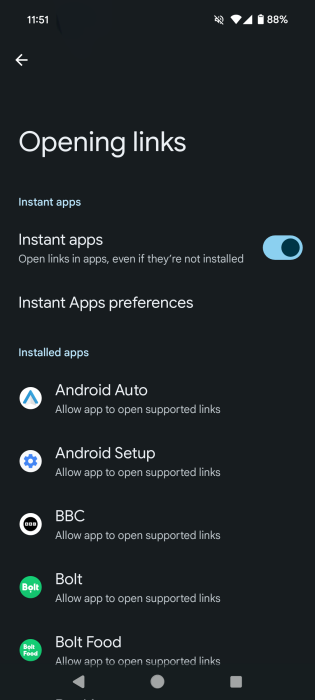
To disable this behavior, you need to navigate to Settings -> Apps -> Default Apps.
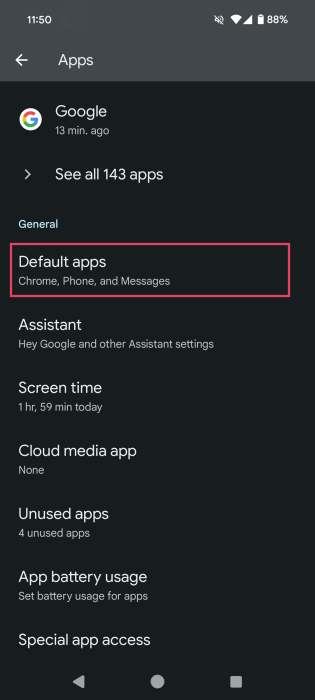
Go to Opening links.
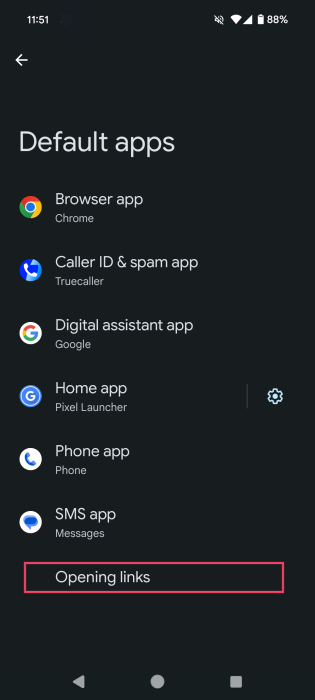
Search for YouTube in the Installed apps section and tap on it.
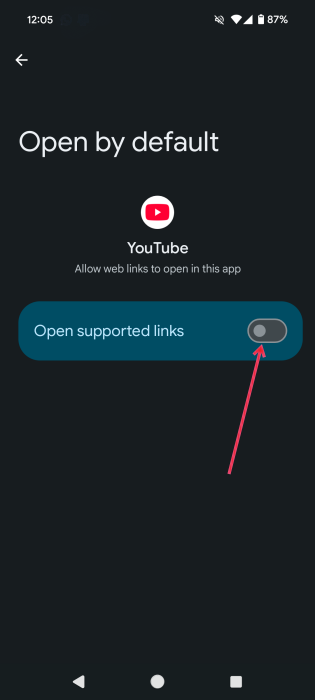
Toggle off the option to Open supported links.
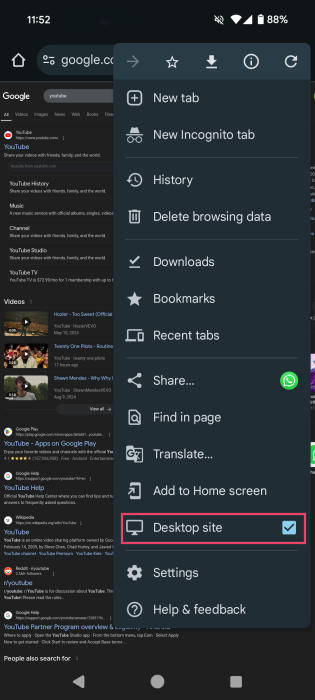
Now open Chrome on your Android and press the three dots in the upper right corner of the display. Select Desktop site.
Then try accessing YouTube in your browser. The website should load.
Next up, select your video and press Play. Turn off the screen. The music will stop.
Turn the phone’s display on again and press Play on the Now Playing floating card just like in the case of Firefox for the music to resume.
3. Install a Third-Party YouTube App
If switching to a different browser or the whole desktop site setup sounds too complicated for you, you have an alternative.
Install a third-party YouTube app. Most of them offer the option to play your music with the screen off. I prefer NewPipe as I love its intuitive interface and the extra options it offers.
To note, however, that YouTube alternatives are mostly blocked by Google in the Play Store. This means you’ll need to get your app in the form of an APK from a third-party App Store or the app’s official page.
Once you have NewPipe on your phone, open it and navigate to a song just like you’d normally do on YouTube. Press the Play button.
Then you can turn off your Android’s display. The music will continue playing without issue.
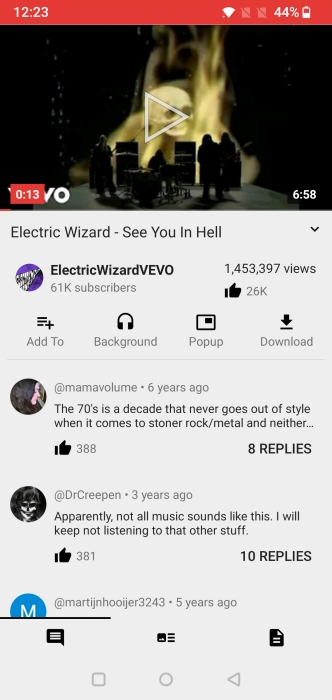
I should also note here that apps like NewPipe also let you download the video on your device. You can opt to download it as an audio file. If you do this, you’ll be able to listen to the song even without an Internet connection. In addition, you can, of course, listen with your screen off.
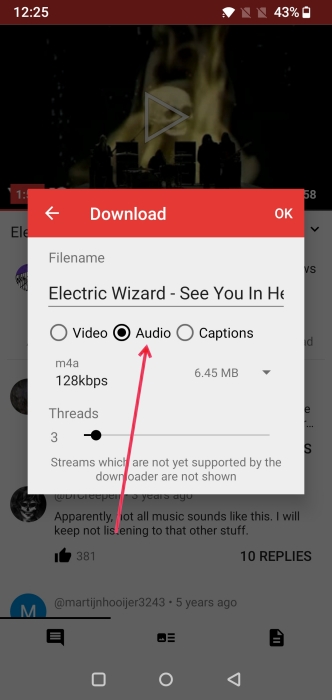
Just make sure to use these downloads only for listening on your own device. Don’t share it with others or use them in commercial projects, or you risk infringing copyright laws.
FYI: here’s how to edit your videos using YouTube Studio.
4. Upgrade to YouTube Premium
If you don’t want to bother with any of the methods described above, you might want to consider upgrading to YouTube Premium.
This will not only let you play YouTube in the background natively on your Android device, but it will also come with many other benefits, such as getting rid of the annoying ads that play over videos and downloading videos for offline viewing.
Benefits aside, YouTube’s Premium plans aren’t cheap. They start at $13.99/per month, so if you’re not willing to spend this amount every month, you might want to revisit the other options in this article.
If you’re looking to expand your YouTube experience while you’re browsing from PC, check these Chrome extensions that make YouTube better. On the other hand, if you’re growing bored with the streaming platform, you might want to check these YouTube alternatives for something slightly different.
Image credit: Unsplash All screenshots by Alexandra Arici








