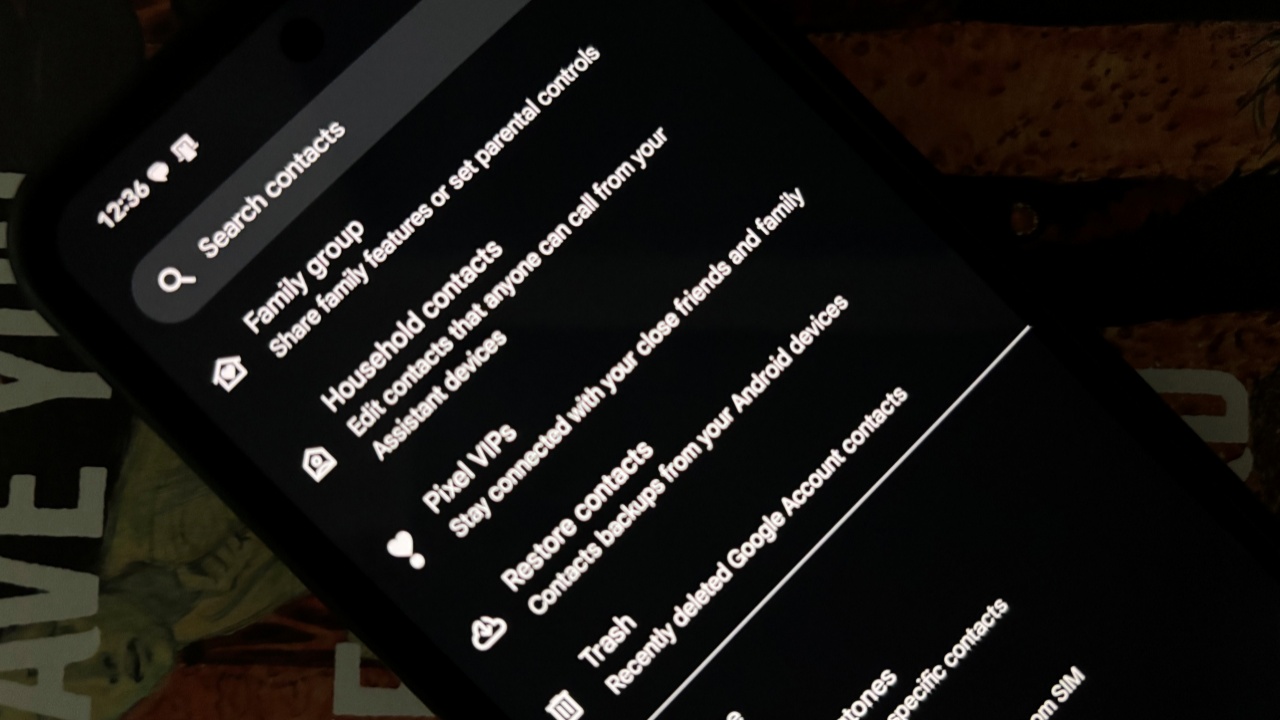
Google has started rolling out Android 16 to eligible Pixel phones, but that’s not the only treat Pixel users are getting. The June Pixel Drop is here too, and it introduces a handy new feature called Pixel VIPs, making it easier than ever to prioritize your favorite contacts.
Good to know: here’s how to enable Auracast Audio Sharing on your Google Pixel phone.
Enable Pixel VIPs on Your Pixel Phone
With Pixel VIPs, your go-to people are just a tap away. The new tool allows you to add them to a home screen widget and instantly check their location, get local updates (weather, time), or find fun things to do when hanging out.
Before you check to see if you have the new feature, ensure you’ve updated your Pixel device to the latest software version available. Open Settings -> System -> Software updates.
Tap System Update and then the Check for update button at the bottom. If anything new is available for your device, install it.
Note: the feature isn’t part of Android 16, but of the latest Pixel drop. Nevertheless, if the Android 16 update has arrived for you, we encourage you to upgrade for more great features.
If you’re already running the latest version, open the Contacts app and switch to Organize at the bottom.
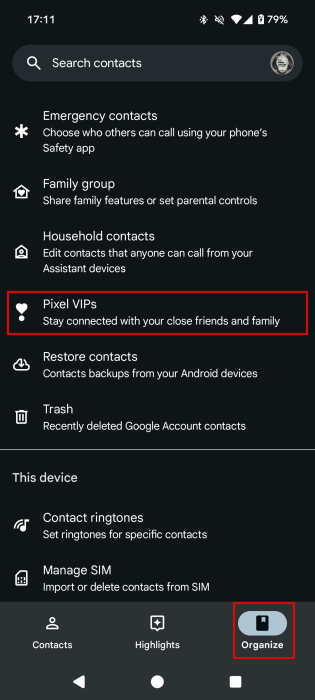
Tap on Pixel VIPs in the menu.
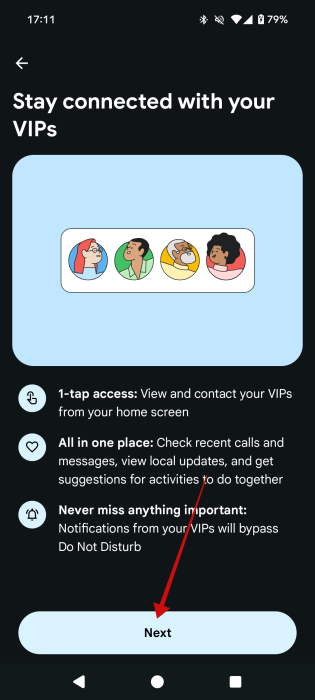
On the next screen, press Next after reading the brief introduction.
Tip: switching to a new phone? Here’s how to transfer contacts from Android to iPhone.
How to Add Your Pixel VIPs
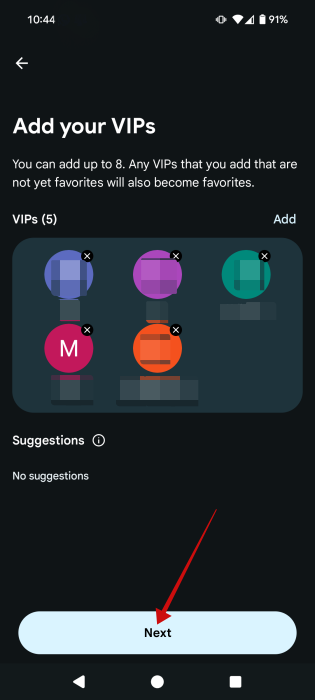
Now, it’s time to start adding your VIPs. Press the Add button in the empty VIPs card. Or check the Suggestion area for an even quicker add.
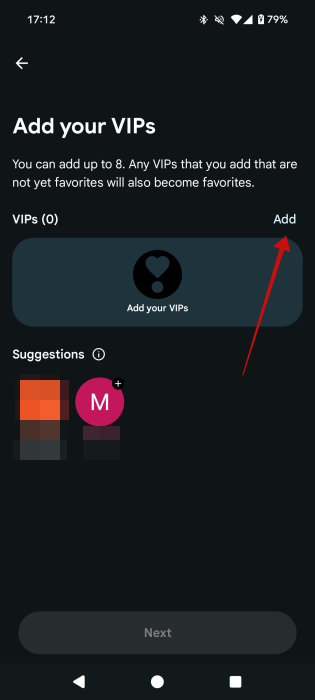
Select the contacts you want to add as VIPs and finally press Done.
Once you’ve added your VIPs, press the Next button.
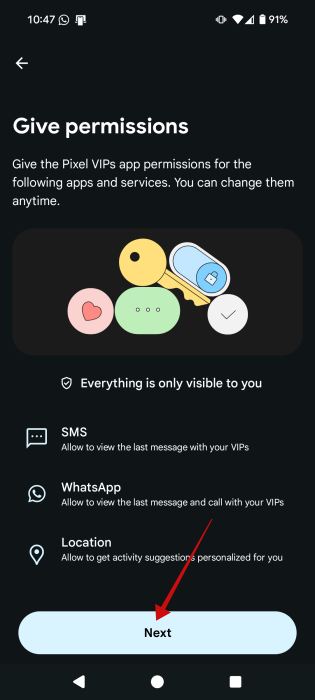
Start granting the necessary permissions.
Your Pixel will automatically generate a VIPs widget for you. Press the Add to home screen.
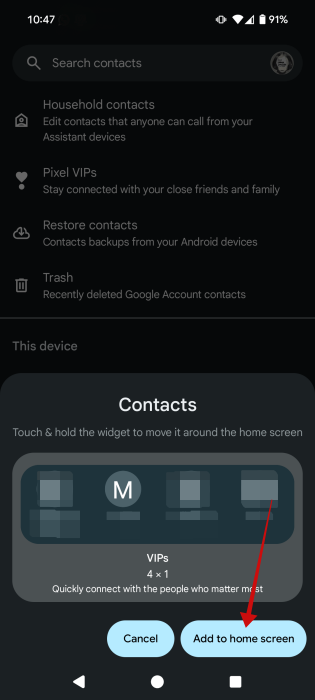
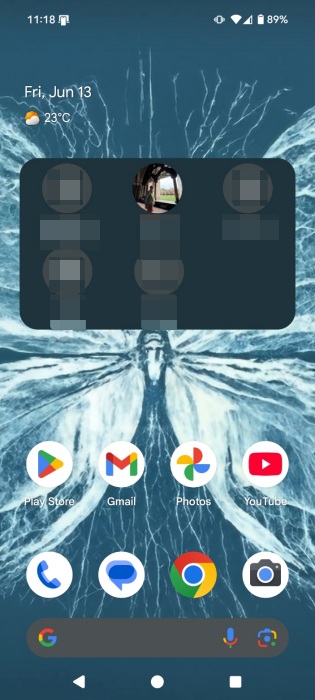
Place the widget on your home screen according to your preference. You should resize the widget if you added more than 4 VIPs (the maximum is 8), so you can view them all. Do this by long pressing on the widgets and then dragging the handles to enlarge it.
FYI: learn to open shared files on Android without a Microsoft account.
Add Additional Info for Pixel VIPs
Google recommends adding as much info to your Pixel VIPs so you can enjoy the full experience. Here’s how you can do that.
Tap on one of the contacts in the widget. A new pop-up will show up at the bottom.
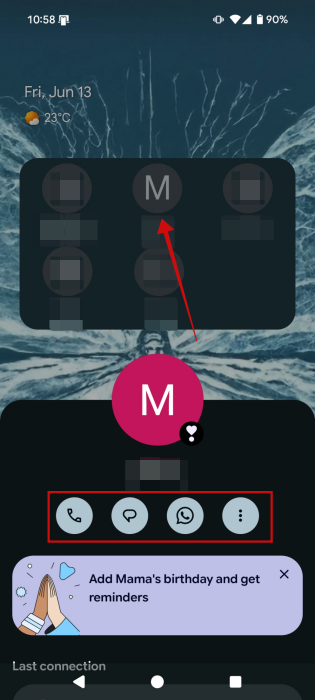
From here, you can quickly call, message, or reach out on messaging apps like WhatsApp.
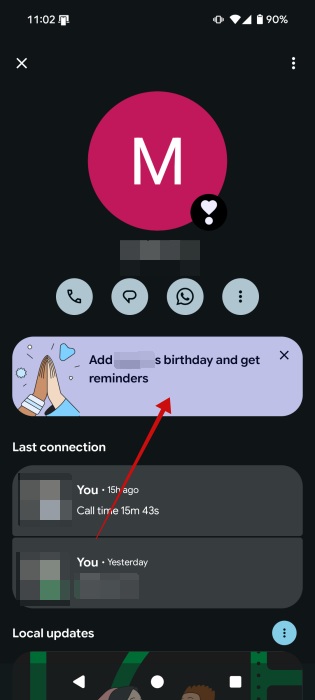
Swipe up from the bottom to see the full screen. Tap on the birthday card to add their birthday so that Google can send you reminders.
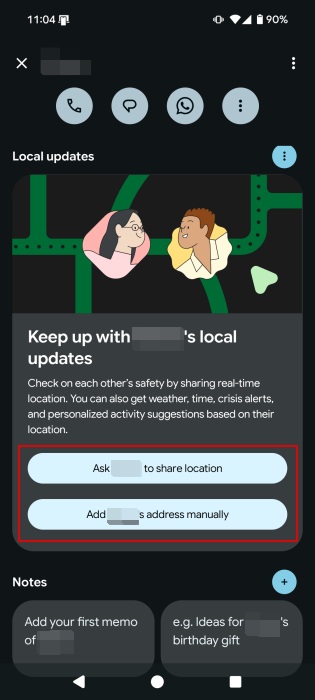
Now move on to the Local updates card. Here, you can request that your contact share their location with you by virtue of a tap. Alternatively, you can add their address manually by pressing the second button.
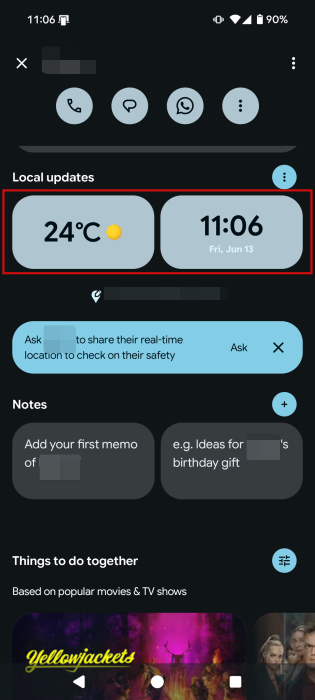
Once you add their address, Google will show you weather info and the local hour for that particular location.
Up next, you can add notes, so that you don’t forget, for instance, to discuss an important topic or to buy them a gift.
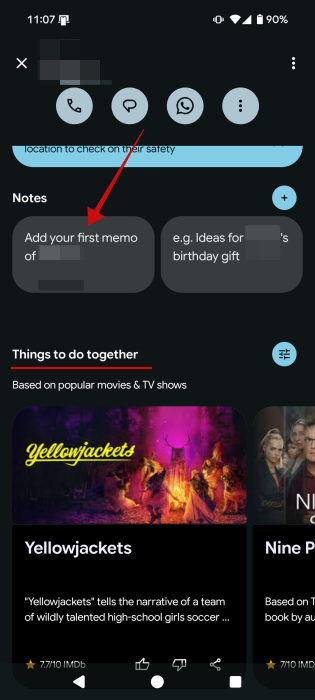
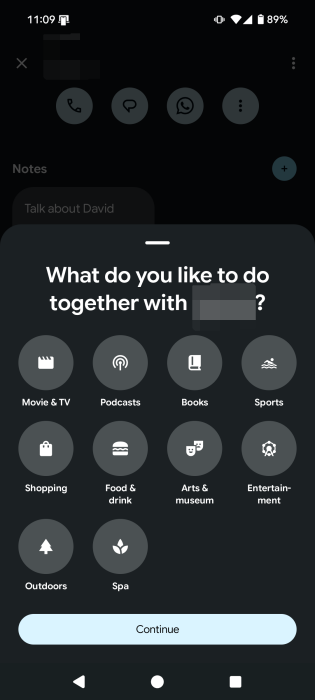
Finally, Google wants to help you do things together with your favorite people. It will suggest things to do together based on popular movies and TV shows. I got quite a few interesting recommendations. But you can add mutual interests too by pressing on Add your preferences.
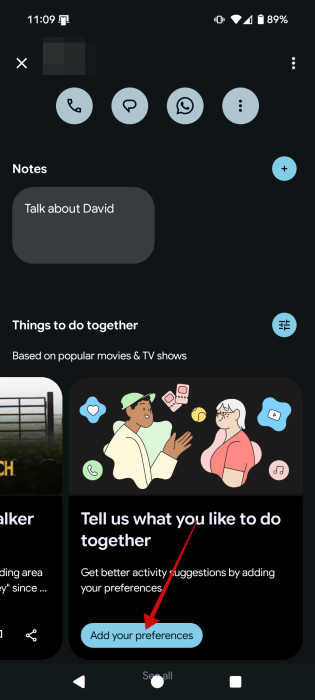
Add your common interests and then wait for Google to generate recommendations for you.
Add Photos to Contacts
Your Pixel VIPs widget would look a lot better if each contact has a photo. It would also be a lot easier to tell VIPs apart.
To add a photo to a contact, navigate to the Contacts app again. Tap on one of your VIPs, which should appear at the top under Favorites.
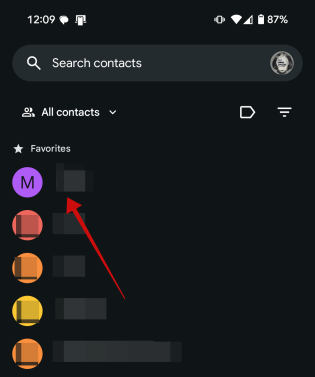
Tap on the pencil icon at the top. Press the Add picture option.
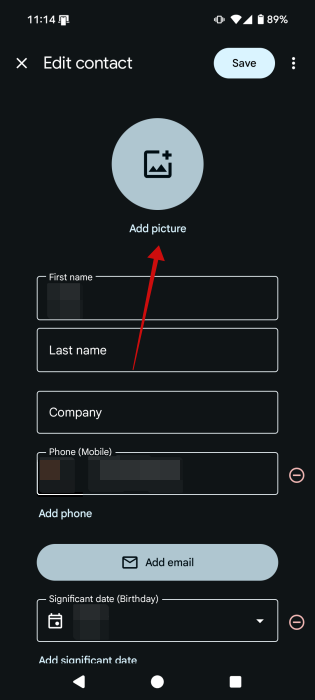
Select an image you want to use as their profile picture. Press Save. That’s it.
Now go back to your home screen. Your VIP’s contact photo should be showing now. Repeat the same steps for all your VIPs.
Tip: did you know you can add a taskbar to your Android phone? Here’s how.
Remove or Add More Pixel VIPs to Widget
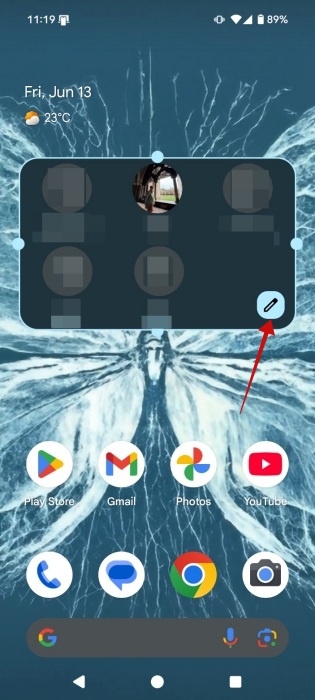
It’s easy. Long press on the widget and then tap the pencil icon that appears.
Tap the X button that appears in the upper right of a contact to delete.
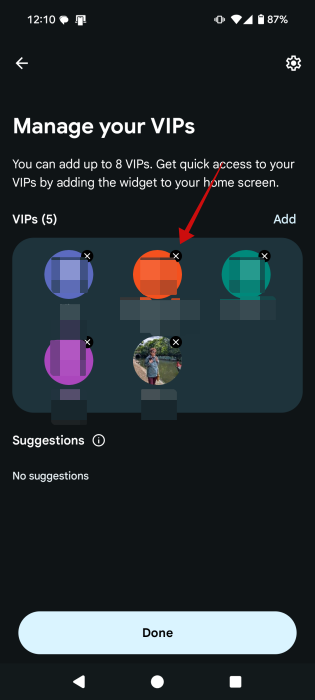
To add more, but no more than 8, tap the Add button again.
Recently switched to a Google phone? Check these Pixel features you need to familiarize yourself with. Alternatively, if you have another type of Android phone, take a look at our list of tips that make your Android phone look more like a Google Pixel (without rooting).








