
ChatGPT 5 still hasn’t gotten the warm welcome Sam Altman thought it would. Now, he’s announced a new approach to improve ChatGPT 5 personalization to make it feel more like ChatGPT 4o, if you want.
The Push to Make Users Love ChatGPT 5
ChatGPT users have been vocal about their displeasure over the ChatGPT 5 release. They prefer how flexible and natural ChatGPT 4o is and weren’t interested in new personalities or customization.
Many users have already switched back to ChatGPT 4o, though it’s only available for premium users. That was the first step is pacifying angry users, while still trying to force free users to embrace the new release.
Now, OpenAI is offering up a new personalization page. The purpose is to bring together all the personalization options together to make it easier to customize ChatGPT 5 to function exactly like you want. This includes tweaking it to feel more like the beloved ChatGPT 4o.
The response to this announcement hasn’t been great. Users don’t want to jump through hoops to use the AI model they like best. But, for now, it’s either customize or use a ChatGPT alternative if you’re a free user.
Finding the ChatGPT 5 Personalization Options
For screenshots, I’m using the desktop version of ChatGPT, but the steps work the same on both mobile and desktop.
Login to your account and click your profile icon and name. Select Personalization.
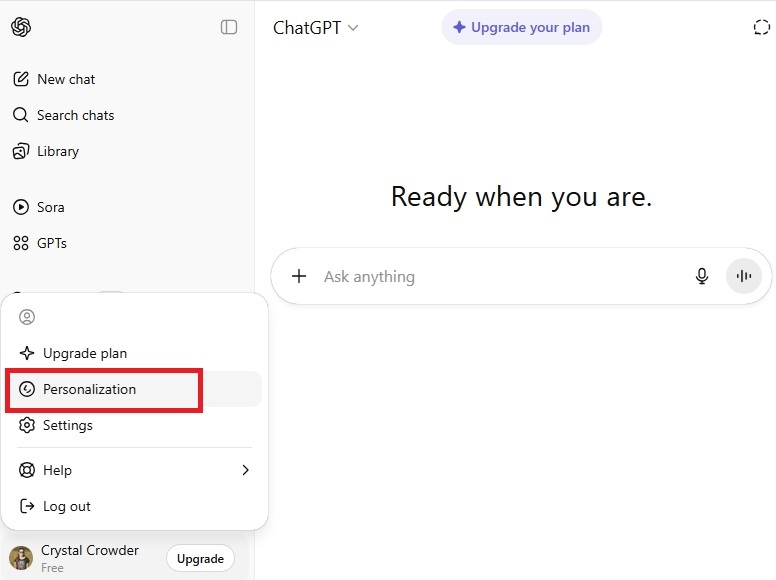
From here, you’ll find personalities, custom instructions, and more sections to customize how ChatGPT 5 responds to you.
Ensure you have Enable customization turned on in Personalization or you won’t be able to set any options.
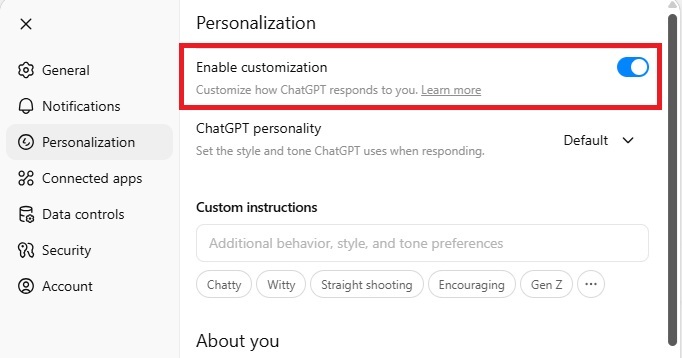
Pick a More Engaging Personality
ChatGPT 5 personalization begins with picking a better personality. Overall, the default is bland and drier than ChatGPT 4o. That’s one of the reasons users aren’t thrilled with using it.
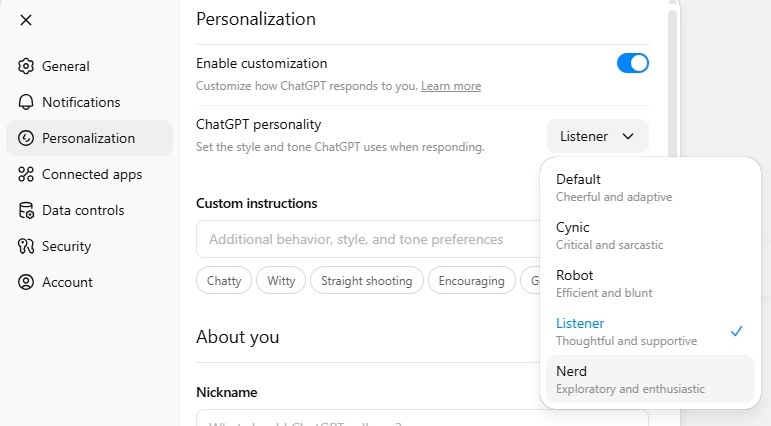
You have five personalities to choose from:
- Default
- Cynic
- Robot
- Listener
- Nerd
To get a more collaborative, engaging option, stick with Listener or Nerd. You can switch out at any time. Just be aware that changing the personality only affects future conversations, not past ones.
Listener works well for more thoughtful answers like you’d get from a friend. Nerd is ideal for enthusiastic research. Think of it as a happy research assistant who is just as interested in whatever random topic you’re currently diving into as you are.
Adding Suggested ChatGPT 5 Personalization Instructions
The personality is just a small part of customizing ChatGPT 5. The mistake many users make is only personalizing their chat in the chat box itself. They may ask for a specific tone or for it to answer more like ChatGPT 4o. But, gradually, ChatGPT forgets about it and defaults back to ChatGPT 5’s normal tone and settings.
You have to add your personalization instructions into the Personalization screen under Custom instructions.
Click the three dots beside the Custom instructions box to view suggestions. Click as many of these as you want to add suggested instructions.
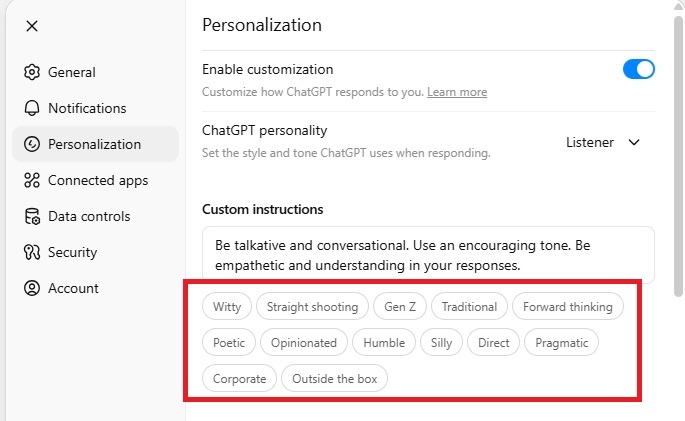
If you delete the suggested text, you won’t see the suggested style in the below list again until you exit the Personalization window and go back into it.
This is the easiest option for most users. Mix and match the suggested options until you get the right feel that brings you back to ChatGPT 4o. It won’t be a perfect match, but it’ll be much closer than the ChatGPT 5 default.
Add Detailed Custom Instructions
ChatGPT 5 personalization isn’t limited to just the suggested options. Make a list of everything you loved about your interactions with ChatGPT 4o. For many users, this included being more creative, conversational, elaborate, and adaptable.
I suggest opening Notepad, Microsoft Word (any free alternatives work well too), Google Docs, or any other text editor. Create a detailed list of instructions. It’s fine to use bullet points. A good example is this Reddit user’s custom instructions. You don’t have to use their list, but it highlights just how detailed you can be.
When adding instructions, also customize them for your specific needs. One of the things users love about ChatGPT 4o is how it adapted to their needs based on the conversation. ChatGPT 5 doesn’t do so well with this. So, add in instructions to help ChatGPT understand you.
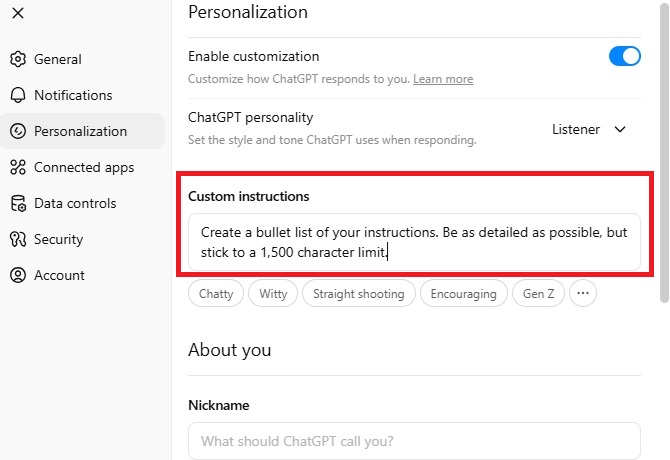
For example, if you’re a technical writer, you might add “Approach responses from the standpoint of a technical writer.” You can also add your occupation in the Occupation box in the Personalization window for ChatGPT to understand you better.
Remember, the custom instructions you set apply to all future conversations. You can alter these at any time.
You’re limited to 1,500 characters, so be as concise as possible. When you’re finished, click Save to save your settings.
Currently, you can’t have different sets of custom instructions. A few workarounds include:
- In your list, add a prefix to different instructions to help ChatGPT distinguish between them. For instance, use CIW (for Custom Instructions Writer) for instructions that apply to writing. For general research, you might use CIR (Custom Instructions Research). When chatting, reference that prefix.
- Keep a document with all your different custom instruction sets. Then, just copy and paste them as needed. This can be within the chat itself for rarely used instructions or within the Personalization page. Notion is good way to keep everything organized. You can even access it offline if necessary.
- Create custom GPTs. Each can have its own set of instructions. This is for premium users only.
It takes some work to fully customize ChatGPT 5 to feel more like ChatGPT 4o. But, with some ChatGPT 5 personalization, free users still get to enjoy more of the personality of ChatGPT 4o again.
If you want to carry over your personalizations to WhatsApp and Telegram, just link your accounts. Then, chat with ChatGPT in your favorite chat app.








