Every web tool I use daily that has no desktop client lives in a browser tab, competing with 20 others for attention. It gets lost, accidentally closed, or disappears when the browser crashes. Pake fixes that. It lets you turn any website into a desktop app that actually behaves like one, with its own window, its own taskbar slot, and its own process.
Browser App Shortcuts Are Still Just Your Browser
If you have tried the usual ways to turn websites into desktop apps on Windows, you already know how they fall short. Edge and Chrome both let you install a website as an app, but what you get is still your browser running in disguise. The toolbar disappears, but the app is still tied to the browser process. Close the browser entirely, and your app goes with it.
If you have tried installing a progressive web app through Chrome or Edge before, it is the same story. It looks separate, but it still shares the browser’s memory, session, and fate if something crashes or updates badly.
Tools like WebCatalog and Nativefier go further by separating the app from your browser, which is a genuine improvement. The catch is that both rely on Electron, which bundles a full copy of the Chromium browser inside every app it produces. That is why even a simple app can hit 150MB and feel slow to open. You have traded one problem for another.
Pake takes a cleaner approach. It uses Tauri, which relies on the web engine already installed on your system. On Windows, that engine is WebView2, which comes pre-installed with Microsoft Edge. Nothing extra gets added. The result is an app that is nearly 20 times smaller than what Electron produces and opens noticeably faster. If you want to convert websites to desktop apps without the usual tradeoffs, this is where Pake stands out.
Turn Any Site Into a Desktop App From the Terminal
This method works for any URL and gives you full control over the app name, window size, and icon. You need three things installed first: Node.js v22 or higher, pnpm, and Rust v1.85 or higher. WebView2 is already on Windows 10 and 11.
Go to nodejs.org and download the LTS version. Run the installer with the default settings. Then open the Start menu, search for Terminal, right-click it, and select Run as administrator. Run this command to install pnpm:
npm install -g pnpmNext, go to rustup.rs and download the Rust installer for Windows. Run it and follow the prompts. Once it finishes, close Terminal and reopen it as administrator so it picks up the new installation. Now install the Pake CLI by running:
pnpm install -g pake-cli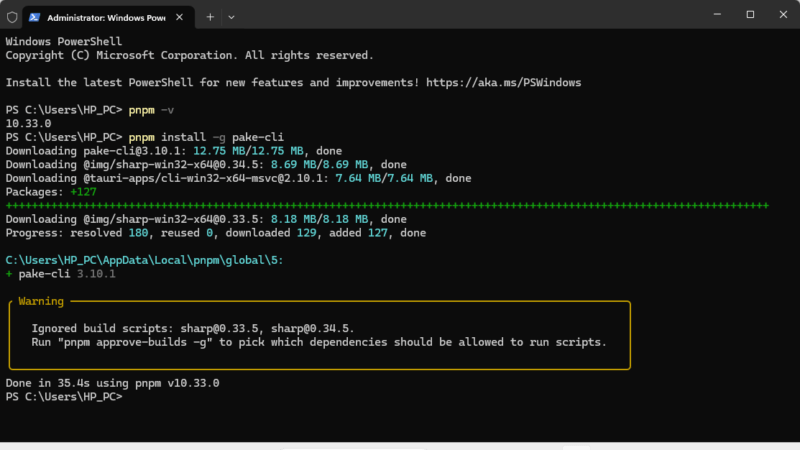
You only need to do that once. From here, converting any website to a desktop app is a single command. Replace the URL and name with whatever tool you want:
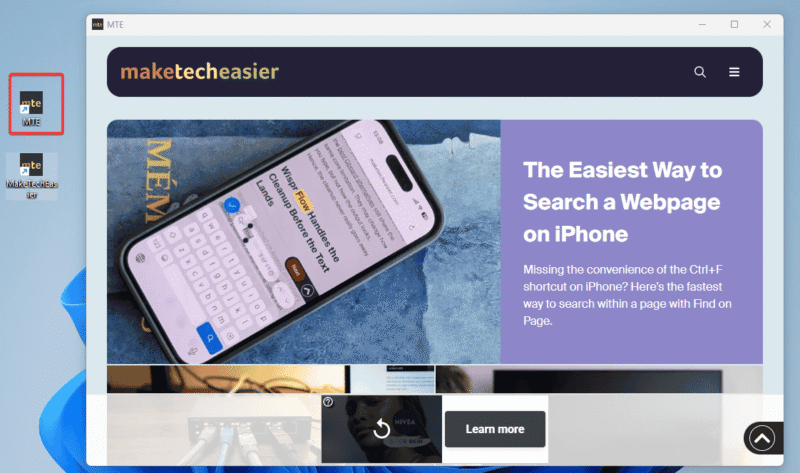
pake https://maketecheasier.com --name MTE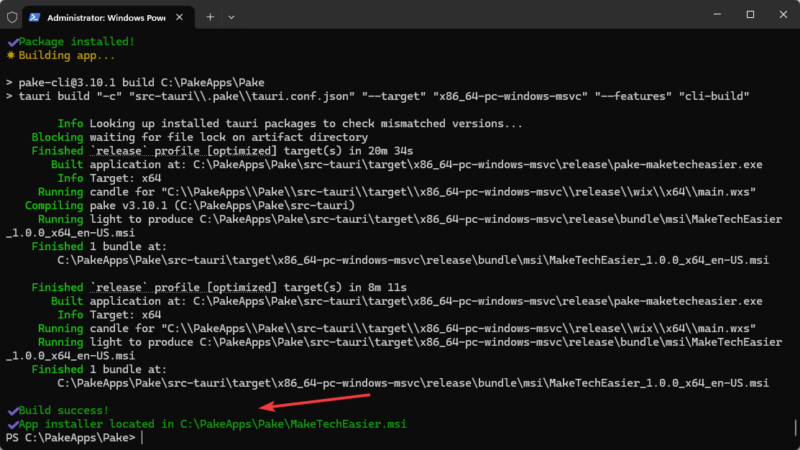
Pake grabs the site favicon automatically and uses it as the app icon. You can also add these optional flags to the command:
- use
--width 1280 --height 800to set the window size. --hide-title-barfor a cleaner look.--iconto point to a custom image file.
When the build finishes, Pake saves the app file in the folder PowerShell was pointing to, usually your user folder on Windows. The file will be a .exe or .msi. Double-click it to run the installer.
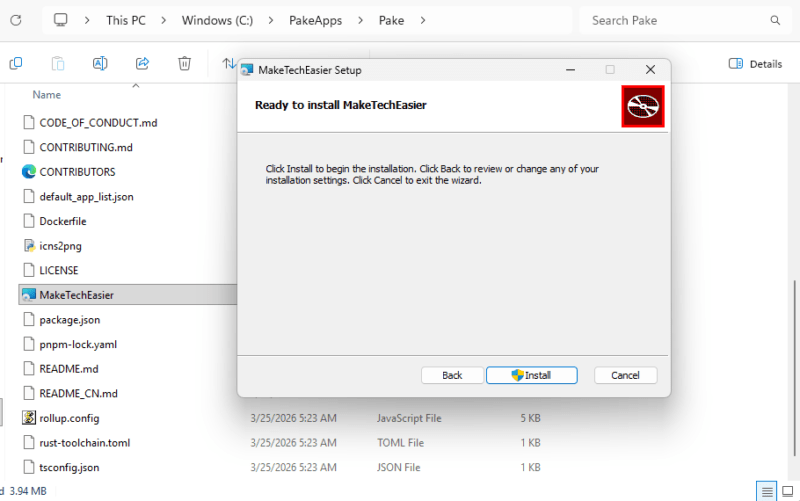
After installation, you can right-click the taskbar icon and select Pin to taskbar for easier access later.
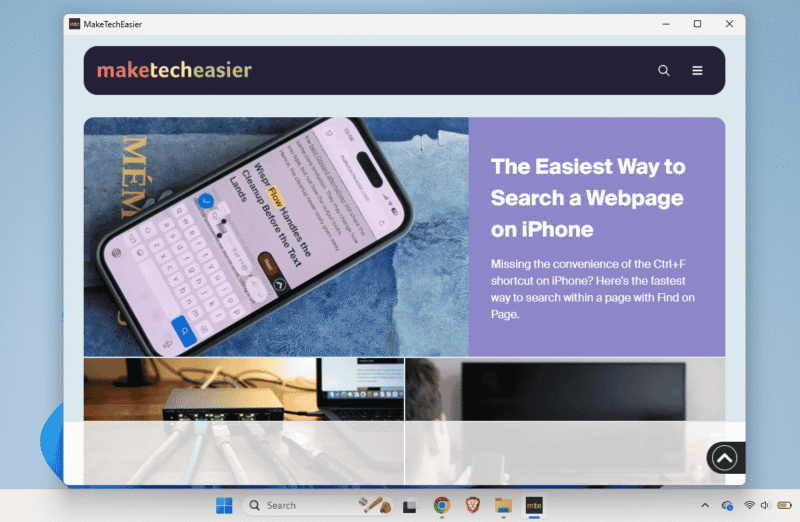
Every Pake app comes with these keyboard shortcuts built in by default:
| Shortcut | Action |
|---|---|
| Ctrl + R | Refresh the page |
| Ctrl + W | Hide the window (does not quit) |
| Ctrl + left/ Ctrl + right | Go back / Go forward |
| Ctrl + L | Copy the current URL |
| Ctrl + -/ Ctrl + = | Zoom out / Zoom in |
The first build takes several minutes while Rust compiles everything from scratch. Every build after that is significantly faster.
Skip the Terminal and Let GitHub Build It for You
This method lets you convert a website to a desktop app without installing anything locally, although you’ll need a free GitHub account.
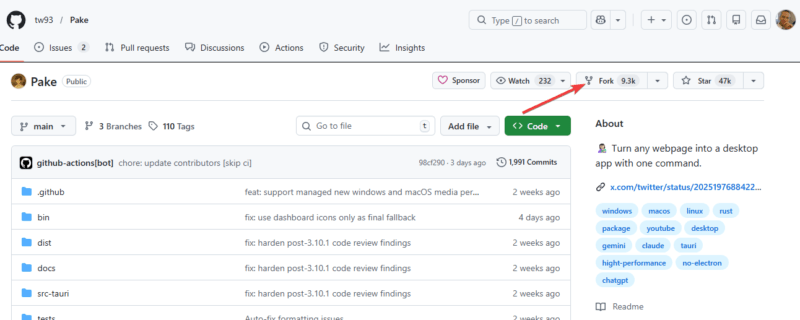
Once you are signed in, go to github.com/tw93/Pake and click the Fork button near the top right. On the next screen, click Create fork. This makes a personal copy of the Pake project under your own GitHub account.
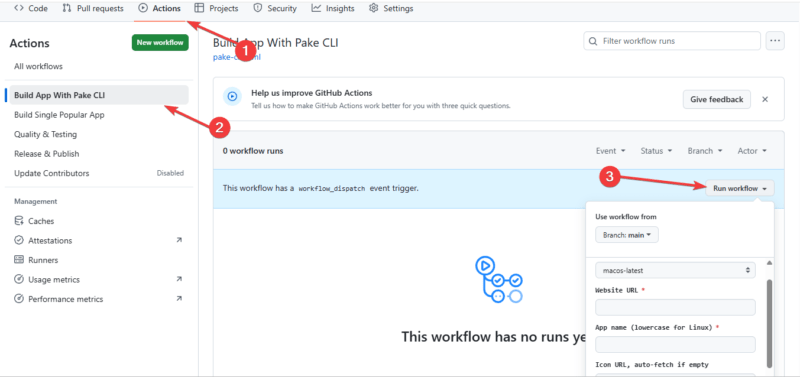
In your forked repository, click the Actions tab at the top of the page. In the left sidebar, click Build App With Pake CLI, then click Run workflow on the right.
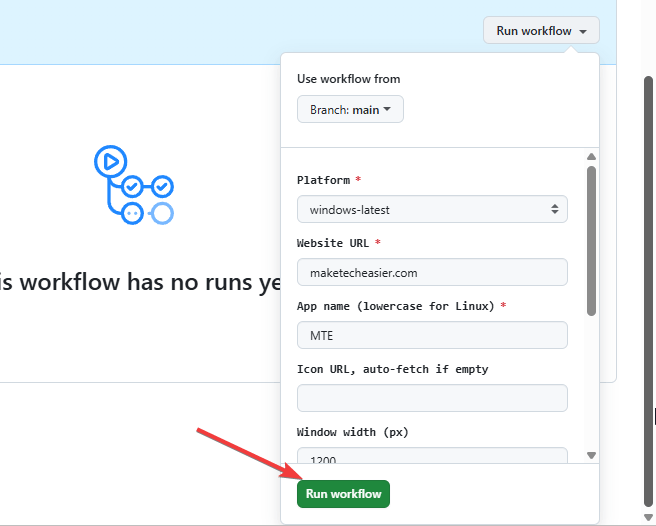
A small form drops down asking for the URL, app name, window dimensions, and an optional icon. Fill it in and click the green Run workflow button.
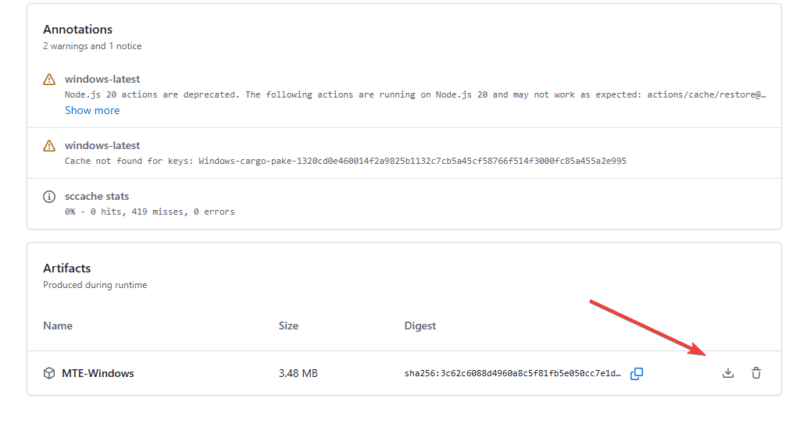
The first run takes 10 to 15 minutes while GitHub sets up its cache. Subsequent builds drop to around 5 minutes. Once the workflow shows a green checkmark, click into it, scroll to the Artifacts section, and download your installer.
Run it the same way you would any normal app.
This is the easiest way to convert websites to desktop apps without touching the terminal.
Download The Pre-Built Apps
Pake maintains a set of ready-to-download desktop apps on its GitHub Releases page. If your tool is on the list, you skip every step above entirely. Current options include ChatGPT, DeepSeek, YouTube Music, Grok, Twitter/X, Excalidraw, and WeRead.
Windows users want the .msi file, Mac users want .dmg, and Linux users want .deb. Download it, run the installer, and you are done in under two minutes. If the tool you want is not on the list, Method 2 gets you the same result without touching a terminal.
Where Pake Still Falls Short
Pake is not perfect, and it is better to know up front. Each Pake app runs a single session. If you need two accounts for the same service to open simultaneously, you would need two separate apps.
Browser extensions do not carry over either, so password managers, ad blockers, and grammar tools stay behind. On Mac and Linux, rendering uses WebKit instead of Chromium, which occasionally produces minor visual differences.
And since Pake wraps a live URL, there is no offline mode. No internet means the app has nothing to load.
If all you need is a quick shortcut with zero setup, Edge’s built-in app install gets the job done faster. Pake makes sense when you want the tool to behave like a real desktop app, not a browser tab with the toolbar hidden. If keeping your overall Windows setup lean matters to you, other open-source utilities like AppControl are worth exploring alongside this.
The Right Method for You
The best way to convert a website into a desktop app with Pake comes down to how much setup you are comfortable with. If you want full control, use the terminal method. If you want convenience, use GitHub Actions. However, if your tool is already listed, just download it.
Pake will not replace a native app. But for web tools that have never shipped one, it is the cleanest way to move them from your browser tabs to your taskbar, where they belong. If tab overload is a bigger problem for you beyond just missing desktop apps, using virtual desktops in Windows is worth combining with this setup.