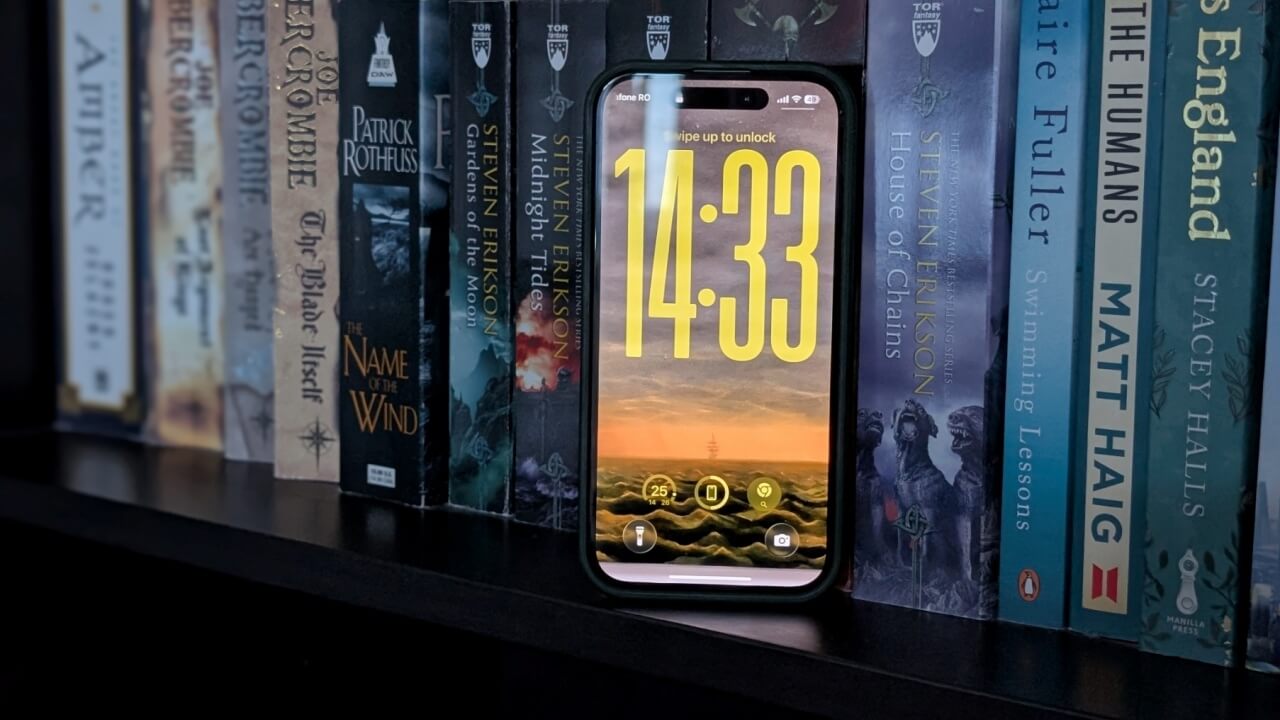
With iOS 26, Apple has introduced a variety of enhancements designed to give users more flexibility in personalizing their devices. Notably, the lock screen now supports a series of new customization features. Read on to discover all the ways you can transform your lock screen, so you can start your day with something that feels brand new.
Good to know: also check how to set up call back reminders on your iPhone running iOS 26.
1. Try the Liquid Glass-Style Clock
Before you attempt any of these suggestions, make sure you’ve updated your iPhone to iOS 26. You can do so by going to Settings -> General -> Software update.
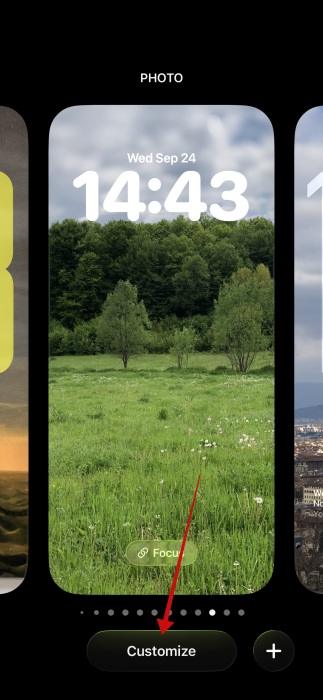
Once your iPhone is updated, press the power button to wake your device and bring up the lock screen. Long-press anywhere on the screen and press the Customization button underneath once it appears.
Tap on the clock at the top to view customization options.
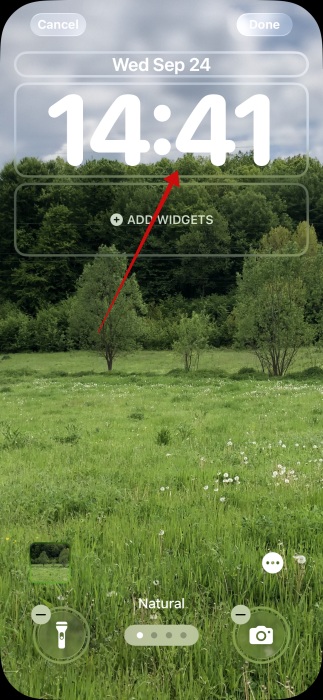
Switch to Glass at the bottom.
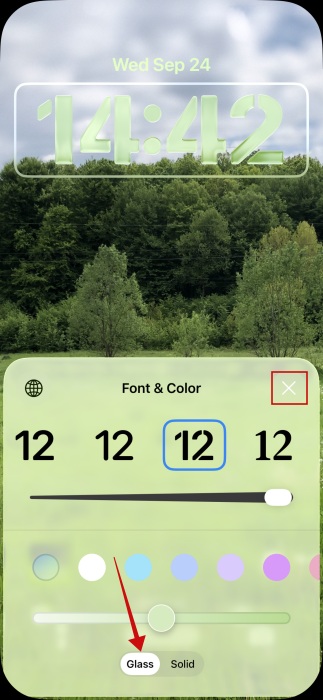
Then select your preferred color and type font. As you can see, the difference is hard to miss. After applying Apple’s Liquid Glass design language, the numerals appear as translucent forms, reflecting and refracting their surroundings.
When done, press the X to close the Font & Color pop-up.
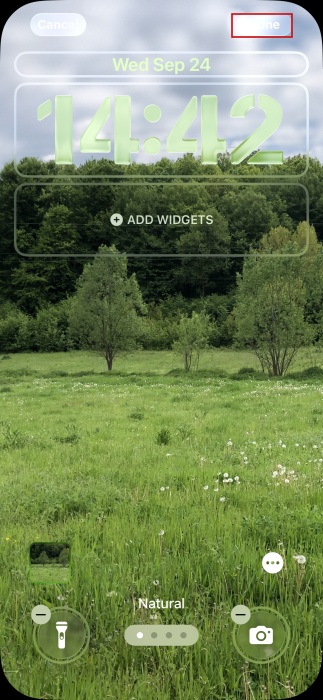
Press Done to save the new look.
Tip: did you know that you can make your iPhone speak for you during calls? Here’s how to set this up.
2. Get the Stretched Out Clock Look
Alternatively, for an even more distinctive look, try stretching out the clock. This option is available in iOS 26, but only on select photos. If there’s no space above the photo’s main subject, the option won’t appear for you.
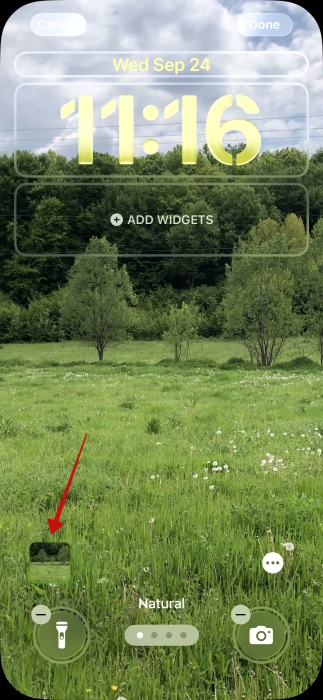
From your lock screen, once again open the Customize panel. Tap on the image thumbnail in the lower right corner.
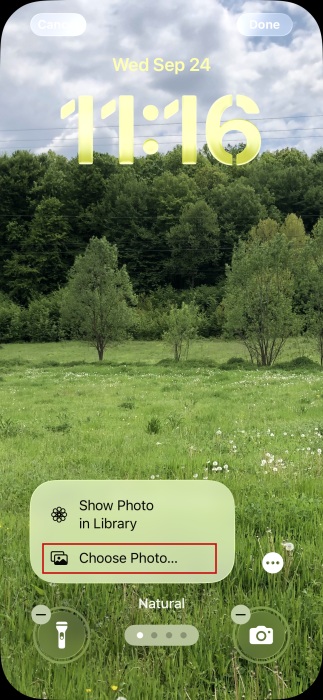
Select Choose Photo to browse your gallery for an image. Make sure you select an appropriate photo with plenty of empty space in the upper area.
Now, if you’ve been using one of the font alternatives for your clock so far, the option to stretch it out won’t appear. What you need to do is a couple of things.
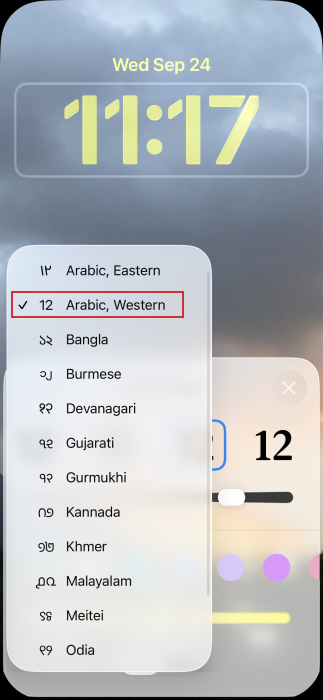
Tap the clock to bring up the customization options. Now, first press on the globe icon.
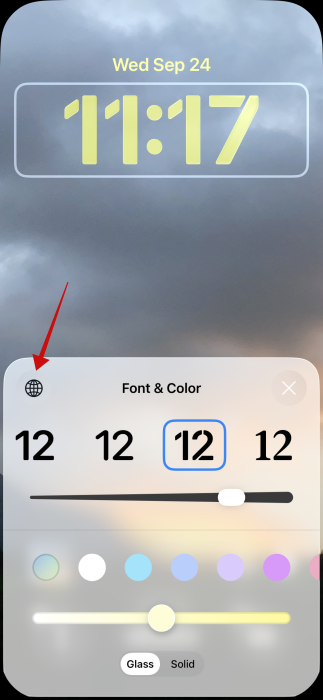
Make sure Arabic Western is selected.
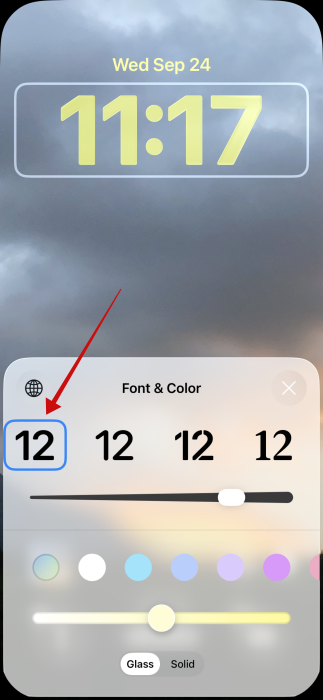
Then, switch to the first font option.
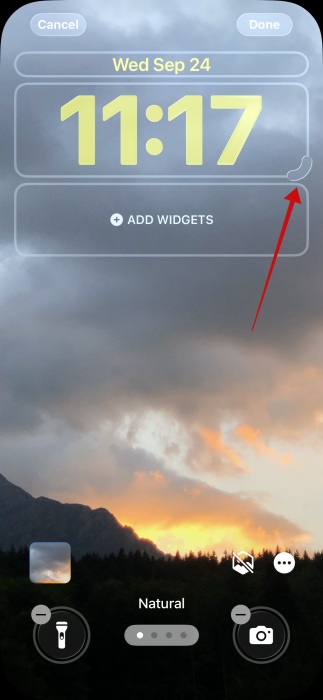
Now, you should be able to see the drag handle appear on your clock.
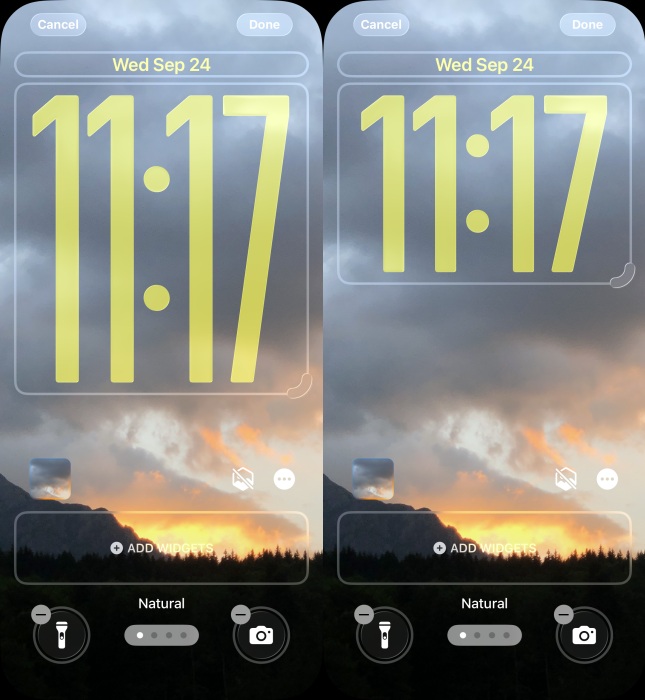
The clock can now cover half of your screen real estate, if stretched to the maximum, but you can opt for a smaller version.
3. Move Lock Screen Widgets to the Bottom
While in previous iOS versions, you could only add lock screen widgets at the top, underneath the clock. iOS 26 introduces the option to move them to the bottom, if you so prefer.
Open the Customize panel once again and press on the Add Widgets option at the top. Select your widgets as preferred.
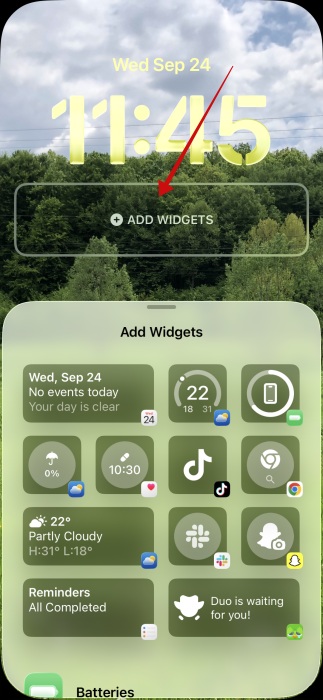
Now long-press on the widget frame and drag it to the bottom. Right now, it’s not possible to place the frame in any other position.
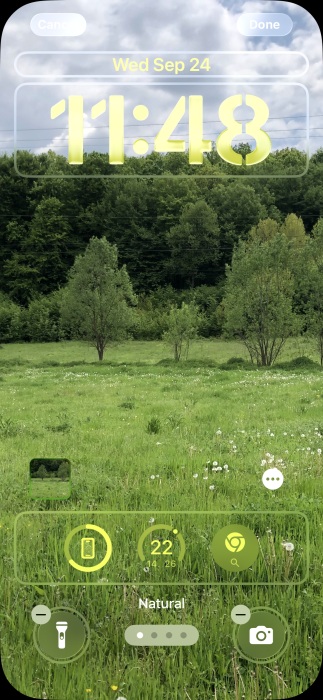
Note that if your widget frame is located at the top and you opt to stretch your clock, the widgets will automatically be moved to the bottom.
4. Use a Spatial Scene Wallpaper
In iOS 26, your iPhone can create 2D or 3D spatial scenes from photos on your device, which you can then use as a lock screen wallpaper.
Bring up the Customize screen and press on the image thumbnail once again. Tap Choose photo to access your gallery.
At the top, swipe to the right and tap on Spatial Scene to access a collection of photo suggestions you can use.
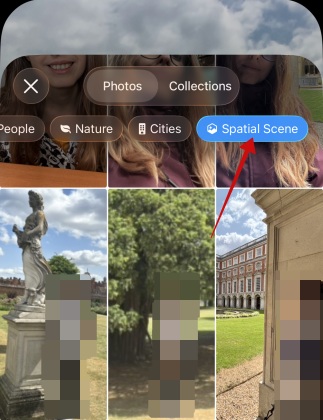
Alternatively, you can try opting for another image from your gallery. If it’s compatible with the Spatial Scene feature, you should notice a hexagonal icon in the lower right corner. Tap it to create a Spatial Scene from your photo.
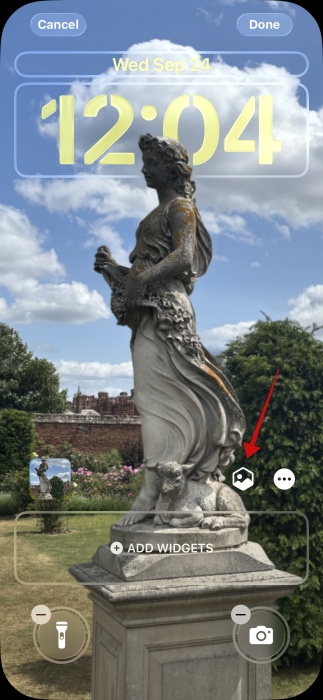
To turn the effect off, tap the icon again.
FYI: don’t like the Liquid Glass animations in iOS 26? Here’s how to tone them down.
5. Add Animations When Playing Music
Do you like to play music often on your device? If you use Apple Music, you can now experience animated effects on your lock screen when playing music.
Play a song on Apple Music and then turn off your phone’s screen. Turn it on again to view your lock screen. The Now Playing bar should now appear at the bottom.
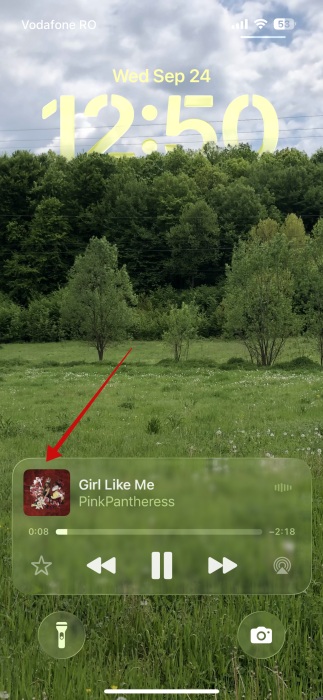
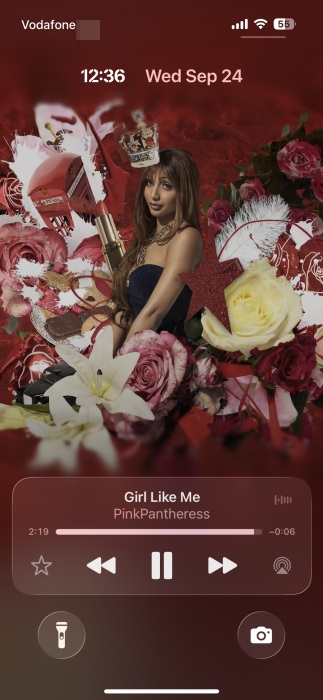
Tap the album art to bring up the full-screen view. The feature turns the album cover into an animated canvas, which you can view directly from the lock screen.
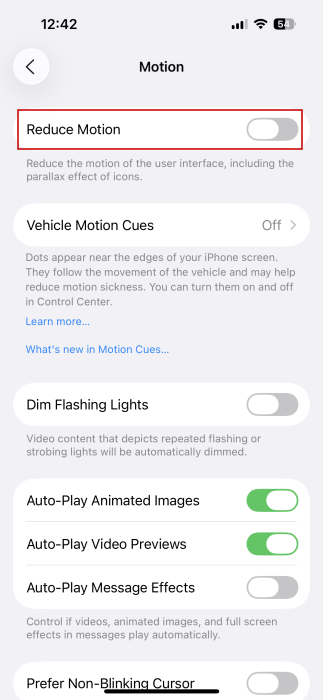
Now, if the animations aren’t appearing for you, here are a few things to try. Go to Settings -> Accessibility -> Motion and make sure Reduce Motion is off.
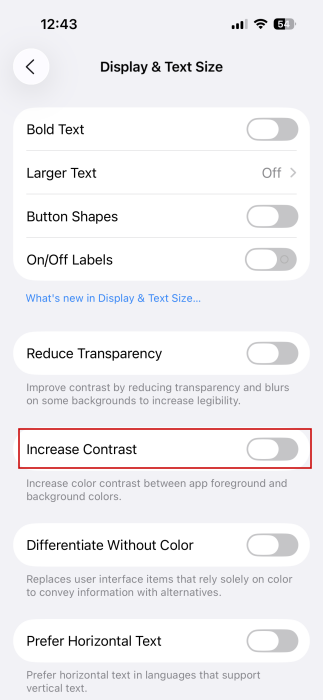
Return to Accessibility and tap on Display & Text Size. Disable Increase Contrast from there.
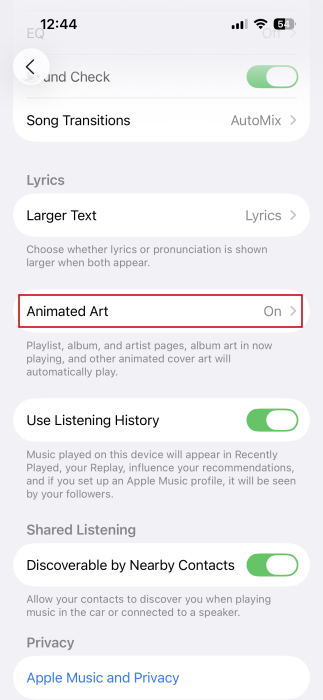
Next, go to Settings -> Apps -> Music and check if Animated Art is on.
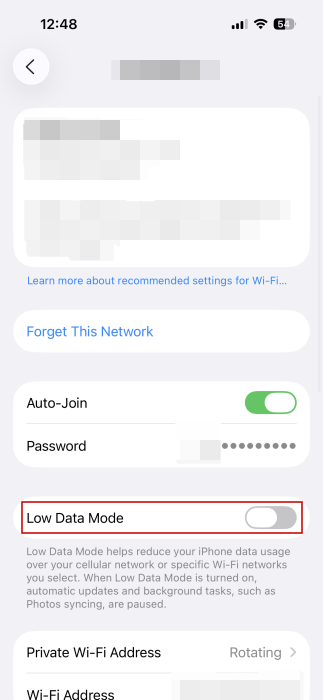
Finally, ensure Low Data Mode is not active by going to Settings -> Wi-Fi or Cellular and tapping on the connection in use.
Following these steps worked for me, as I couldn’t see the animations at first either. Also note that not all album art currently supports animations, so you might have to try playing music from a few different artists (Tip: the more popular, the better chances of success.)
You can continue customizing your iPhone lock screen even further by checking our post on how to customize lock screen shortcuts on your phone.








