Do you have a favorite image you’ve taken with your smartphone that you’d like to use as a wallpaper? This tutorial shows how to make any picture (even a wide one) fit on Android.
Good to know: learn how to create an AI wallpaper on Android.
Edit Pictures for Wallpaper
Before we proceed, remember that before you set an image as your wallpaper, you should make all the needed visual adjustments: make sure it’s the right tone, filter, saturation, and so on. Arranging it into position comes later.
Most users would probably use a photo-editing app to make these adjustments. If you would rather not install another app on your device, you can always use Google Photos (we have for this tutorial), an app that is preinstalled on most Android phones.
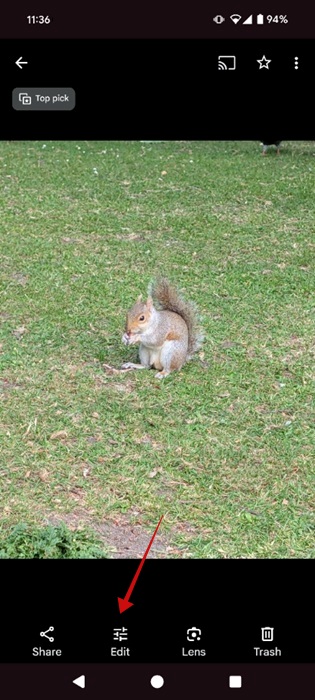
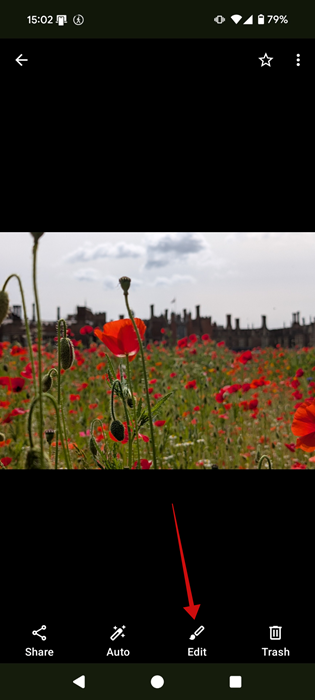
Open the app, then select your image. Tap the Edit icon at the bottom of your phone’s screen to view the options for your phone wallpaper.
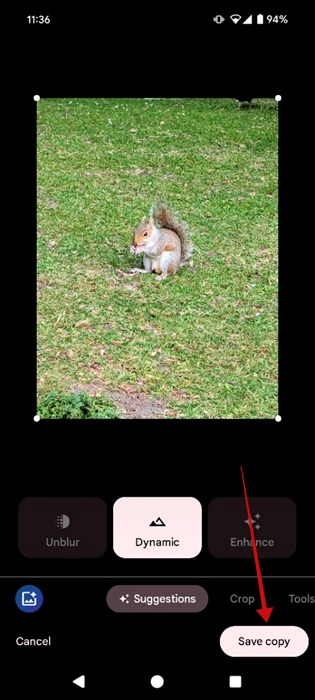
Make all the adjustments you want, such as brightness, saturation, lighting, and colors. Finally, tap Save copy to save your edited image to Google Photos for later use.
Tip: check how to easily edit screenshots on your phone.
Set a Picture as Wallpaper on Android
In the past, setting a wallpaper on Android was a bit fiddly: instead of cropping images that were too wide, the system would sprawl them across several home screens. A wallpaper now stays stationary by default, and Android has quick and easy ways of cropping the size of the image.
Method 1: Using the Wallpaper Setting
On your Android phone, long-press on your home screen, and select Wallpaper & style from the menu. On some phone models, the option might just say Wallpapers.
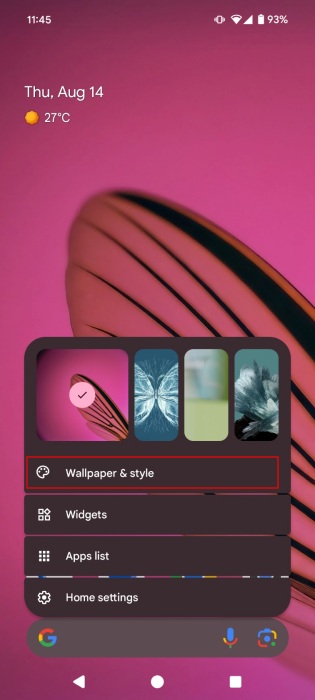
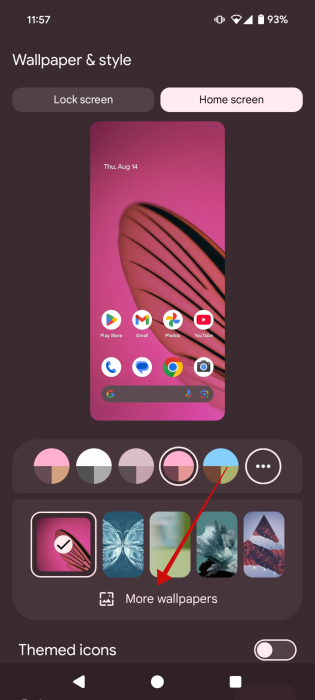
You will see the preinstalled wallpapers on your device. Tap on More wallpapers.
Press My photos.
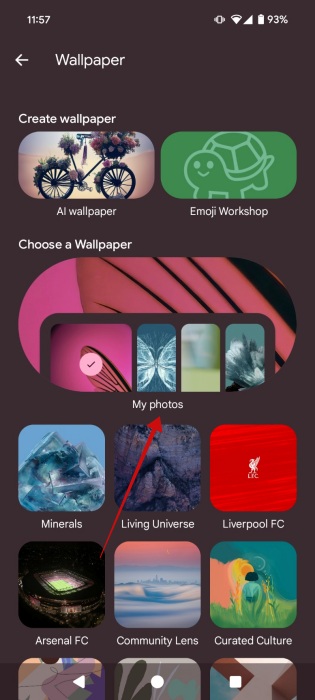
Browse through the folders on your device that include a Download one that contains images you’ve downloaded through apps or your browser.
Pick the image you want to use as a background on your homescreen. Once your image (portrait or landscape) is selected, you will see a preview of your wallpaper on your screen.
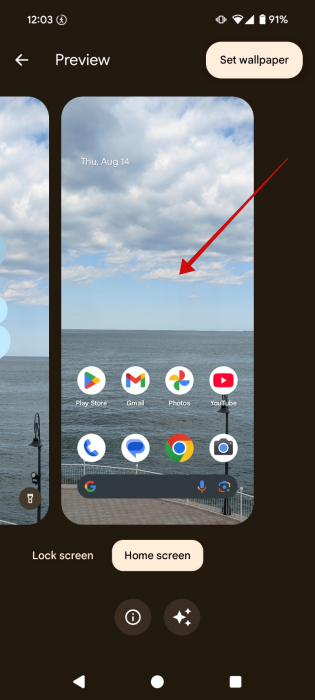
Tap on the screen preview to position the image on your screen according to your preferences. Move the image left or right. You can even zoom in and out of the picture. When done, press the tick icon in the upper right corner.
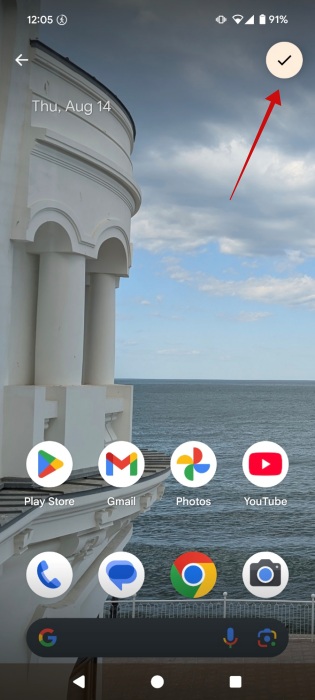
Once you’ve arranged it properly, tap the Set wallpaper button. Choose whether you want to apply the wallpaper to the home screen, lock screen, or both.
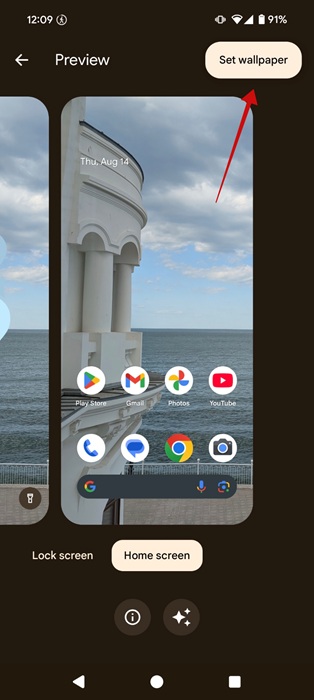
If you’re using a landscape picture, in newer Android versions, the OS will automatically expand the image to cover the whole screen. On older versions, the image will appear with black bars at the top and bottom. You can try moving the image around, but if you want the image to fit the screen, we have a few suggestions below on what you can do.
By the way, if you’d rather go beyond static imagery, check these beautiful Android live wallpapers to make your phone stand out.
Method 2: From the Gallery
Launch any Gallery app on your phone, and open the photo you want to set as wallpaper. For this guide, we’re using Google’s Gallery app.
Tap on the three-dot icon in the upper-right corner.
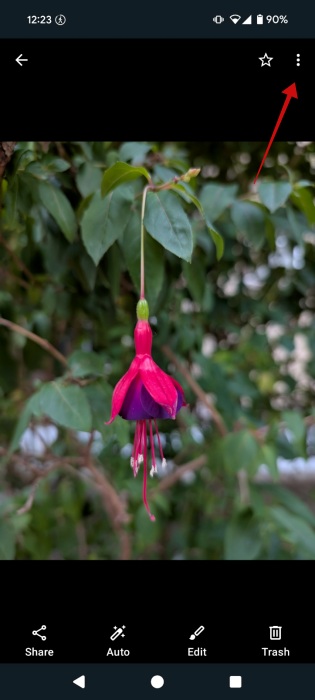
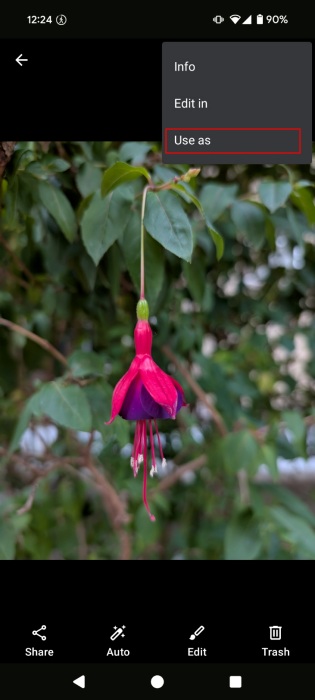
Select Use as.
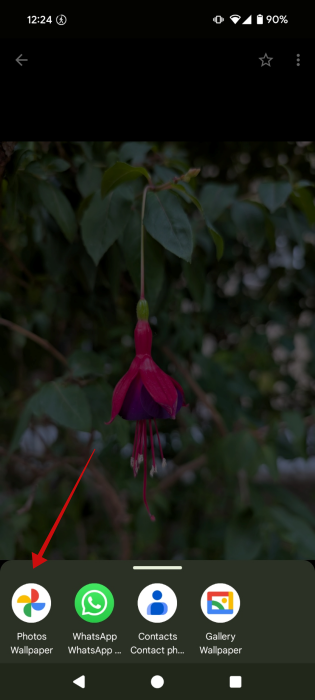
Select Photos Wallpaper or Gallery Wallpaper. On some phones, the option is going to appear as just Wallpaper. Adjust the wallpaper using gestures, and select whether you want it for the home screen or lock screen.
If you’re using Google Photos as your gallery app, you can set your wallpaper from there, too. Open the image, and press the three dots in the upper-right corner.
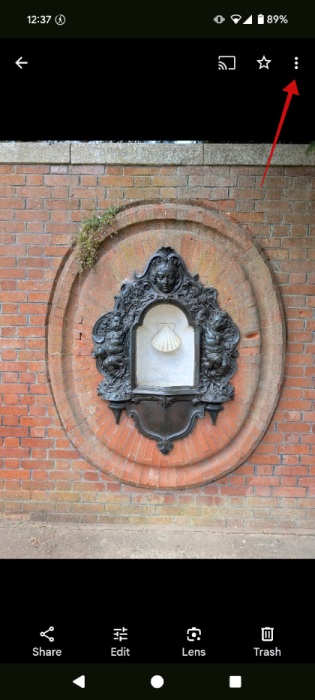
Swipe your fingers over the options below the image and tap Set as wallpaper.
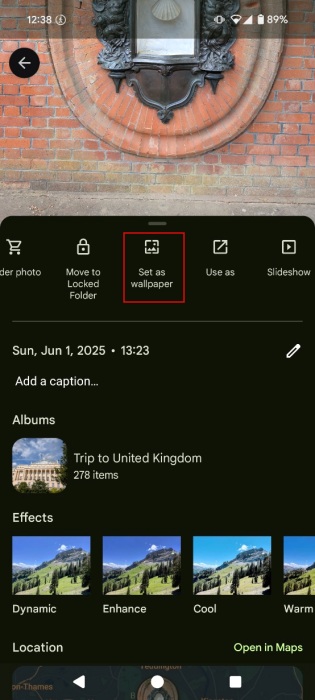
This will take you to the wallpaper preview window on Android, where you can arrange it into position.
Make a Picture Fit as Wallpaper
If you’re planning to use a landscape image, and the methods described above don’t yield a satisfactory result, you may want to experiment with some workarounds.
Crop your wallpaper
The easiest solution is to crop the image you plan to use yourself. You can use anything to do this, from your old gallery app to a specialized photo editing app. For this tutorial, we’re using Google’s Gallery app.
Open the image in question and press the Edit button at the bottom.
Select the Crop button.
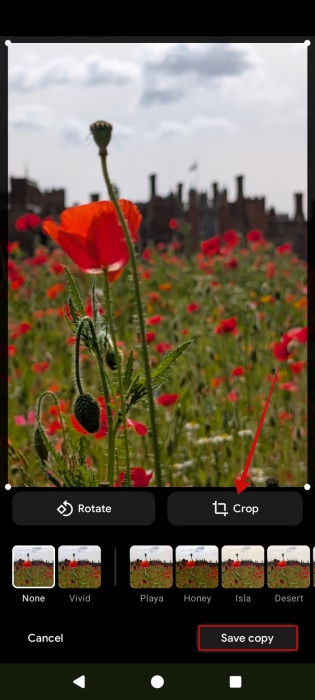
Crop the image vertically. Do your best to include the details that matter, then press Save copy. Now go ahead and use this as your wallpaper.
Expand wallpaper
If your Android phone doesn’t support automatic expanding for your landscape images, you can try using a third-party app such as Snapseed, which has a tool that can vertically extend your image to fit the screen.
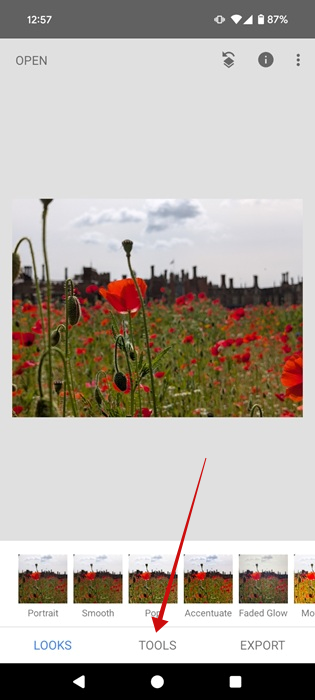
Open the image in the app, and press on Tools at the bottom.
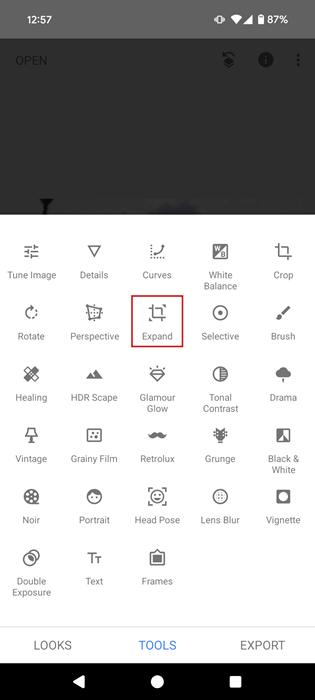
Select Expand from the options.
Drag the bar at the top/bottom of the image to expand it vertically. You can use this option several times in a row (depending on your image). When you are done, press the tick icon in the lower right.
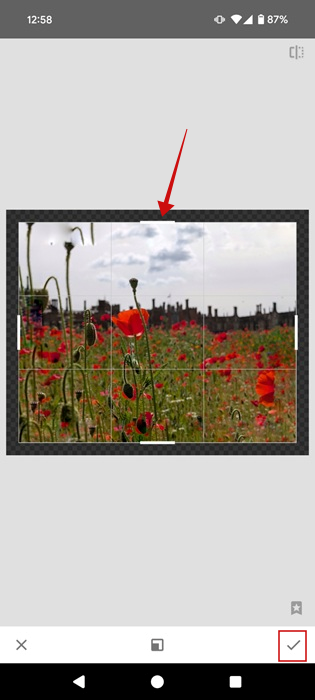
Now you can use the edited image as your wallpaper. Note that the expanded images might not always look 100% perfect, but make sure to hide any imperfections by positioning the resulting image just right.
Tip: did you know you can add a different wallpaper to each of your Android home screens? Here’s how.
Add a frame to your wallpaper
An alternative is to add frames/borders to your image to make the landscape image fit perfectly on your screen. Use an app like InShot, although most photo editing apps should work too.
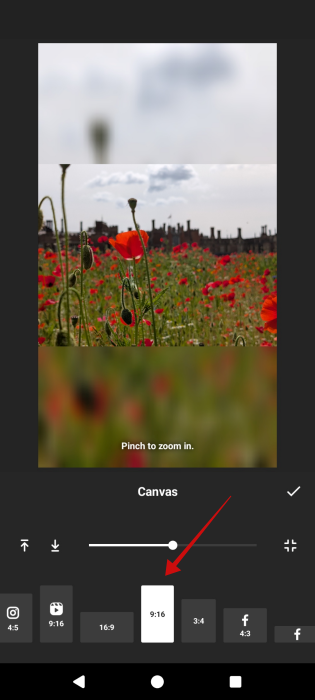
Open the landscape image in InShot, and tap Canvas at the bottom.
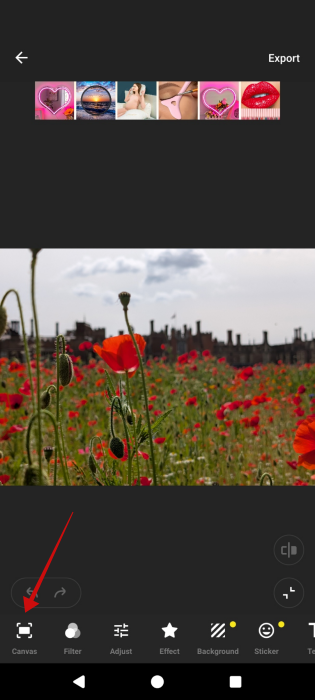
Opt for a vertical format such as 9:16. Your image will now appear at the center with borders placed at the top & bottom, which include blurred elements from your photo.
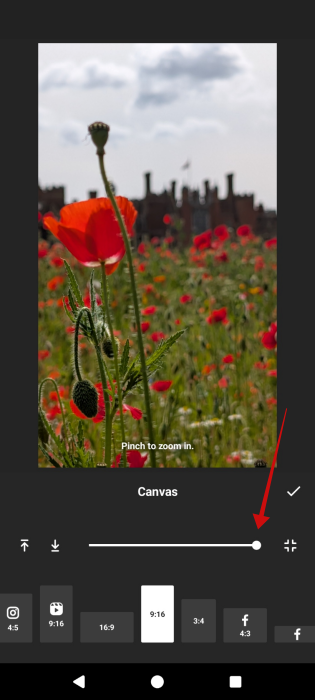
Alternatively, you can max out the Canvas slider at the bottom to expand the image. If you prefer this result, you can use this variant for your wallpaper.
In case you’d prefer to check local weather updates when glancing at your phone’s home screen rather than looking at a static photo, take a look at our list of live weather wallpaper apps for Android.








