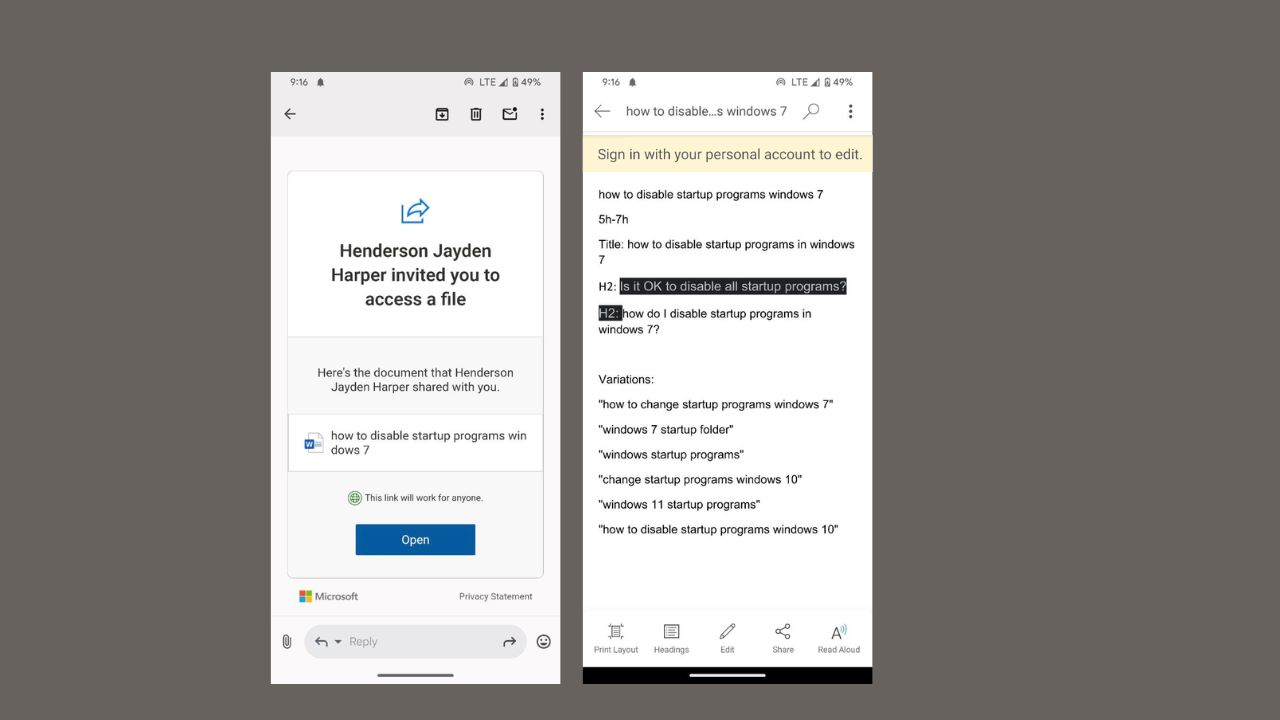
Microsoft’s new feature makes it easy to open shared files on Android anonymously without needing to sign in to your account. With this, Microsoft is making life easier for Android users and improving work collaboration as you can open Word, Excel, or PowerPoint docs without signing up into Microsoft’s ecosystem. Here, we’ll walk you through the steps to use this new feature without hassles.
Why This Feature Matters?
This is a way for Microsoft to level the field with Google Drive’s file sharing. Before this update, you needed a Microsoft account to open a shared Office file on Android, which was an issue if you didn’t use Microsoft services.
Now, you can open shared files on Android anonymously. Hence, improving quick collaboration as you can send files to anyone – friends, coworkers, or clients, without forcing them to sign in/up.
This feature is already on iPhones and iPads and recipients get view-only access via OneDrive or SharePoint links to keep things simple. However, they can sign in to edit or comment.
It’s perfect for on-the-go access as you can quickly check a document without committing to an account. However, if you’re looking to share files, you can check out the steps to use Nearby Share on Android.
Requirements for Opening Shared Files Anonymously
To open shared Office files on Android anonymously, you’ll need a few things:
- You need the latest Microsoft 365 app or individual Word, Excel, or PowerPoint apps installed. (Version 16.0.18827.20066 or later)
- A shared file link via OneDrive or SharePoint.
- Ensure the file sharer is not on the Enterprise account package as you’ll be forced to sign in to access the file.
If you’re on the Enterprise account, learn how to use Microsoft Drop to seamlessly share files instead.
How to Share Files in Microsoft 365 on Android
Open the Word, Excel, or PowerPoint file and tap the Share button in the top-right corner.
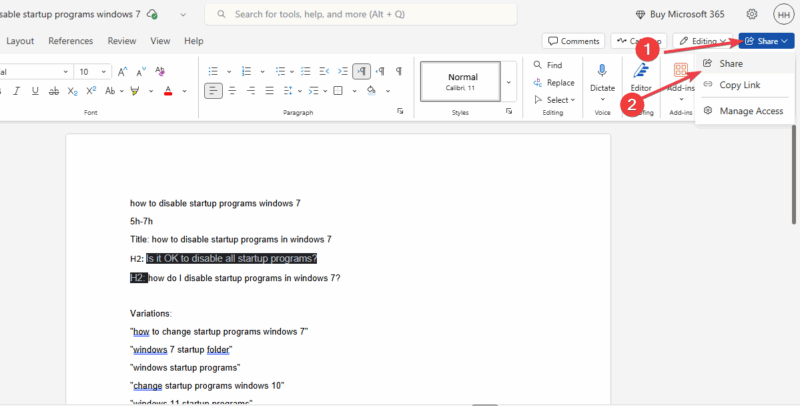
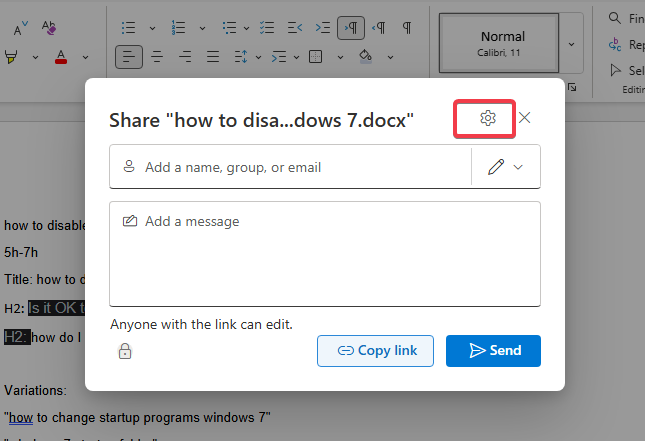
Select Link Settings.
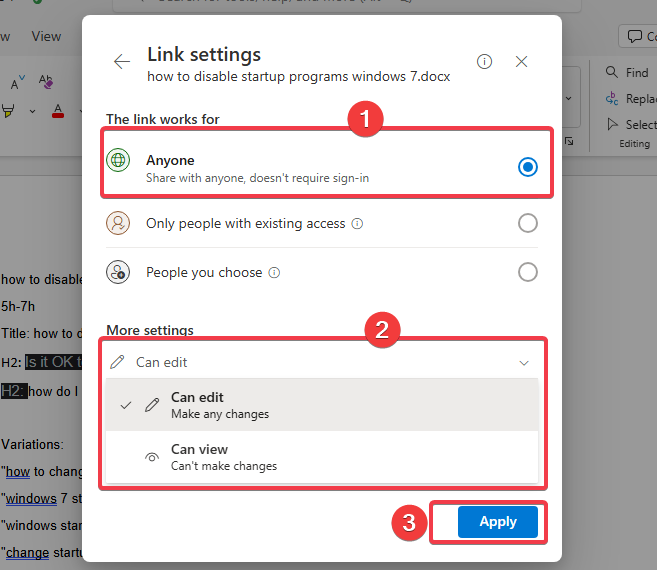
Choose Anyone. Under More Settings, select Anyone with the link can view or Anyone with the link can edit. Then tap Apply to confirm settings.
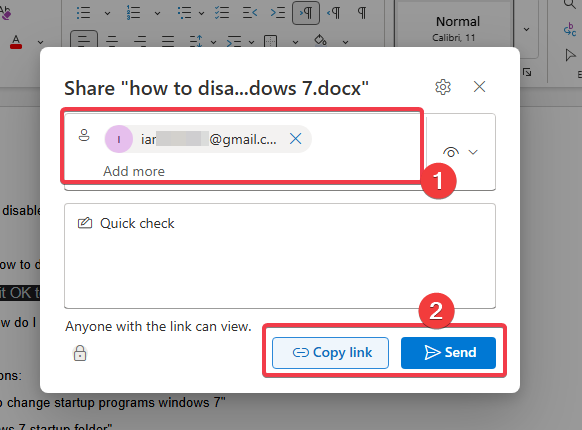
Enter the recipient’s email and tap Send, or copy the link to share manually via texts or social apps.
Open Shared Files on Android Anonymously
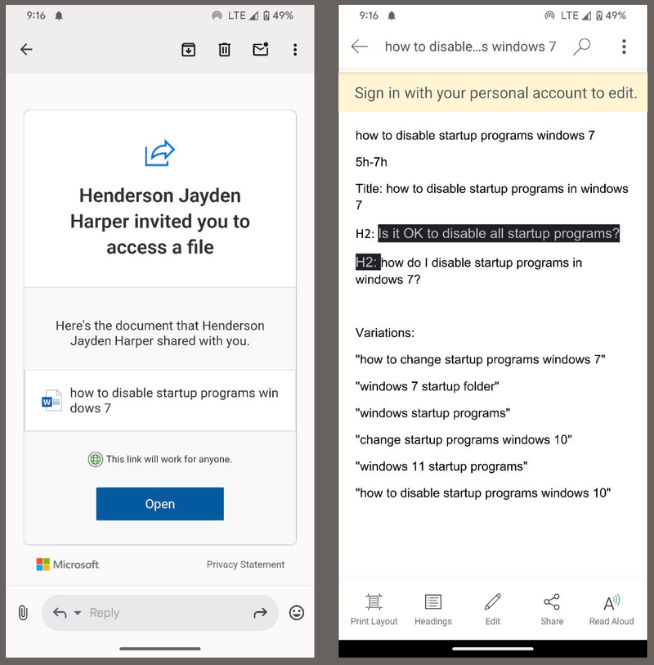
To open the Office shared files on Android anonymously, receive the link through email, text, or any messaging app.
Tap on the link to open. It should open directly in the Microsoft 365 app or the specific Office app for the document. Depending on the permissions, you can view or edit the file.
Note: Try these tips to secure and protect your privacy on Android when receiving files from untrustworthy sources.
Quick Tips for a Smooth Experience
- To make opening shared files on Android anonymously easy, download the file for offline access, if the sharer permits.
- Use the Microsoft 365 app as you can save space and gain access to all file types.
- Ask the sender to adjust sharing settings if you can’t view or edit the file.
- While you can view documents anonymously, also consider getting a free Microsoft account to get extra features like editing or cloud saving.
Extra: If you like the free features, you can learn why a Microsoft 365 subscription might be worth it here.
Opening shared Office files on Android anonymously is easy with Microsoft’s latest update. You can easily access documents, spreadsheets, and presentations without a Microsoft account. Try it out and let us know how it goes in the comments!








