If you’re like me and sick of needing separate apps to open numerous files, just open local files in a browser. Windows lets you open local files in your favorite browser just by changing a few settings.
Why Use Your Browser to Open Local Files
If every file type has an app to open it, why bother with your browser? I used to think that way too, but there are several major benefits, including:
- Browsers are universal file viewers. No need to download extra apps.
- Save resources. Using the browser is far more efficient than numerous apps. You can even set up virtual desktops to organize everything.
- Many web apps let you edit files directly without downloading anything.
- Save storage. The more apps you download, the less space you have for files.
- Save time by not having to switch between apps.
For confidential information, it’s still best to use an installed app. This avoids having any data stored in your browser or in online tools.
Open Local Files Using a Keyboard Shortcut
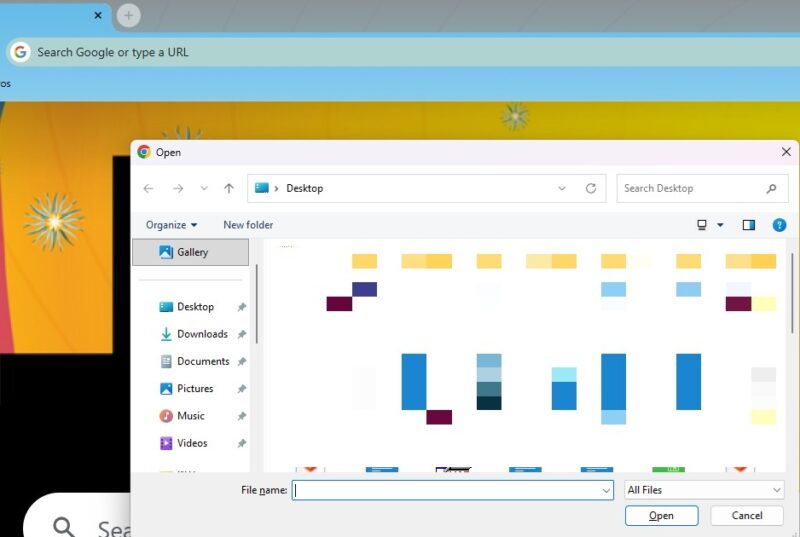
If you want to open local files in Chrome, Firefox, Edge, Brave, and most Chromium-based browsers, just use a simple keyboard shortcut to open File Explorer directly in the browser.
Open a new tab and press Ctrl + O. A File Explorer window opens. Select the file you want to open. Only do this in a new tab since the file opens in the active tab.
Open Local Files Using Drag and Drop
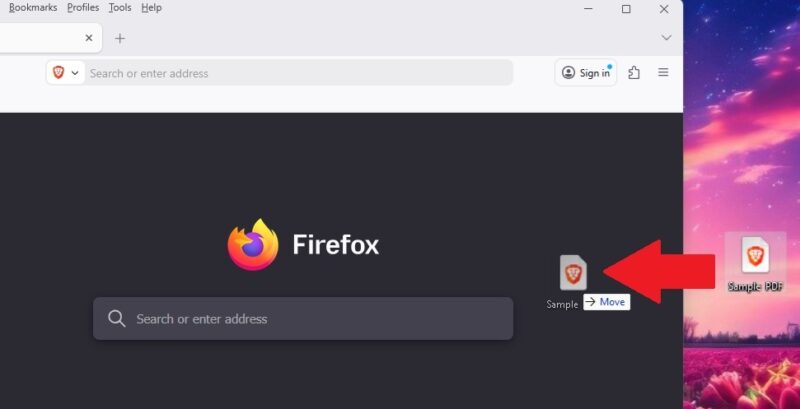
An even simpler approach to allow Chrome to open local files is drag and drop. This also works in most major browsers.
Open a new tab in your browser and resize the entire window so you can still see your Windows desktop. Drag and drop the file you want to open onto the new tab window. The file then opens and is ready for you to view.
Open Local Files Using Address Bar
Most major browsers in Windows support using file:/// along with the full path of the file to open the file in your browser. Just type file:/// and enter the full path. Press Enter to open the file.
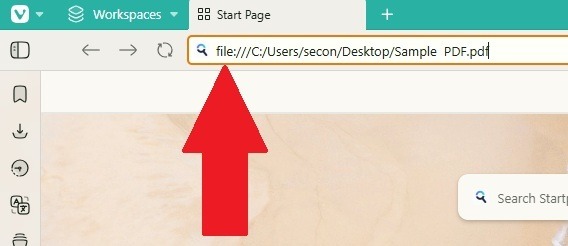
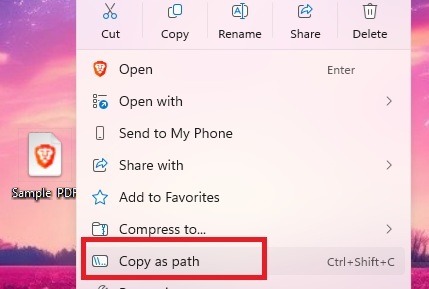
I don’t recommend trying to type a lengthy file path. If you’re like me, you’ll definitely mistype something and wonder why the file isn’t opening. Instead, find the file in File Explorer in Windows, right-click it, and choose Copy as path. Then, paste this after file:/// in your address bar. Just make sure to remove the quotes around the path after you paste it.
Open Local Files With File Menu
Unlike other methods, the File menu method for opening local files in a browser only works in certain browsers.
Chrome and many Chromium-based browsers ditched the traditional File menu in favor of a hamburger or three dot menu. The only problem is this new menu style doesn’t have an option to open local files.
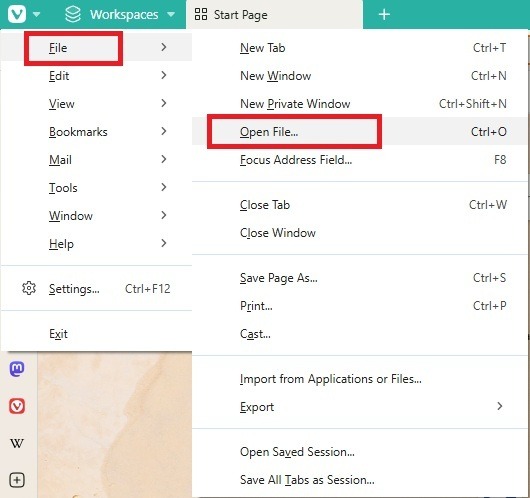
In Firefox and Vivaldi, you still have a File menu with the Open File option. In Firefox, right-click in an open area next to an open tab, above the address bar. Click Menu Bar to display the menu bar. This isn’t on by default.
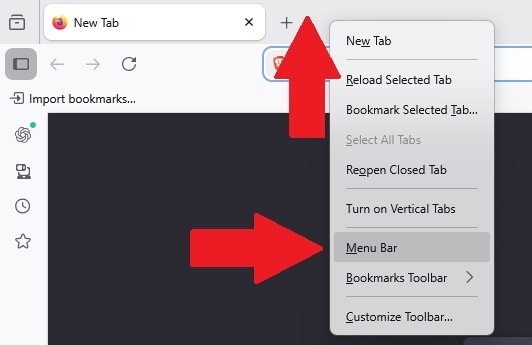
On Vivaldi, click the V in the top left corner to display the menu.
Once you’ve found the menu, click File → Open File and select your file.
Open Local Files With Right-Click
One final method to open local files in a browser is by right-clicking the file and choosing your browser to open it. This is ideal if you don’t have a default app already assigned to the file type or if you do have default app, but want to use your browser instead.
Locate your file, right-click it, and select Open With. Either select your browser from the list of suggestions or navigate to your browser’s executable file to open it.
Limitations to Using Your Browser
Trying to open files in your browser won’t always work for every file type. Most common image, video, and audio formats are compatible. You can also open PDFs, text files, web formats, and even supported file formats in compressed folders. Of course, you can’t typically edit any of these files in the browser itself without using a website.
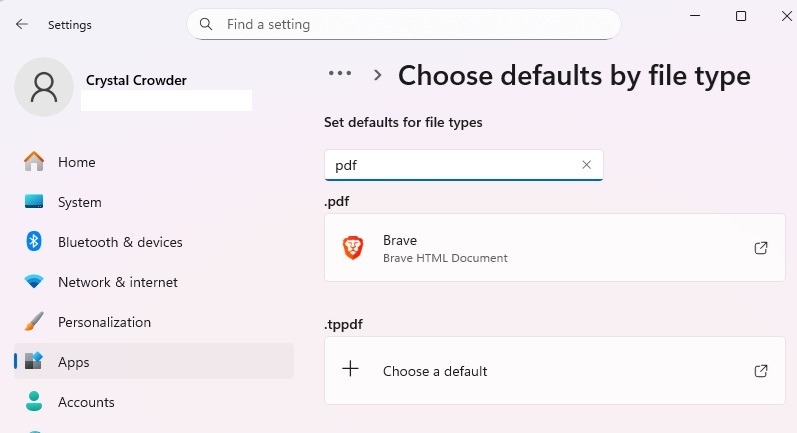
If you already have an app installed to open a specific file type, the browser typically just downloads the file, even though it’s already on your device. It then automatically opens in the default app. If the file type’s supported by your browser, change the default app to your browser.
To change the default app attached to a file type, press Win + I and go to Apps → Default Apps → Choose defaults by file type. Use the search box to locate the file type and change its default app.
One other major limitation is Microsoft Office files won’t typically open in your browser. Instead, you’ll need to open these using the free online version of Microsoft Office. Add the site as a desktop shortcut for quicker access directly from Windows.
Also, files stored in Google Drive or OneDrive may open in Google or Microsoft web apps by default.
Make Your Browser a File Viewer
If you don’t need to edit a file, let your browser become a free file viewer. Most major browsers open local files with ease. If you do need to make edits, save money by using free online tools or free alternatives to premium Windows apps. And, if you’re just trying to save space and resources, try these lightweight alternatives.