
Once seen as a more casual messaging platform, Snapchat has steadily evolved into a more mature social app. Its latest update includes a safety feature that lets users notify friends and family when they’ve arrived at their destination. If you’re on Snapchat, here’s how to enable this feature.
Good to know: here’s how to easily find someone on Snapchat with these tips.
Snapchat Gets a Safety Upgrade
Snapchat may not be the first app that comes to mind when you think of safety features, but the platform has evolved significantly from its early days as a secret message app.
Previously, Snapchat let users share their live location with friends, but the new Home Safe feature takes that a step further. Once enabled, it automatically sends an update in your chat to let friends know you’ve made it home, eliminating the need to send a message manually.
With the Home Safe feature, Snapchat now doubles as a safety check-in tool, perfect for situations like meeting someone new (say, on a date) or taking a ride home when you want a little extra peace of mind.
Heads up, the feature is still pretty new and might not show up for everyone right now. To see if you have it, open the App Store or Google Play Store, look up Snapchat, and hit Update if you see the button. That’ll make sure you’re on the latest version.
Tip: here’s how to tell when someone was last active on Snapchat.
Use Home Safe on Snapchat
Before you start using Home Safe for the first time, you will have to set your home location first.
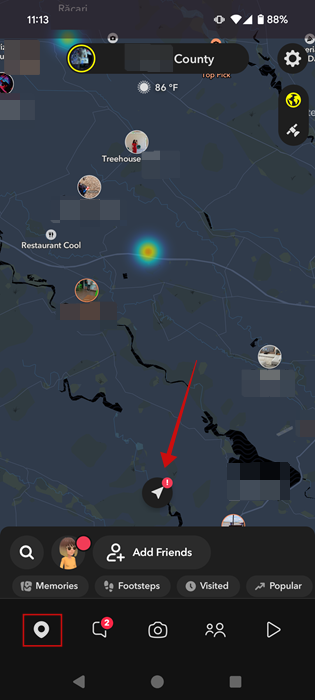
In the Snapchat app, tap on the map icon in the menu at the bottom. If this is your first time doing this, press the arrow icon on the map.
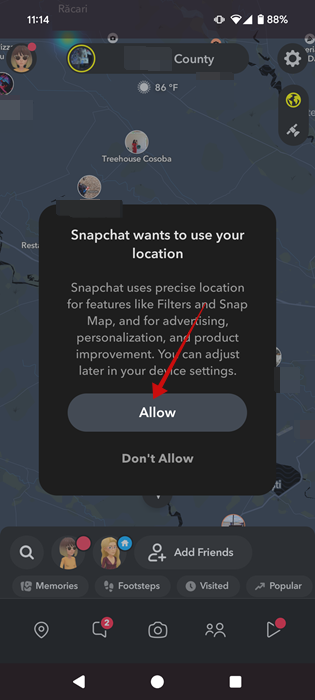
Tap Allow on the pop-up asking you to let Snapchat use your location.
Your Bitmoji should now appear at your current location. Tap the avatar.
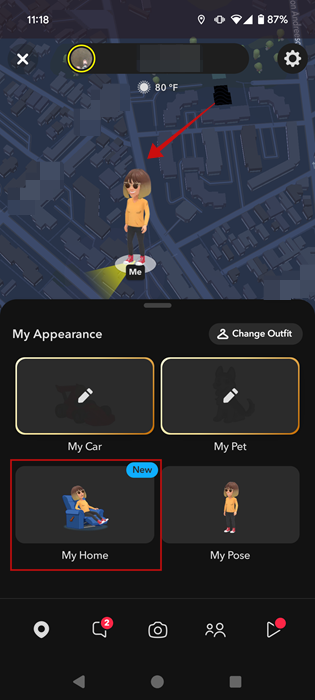
Select My Home from the options below.
If you have a Snapchat+ subscription, you can opt for a custom home icon of your choice.
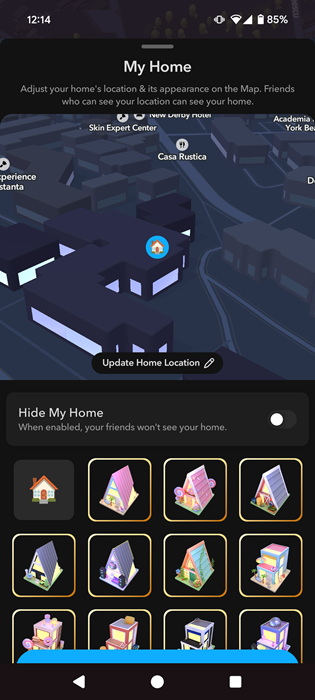
Note: you can also easily hide your home location from here. Just toggle on the Hide My Home option underneath the map.
Now that you’ve set your home location, you can move on to the next step.
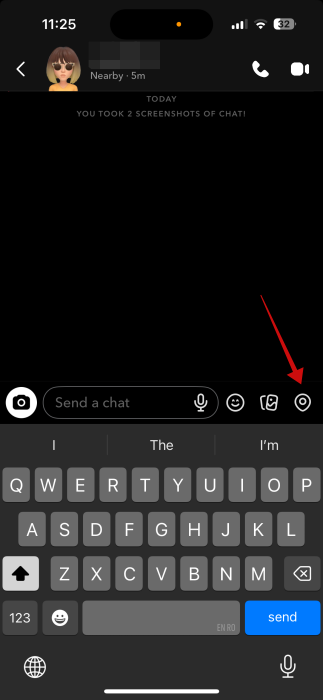
In the Snapchat app, open a conversation with a friend. Tap the map icon at the bottom.
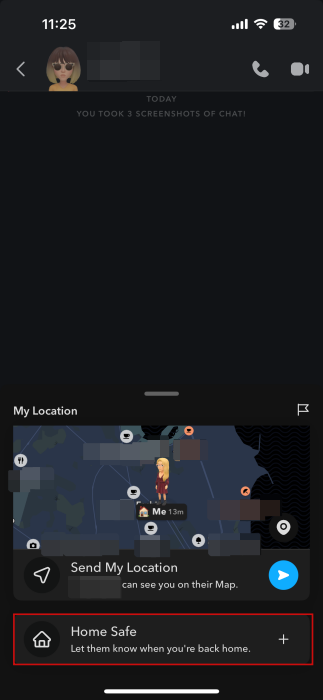
Press the Home Safe option.
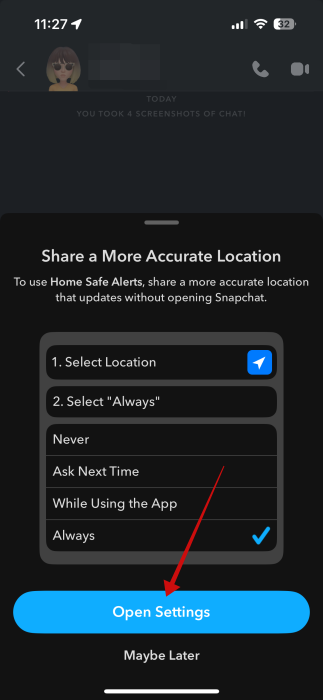
Snapchat will ask you to use a more accurate location, meaning you’ll need to allow Snapchat to always use your location. To do this, tap the Open Settings button.
This will open your device’s Settings app. Tap on Location.
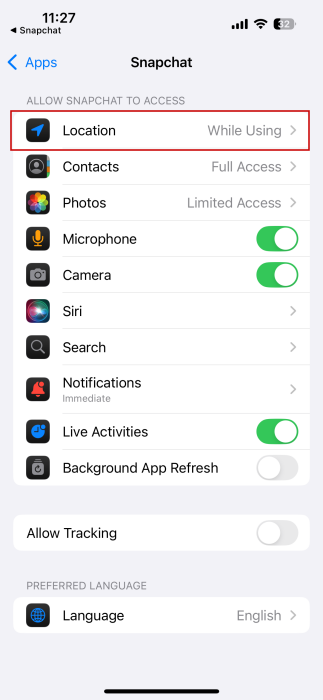
Switch to Always.
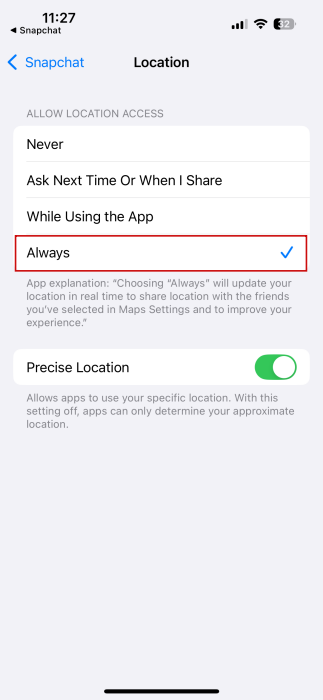
Go back to the Snapchat app. If you get an error that the Home Safe alert wasn’t set, try tapping the map icon again and selecting Home Safe.
You should now see at the top of your chat window that “You Turned on a Home Safe Alert.”
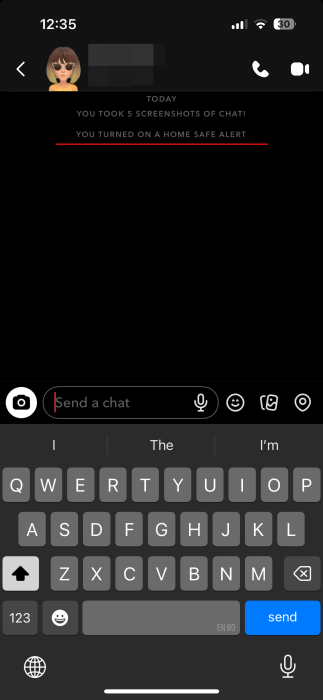
Now, when you return from an outing, the person for whom you turned on Home Safe in Snapchat will receive a one-time alert/message in your chat that you’ve made it back home safely. Yes, they will need to check the chat to see that. This info won’t appear as a notification on your lock screen.
FYI: check this guide to see how to create or change a Cameo selfie on Snapchat.
Change Who You Share Your Location with on Snapchat
Because Home Safe requires Snapchat to have constant access to your location, it’s a good idea to limit who can view your location within the app.
In the app, tap the map icon in the bottom menu. Press on your Bitmoji on the map.
When your page comes up, press on the gear icon in the upper-right corner.
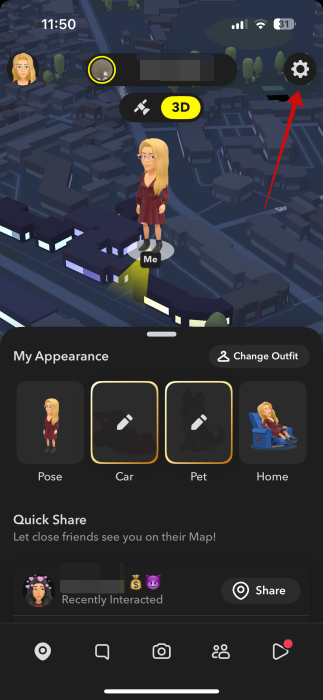
Switch to Only These Friends. Select the friends you are the closest to and press Save.
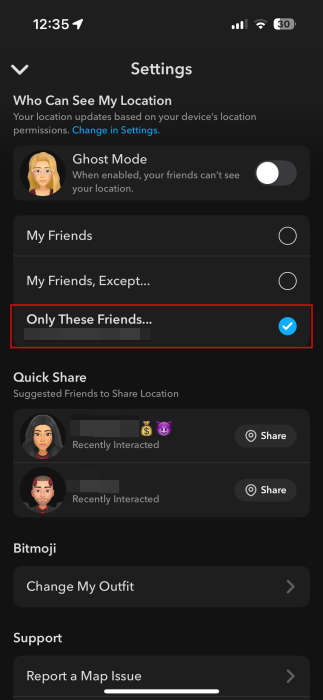
Now only a select few Snapchat users will have access to your location.
If you’re a frequent Snapchat user, then perhaps you might be interested to learn how to recover a lost Snapchat streak. Alternatively, check how to create your custom lens using Snapchat’s Lens Studio app.








