Imagine you have a magic camera-like feature on your phone that can instantly turn a regular picture into something cool, like placing you on a beach with a silly hat next to a celebrity or turning your combined selfies into a 3D action figurine. Nano Banana is a versatile image editing model in Gemini that does these things and more. Learn how to access it in the Google Gemini app and Google Lens.
What Is Nano Banana in Google Gemini?
There is no feature or button named Nano Banana in the Gemini app! Rather, “Google 2.5 Flash Image” is a text-to-image prompting solution. The banana icon craze started on LMArena, an AI testing platform. Its “banana” name stuck, and the model’s popularity soared in September 2025, with the Gemini app surpassing 10 million downloads and over 200 million edited images.
While text-to-image editing software has always been around, the capabilities of Gemini’s Nano Banana are far more refined. Like most other image editing programs, it supports natural language editing. Above and beyond, the new model can do the following:
- Sequential image edits: simple text prompts can add, remove, or modify elements, without altering the entire image background.
- Subject uniformity: maintains the same character and object likeness across multiple iterations.
- Multi-image composition: blending multiple images for a singular style.
- Small iterative refinements: several small prompts give you the perfect image.
- Multimodal design: can apply contextual reasoning to place text or logos inside predefined objects.
For some time, Nano Banana made Gemini the number 1 app on the App Store. On the latest Android devices, Gemini is deeply integrated, but you can opt out easily.
Using Nano Banana in Google Gemini App (Android/iOS)
To use Nano Banana in the Google Gemini app on Android or iOS, follow the steps shown here.
Sign in with your Gmail account to the Google Gemini app on your device. If you’ve disabled Gemini previously, you need to enable it again. Make sure you have the default mode, Gemini 2.5 Flash, enabled.
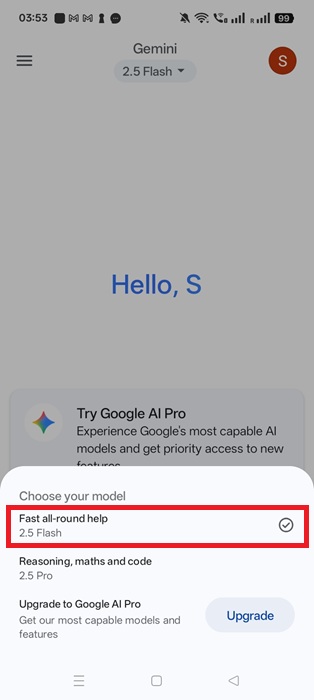
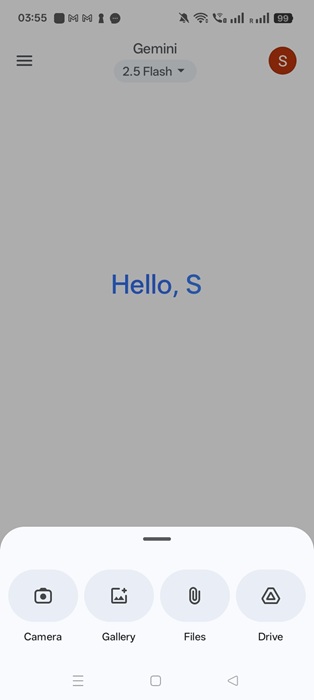
Click + to upload an image from the camera (by taking a selfie), your phone image gallery, files, or Google Drive.
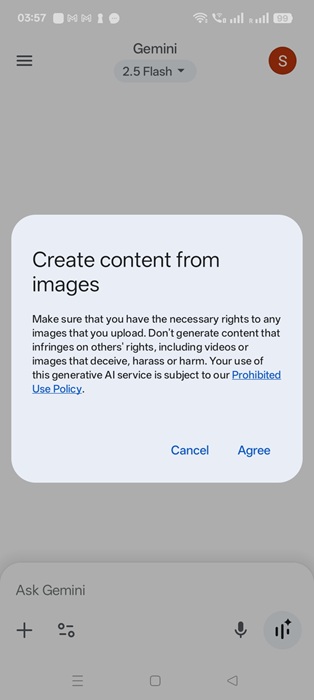
Click Agree on the pop-up to avoid copyright issues. The images you capture with your own camera are generally safe to use.
In the following example, we are testing multi-image composition, a key feature of Nano Banana. The text prompt tells the AI to move only one element, a coffee cup from the first image, to an empty table in the second image.
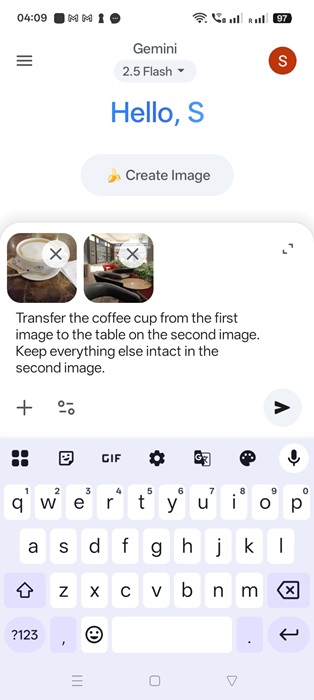
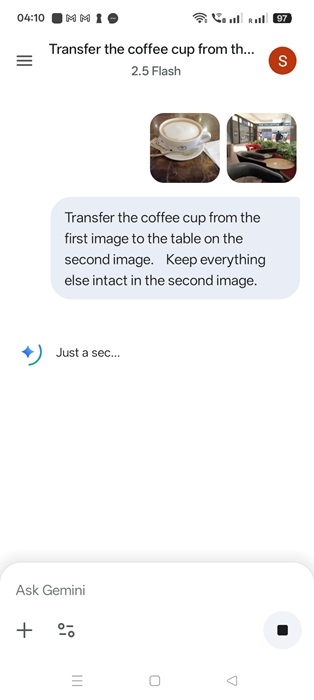
Wait a few seconds for the image to generate itself while presented with text-to-image prompts.
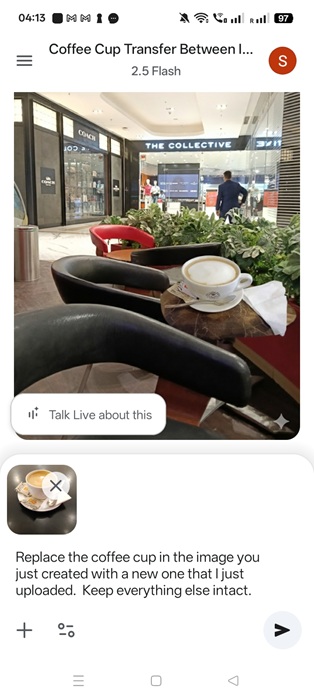
The coffee cup element has been seamlessly transferred into the new image’s background without disturbing any other element. It has a non-erasable SynthID watermark by Google DeepMind to indicate AI creation.
You can use sequential image edits, such as replacing the created image with a new element, like a new coffee cup.
Good to know: Google isn’t the only one in the AI image generation game. Even open-source players like LibreOffice are creating stunning visuals with Stable Diffusion.
Using Nano Banana With Google Lens and AI Mode in Google Search
Apart from the Gemini app, Nano Banana is currently available with Google Lens and AI mode. As of now, it’s rolling out to a few select few, such as the United States and India, but will be available soon everywhere.
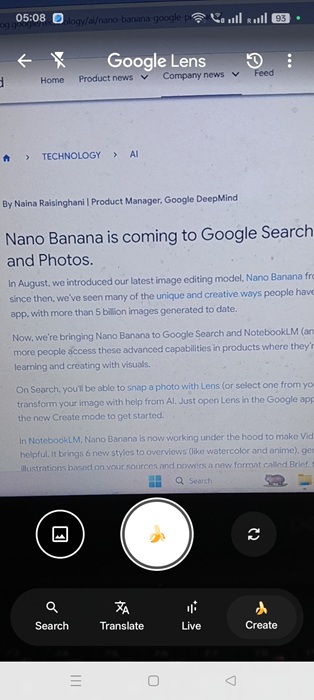
Go to the Google Search app on your mobile device. Click the Google Lens text option to launch your camera in the familiar Google Lens mode. You should see a prominent banana icon labeled Create.
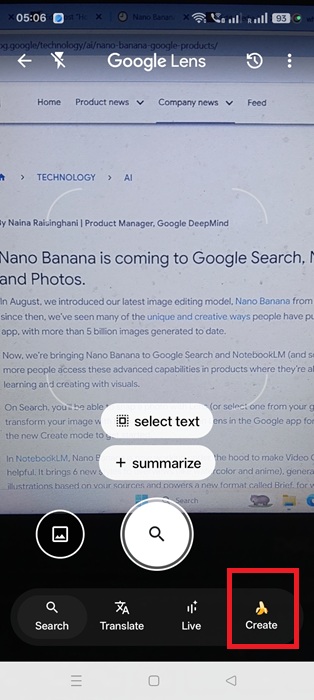
As soon as you hit Create, the camera shutter button transforms into a “banana” icon. Of course, it can be used to take selfies, then change them into superhero 3D avatars. Nano Banana will prompt you for more ideas.
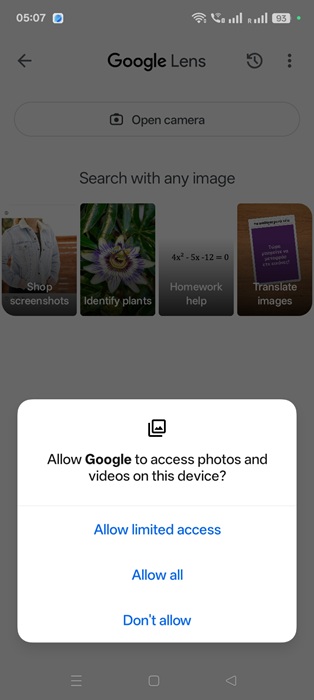
Google Lens can also work with the images and videos stored on your phone. For that, give Google Search permission to your private photos. (It can be removed later.)
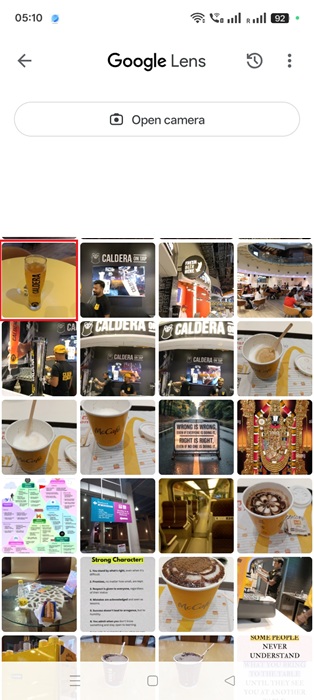
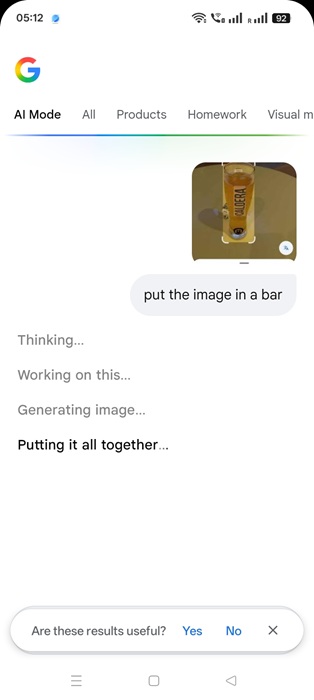
Open your image gallery, and select any photo to import into Lens. In this case, I chose a Weizen beer glass in the top-left corner.
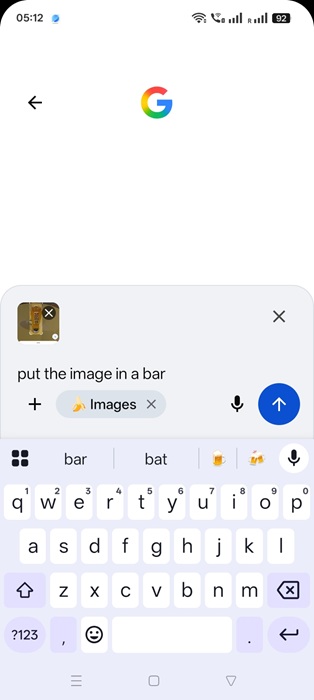
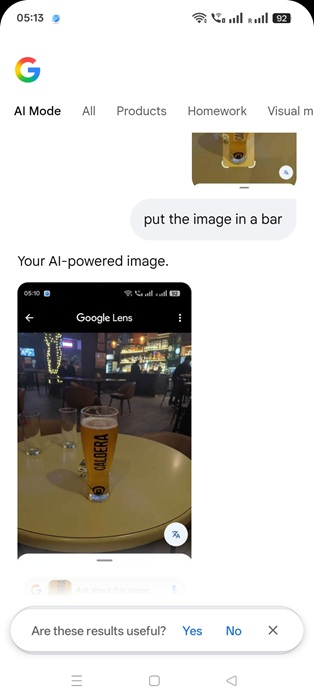
You will automatically enter the Google search AI mode. Make any change you want to the uploaded image. In this example, I am entering the prompt, “put the image in a bar,” to test the app’s multimodal design capability.
The AI Mode takes a few seconds for the image uploaded to get the Nano Banana effect.
The final composite image will be ready. It features a prominent, non-erasable SynthID watermark.
Gemini 2.5 Flash Image (Nano Banana) is nothing short of a revolution in AI image editing. It transcends all previous limitations in creating AI images that very closely resemble the real ones. Google may introduce Nano Banana to more applications, such as Google Photos.
Of course, the close resemblance to real images raises many ethical aspects. Check out our deepfake detection guide to learn more. You can further detect AI-generated text in articles and online content using informed guesses and visual clues.








