If your phone’s battery life seems worse than expected or you want to verify a charger’s performance, measuring charge and discharge rates gives hard numbers you can act on. In this guide, you’ll learn when you should measure charging and discharging speed in your Android phone and how to do it for free.
Why Measure Battery Charge and Discharge Speed
The built-in battery tracker in Android phones is good for tracking overall charging speed and how fast the battery drains. However, there are situations when accurate measurement in milliamperes is useful. Below are some common reasons:
- Knowing the charging speed in mA can help find the best charger or cable for your device when you have multiple to choose from. Just plug in each one and see which one gives the best results on average.
- You can track exact charging behavior at different charge percentages to ensure your phone and charger work as expected when charging from a low battery to full.
- Find irregularities while charging, such as sudden speed drops leading to slow charging issues.
- The built-in remaining battery estimate is based on historical usage, which won’t be accurate when you do something unexpected. By measuring battery drain under specific conditions – like playing a specific game – you can estimate better timing more accurately.
- Track battery drain of a specific app without needing to run it continuously to immediately stop apps from draining battery.
- Track the individual impact of battery extending methods, like adjusting brightness or disabling background apps.
- Detect sudden drops or irregularities in battery discharge speed, indicating a hardware problem.
Using Ampere to Track Charge and Discharge Speed
We’ll be using an app to measure the charge and discharge speed. These apps aren’t perfect as they draw the information from the Battery Management System (BMS) of the phone. BMS sensors take a reading of current flowing directly in and out of the battery; it doesn’t factor in the inefficiency caused by internal components and other resistances. However, it’s good enough for day-to-day use where only estimates and anomalies are needed.
We recommend the free Ampere app for this purpose. It’s easy to use and provides all the information you need to do the calculations. Before you use the app, make sure your phone is in the state that you want to measure. For example, if you want to record peak charging speed, then ensure the phone is below 20% battery.
Launch the app, and wait at least 15–20 seconds to let the measurements stabilize. For discharging, the measurements will be in orange color, and for charging, they will be green.
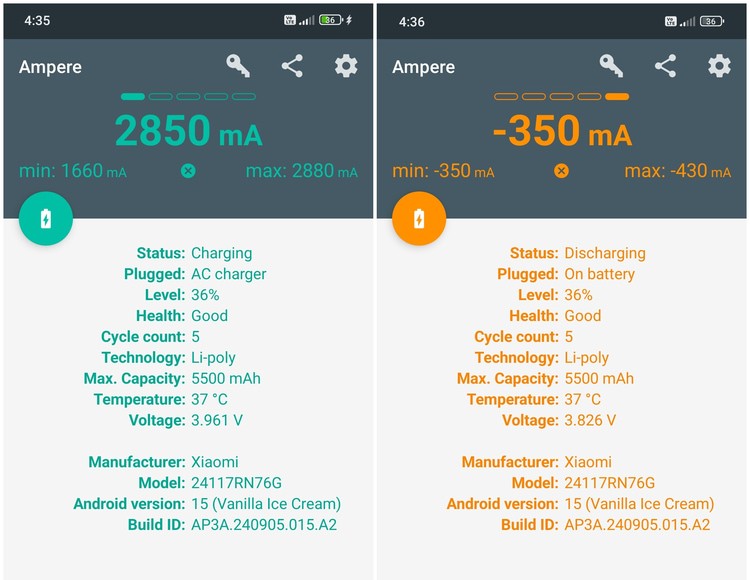
Here, the measurement in milliamperes at the top and the Voltage measurement are the most important.
Making Sense of the Numbers
You need to convert these numbers based on your needs to understand them. For example, if you want to check the charger’s wattage, you’ll have to convert the flowing current into watts. Below are two common measurements:
Convert mA to Watts
To convert mA to watts, you’ll have to divide millamperes by 1000 to get amperes (A) and then multiply the amperes by the voltage. In our case, it would be:
2850 mA ÷ 1000 = 2.850 A
2.850 A × 3.961 V = 11.29 W
Therefore, 11.29 W is the power the battery is gaining currently. This is much lower than the advertised 33W capacity, but it’s mainly due to factors like conversions, inefficiencies, phone power draw, and battery/charger negotiations. This is normal at 36% battery level as the phone is out of the low battery range.
Convert mA into % Per Hour
If you want to see how much battery percentage you’ll lose per hour at a specific rate, you’ll have to divide mA by battery capacity and then multiply it by 100. In our case, it would be:
350 mA ÷ 5500mAh x 100 = 6.36% per hour.
Tip: if you are confused about specific measurements or have some special measurements to do, you can also share a screenshot of Ampere measurements with an AI chatbot tool and ask it to do the calculations for you.
For charging measurements via app, a good rule of thumb is to expect the measurements to be 60-75% of the real capacity advertised on the charger under best conditions (critically low battery). You might also be interested in these battery optimization tips if you are having trouble lasting a day.








