Trying to manage Spotify downloads among different devices gets cumbersome at times. Spotify’s finally added a few new features to the Android app to help with both downloading and managing your downloads.
1. Download Spotify Playlists Remotely
I didn’t realize how much I needed this feature until it appeared in the most recent Spotify update for Android. Instead of having to go to each device to download my favorite playlists for offline listening, I can do it all from one device.
As soon as you connect one of the other devices to the Internet, the Spotify app starts downloading your playlist(s) in the background. It saves time and lets me quickly manage Spotify downloads from a single device.
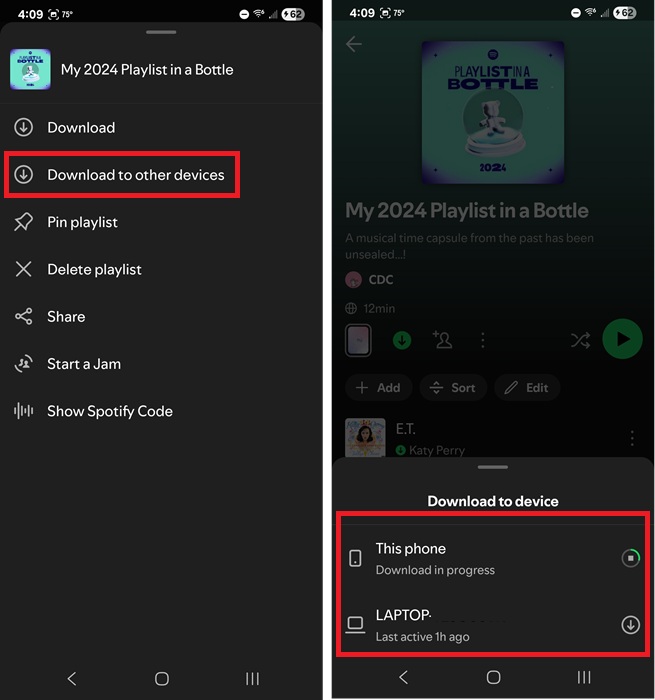
From the Spotify mobile app, tap the three dots next to the playlist you want to download. Tap Download to other devices. Select your other device and you’re done. You can do this for up to five devices since that’s the limit for offline downloading at one time.
Please note that you can’t do this from the desktop app. It’s only available on the mobile apps.
2. Remove Downloaded Playlists Remotely
Have you hit your five device limit and need to remove your download from another device? You don’t need to open that device to delete the download. Instead, do it directly from your Android app, no matter what the other device is.
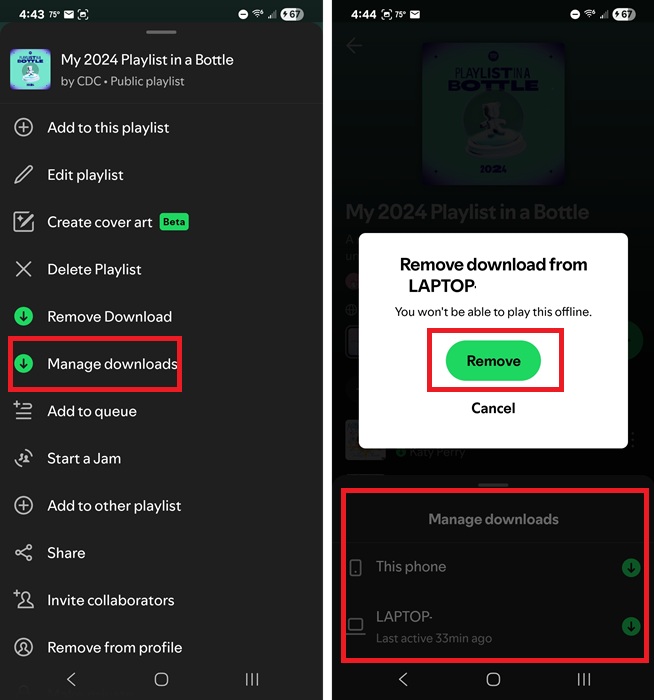
Tap the three dots next to the playlist you want to remove. Tap Manage downloads. This option only appears on a playlist if it’s downloaded to two or more devices. Tap the device you want to remove the playlist from and tap Remove.
It’s immediately removed and will be deleted from the other device the next time you connect to the Internet. You’re then free to download your playlist to another device.
3. See Everything You’ve Downloaded
Not sure if you’ve downloaded a playlist for offline listening? Check everything you’ve downloaded in one place.
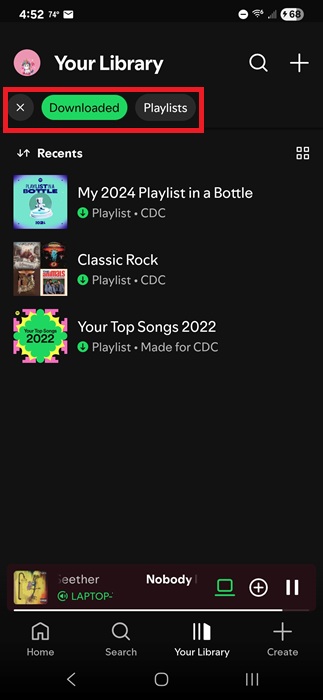
Tap Your Library and tap Downloaded from the list of filters just under the words Your Library. This lists every playlist, album, song, podcast, etc. that you’ve downloaded to that device.
You’ll need to do this on the Spotify app on each individual device. This only shows what’s downloaded on the device you’re currently using.
However, if you’ve downloaded the same playlist to multiple devices, long-tap the list/song and select Manage downloads to see where else you’ve downloaded it.
4. Reduce File Size
I know we all want the highest quality music when listening, but if you’re packing your device full of tunes or podcasts for off-grid travel or vacations, you might not have enough space on your device.
Spotify limits you to 10,000 tracks at any given time for offline listening. Depending on the song length, that’s an average of 500-600 hours of music.
Spotify offers five download settings – Automatic, Low, Normal, High, and Very High. The default is Normal, which takes around 4-5MB per song. Opting for higher quality may triple the file size per song.
I recommend opting for Normal or Low in most cases to better manage Spotify downloads on any device. At Normal, 10,000 tracks of 3-5 minutes each would take around 40GB of storage.
To change your download quality, tap your profile icon and select Settings and privacy. Tap Media quality. Scroll down to Download quality and choose your setting. If the options are grayed out, it means you’re listening on another device. Switch the audio to the device you’re currently using or close Spotify on any other devices.
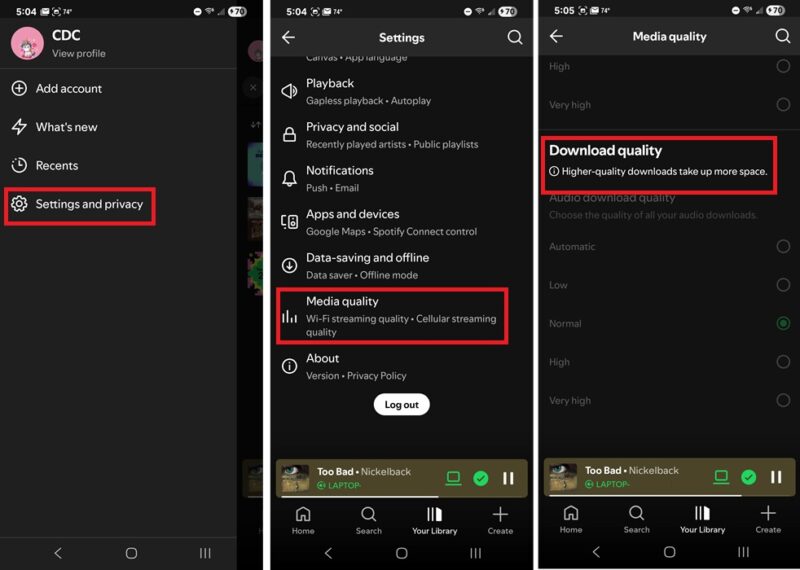
If you’re on desktop, click your profile icon, select Settings, and scroll down to Audio Quality. Select your download setting from the Download drop down box.
5. Download Individual Songs
A common complaint many Spotify users have voiced is not being able to download individual songs. Spotify doesn’t offer a native way to do this. Instead, you’re limited to playlists, albums, and podcasts (or podcast playlists).
The simple way to do this is to create a single song playlist. Tap the three dots on any song and select Add to playlist. Tap New playlist at the top of the list. Give it any name you want. Then, download your single song playlist.
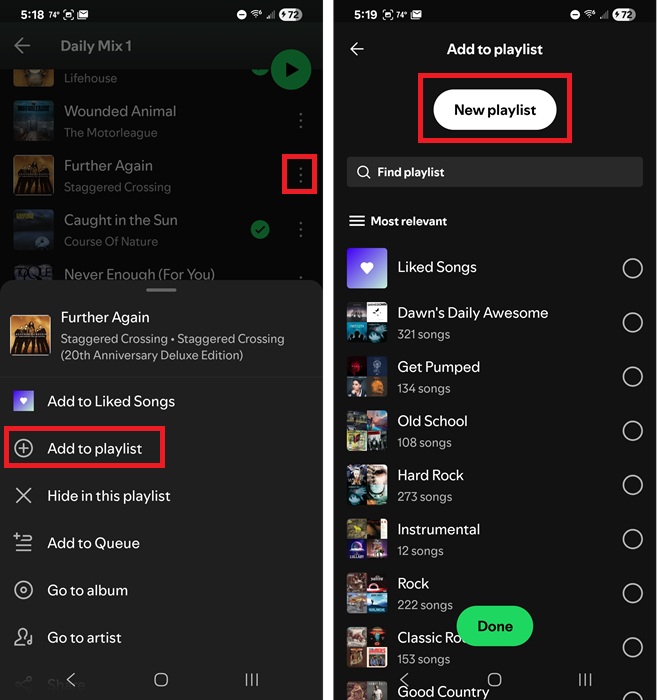
I recommend using the name of the song as the playlist title to make it easier to find in your downloads.
6. Download Other Users’ Playlists and Gain Control
I’ve had several occasions where I downloaded another user’s playlist only to have them either delete it or make major changes I didn’t like. Since it wasn’t my playlist, I couldn’t exactly complain.
Now, I do things differently to better manage Spotify downloads. I first add the playlist to a new playlist that I own. This gives me control to add/remove songs as much as I want without it affecting the original playlist.
Tap the three dots next to another user’s playlist and select Add to other playlist. Tap New playlist and give it a name.
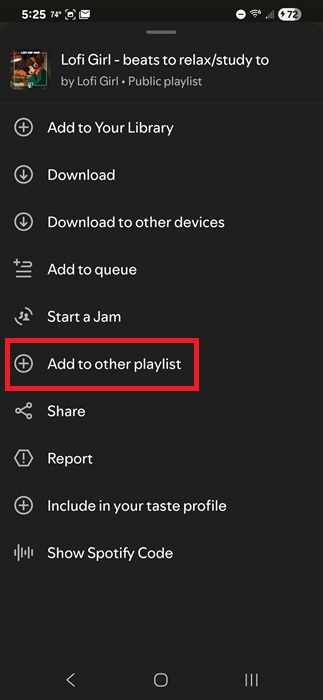
Then, download your newly created playlist just like you would any other.
If you ever have trouble downloading playlists, try these troubleshooting steps. And, if you want to get even more out of Spotify, try these tips and tricks.








