


If you manage a WordPress site, you know that doing updates is one of the most important parts of maintaining the security and stability of your WordPress site. While the latest version of WordPress comes with the ability to update itself automatically – at least for the minor and security releases, most WordPress users still manage their plugins and theme updates manually and have to check in regularly for the availability. Those who don’t want all the hassle might want to enable automatic update for their site so everything can be done without any interference from the users.
But should you opt for the automatic updates? How can you enable or disable automatic updates for your WordPress site? Let’s dig a little deeper, shall we?
To Automate or Not to Automate
Before we discuss the steps, let’s get everything straightens out: automatic updates are not for everyone. There are two categories of users who should hold off on the feature:
- Users who have made customizations to the core of WordPress, themes, or plugins. The reason: any automatic updates will override and erase all the tweaks. With the theme being the component that’s tweaked the most, it’s advisable to use a child theme so that the customizations will survive the updates.
- Users whose sites depend on third party themes or plugins to function correctly. The reasons: All the updates usually release at different times, and most of those non-official WordPress.org add-ons might not be compatible with the core after the updates.
If you don’t belong to any of the two, you can go on and enable the automation. But, there’s a footnote that goes with that.
An Ounce of Prevention
As with other modifications processes, it’s always good to have backups ready, just in case. In addition to the standard backups on the server level, there are several recommended WordPress backup plugins that you can use. But sometimes the restoration process could take too much time and energy and can be overkill for a minor error.
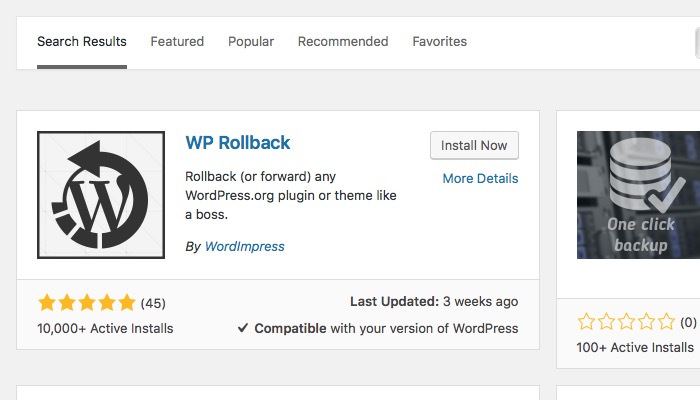
There’s a better solution for a quick fix. Meet WP Rollback, a plugin that we can use to speed up the recovery after automatic themes or plugins updates have gone wrong.
First, install the plugin from the WordPress repository inside your Admin area and activate it.
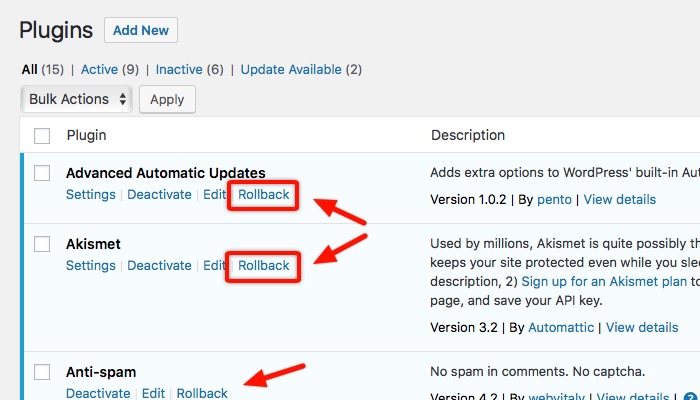
Then, anytime you encounter problems after doing a plugin or theme update, you can quickly roll that particular plugin/theme back to the previous version in one click using the “Rollback” link under the plugin’s/theme’s name.
A Pound of Cure
As for the automatic backup solutions, we have several alternatives that we can try.
1. WordPress desktop and web app
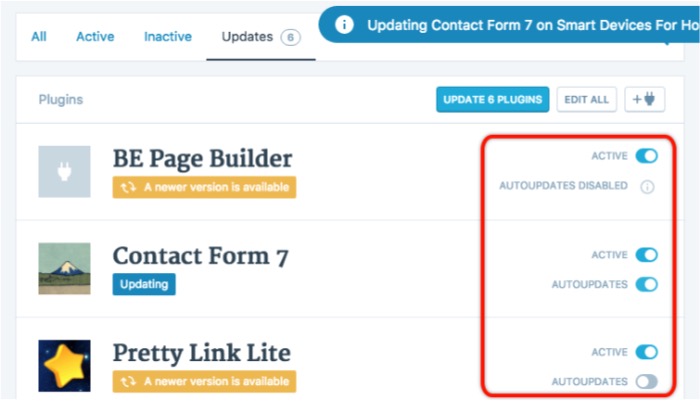
This official app offers a variety of features that will make your WordPress management life easier. It can manage multiple WordPress blogs, show statistics for each of them, and deal with themes and plugins on individual blogs. One of the useful features is the ability to turn automatic updates on and off, both individually and in bulk.
This app is perfect for those who manage multiple sites.
2. Advanced Automatic Updates
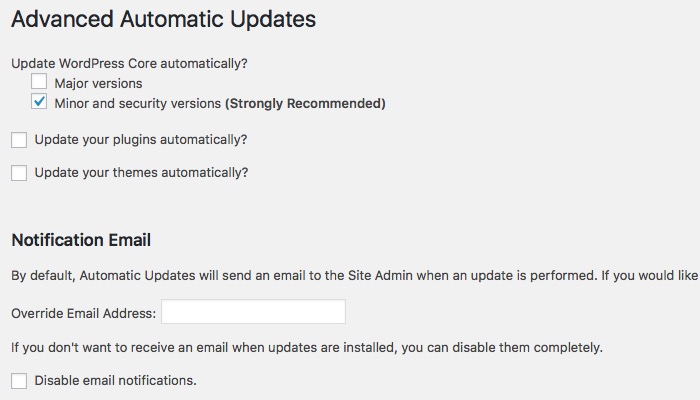
The Advanced Automatic Updates plugin adds additional options to the standard WordPress automatic update feature. You can choose to allow your WordPress installation to automatically update the core WordPress, only minor and security updates, plugins updates, and themes updates. Enabling or disabling these options is as easy as checking the appropriate checkboxes.
If you want a quick-and-easy way to manage automatic updates, this plugin should be your choice.
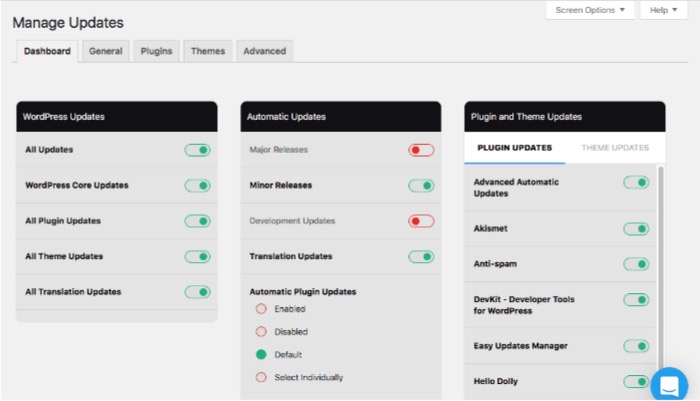
3. Easy Updates Manager
Despite the name, this plugin offers more advanced automatic update options than the Advanced Automatic Updates. In addition to the global settings, you can also enable or disable automatic updates for individual plugins and themes.
You should choose this plugin if you want to have more control over your site’s updates.
Do you need this automatic update feature? Why or why not? Share your thoughts and opinion using the comments below.
Image credit: WordPress