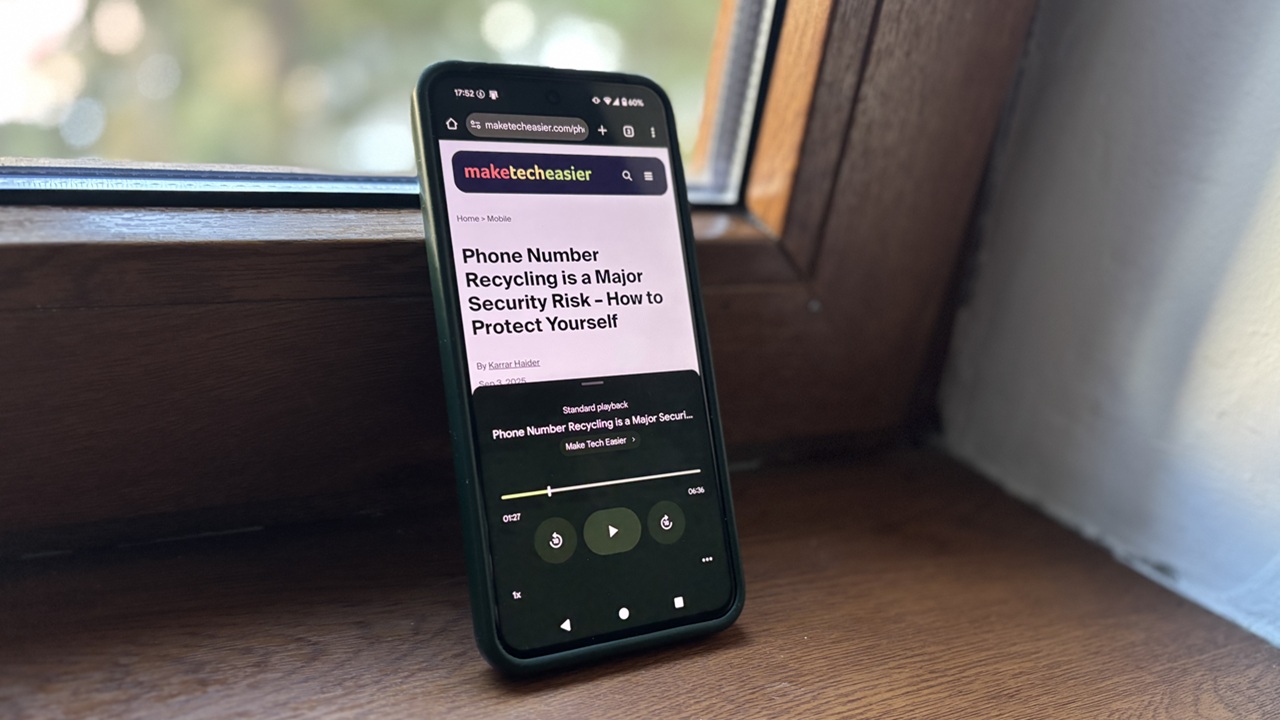
We’ve all been there. You stumble upon an interesting article, but life gets in the way, and you don’t have the time to read it on the spot. You save it for later, only to completely forget about it afterward. Recognizing this common struggle, Google lets you listen to articles directly from Chrome and allowing you to multitask.
FYI: if you have this verified VPN Chrome extension installed in your browser, you should delete it immediately! Here’s why.
Have Chrome Read Out Articles to You on Android
The option to listen to articles in Chrome is only available on Android for the time being. If you’re an iOS user, you can refer to the following section for alternatives.
Before we begin, please note that the option is available only for English articles. The tool won’t work if you’re viewing a web page in another language.
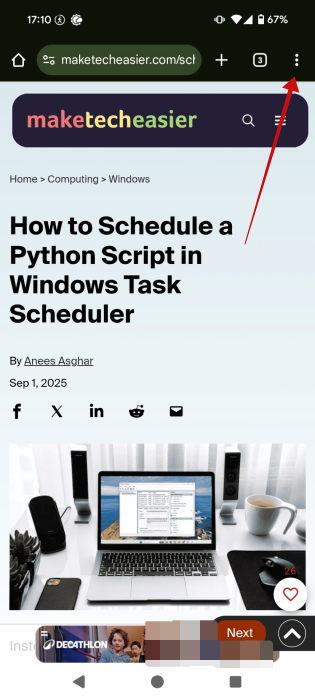
Open the Chrome app on your device and navigate to the page you want to listen to. Press the three dots in the upper right corner to bring up the menu.
Select Listen to this page.
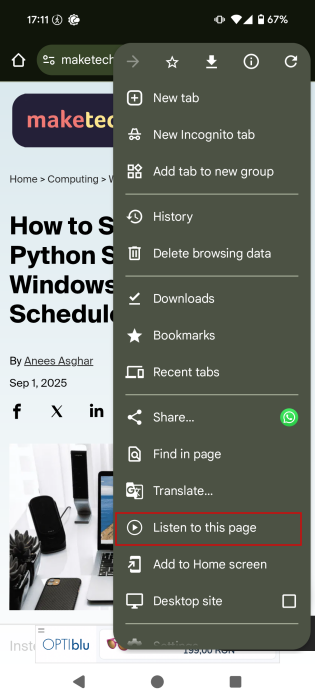
Note: if you can’t see the option, wait a few seconds and allow the page to load in full, then try again.
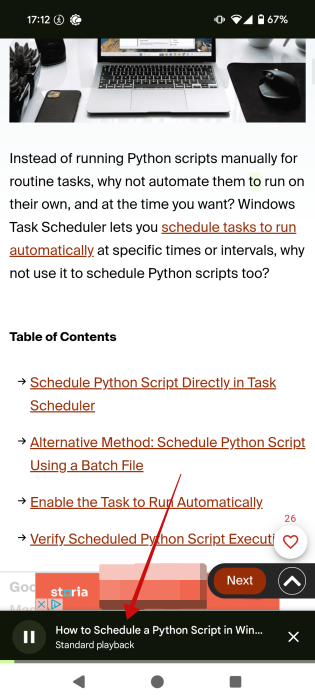
Chrome will now generate a standard playback for the article in question, which reads aloud the article word-for-word. You’ll notice a player bar at the bottom. To tweak your listening experience a little bit, tap on it to enlarge it.
Chrome’s player gives you the option to pause/play or skip forward/rewind by 10 seconds. You can also opt for a different playback speed by tapping on the default 1x option at the bottom.
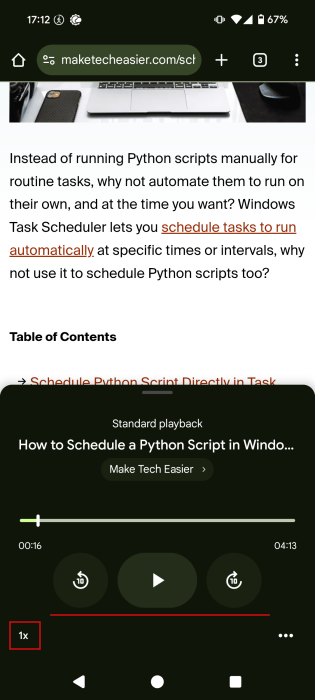
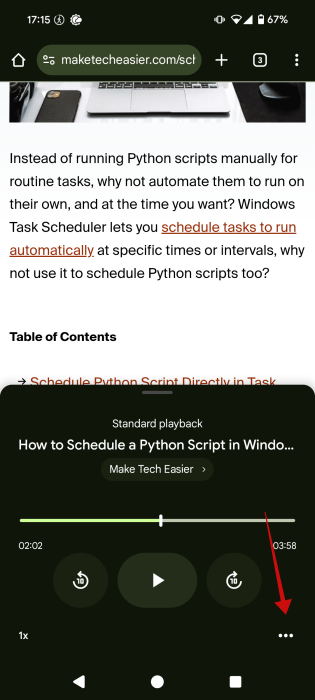
If you find that you don’t like the default reading voice, tap the three dots in the lower right to bring up the Options pane.
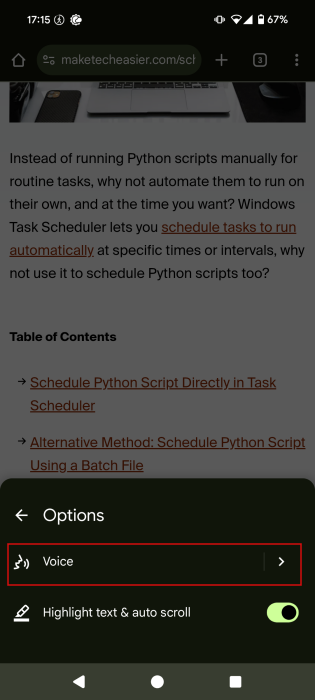
Tap on Voice.
Select an alternative from the available options (only English voices are on offer.)
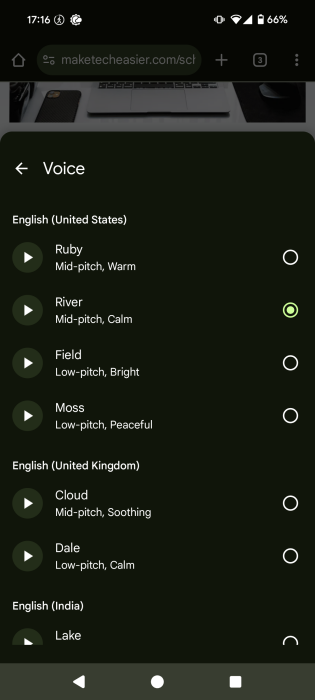
Also from Options, you can decide if you want Chrome to highlight text (while it’s being read out) and auto-scroll.
While listening to articles is a very useful feature to have, Chrome is working to improve it further by adding an AI-powered component. As it turns out, Google is testing the option of generating an AI playback that creates audio article summaries in its dev Canary app. Even better, you’ll be able to switch from the standard playback to the AI playback and back again at will for any article.
Google offers a similar Audio Overview feature in its study companion app NotebookLM, which also recently added the option to create Video Overviews or presentations from materials.
Tip: learn how to create custom storybooks with Google Gemini within seconds.
Alternative: Use Gemini to Listen to Articles Opened in Chrome
If you’re an iPhone user, or you’re simply looking for an alternative way of listening to your articles out loud, try giving this task to Gemini. This solution works on both Android and iOS. As a bonus, you can use the instructions for any article you’re viewing in any browser on your mobile phone.
Open Chrome and navigate to an article that you find interesting.
Bring up Gemini by saying “Hey Google” if you’re on Android, or another hot word you’ve set on your device. On iOS, you’ll need to open the Gemini app. Tap on the Live icon in the bar at the bottom.
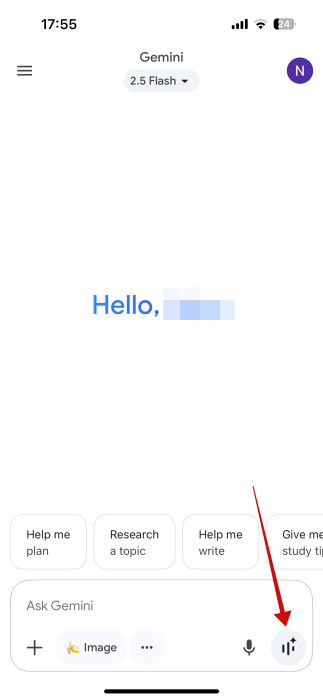
On the new screen, select the second button from the bottom menu.
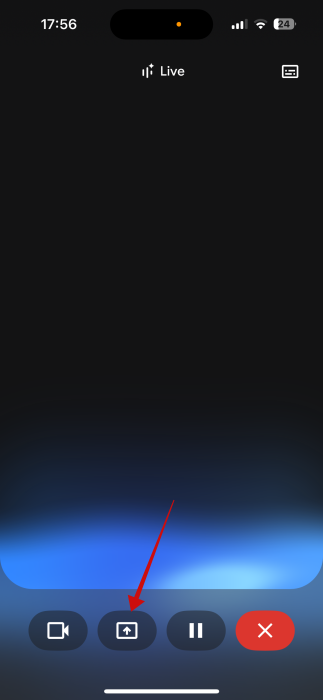
Agree to share your screen on Android or broadcast on iPhone. This will allow Gemini to “look” at your display and anything that appears on it.
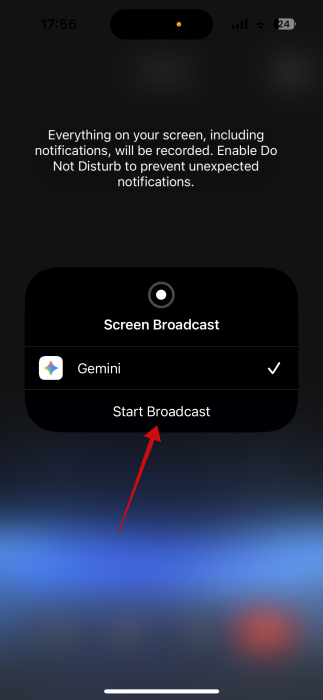
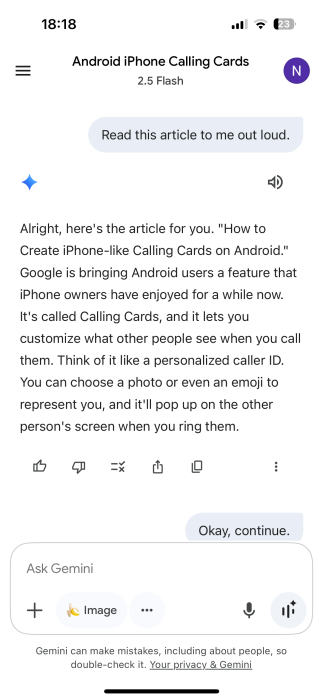
Bring up the Chrome app with the article and begin your conversation with Gemini as you normally would with a person. Ask it to “read this article out loud to me.” Gemini should start reading out loud immediately.
Note: see the red notification at the top, which indicates Gemini is Live and viewing your screen.
This method works well enough. However, I occasionally had to prompt Gemini to keep reading, as it would sometimes pause at the end of a paragraph. This isn’t such a problem with articles featuring larger paragraphs. That said, once the action to read an article has been initiated, you only have to say “Continue” for Gemini to resume the activity.
The advantage of this method is that you can also ask Gemini to create quick audio overviews for the article in question. For instance, I asked Gemini to create a summary of my own article on how to create iPhone-like Calling Cards on Android. Then, to dig a little deeper, I asked it to share the “Steps to create a Calling Card using Google’s Phone app.” However, when I enquired if the article mentions any alternatives, Gemini answered negatively, which is incorrect. When I asked it a second time, it provided me with the right answer.
Like with anything AI, you need to always double-check the results and not rely 100% on what it tells you.
When you’re done talking to Gemini about the article, tap on the Dynamic Island, which shows Gemini activity, or swipe down from the right upper side of the screen on older iPhone models to bring up the Gemini Live interface. On Android, bring the notification shade down by swiping from the top.
Press the X icon (Hang up).
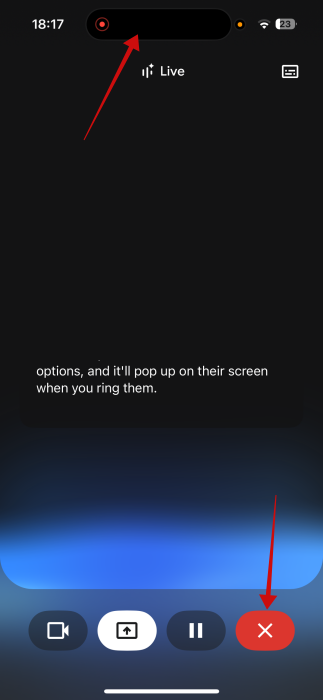
You will now be able to view a transcript of your live conversation with Gemini.
By the way, if you tend to use Safari on your iPhone, there’s a Listen to Page option available in your mobile browser too.
There are plenty of useful Chrome features that might fly under the radar, such as listening to articles. Speaking of which, have you discovered Chrome tab groups for keeping your browsing neat? If not, give them a try.








