A package manager in Linux installs, updates, and removes software for you. Instead of downloading files manually and setting them up, the package manager connects to trusted repositories and handles everything automatically. Different Linux distributions ship with their own default package manager, such as APT, DNF, Pacman, and others. Let’s look at how they work, why they matter, and what makes each one unique.
Why Linux Relies on Default Package Managers
On Linux, software rarely comes as a single file you can just download and run. Most programs depend on many other components, such as libraries, utilities, or frameworks, to function properly. Without a system to manage these dependencies, installing one program could easily break another. That’s why every Linux distribution includes its own package manager. It knows where to find software, resolves dependencies, installs everything in the correct order, and keeps your system updated.
When you install software through a package manager, it doesn’t just grab the main program. It checks for missing dependencies, installs them, and ensures compatibility. Later, when you update or remove the software, the package manager handles that too. This prevents mismatched versions and the infamous dependency hell, where one new program breaks others.
By using your distribution’s default package manager, you get tested software from trusted repositories, regular security updates, and a consistent management process. For beginners, this is the easiest and safest way to install Linux software. Further, you can also add extra repositories for more software or configure graphical tools if you don’t want to use the terminal.
Default Package Managers by Popular Distros
Each distribution uses a default package manager that fits its goals. While they all do the same basic job, each comes with its own philosophy and command structure.
APT (Debian/Ubuntu)
APT is the default package manager for Debian and its derivatives like Ubuntu, Linux Mint, and Pop!_OS. It’s the first package manager I encountered when I switched from Windows to Ubuntu. It stands for Advanced Package Tool, and it works on top of dpkg, which actually installs the .deb packages in the background.
APT’s strength lies in its massive repositories. Debian and Ubuntu maintain tens of thousands of packages, so most software you’ll ever need is just a command away. For newer applications, Ubuntu supports PPAs (Personal Package Archives), where developers can share packages directly. GUI front-ends like Synaptic, GNOME Software, and Ubuntu Software Center integrate with APT, making it accessible to newcomers.
Working with APT is easy due to its straightforward syntax. You can install, remove, or update your system through simple commands. For example, to install any software like VLC, run:
sudo apt install vlc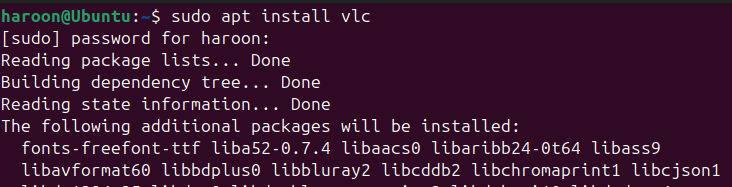
Similarly, you can keep your system updated with these simple to use commands:
sudo apt update
sudo apt upgrade
It handles the messy parts like making sure all the right libraries are installed, so you don’t have to. There are also a few downsides of APT as it can feel a bit slow when it’s crunching through big updates or while dealing with third-party repositories. Anyway, for beginners, its reliability and simplicity make it one of the best introductions to package management on Linux.
DNF (Fedora/Red Hat)
DNF represents the next generation of RPM-based package management. Red Hat-based distributions like Fedora, CentOS, RHEL, and openSUSE have embraced DNF as their go-to solution. It’s the successor to YUM package manager, designed to be faster, use less memory, and do a better job handling dependencies. Because DNF works with RPM packages, it follows Red Hat’s strict rules around packaging and security, which makes it a natural fit in enterprise systems.
Just like APT, using DNF feels pretty straightforward. Installing software is as simple as this:
sudo dnf install package-name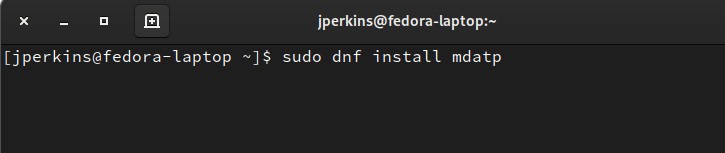
And to update your system use this:
sudo dnf upgradeYou can also search for packages, check transaction history, and even roll back changes if something goes wrong. One feature I loved about DNF is its modular repositories, which let you choose between different versions of software like Node.js or Python without breaking the rest of your setup.
DNF also supports delta RPMs, meaning it only downloads the parts of a package that have changed during an update, saving time and bandwidth. YUM is still around for compatibility, but DNF is clearly the future of RPM-based systems.
Pacman (Arch Linux)
Pacman is the default package manager for Arch Linux and its popular offshoots like Manjaro and EndeavourOS. True to Arch’s philosophy, it’s fast, minimal, and designed to keep up with a rolling-release system where updates arrive constantly. Pacman installs prebuilt binary packages, but many arch users also rely on the Arch User Repository (AUR) through helpers like yay or paru to grab community-maintained software.
The syntax is short and punchy, as the major differences is it used -S instead of install command, like to install any tool like neofetch, run this:
sudo pacman -S neofetch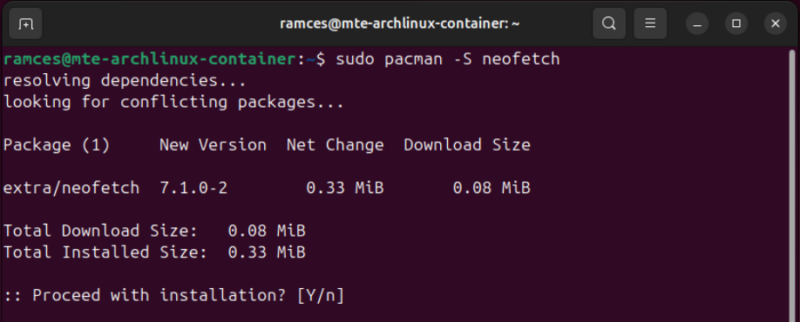
Similarly, to update your entire system, you can run this:
sudo pacman -SyuPacman doesn’t add extra layers or flashy features, it just does the job quickly and cleanly. It also uses compressed .pkg.tar.zst files, which are incredibly fast to download and extract.
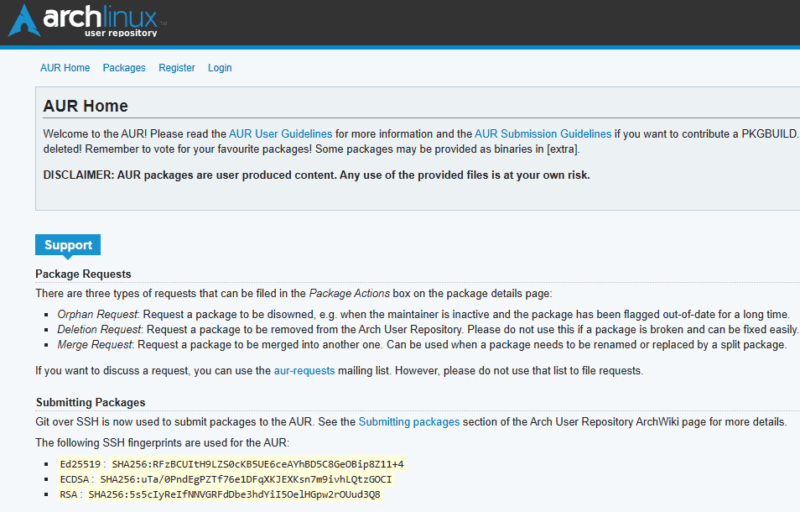
Paired with the AUR, it opens the door to an enormous software library, often including niche or cutting-edge tools you won’t find in official repositories. While not technically part of Pacman itself, tools like yay and paru extend Pacman’s functionality to handle AUR packages, giving you access to virtually any software that exists for Linux.
Differences Between APT, DNF, PACMAN
All major Linux package managers, APT, DNF, and Pacman still share the same basic roles: install, update, remove software. However, Pacman remains among the fastest for day-to-day installs and upgrades, especially in Arch’s rolling-release model. It uses compressed packages which helps with both speed and storage.
DNF has also closed the gap in many cases, it’s faster and more efficient now than older versions, though in bulk updates or complex dependency scenarios, it can still feel a bit heavier than APT.
APT continues to shine in terms of predictability and stability. For many users, it offers a good balance: fast enough, well-documented, and backed by huge repositories. Unless you have very specific needs, sticking with the package manager your distro gives you will serve you very well.
More Package Managers Worth Knowing
Linux doesn’t stop with APT, DNF, and Pacman. Different distributions experiment with their own tools, each with its own strengths and quirks. Here are some you might run into:
Zypper (openSUSE)
Zypper is openSUSE’s default package manager, also used in SUSE Linux Enterprise. It works with RPM packages like DNF but comes with its own extras. The commands are straightforward like any other popular distro. Also, Zypper patterns feature let you install entire groups of software at once, like as an example for a complete server setup you can run this:
zypper install -t pattern web-serverWith Btrfs snapshots built in, you can also roll back changes if something breaks.
APK (Alpine Linux)
Alpine Linux is known for being lightweight, especially in Docker containers, and its package manager reflects that. APK is small, fast, and simple. Commands are also minimal for installation, update, and removal. For example to add any package you can use:
apk add packageIf you’re working with containers, embedded systems, or anywhere size matters, APK is a natural fit.
Portage (Gentoo)
Portage is Gentoo’s source-based package manager. Instead of installing precompiled binaries, it fetches source code and compiles it on your machine, optimized for your hardware. You install with the emerge package, and you can fine-tune builds with USE flags. It’s incredibly flexible but time-consuming. Compiling a large desktop environment like KDE can take hours.
Portage isn’t for everyone, but if you like absolute control and performance tailored to your system, it’s unmatched.
XBPS, Nix, and Guix
Some other package managers include XBPS (X Binary Package System) for Void Linux, Nix for NixOS, and Guix for the GNU Guix System. XBPS works as an efficient, lightweight manager that supports both binary and source builds.
Nix treats packages as isolated and immutable, so multiple versions of the same program can exist side by side. If something goes wrong, you can roll back easily, almost like using version control for your whole operating system. This design makes NixOS well-known for reproducibility and reliability.
Inspired by Nix, Guix builds on the same concepts but implements everything in Scheme. It emphasizes freedom, transparency, and reproducibility. Like Nix, it supports rollbacks, per-user environments, and declarative system management. Guix appeals most to users who want a functional and fully free software ecosystem.
Integration of Default Package Managers With GUI Tools
Not everyone wants to live in the terminal, so most Linux distros provide graphical front-ends for their package managers. These give you an app-store-like experience – browse, view screenshots, and install or update software with a click, while the CLI runs under the hood.
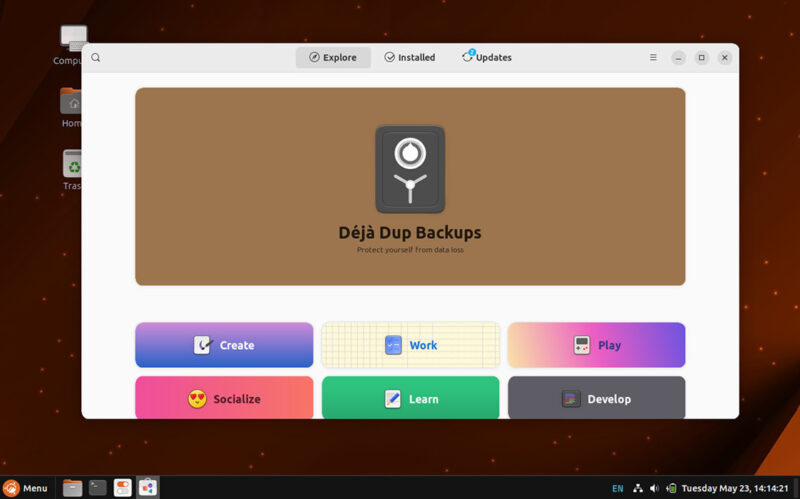
On Ubuntu and other Debian-based systems, APT still works alongside the Software Center. Plus, the Synaptic remains available for users who want more detail, like seeing dependencies or versions.
Fedora is moving forward, as GNOME Software is being updated (with work underway to integrate DNF5), which should make the GUI and CLI tools share more of their internals, like package caches.
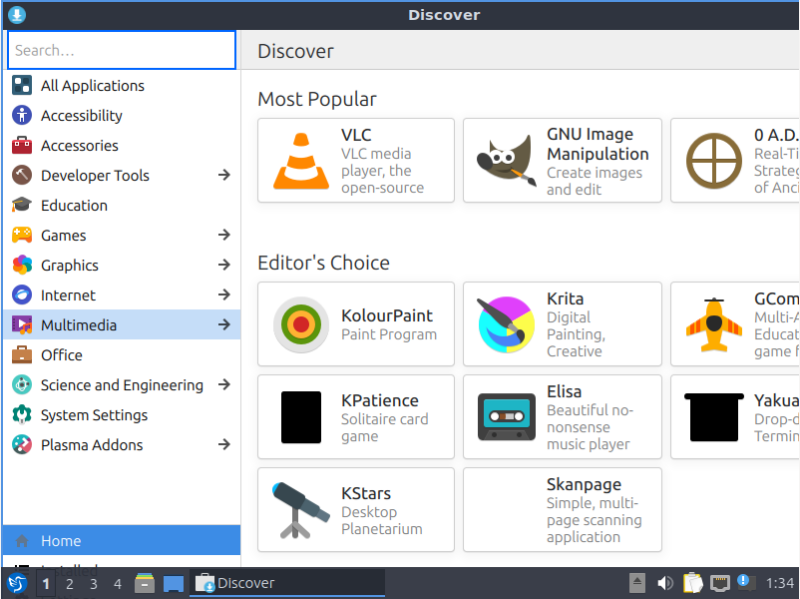
KDE’s Discover continues to support multiple backends (including RPM and Flatpak), so it can work across distributions. Further, in the Arch / Manjaro world, PAMAC is still the main GUI. It supports AUR, Flatpak, Snap, and AppStream.
openSUSE still ties Zypper into YaST for system configuration and software management. Meanwhile, smaller or niche distros may have GUIs too, but compatibility and feature-parity (compared to their CLI tools) can vary a lot.
These GUIs make Linux friendlier, but they can lag behind the command line in showing updates or handling conflicts. For quick installs they’re great, but for precision, the terminal remains the most transparent option.
Alternatives to Default Package Managers
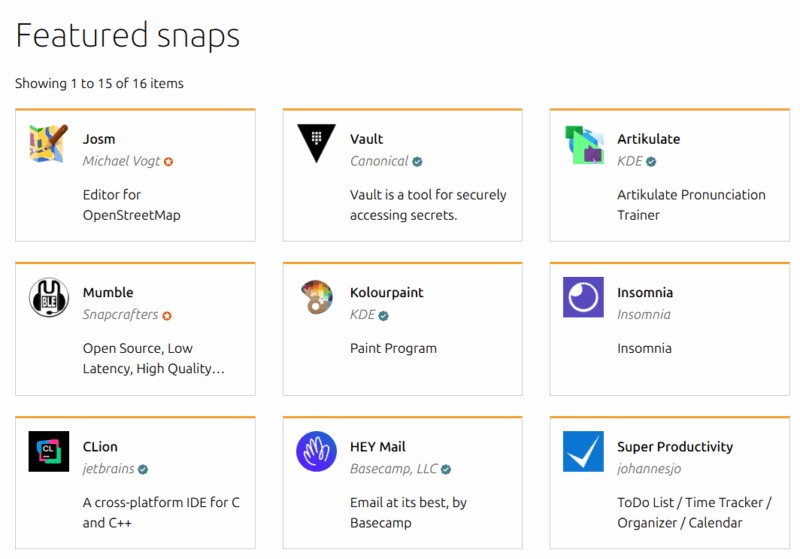
Linux distro’s default package manager is not the only way to install software. Over the years, a whole range of alternatives have emerged, each solving a different problem. For example, universal formats like Flatpak, Snap, and AppImage aim to make apps work everywhere, no matter the distribution. They bundle their own dependencies and often run in sandboxes for extra security.
In addition, you can also use manual methods like compile from source.
Final Thoughts
So, which Linux package manager is the best? The honest answer is the one that comes with the distribution you enjoy using the most. Each package manager is a reflection of its distribution’s philosophy. They are all excellent, powerful tools that get the job done reliably. Also, if you don’t know which Linux distribution to choose, you can check this guide.








