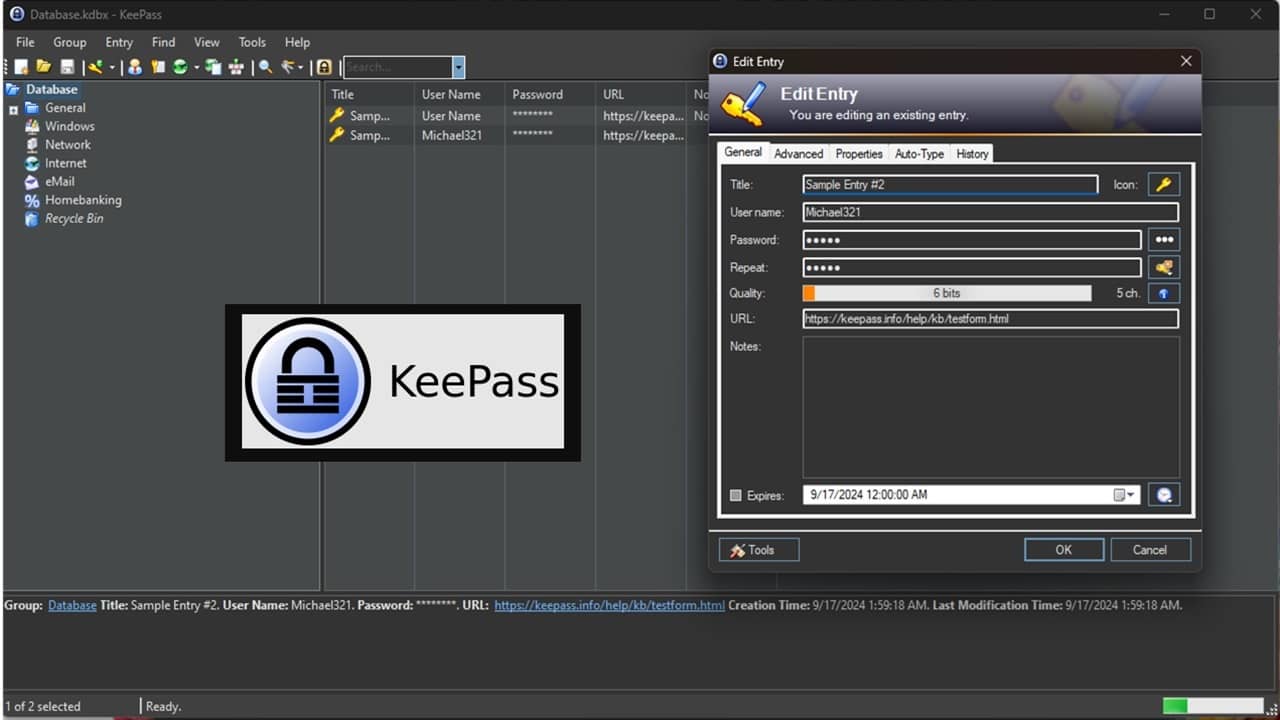
Once upon a time, I was one of those people who used the same password for everything, but now I have different passwords for hundreds of accounts. To keep everything straight, I use KeePass Password Manager over all the other password managers out there, and this is why.
1. Portable App With Nothing to Install
I’m partial to portable apps. They’re convenient and don’t take up much space, making them ideal for USB drives or old PCs. In the case of KeePass, nothing is installed on my system, so if I need to move to another device, it’s a simple matter of moving the KeePass folder and database file to a new system and I’m all set.
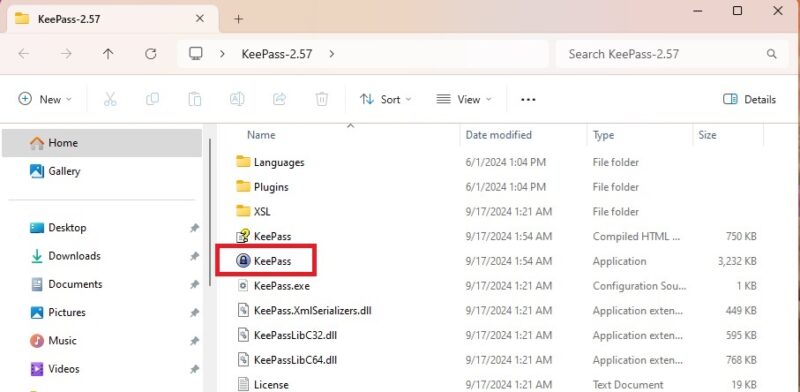
But, my favorite part is as a portable app, I never even need to have the app on my PC. It’s hard for anyone to hack my passwords if they’re not on my computer. I store them on a USB drive (which I can encrypt), and yes, I do have backups.
KeePass is only available for Windows officially, but it works on Android, iOS, Linux, and macOS thanks to projects based on KeePass’s source code.
Tip: Learn how to integrate KeePass with Chrome and Firefox.
2. Nothing Stored Online So I Have Full Control
Alright, I know everyone’s already thinking that if nothing’s accessible online, then what’s the point. For me, that’s exactly the point. Even LastPass was hacked. That doesn’t give me a nice warm fuzzy feeling about the security of my passwords.
Your KeepPass password database is only stored locally. One tiny database file, holding the key to all your accounts. I know it’s a bit inconvenient not having an autofill option or simply logging into your online password manager and having passwords available anywhere, but I honestly don’t mind the 5-10 seconds it takes for me to open KeePass and get my info.
In fact, once KeePass is open, right-click an entry to open a site, copy the username, and copy the password. As an added bonus, any copied data disappears after 10 seconds. Security really is the focus here.
The peace of mind is worth it. Maybe I’m a control freak, but in a world where you have very little control over your data online, KeePass gives me back some of that control.
3. Custom Security I Can Count On
First off, everything is full encrypted, not just passwords. KeePass uses AES and Twofish or ChaCha20 (depending on version) to keep your information private.
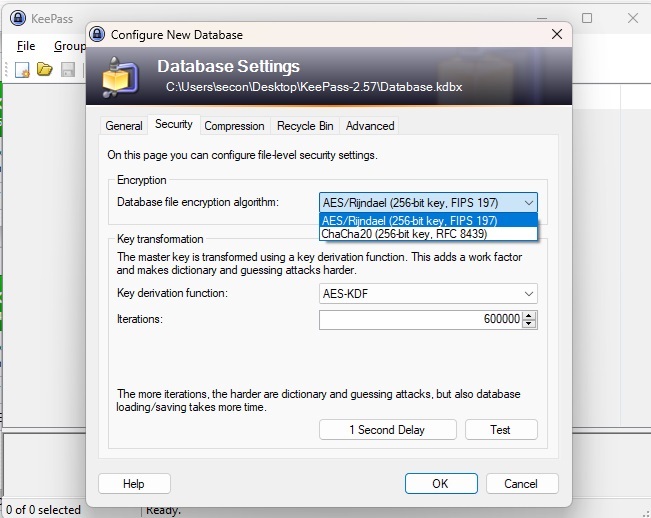
I like that I get the option to customize the security level of my password manager. I personally prefer AES as it’s what I’m most familiar with. Then, I bump up the iterations to make it even more difficult for hackers to brute force their way into my passwords. It does take a few seconds for things to load, but that’s a small price to pay for security.
I also enjoy having multiple methods to log in. It’s not just a quick password and you’re in, unless you’re into that sort of thing. Instead, I get to pick between:
- Master password
- Windows user account
- Key file on a separate device
- All options at once
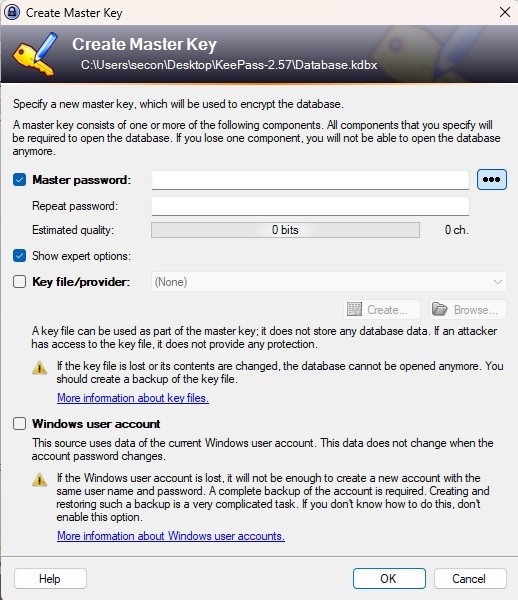
Without the right credentials, I don’t get in. If hackers get my database file, they can’t use it either. They don’t have the password or the key file.
And, unlike most software and apps that love to hog resources after exiting, KeePass Password Manager closes fully. When I click the little X, KeePass closes and locks my database.
4. So Many Useful KeePass Plugins To Try
I was using KeePass password manager for over a year before I noticed all the plugins available. Personally, I loved KeePass as is, but the extras are nice. It’s also not something I found in other password managers.
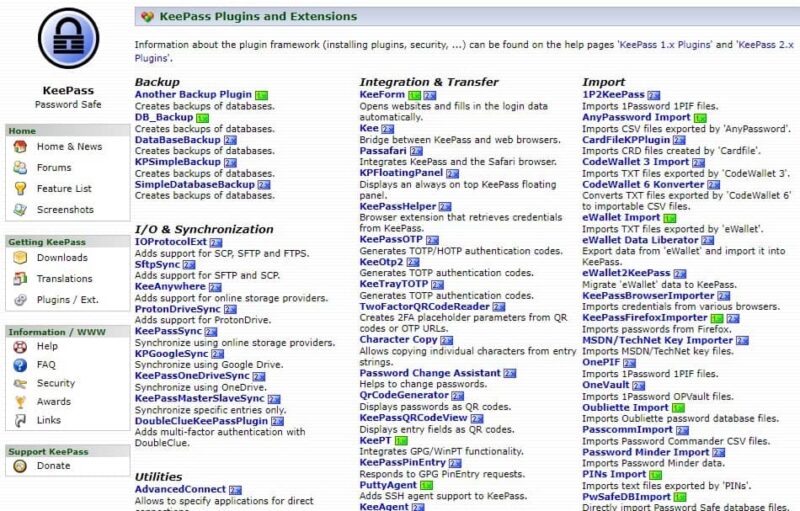
I’ve personally tried out about a dozen KeePass plugins, but my current favorites are:
- Kee, used alongside KeePass RPC – This lets KeePass communicate with my browser to log me in. It’s still not as fast as many other popular password managers, but I still get the convenience without the security worries.
- Breach/Leak Checkers – I know there are sites that make it easy to check if accounts have been leaked, but this handy plugin runs checks to see if anything in KeePass is out in the wild.
- KeeTheme – I’m all about customization. KeePass offers some simple style customization options, but I wanted more. KeeTheme gives me extra themes and even allows me to create my own if I want. For example, I customized a dark theme that didn’t require my Windows system to also be dark.
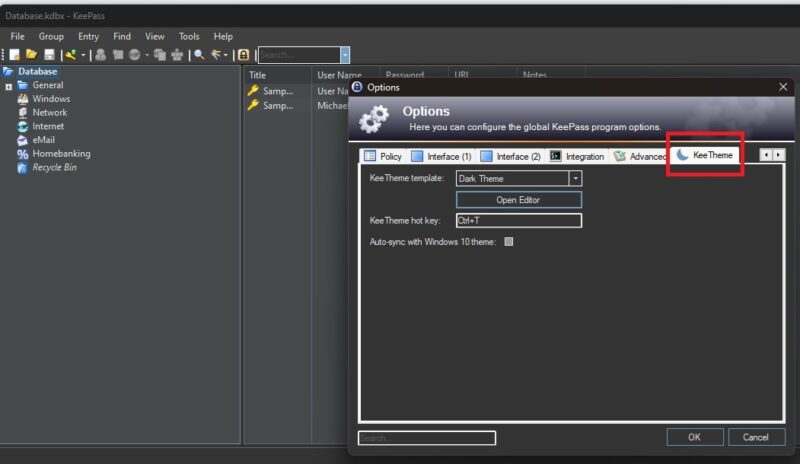
Don’t worry. Plugins are easy to install too. I download the file(s), drop them into the KeePass Plugins folder, restart KeePass, and I’m done.
KeePass offers quite a few import/export options by default, but there are plugins available for almost every file type.
5. Add Notes and Customize Passwords
Testing out apps, services, and products means I have a lot of accounts to juggle. KeePass lets me not only add a title, username, and password, but detailed notes and a URL. I can even set an expiration date to remind me to change the password or delete the account.
And as a customization junkie, I can change the entry’s icon, background/foreground color, and even add more fields if I need to add more details.
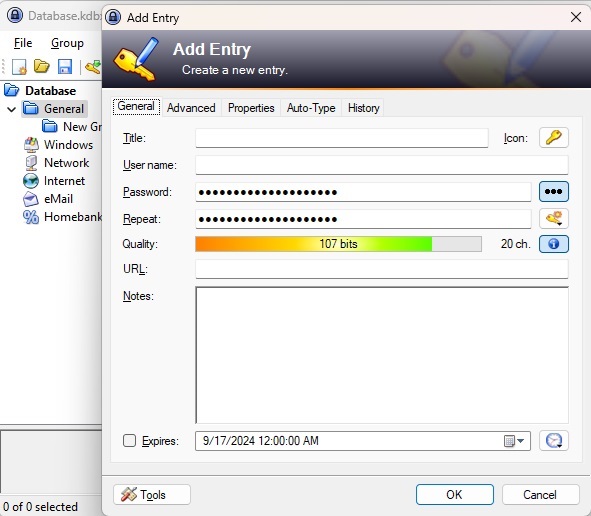
While every password manager helps generate strong, unique passwords, KeePass Password Manager goes a step further. I can generate a random string of characters, derive from a previous password (ideal for those passwords you need to remember), or use the Password Generator.
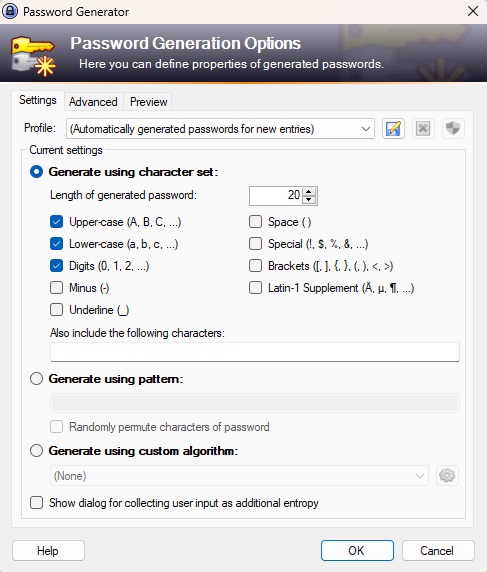
I get to create password profiles for different types of accounts, eliminate look-a-like characters (such as using @ in place of a), and even create my own algorithm.
6. Nostalgic Interface That’s Easy To Use
Call me old-fashioned, but I like the more Windows 2000 style interface of KeePass. I’ve heard others say it’s outdated and difficult to use, but I personally prefer the look and feel and find it easier to use than some of the more modern looking password managers.
Naturally, KeePass Password Manager isn’t your only option for password management. For instance, Samsung Wallet helps you manage credit cards, IDs, and passwords in one place. Or, make the switch to passkeys to skip passwords.
Image credit: All images by Crystal Crowder








