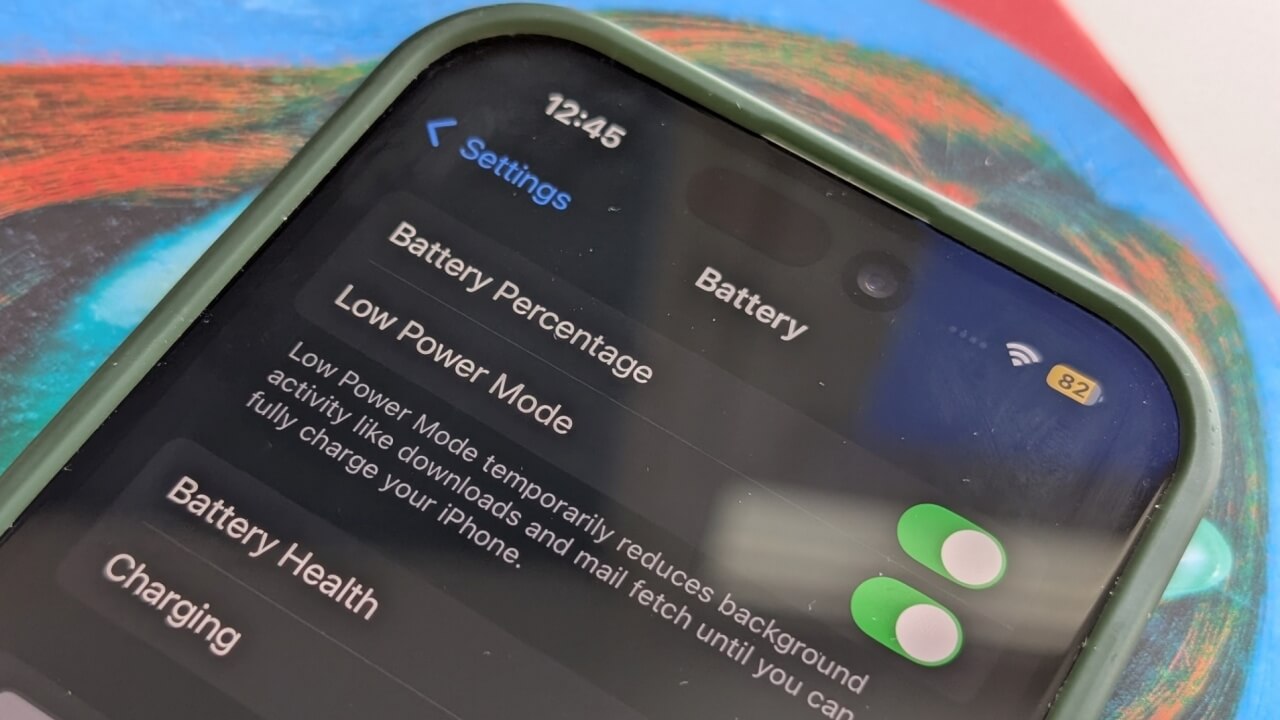
Low Power Mode on your iPhone is a handy feature for preserving battery life, but it automatically turns off when your battery charge goes above 80%. If you’re traveling or just want to stretch your battery further on an older iPhone, there’s a way to keep it on permanently. This guide will show you how.
Good to know: learn how to change lock screen shortcuts on your iPhone.
Manually Turn on Low Power Mode on iPhone
Under normal circumstances, you’ll see a notification when your iPhone’s charge reaches below 20%, asking you whether you’d like to turn on Low Power Mode. However, you can manually turn Low Power Mode on at any time.
Open the Settings app on your phone and navigate to Battery.
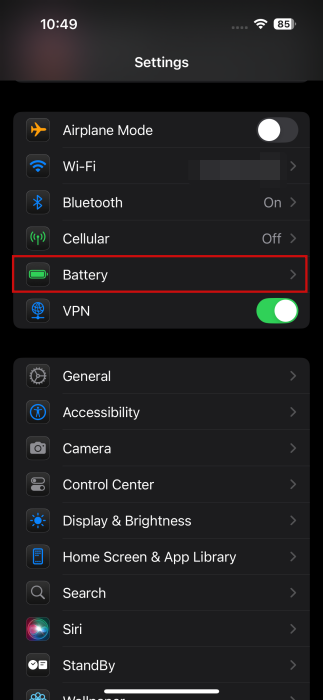
Turn on the toggle for Low Power Mode from there.
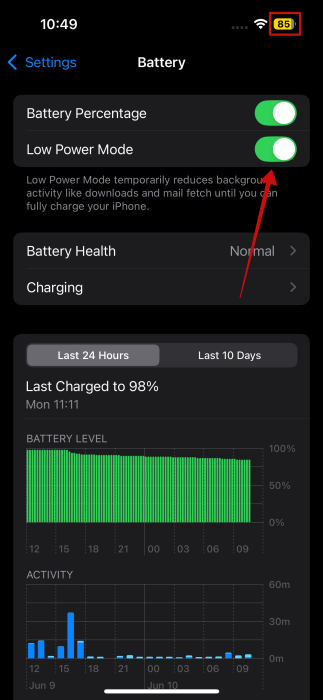
When you do so, the battery indicator at the top will turn yellow.
Once you enable Low Power mode, your iPhone will automatically make a few changes to conserve energy, including:
- Turning 5G off on most models
- Locking iPhone display after 30 seconds of inactivity
- Reducing display brightness
- Eliminating some visual effects
- Limiting display refresh rate to 60 frames per second (on iPhone models with ProMotion display)
- Pausing iCloud Photos sync
- Turning off automatic downloads
- Turning off email fetching
- Disabling background app refresh
Together, these changes will lower your iPhone’s power consumption, which helps extend its battery life.
Tip: learn how to hide or lock apps on your iPhone or iPad.
Turn On Low Power Mode from Control Center on iPhone
If you need to constantly switch between Low Power Mode and the normal mode on your iPhone, you can easily add a Low Power Mode shortcut in your Control Center and activate it from there.
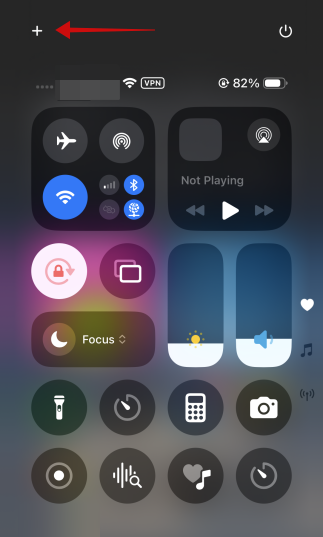
Bring up the Control Center on your phone by swiping from the top of the right part of the display.
Press the + button in the upper left.
Tap Add Control at the bottom.
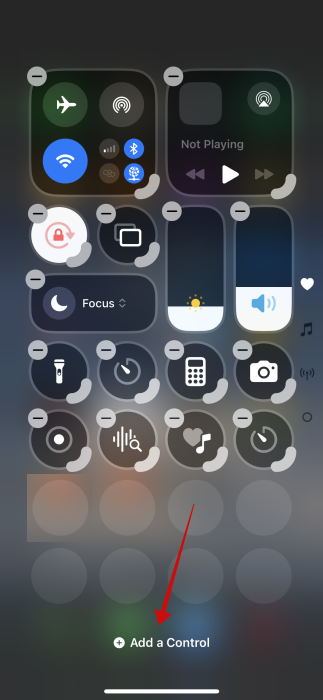
Select the Low Power Mode tile.
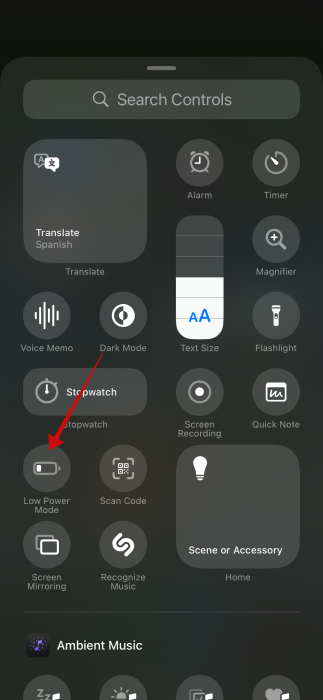
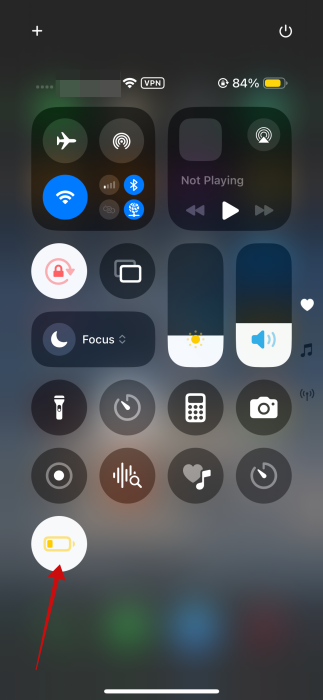
The new toggle will be added to the Control Center. If you want to change its position, long-press on it and drag it around. Tap anywhere outside the Control Center to save the new configuration.
Now, when you want to activate Low Power Mode, open up the Control Center and tap the tile to activate it. Tap again to turn it off.
FYI: hide your private details and enhance online privacy with these best VPN apps for iOS (and Android).
Have Low Power Mode On Permanently on Your iPhone
In some cases, you might want to have Low Power Mode constantly activated and not worry about turning it on and off. I do this when I’m travelling and constantly taking photos or checking the Maps app for directions. Alternatively, if you have an older iPhone model, you might also benefit from keeping Low Power Mode on at all times, as it will add more time to your device’s daily life.
You can do this by using your iPhone’s Shortcuts app to create an automation, which should come preinstalled on your device. This way, you don’t have to constantly remember to turn Low Power Mode on.
Open the Shortcuts app on your phone.
Switch to the Automation tab at the bottom. Press the + button in the upper right corner.
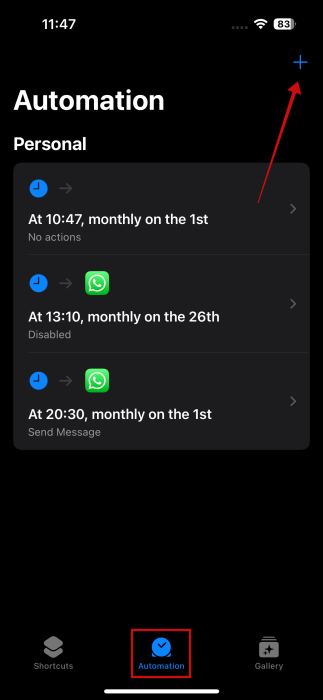
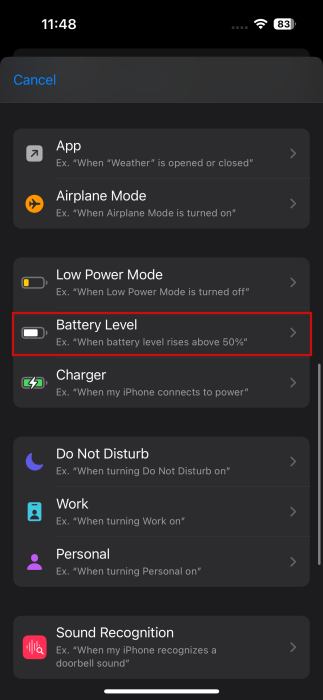
Swipe down and select the Battery Level option.
Move the slider to the maximum level. Select the option Falls Below 100%. Make sure to check the Run Immediately option. Finally, press Next.
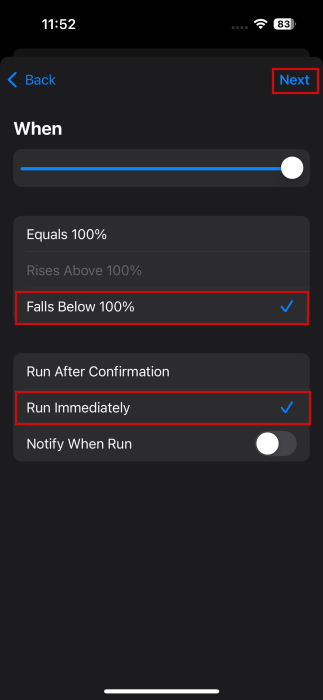
Note: if you wish for Low Power Mode to go into effect at a different percentage, you can set it, for instance, at 50% or 70%.
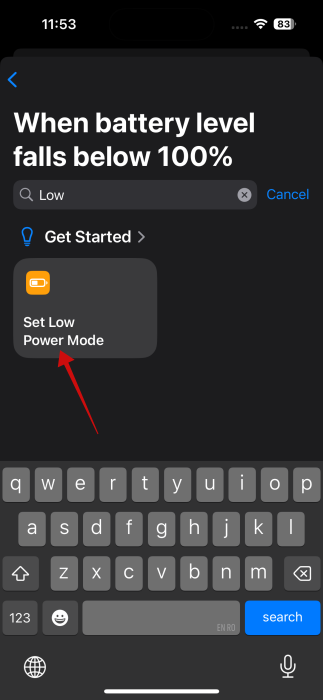
Now, it’s time to add an action. Use the search bar and type “low.” Select the Set Low Power Mode option. Press Done on the next screen.
Review your automation. Press Done.
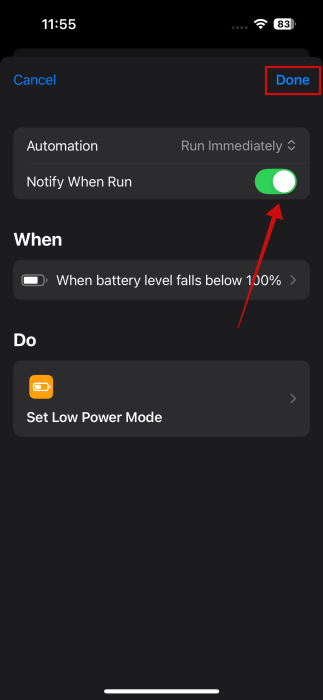
You can toggle on the option to Notify When Run, so you can be aware when the shortcut is running.
Activating Low Power Mode is just one method for extending battery life on your iPhone, but our post details many other suggestions. In addition, Low Power Mode is also available on other Apple products; for instance, learn how to activate and use Low Power Mode on the Apple Watch.








