Google Keep’s simplicity was its strength, until it wasn’t. Sometimes, you need more organization, better formatting, and, most importantly, control over your own data. Fortunately, I discovered Joplin, a self-hosted note-taking solution that completely transformed how I manage my digital thoughts.
What I Liked (and Didn’t Like) About Google Keep
Before diving into Joplin Server, let’s talk about Google Keep. It’s light, fast, and incredibly easy to use. You can jot down a shopping list or a quick idea and sync it effortlessly across your devices. However, you must remain signed in to your Google account.
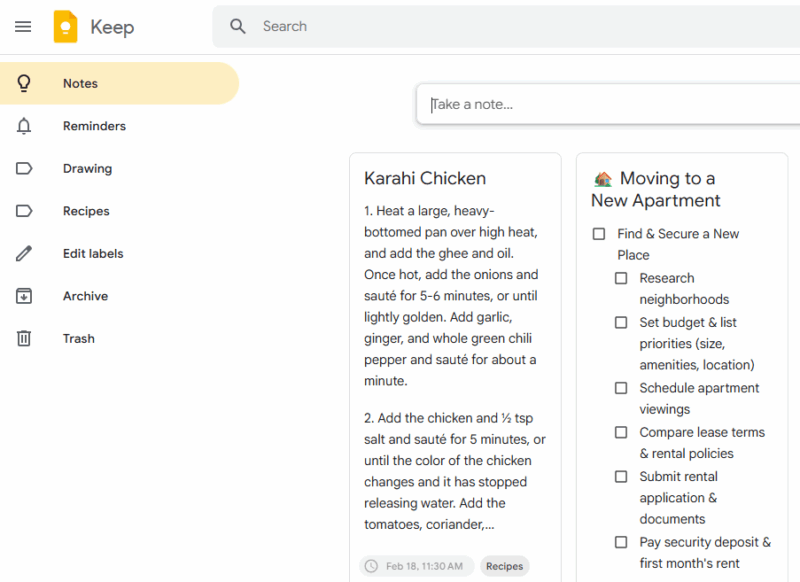
It works well, but once your notes pile up, its limitations become obvious. With hundreds of notes, things get messy. You can’t create deep hierarchies or nested folders, and there’s no support for writing in Markdown. The folder structure is non-existent, and tagging is limited to basic labels.
Then there’s the privacy concern. Like all Google services, Keep is part of a larger data ecosystem. Your notes might not be used for ads, but the idea of my personal thoughts sitting on a big tech company’s servers doesn’t sit right with me anymore.
What I Liked About Joplin
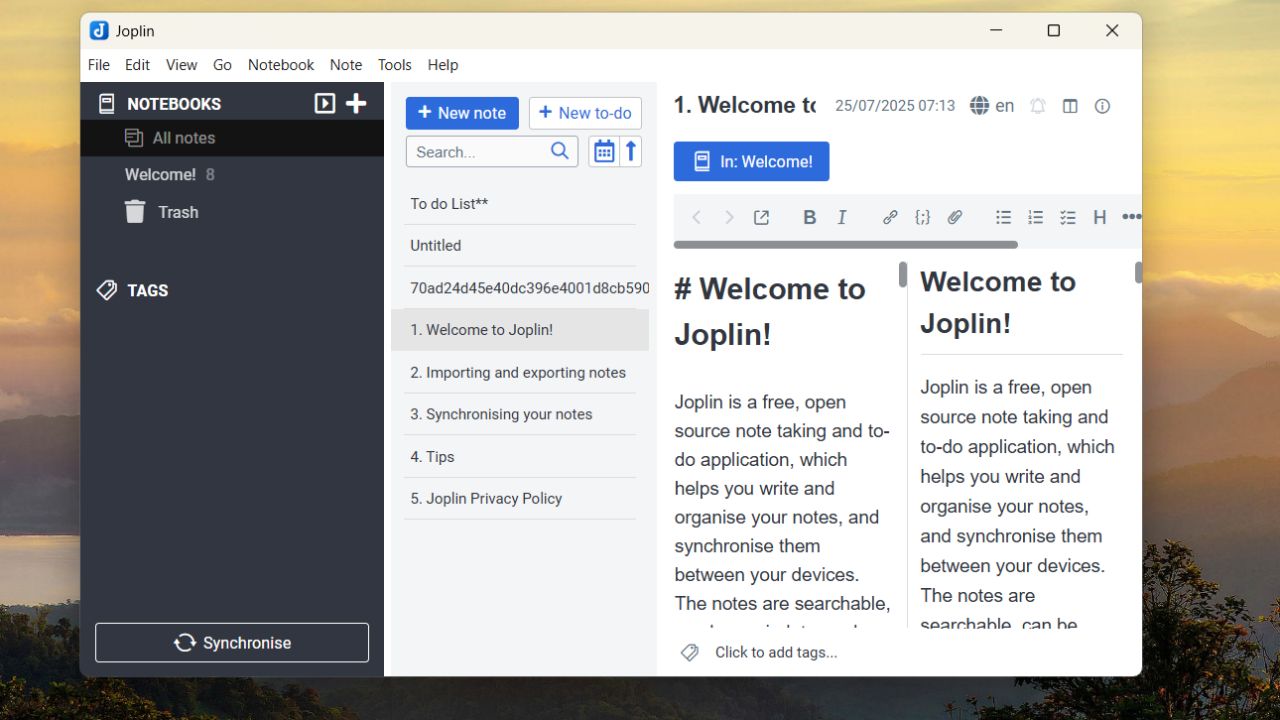
Joplin is a secure, open-source note-taking app packed with modern features, including Markdown support. It offers clients for all major platforms – Windows, macOS, Linux, Android, and iOS.
Unlike cloud-based apps that lock your data into corporate servers, Joplin lets you self-host it on your own server and decide where your notes live. With Joplin, you get the best of both worlds: complete control over your data and seamless synchronization across all your devices.
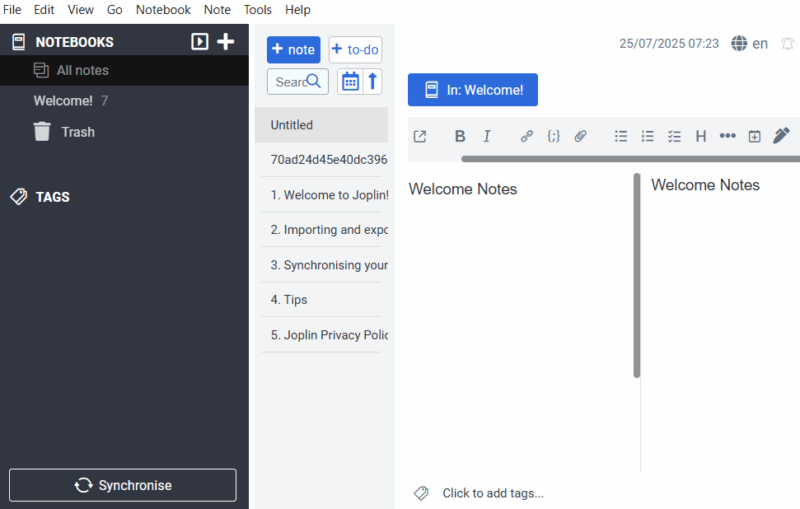
Google Keep has a rigid format, but Joplin treats each note like a proper document. You can create detailed articles, quick notes, or complex research documents, all within the same app. Markdown support allows you to format text precisely, embed images, create tables, and even include syntax-highlighted code snippets.
Additionally, Joplin Server supports end-to-end encryption. Even if someone accesses your server, all they’ll see is encrypted gibberish.
Rich Formatting With Markdown
Sometimes, plain text isn’t enough. You need bold headers, bullet lists, and inline code. Joplin uses Markdown, giving you powerful formatting options without unnecessary complexity. If you’ve used Reddit or GitHub, you’ll feel right at home. A hash (#) makes a header, a dash (-) starts a list, and (_) underscores add emphasis.
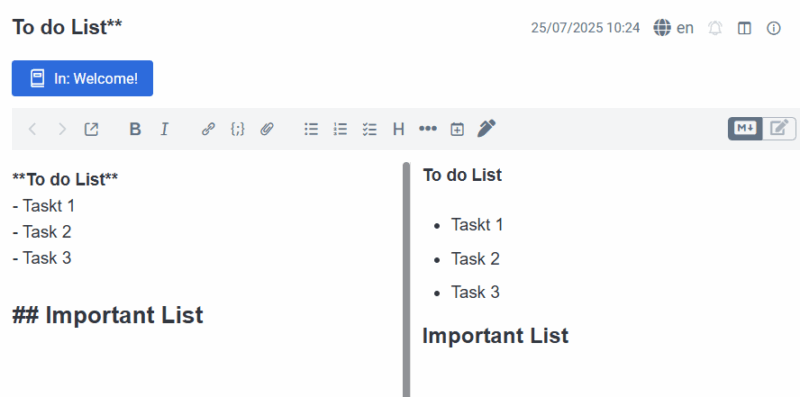
The best part? Joplin includes a live preview, so you don’t need to memorize Markdown syntax. It offers both a Markdown editor and a rich-text editor, allowing you to switch between them seamlessly. Start typing in plain text, view it as formatted content, and switch back to Markdown for quick edits.
You can also create templates for recurring notes. For example, set up a meeting template with sections for attendees, agenda items, and action points. Planning a trip? Build a template with sections for flights, accommodations, and activities. Creating a new note from a template takes just one click.
Another powerful feature missing in Keep is cross-referencing. In Joplin, you can link notes together, building a web of connected information. I use this for project management, linking related ideas and creating a knowledge base that actually makes sense.
Joplin Is Highly Customizable
Google Keep offers minimal customization. Joplin, by contrast, is fully customizable. You can change the entire appearance with dozens of available themes or write your own custom CSS.
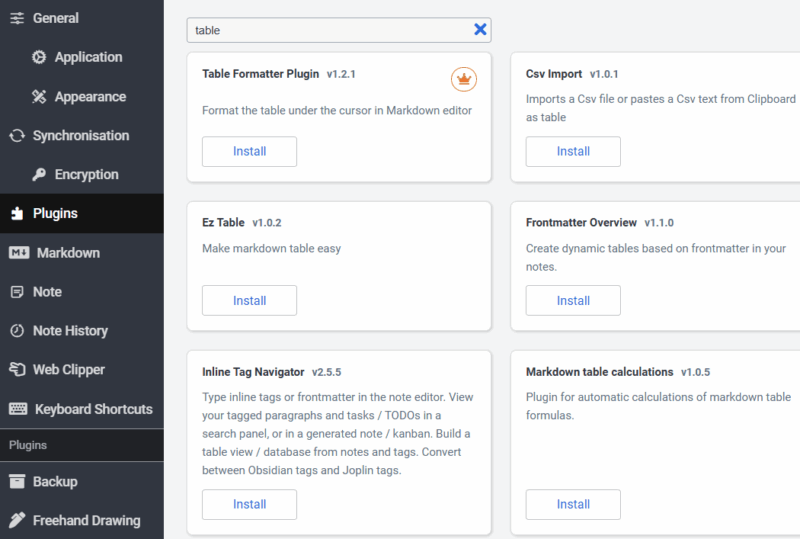
Joplin also has a rich plugin ecosystem. You can import notes from Evernote, OneNote, or Google Keep. Other plugins support task management integration, advanced search capabilities, and custom export options.
Keyboard shortcuts are fully customizable too. You can configure them to suit your workflow, speeding up everything from creating new notes to switching notebooks.
Notebook organization in Joplin is far more flexible than Keep’s flat structure. You can create deeply nested notebooks, sort them however you like, and apply different templates to different notebook types.
I have separate notebook hierarchies for work, personal life, and learning, each organized in ways that make sense for their specific content.
Setting Up Joplin Server
If you want to sync your Joplin notes across different platforms, you can set up a Joplin Server. Joplin Server can be easily self-hosted using Docker Compose, making it a popular choice for anyone looking to sync notes across devices without relying on the cloud. While you can deploy it manually or use orchestration platforms like Kubernetes, Docker Compose remains the most beginner-friendly and reliable method.
To get started, head over to the official Joplin Docker hub page, where you’ll find a ready-to-use docker-compose.yml file. The recommended setup includes a PostgreSQL container and the Joplin Server container, all configured via environment variables stored in a ENV file for clarity and security.
Assuming that you already have Docker installed on your system, all you need to do is to download the docker compose file:
wget https://raw.githubusercontent.com/laurent22/joplin/dev/docker-compose.server.yml -O docker-compose.ymlthen run the docker compose file:
docker compose up -dBy default, Joplin Server runs on port 22300, so you can access it in your browser or app at something like http://192.168.1.x:22300, depending on your server’s IP address. If that port is already in use, you can easily change it in the Compose file.
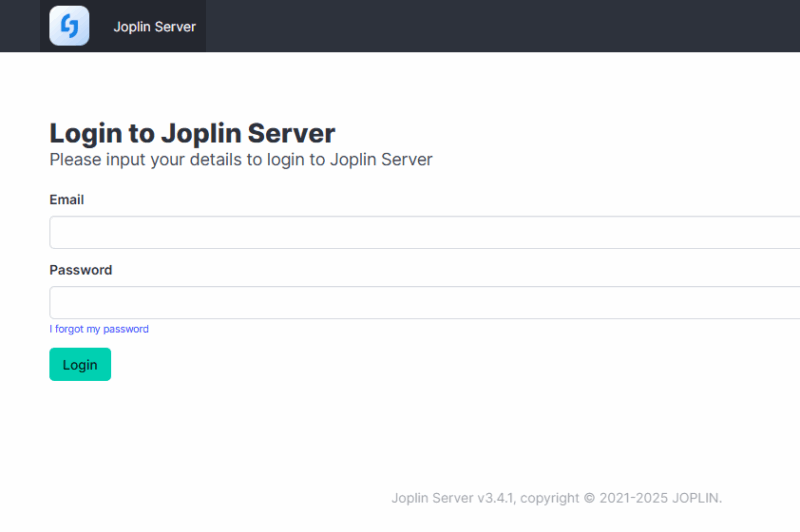
You’ll also configure volume mounts to store your Joplin data and database persistently, ensuring your notes and user data remain intact even after container updates. Admin login defaults to admin@localhost with password admin, but you should change this immediately after setup.
If you’re exposing Joplin Server over the internet, it’s highly recommended to place it behind a reverse proxy like Nginx or Apache and secure it with HTTPS using a free SSL certificate from Let’s Encrypt.
Full Sync Across Devices
Once your Joplin Server is running, simply install the Joplin client on all your devices. After that, go to the Synchronization settings, select Joplin Server, then enter your server’s address and login details, and you’re all set.
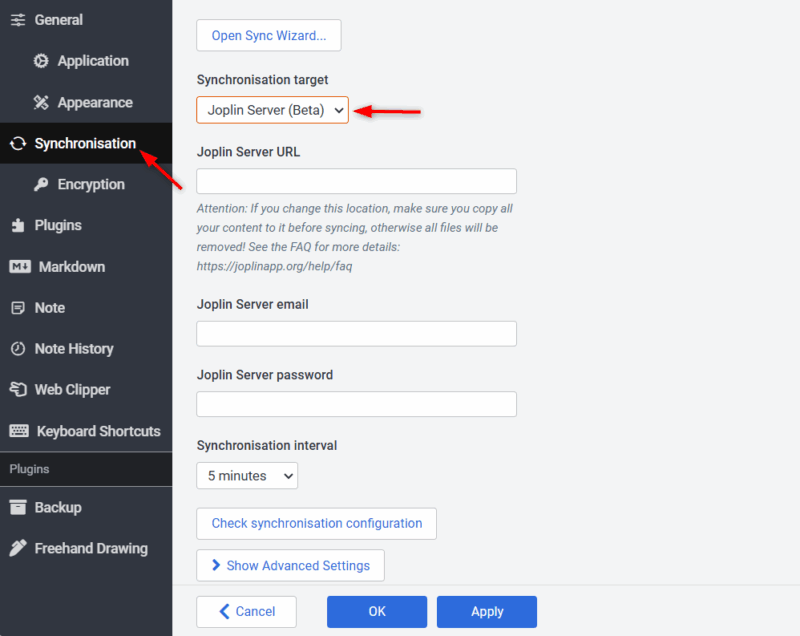
The sync is fast, reliable, and completely private. A note created on your phone appears on your laptop moments later. A checklist updated on your desktop shows up instantly on your phone. Even offline, you can access and edit your notes. Everything syncs automatically once you’re back online.
The server dashboard shows detailed sync activity, storage usage, and device stats. After years of wondering what Google was doing with my data, having this level of control feels empowering.
Final Thoughts
Switching from Google Keep to a self-hosted Joplin setup was a major upgrade for me. I gained the features and organization I needed while taking full ownership of my data. If you also value privacy, customization, and control over your information, give Joplin a try.