If Safari on your iPhone feels slow, crowded with banners, or filled with ads and sudden pop-ups, you are not alone. For me, it has reached the point where some sites were almost unreadable. After installing uBlock Origin on iOS (the new Lite version), my browsing experience immediately improved.
If you use Safari on an iPhone or iPad, this free tool is one of the best small changes you will ever make.
Why uBlock Origin Lite Is a Big Deal
For years, iPhone and iPad owners had to make do with weaker ad blockers. Many of them were either too limited and missed a lot of ads, or too heavy and slowed down your phone or drained your battery.
The official uBlock Origin Lite is different. It works directly with Safari’s built-in extension system. This makes it efficient, reliable, and gentle on your phone’s resources.
It blocks ads, trackers, and unnecessary page elements before they even reach your screen. Because it relies on Apple’s modern content-blocking technology, it does not need to run constant background processes.
On my iPhone, websites that once showed layers of ads loaded smoothly and without hesitation. Reading became much more comfortable. The whole experience felt smooth and comfortable.
Once I enabled uBlock Origin on iOS, the improvements were easy to see. Web pages load much faster, especially on cellular data.
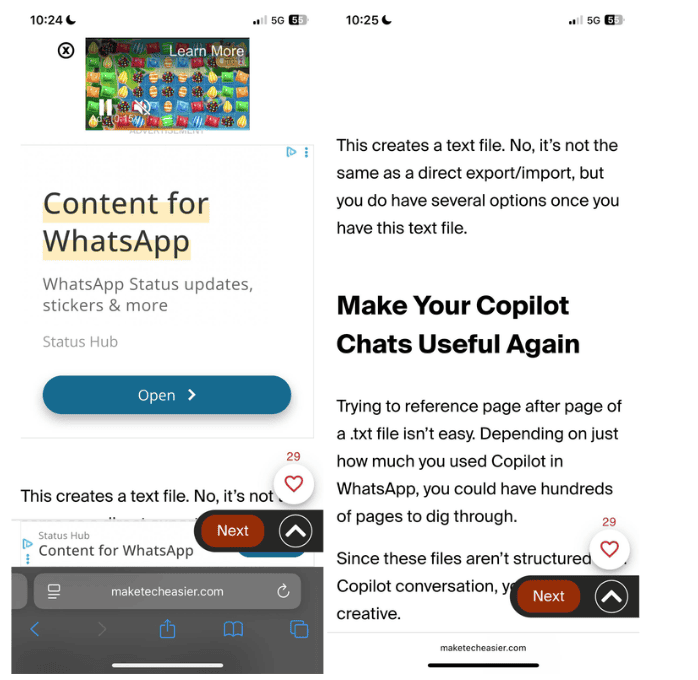
Websites and forums stopped placing large banners and cookies over the content. Pop-up videos stay paused until you choose to play them.
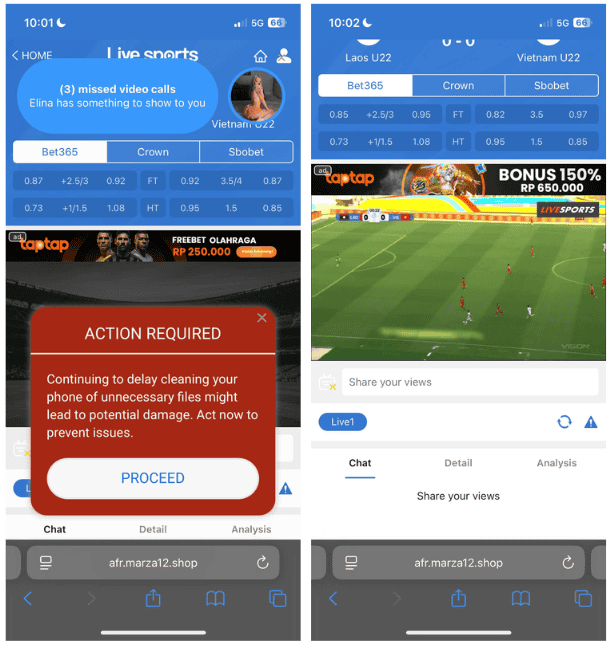
This reduction in page clutter reduces eye strain during longer browsing sessions as there’s less flashing and movement. Also, you use less mobile data each month since the extension prevents ads and other elements from loading or downloading in the first place.
Privacy improves too. The extension automatically blocks thousands of third-party tracking scripts, preventing your activities from being monitored. It’s one of the easiest privacy upgrades most people will ever add to their iPhone.
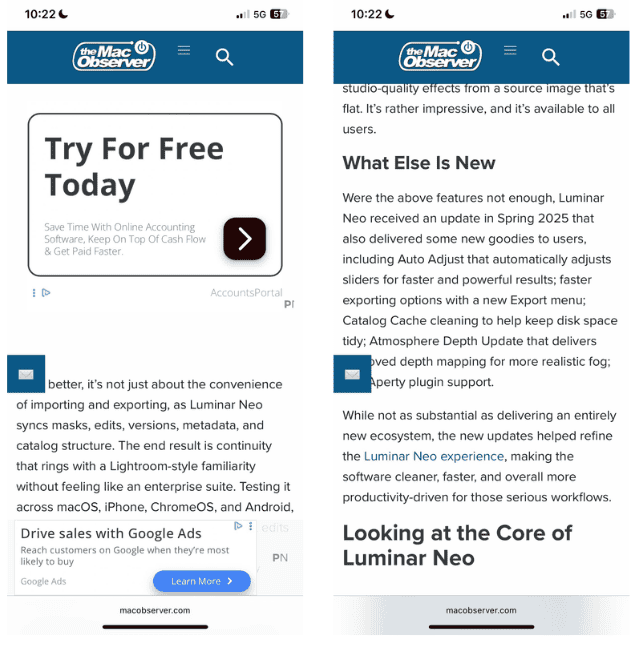
Personally, I pair uBlock Origin on iOS with Safari’s distraction control feature. The two work perfectly together, making reading articles feel calm and focused. Also, you can enable Reader mode in Safari with this tool for an even clearer reading environment.
You Can Set It Up Within A Few Minutes
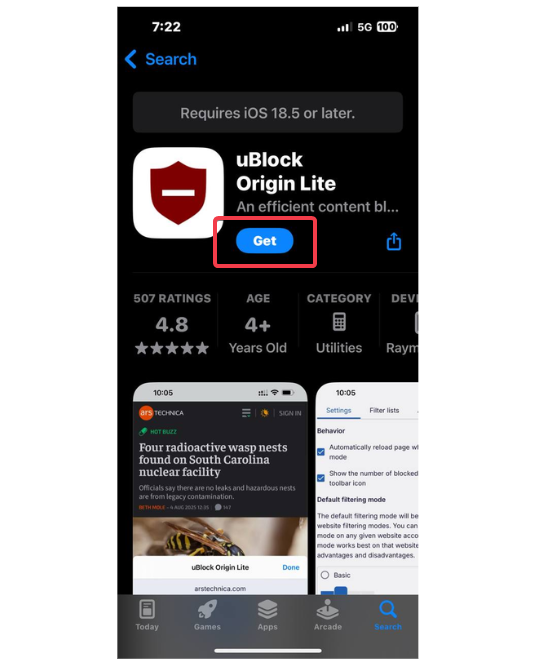
Installing uBlock Origin Lite on iOS is simple. Open the App Store, search for uBlock Origin Lite, and install it.
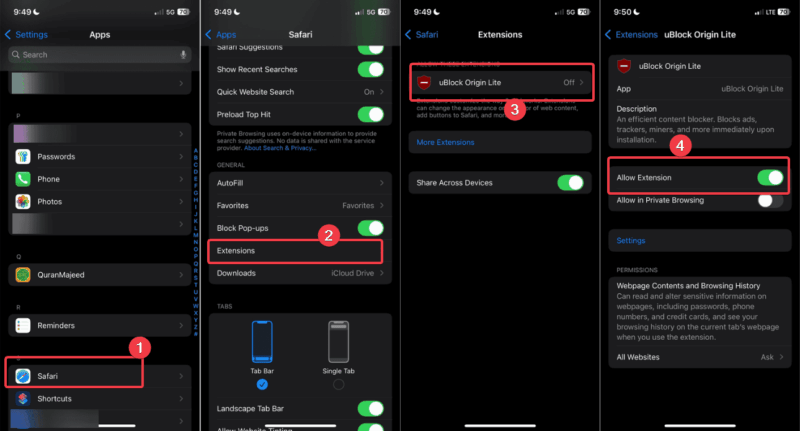
Go to Settings -> Apps -> Safari -> Extensions, turn on uBlock Origin Lite, and allow it to run on all websites.
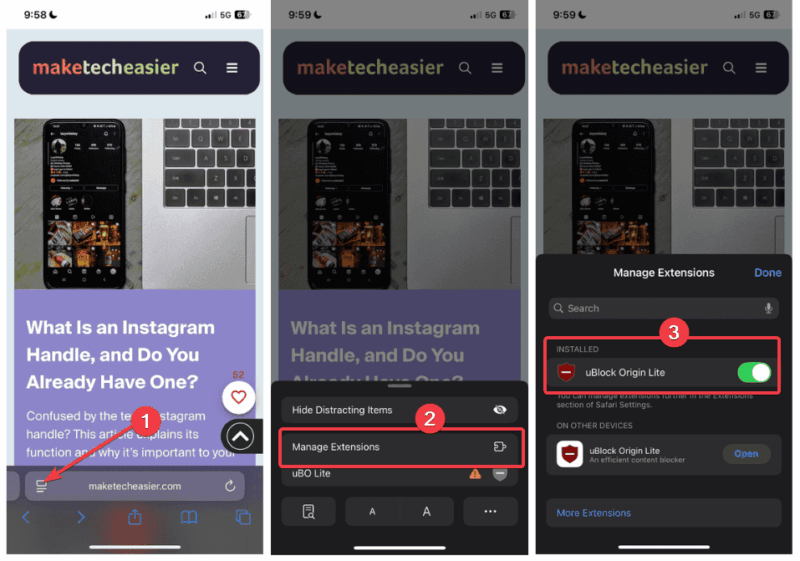
Now, open Safari, tap the AA icon in the address bar, choose Manage Extensions, and turn it on there.
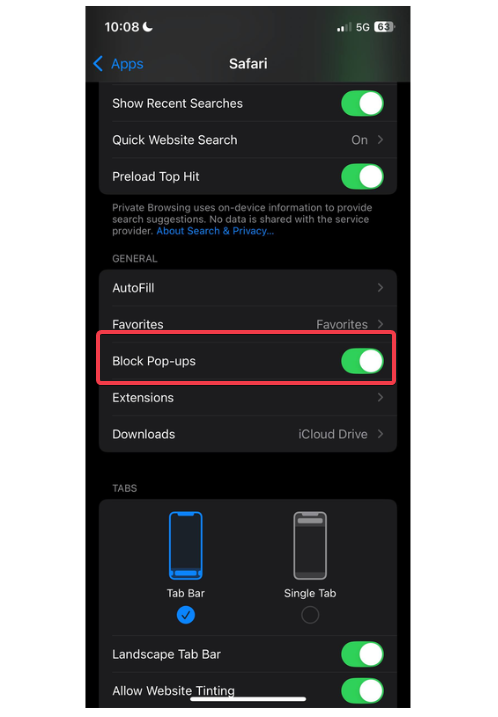
After this, you should notice the changes immediately. If a site still shows pop-ups, tweak the built-in settings to block pop-ups in Settings -> Apps -> Safari and block ad pop-ups.
On rare occasions, a website looks strange due to an aggressive advertising system. I temporarily disabled the extension and refreshed the site. Then, re-enabled the extension and refreshed again. The problem almost always goes away.
Yes, There Are Limits – But I Don’t Care
This is the Lite version, so you cannot create custom rules the way power users do on a computer. For anyone interested in those, our ultimate uBlock Origin superuser guide gives a detailed overview of what’s possible.
Also, the extension only works in Safari and not in other browsers like Chrome or in-app web views.
For everyday uses like reading news, shopping, or streaming videos in the browser, these limits never get in the way. The core job of removing ads, speeding up pages, and protecting privacy works perfectly on my devices. On days when I’m working remotely, this means I can stay focused without constant interruptions, which has improved my productivity.
If you spend any time browsing on iPhone or iPad, give uBlock Origin Lite a try today. A few minutes of setup will probably change your mobile browsing experience, just as it has improved mine.








