

Most of the time, the pop-up blocker on Apple’s Safari browser will get the job done without any intervention from the user. That’s really good news, as these pop-ups can be anything from unwanted advertisements to phishing attempts (you have won a prize!) that are hoping to gain access to your personal info. On the other hand, sometimes the pop-up blocker can be a little too protective and stop important bank pop-ups from appearing. The good news is that you can tweak the pop-up blocker on an ongoing basis until you find the right amount of protection for you. Here’s how to block or allow pop-ups on Safari.
Block or Allow Pop-Ups in Safari on Mac
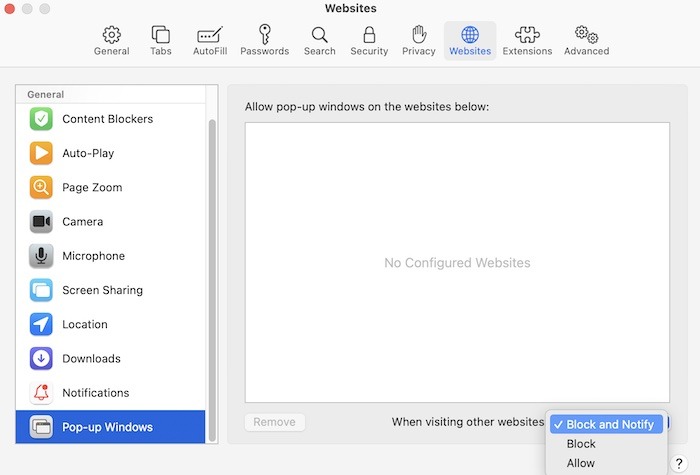
1. Start by launching Safari from your dock, then go to “Safari -> Preferences” in your menu bar.
2. On the pop-up window, locate “Websites,” then locate “Pop-up Windows” on the left menu.
3. Locate the option for “When visiting other websites” at the bottom left of the pop-up.
4. You now have three options available that will help you better manage pop-ups through Safari on the Mac:
- Allow: this will allow all pop-ups to come through, which can include both legitimate ones sent via banks or retail sites as well as windows that are potentially malicious.
- Block: as expected, this will block all pop-ups, which means no window will open where a pop-up should appear. This is the most protective option, but you can also miss potentially useful or necessary windows from opening.
- Block and Notify: when you visit a site with a pop-up, Safari will display an icon in the “smart search field” that you can click on and manually choose if the pop-up should open or remain closed.
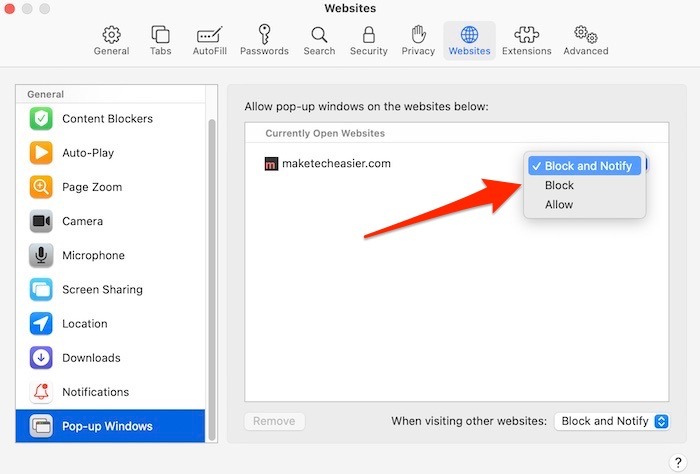
It’s important to note that the above instructions are more directed toward pop-ups as a whole across Safari. To set that up, it’s best to do it from the Safari home screen where it will cover all future browsing. However, if you want to ensure that pop-ups from certain websites are blocked and/or allowed, you can go to that site and head back to “Safari’s Preferences menu -> Websites -> Pop-up Windows” and allow pop-ups by website. That’s a great way to block websites in totality but allow them for your bank, favorite shopping site, etc.
Also read: Safari Not Working on Your iPhone? Here’s How to Fix It
Block or Allow Pop-Ups on iOS
Similar to Safari on the Mac, you can also block or allow pop-ups on iOS.
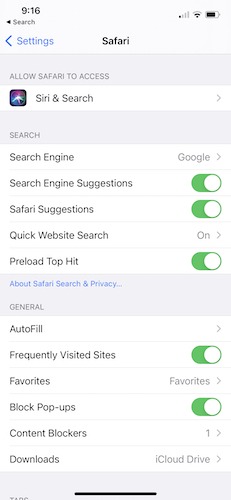
To do that, follow the steps below.
1. Go to Settings and scroll down the list until you find Safari.
2. Once the Safari window opens, look toward the middle of the screen until you find the “General” section.
3. To block pop-ups, toggle the “Block Pop-ups” option on or off. If it is green, Safari is blocking pop-ups. If it’s grayed out, it’s not actively blocking any pop-ups.
That’s the only step you need to take to block or allow pop-ups on Safari. The downside is that you cannot filter between pop-ups you want and those you do not. Unlike the Mac version of Safari where you can specify certain sites that can always show pop-ups, that is not the case with Safari for iOS.
Final Thoughts
Now that you have customized the pop-ups settings in Safari, you may also want to customize its homepage or install more extensions to extend its functionality.