
If you have Instagram posts you’d rather not showcase but aren’t ready to delete, Instagram’s archive feature has you covered. This is an ideal solution when you need to hide content that feels too personal or no longer relevant – such as when you’re navigating a breakup or want to keep certain posts out of your coworkers’ view, while keeping it safely stored away for later access when nostalgia strikes.
Good to know: learn how to upload Instagram videos directly from your PC.
What’s the Difference Between Instagram Archive and Deleting a Post?
Archiving posts on Instagram preserves your memories by saving them privately, yet keeping them off your profile. Deleting, however, is a more permanent action, as this eventually removes the post from your account entirely. This shouldn’t be much of a concern if you’ve backed up your images/videos elsewhere. But for those who want to keep their posts accessible via the app while removing them from view, archiving is the way to go.
When you archive a post on Instagram, it’s stored in a separate folder that you can access through the app’s settings. You can easily restore them from there, whenever you want.
As for deleted posts, you can bring them back within 30 days of deleting them. Navigate to Settings -> Your activity -> Recently deleted to restore your content. Beyond that, you may need to use third-party software or an older data download to retrieve deleted content.
How to Archive a Post on Instagram Mobile
Go to your profile on the Instagram app (Android, iOS), and open a post you want to archive. Tap on the three dots in the upper-right corner.
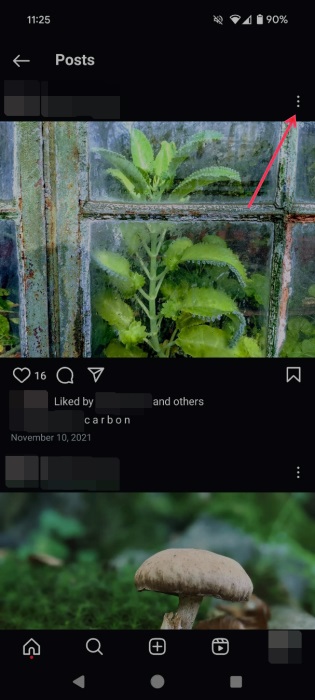
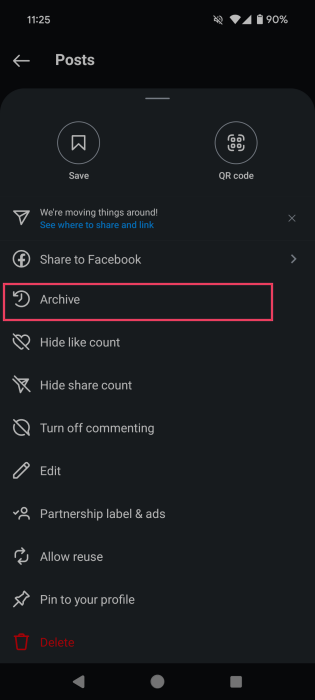
Select Archive from the menu to remove the post from your profile grid.
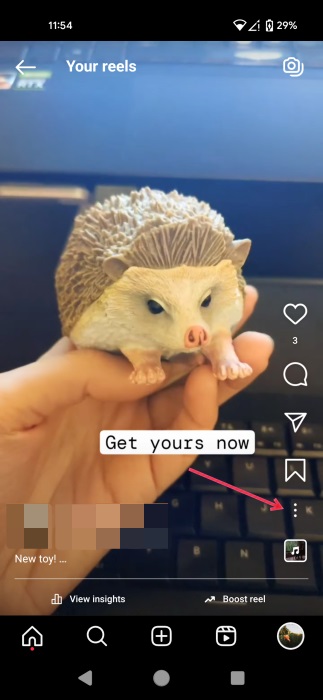
Alternatively, if you wish to archive a video, switch to the Reel tab on your profile, and open the clip. Tap on the three dots near the lower-right corner.
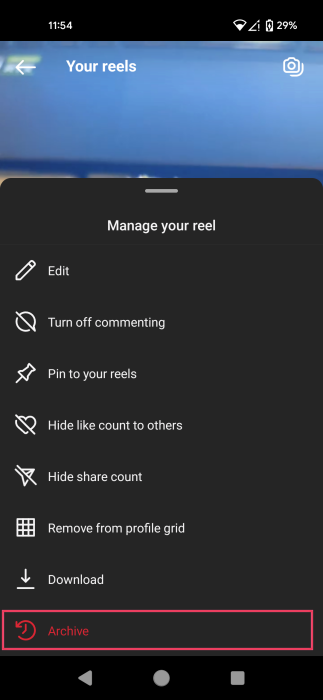
Select Manage, then tap the Archive option at the bottom.
Finally, let’s talk about stories. Even if these are automatically deleted once 24 hours have elapsed, you may still want to revisit them. They can be automatically saved to your Instagram archive. This applies to live videos too.
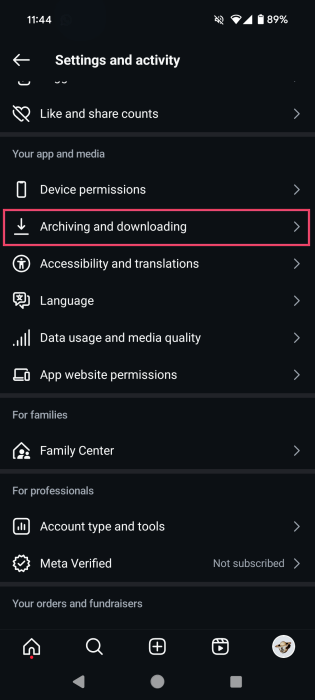
If you want to ensure this happens every time you post a story, press the hamburger menu from your Instagram profile page. Scroll down toward the bottom until you find the Your app and media section. Select Archiving and downloading.
Ensure that the switches next to Save story to archive and Save live to archive are toggled on.
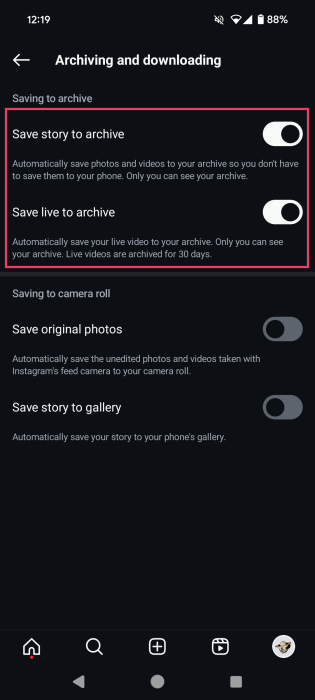
Tip: consider enabling the Save original photos option, too, to ensure you have a backup of your Instagram posts on your local device.
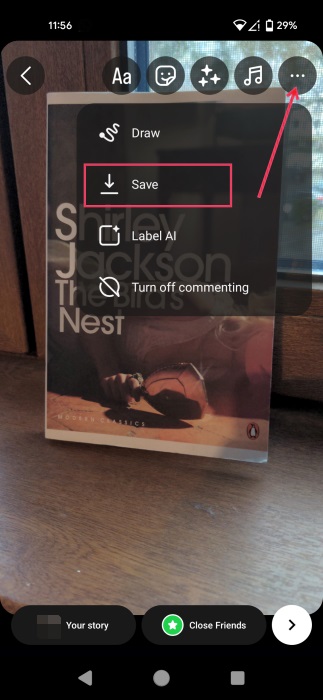
On the other hand, if you don’t want to archive ALL your stories, you can manually save select desired stories. In the story creation screen, press the three dots in the upper-right corner, and select Save to save the story on your device.
Tip: if you’re looking to take a break from social media, which I recommend, check out how to delete (or deactivate) your Instagram account.
How to Archive on Web Instagram
Open Instagram in your browser to archive posts from Instagram on a PC. Click on the More button on the left side of the display, then elect Your Activity.
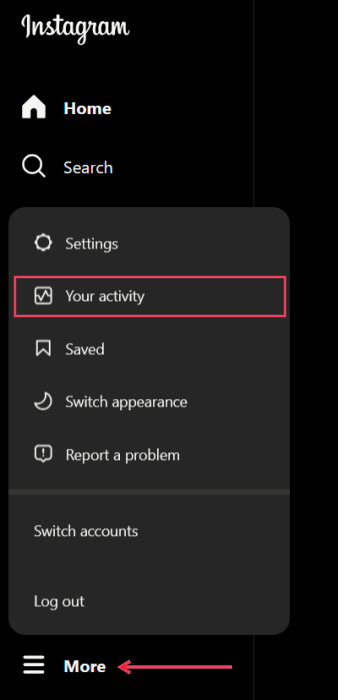
Go to Photos and videos to see all your recent posts from your profile grid. Switch tabs to see your Reels. You can also archive Highlights from here. Click Select in the top right.
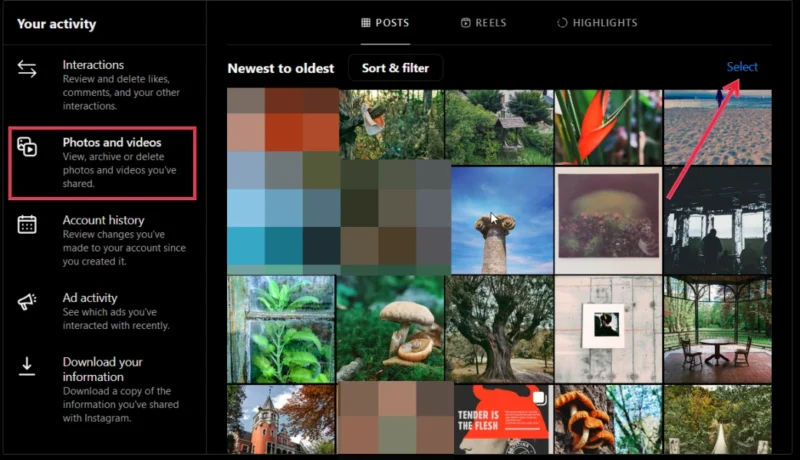
Click on each photo/video to select them, then press Archive at the bottom.
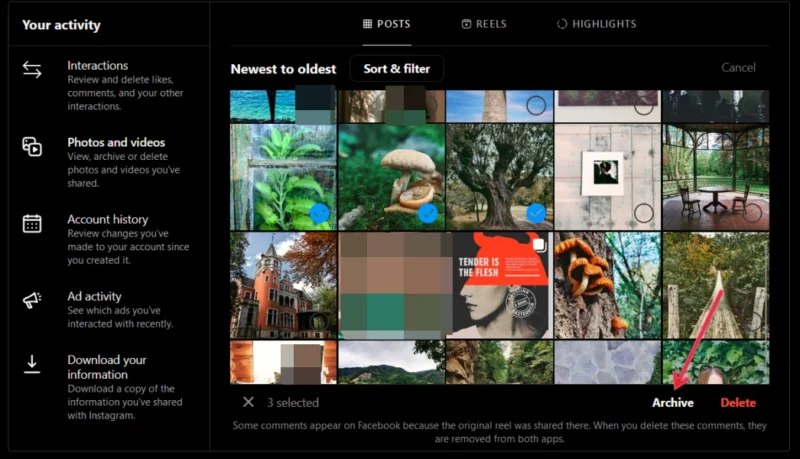
This is the superior method if you need to archive posts in bulk. However, in my experience, loading up older posts on Instagram on PC is problematic. I had trouble accessing posts from a few years back, even when using the available filters.
FYI: stumble upon a cool story on Instagram? Learn how to save Instagram stories and highlights for later viewing on your Android device.
How to View and Restore Archived Instagram Posts
The whole point of archiving your Instagram posts is that you may want to revisit them at some point in the future. If you change your mind, you can bring them back to your Instagram profile too.
Go to your profile in the Instagram app, and press the hamburger menu in the upper-right corner. In the How to use Instagram section, tap the Archive option.
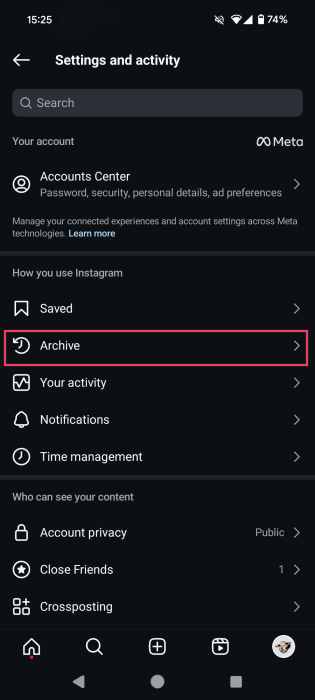
This will open the Stories archive. Browse through the available stories.
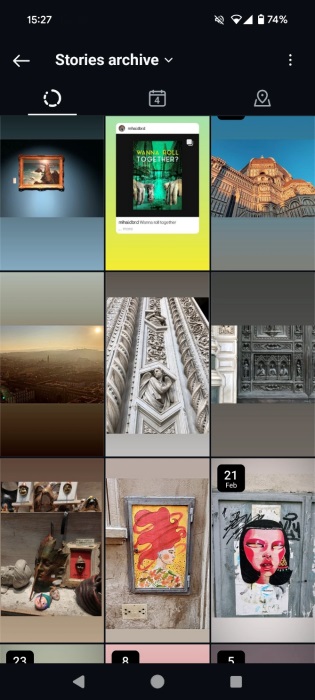
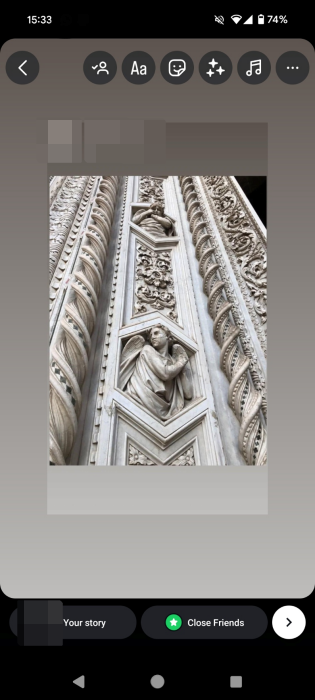
Swipe up to view the older stories. If you wish to revisit a moment with your followers, tap on a story, and press Share.
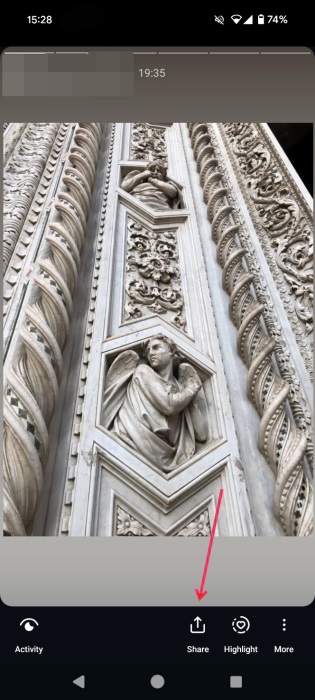
You can edit the story if you wish to before sharing.
To view your Post or Live archives, tap on Stories archive at the top, and select your preferred option.
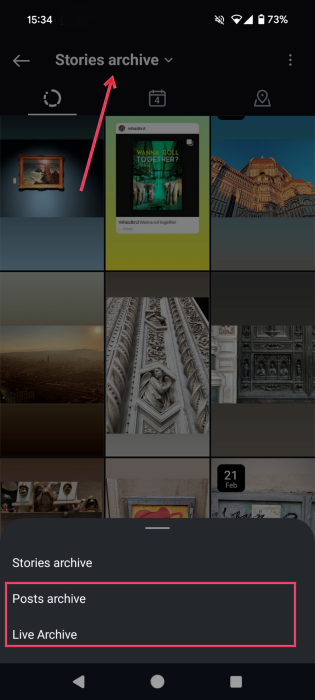
I’ve opted here to view my Posts archive to see all the posts (including Reels) I’ve ever archived.

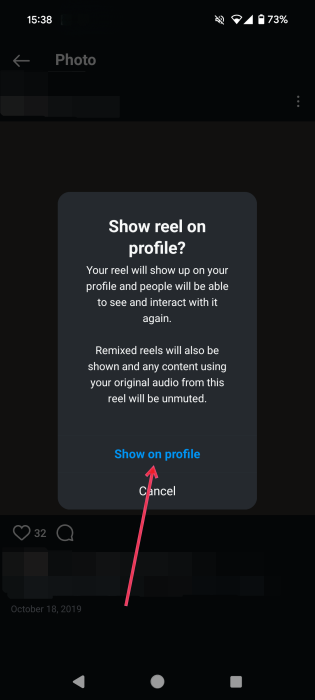
If you’re ready to restore a post, tap it. Press the three dots in the upper-right corner and select + Show on Profile.
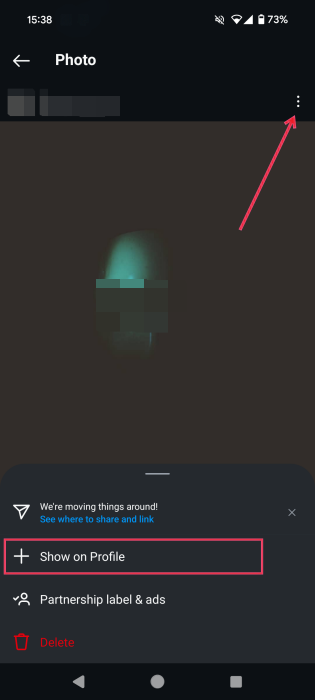
Tap on Show on profile in the pop-up to confirm (even if the post is not a Reel). A Restored message should appear on your screen.
Tip: maintain your privacy by hiding tags from your Instagram profile.
You can go back to your profile, and check whether the posts/Reels are now visible again. If you still can’t see them, close the app properly, then relaunch it.
If you want to access your Instagram archive on a PC, it will be limited. Go to your Instagram profile on your browser. In the upper-right corner, you will see the View archive button next to Edit profile.
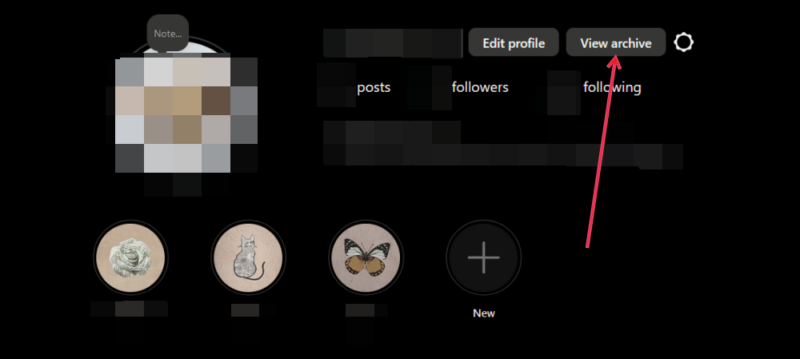
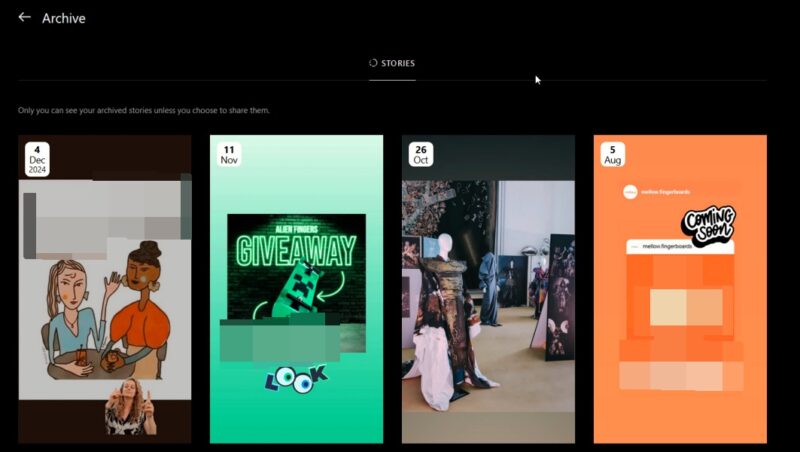
Unfortunately, only the story archive is available on PC. Another caveat is that you can only view this archive, not reshare individual stories.
If you want to exercise even more control over who views your Instagram content, take a look at our guides to learn how to share content on Instagram with only your friends, and unlink your Instagram account from your Facebook.
Image credit: Pexels, Flaticon. All screenshots by Alexandra Arici.








