
Gemini just got better for music lovers. Thanks to a recent Android update, the app now lets you identify songs effortlessly via Google Search. Whether you’re curious about a catchy beat or building your playlist, here’s how Gemini can help you uncover new favorites.
Good to know: did you know you can use Gemini to better search YouTube? Here’s our list of reasons why you should try it too.
Here’s How to Make Gemini Recognize Songs
Since Gemini’s ability to recognize songs with the help of Google Search is a new addition, you will need to make sure you’ve updated the app to the latest version. The option is currently available only for Android users, so head to the Google Play Store and search for Gemini. If you see an Update button available, tap it to install the latest version of the app.
Next, launch Gemini again on your device (after you’ve closed it properly) and make sure you have a song playing somewhere in the background for the app to identify.
Write your prompt, something like “what song is this” or “identify this song”. Previously, the Gemini app would have directed users to use an additional app for this task, such as the Google Assistant.
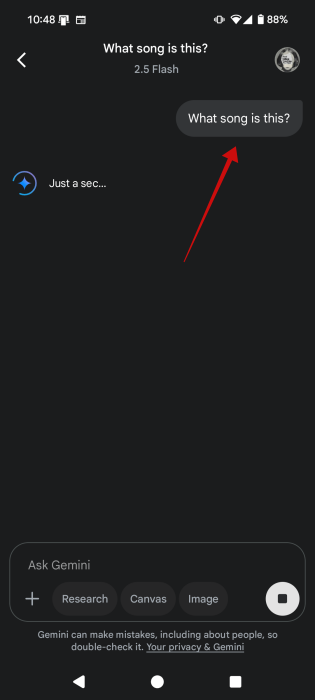
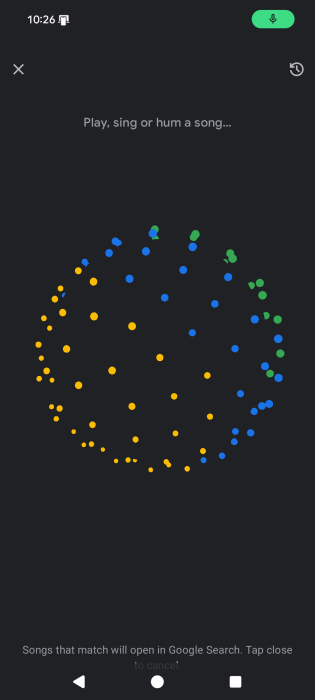
That’s no longer the case. Once you press Enter on the above request, Gemini will open a new screen with a pulsating sphere. You’ll see a prompt that suggests you can also sing or hum the song if you want.
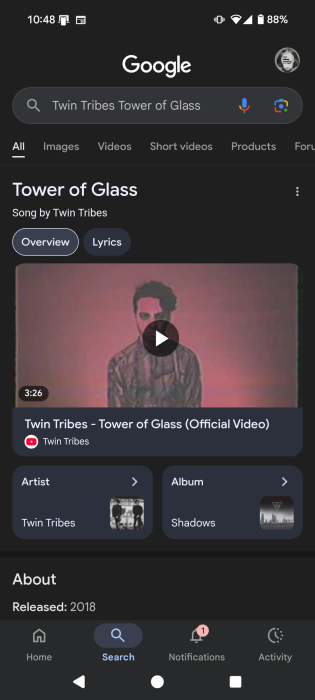
Wait a few seconds until Gemini does its thing. A new window in the Google app will appear featuring a thumbnail with the YouTube video at the top, and showing additional info about the song underneath. You can also access links to lyrics websites, or music streaming apps.
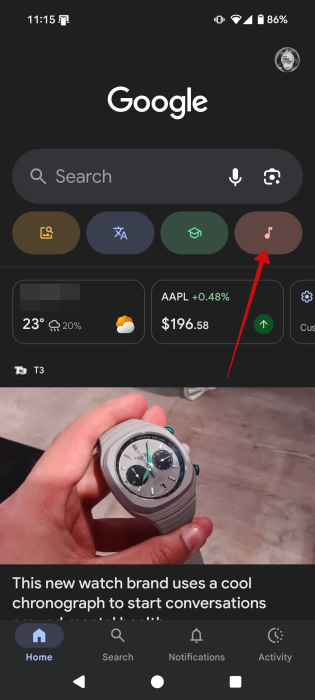
This ability taps into Google’s app Song Search capabilities to give you the results. You can also access the tool from the Google app by pressing the song note button underneath the Search bar.
In our experience, Gemini had no issues identifying the songs we played. It even recognized an old Spice Girls song we hummed.
Tip: learn how to interact with Spotify DJ to access better music.
Identify Songs with Gemini from the Live Screen
As an alternative, you can also have the Gemini app identify songs from the Live screen. This way, you don’t have to type anything, just use your voice to instruct Gemini on what to do. This option is also available only in the Android app, and not in the iOS one.
Open the Gemini app and press the Live icon in the lower right corner (underneath the Ask Gemini bar). If you don’t see it, then you should probably update the app.
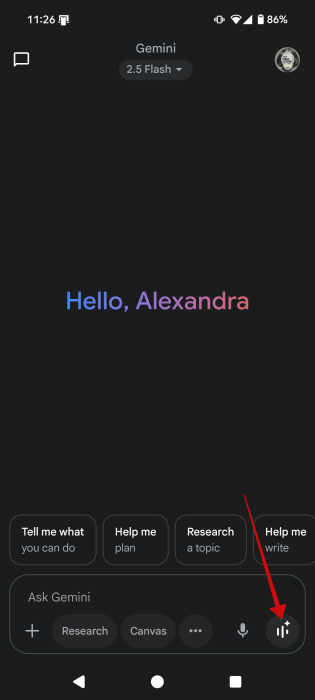
Allow the song to play for a few seconds, then say out loud something like “What song is this?” Gemini will take a few seconds to answer you in real time. In our testing, this method didn’t prove too reliable as Gemini got a lot of songs wrong, even popular ones from bands like Backstreet Boys or Madonna.
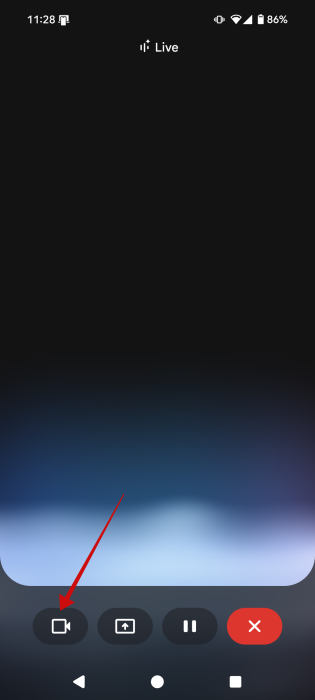
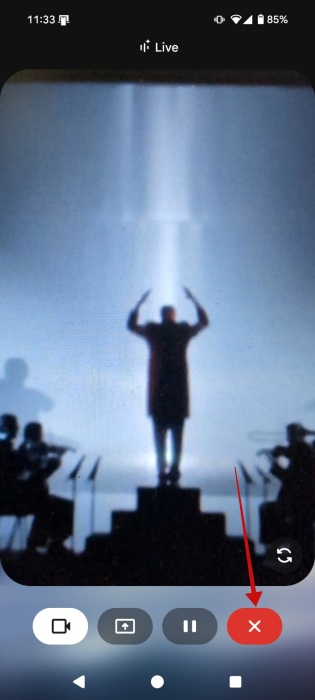
The chances of a Gemini getting it right improve if you open up the camera view. This could work when you’re watching a music video on TV or a movie, for instance, and want to find out what’s playing. Gemini will be able to better deduce from there what song is playing.
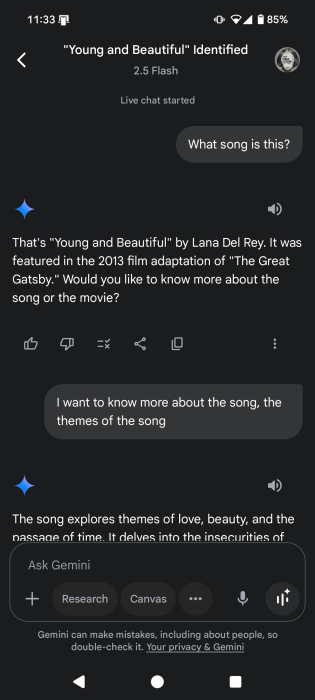
Once Gemini identifies the song, you can ask for more details about it. For instance, we wanted to know more about a song’s theme. Gemini will speak out these answers to you, just like during a normal conversation.
If you want to review the written script of your conversation, press the X button to return to the main Gemini screen. Here you can see your entire conversation.
While the desktop version of Gemini can’t identify songs for you, it can do other neat stuff. Check how to use Gemini to transform documents into engaging audio conversations. Alternatively, if you want less Gemini action, check how to disable it in Gmail and other Workspace apps.








