Wondering how to cancel Amazon Prime but not sure where to start? If you’ve just decided that Prime is not for you, this guide shows the steps you need to take to cancel your Prime membership.
Good to know: prepare yourself for Amazon Prime Day 2024! Learn all you need to know about this massive shopping event.
How to Cancel Amazon Prime on Your Smartphone
You can use the Amazon Shopping mobile app (Android, iOS.) to cancel your Amazon Prime subscription.
Open the app on your phone, and tap on the person-shaped icon at the bottom.
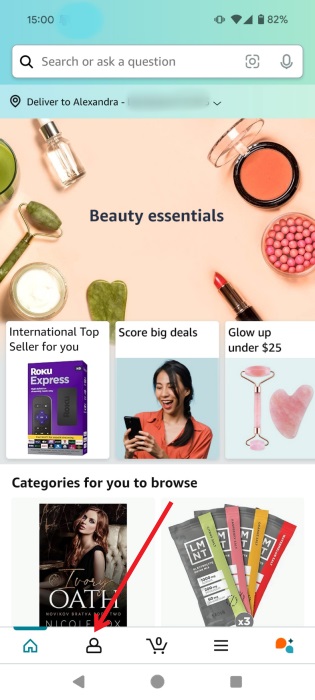
Tap on the Your Account option.
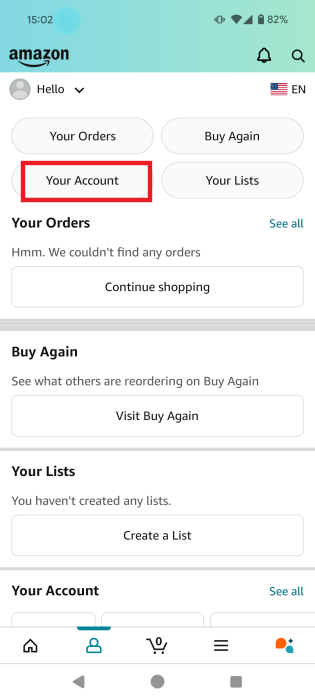
Select Manage Prime Membership under Account settings.
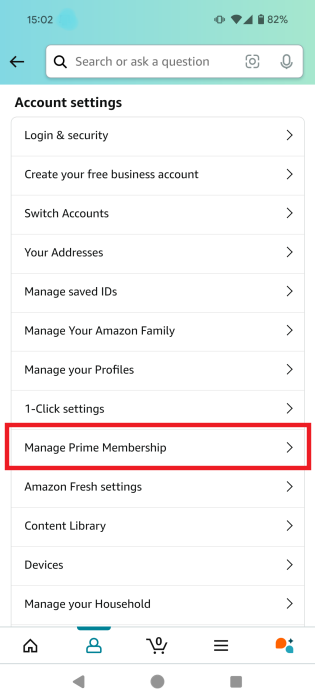
Press on the Manage membership option underneath your name.
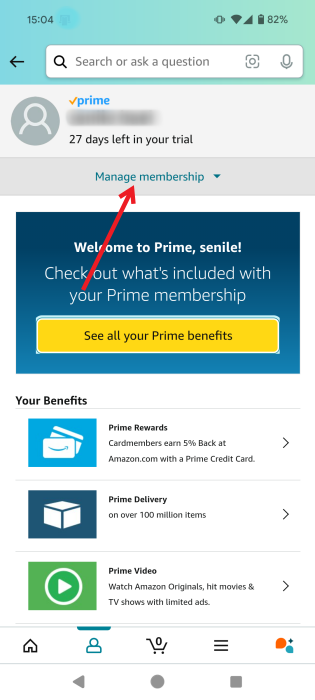
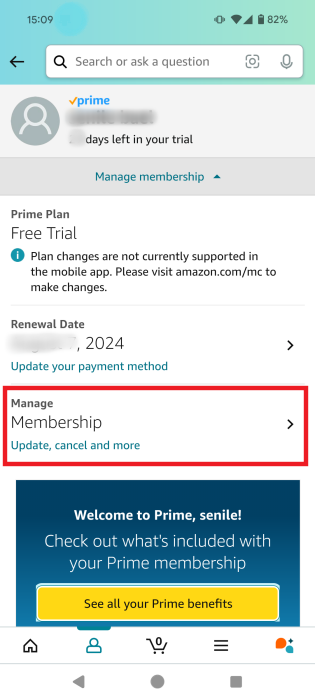
Tap on Manage Membership once again.
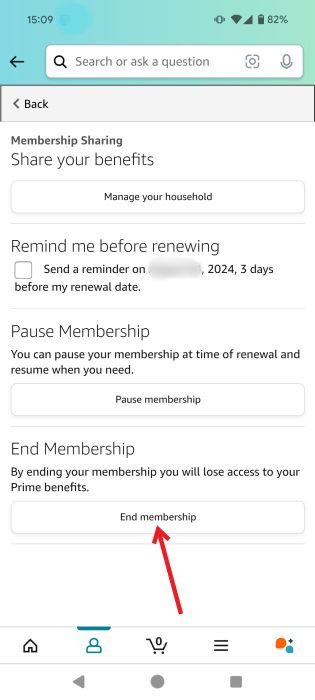
Note that you have the option to Pause membership. If you anticipate that you will need Amazon Prime access in the future, it may be the better option. If you’re sure you want to go through with canceling, press End membership.
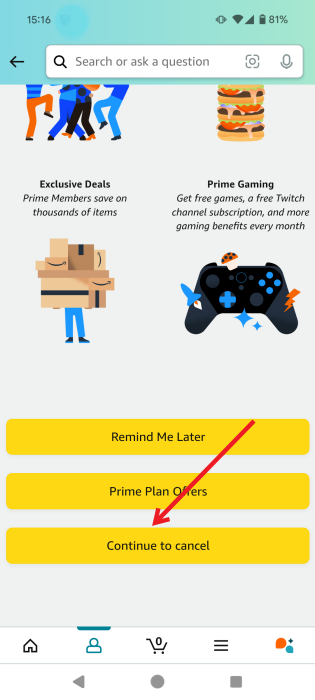
Amazon will try to convince you to give Prime one more chance. It will display some of the most important benefits. If you still wish to continue, swipe all the way to the bottom, and press Continue to cancel.
Amazon gives you one more chance to reconsider canceling your Prime subscription by serving up the option to Pause your subscription instead of canceling it.
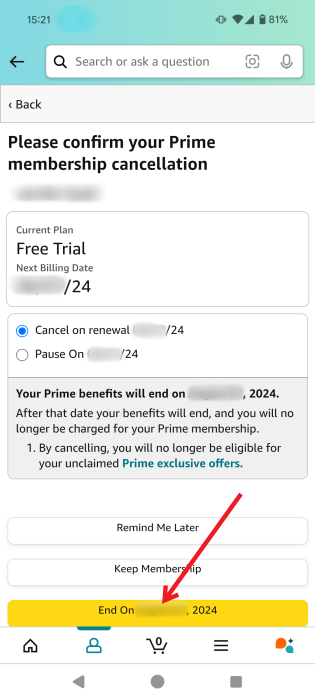
If you’re absolutely sure you want to cancel Prime, press the End button at the bottom.
Note that none of the subscriptions tied to your membership will renew once your Prime membership ends. Additionally, customers who signed up for Prime using the Amazon Android app or Prime Video app must manage their subscription through Google Subscription Services.
For that, open the Google Play Store app on your phone. Press on your profile picture in the upper right, and select Payments & subscriptions. Select Subscriptions on the next page.
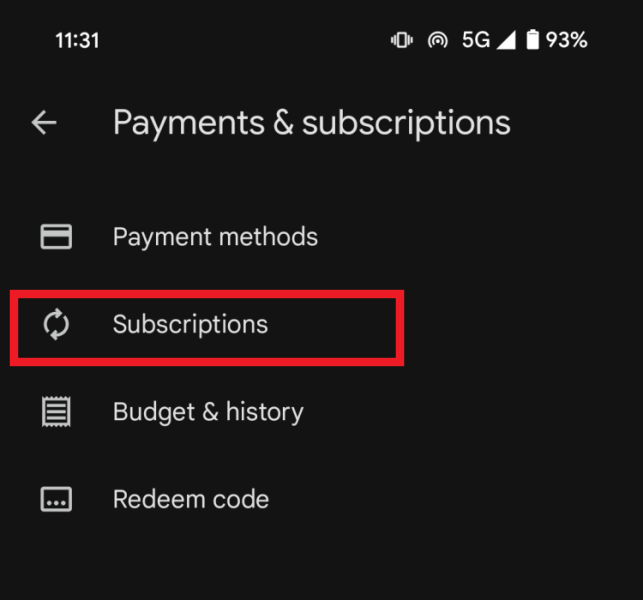
Tap on the Amazon subscription, then on the Cancel subscription button.
Tip: unsure whether you want to go through with the cancellation process? The following guide walks you through the major benefits of Amazon Prime.
How to Cancel Amazon Prime on Your PC
You can also cancel Amazon Prime from your desktop computer via a browser.
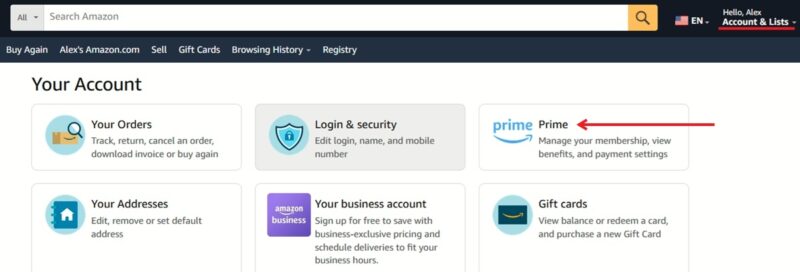
Ensure you are signed in to your Amazon account. Click on the Hello, name button in the upper-right corner. Select Prime.
Go to Membership (at the top) on the next page. Click End Membership in the menu.
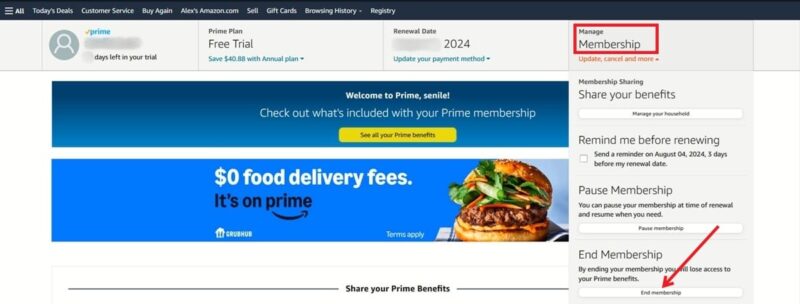
Follow the same steps outlined above to finish canceling your Prime subscription.
FYI: if you’re interested in signing up for Prime instead of canceling it, we can help.
How to Stop Auto-Renewal for an Amazon Prime Membership
Amazon Prime memberships renew automatically. If you don’t cancel the subscription before the date the payment is due, you will be charged for another full month. There’s no way to stop subscription auto-renewal, but you can enable a notification to remind you that payment due in three days.
On both the mobile app and PC, navigate to Manage Membership, as previously demonstrated.
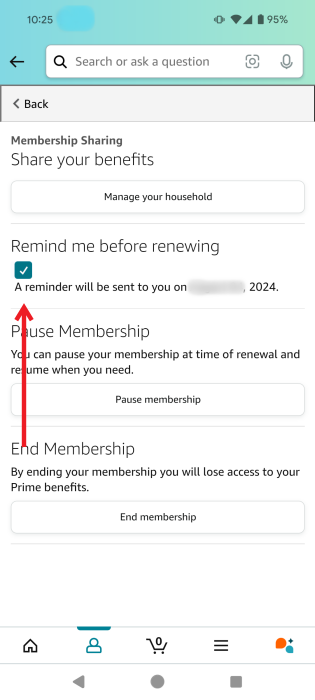
Tick the box next to Remind me before renewing to receive a reminder of when your membership payment is due so that you can cancel your Prime membership before your next payment goes through.
Tip: learn how to delete purchases from your Amazon order history.
If you want to save money while shopping on Amazon, a Prime subscription could help. However, it’s not the only way to go. There are other alternatives to find the best rates, such as using one of these effective Amazon price drop trackers. It’s best to be careful while shopping online, so learn how to avoid common online shopping scams.
Image credit: Unsplash. All screenshots by Alexandra Arici.








