
Let’s face it, most days, we only have time to skim the headlines. But staying informed shouldn’t mean sacrificing depth. I found a solution in Particle, a clever news app that uses AI to turn important stories into easy-to-read bullet-point summaries. Best of all, it goes beyond just delivering the facts; it encourages you to form your own opinions. Here’s why Particle might just be the upgrade your daily news routine needs.
Good to know: learn how to bypass paywalls of leading news websites and read content for free.
The Particle Approach
I have to admit I initially downloaded Particle after spotting its nice-looking UI online. But once I started using the app, I realized it had much more to offer. Particle is currently available as an iOS app, as well as a web version for your browser.
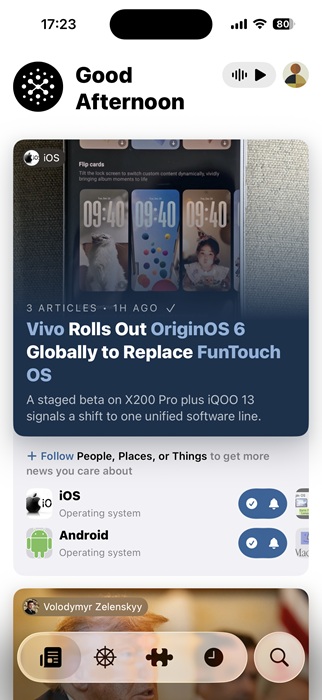
While AI-generated news summaries have been around for a while, Particle improves the formula by placing a strong emphasis on accuracy. For starters, the app actively works to reduce hallucinations by including citations in its summaries, giving readers the ability to verify the information for themselves.
In the era of misinformation, Particle also emphasizes its commitment to accuracy by relying on trusted news sources and human reviews to help prevent the spread of questionable content.
Particle compiles its summaries using information from multiple sources, but it doesn’t just use content for its own purposes. Instead, the app includes direct links to the original articles, helping to drive traffic back to the publishers. In addition, Particle has also partnered up with leading publishers like Reuters, AFP, and Fortune, so full articles from these sources occasionally appear directly in the feed.

How Particle Makes Me Think, Not Just Read
A few taps are all it takes to begin using Particle. Right off the bat, the app has you swipe through a series of headlines to help tailor your feed to your interests. Naturally, you can add more topics afterward. Moreover, you can follow specific news outlets and journalists for a more curated experience.
While plenty of apps offer access to curated news feeds, Particle stands out by encouraging you to engage with news more thoughtfully and develop your own point of view.
For instance, I’ve noticed that when an article is written in a persuasive tone, I tend to agree with the author too quickly. The better approach, of course, is to pause and delve deeper, especially if I am not familiar with the details, before forming an opinion. Over the past few weeks, I’ve been using Particle’s set of tools, and it’s helped me become a more discerning reader. Below, I’ll walk through four key ways the app supports critical news reading.
Weighing multiple viewpoints
Particle pulls from a variety of sources and predominantly lists them below each AI overview so you can easily access them if you want to dig deeper.

For me, having all these sources in one place has been surprisingly helpful, allowing me to see how various reporters approach the same topic from different angles. Reading across different articles can also reveal new facts that other pieces didn’t cover.
Overall, this approach provides a simple way to build a well-rounded understanding of a complex topic.
Assessing political leaning
For political pieces, Particle includes a feature called Opposite Sides that highlights how both left- and right-leaning outlets approach the same topic.
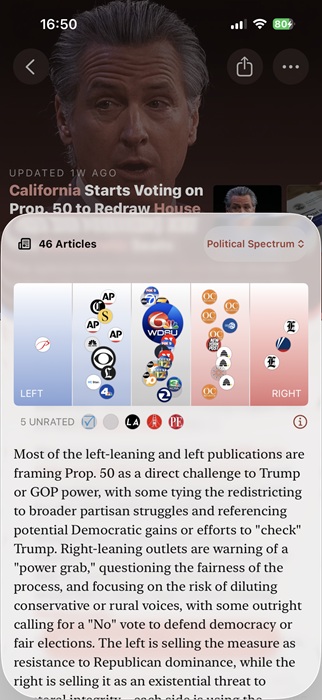
Particle displays media coverage for a story using a spectrum bar, placing bubbles along a left-to-right scale (blue to red) based on political bias. The number and size of the bubbles indicate if one side is disproportionately covering the topic.
For me, the AI summary underneath is the most helpful feature. It outlines the story from both political sides, helping me grasp the opposing point of view, something that is vital for critical analysis.
Oversimplifying information when needed
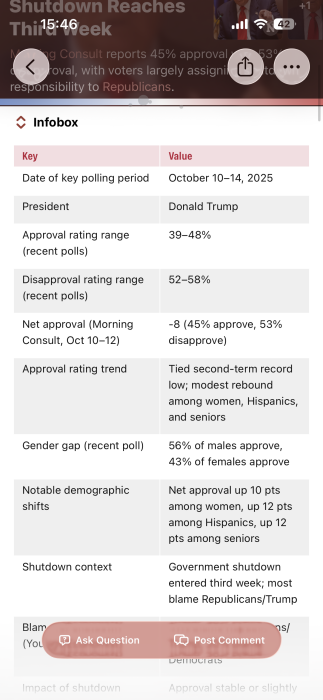
If the topic of the AI summary feels too complex or unclear, you can ask Particle to explain it in simpler terms. To do this, you can switch to the Explain Like I’m 5 mode, which generates an info card written in a kid-friendly font and tone.

Alternatively, you can switch to the Infobox view, which presents key facts in a clean, easy-to-read table. All this to help you make sure you get your facts straight.
Getting further clarification
It’s common for me to finish reading an article and still have questions about certain aspects that weren’t fully explained or addressed. This is bound to happen even more so when reading summaries.
Particle solves this problem with its built-in chatbot, allowing you to ask follow-up questions without leaving the app. For instance, if you’re reading a summary for “iPhone 17’s square 18MP front camera brings orientation-agnostic ultra-stabilized selfies”, you might want to ask, “How does Apple’s approach differ from similar features on competitor devices”?
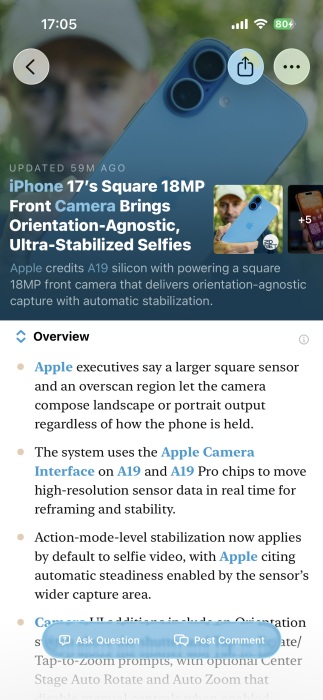
That said, since the responses come from AI, it’s always good to double-check the information later on if something feels off.
Personally, Particle has been a solid fit for the way I consume news. I’m someone who likes to stay informed and is always curious about what’s going on in the world. But for more casual users, the app might feel slightly overwhelming due to the sheer amount of content that’s available to swipe through. I also noticed there’s currently no way to adjust the font size, which could make the app harder to use for people with visual impairments.
That said, I still think Particle is worth trying, even for those who only check the news occasionally, if only for its clean, well-designed interface that makes browsing feel smooth and enjoyable.








