Instagram’s new Friends tab aims to bring you closer to your circle by highlighting their reels’ activity. However, it also sparked some privacy concerns among users who don’t want their likes and comments on display. If you’d rather keep your activity under wraps, this quick guide will show you how to do it.
Good to know: check how to add your own stickers to Instagram stories and make them stand out.
The Privacy Issue with the New Instagram Reels Friends Tab
The new Instagram Friends tab appears in your reels feed in the mobile app, but not in the web version of Instagram (at least for now.) At the top of the screen, you should now see two options: one that says Reels and another called Friends. The first one shows you a steady stream of reels curated according to your preferences and interactions, while the second one displays the activities of the people you follow (and who follow you back) – a.k.a. your friends.
Note: if you can’t see the Friends tab in your Instagram app, try updating the Instagram app first.
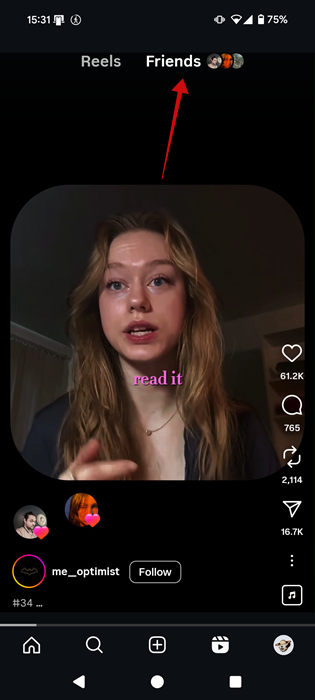
Basically, this tab shows public reels that your friends have interacted with. If they liked, reshared, or commented on a reel, it will pop up here. The feed also allows you to discover Reels created by friends more easily and will also pop up recommendations from Blend, which are custom reel feeds.
While this feature can provide more insights into your friend circle, it’s easy to understand why not everybody might be thrilled about the addition. It all boils down to privacy and the fact that you might not want ALL your followers to be privy to the exact videos you’ve liked or comments you’ve left. Perhaps you want to keep your passion for romance book hidden, or you don’t want your family to know you’ve taken up an extreme sport. Whatever the reason, many users wish they could opt out of this feature.
Unfortunately, Instagram does not allow you to remove the Friends tab completely. What you can do, however, is make sure your activity doesn’t pop up for others to see.
Hiding Your Likes & Comments In Instagram’s Reel Friends Tab
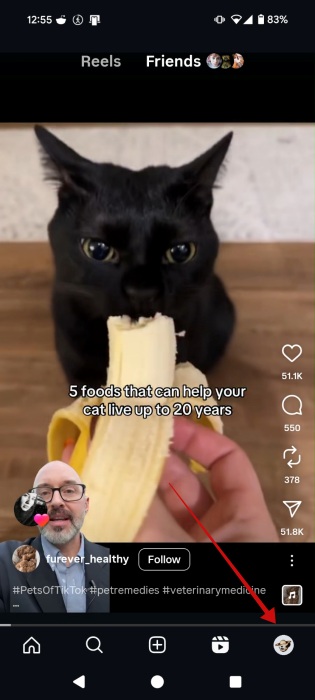
In your Instagram app, press on your profile picture in the lower right corner to go to your profile.
Once there, press on the hamburger menu in the upper-right corner.
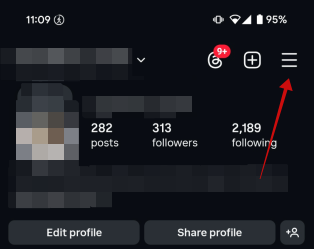
This will take you to the Settings page. Go to the Who can see your content page and tap on the Activity in Friends tab option.
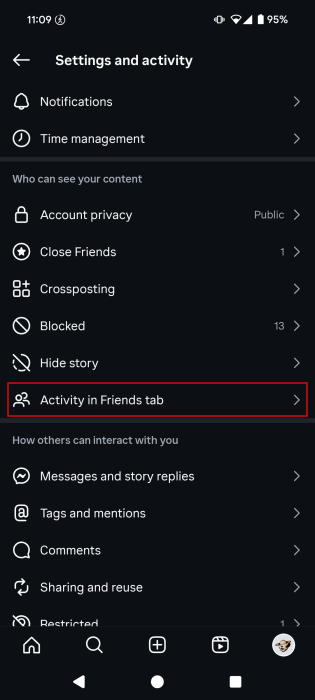
Switch from the default Followers you follow back to No one.
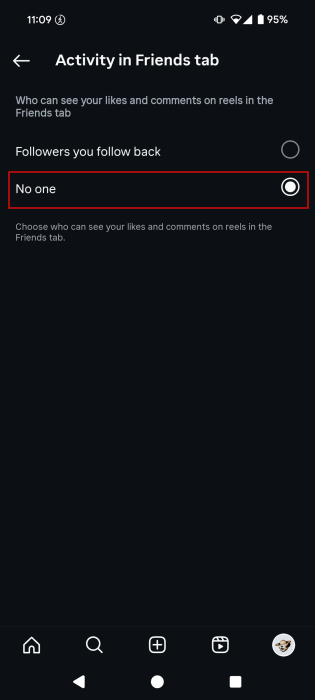
Now, as we said above, this doesn’t mean you won’t still have access to the Friends tab in your reels feed on Instagram. It just means that others won’t be able to view your comments, likes, and other interactions in their respective Friends tab.
Tip: prefer to have a more subtle presence online? Check how to hide your Instagram account so other users won’t find you.
Stop Seeing Content in Friends Tab from Certain People
While you can’t actually remove the Friends tab from view, you have some control over what you view while browsing it.
For instance, if you don’t want to see content from certain friends, you will need to mute that specific person on Instagram.
Find a reel that they’ve liked or commented on and press on their activity bubble.
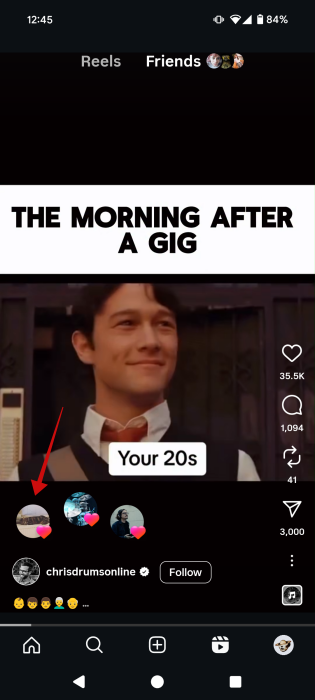
This will bring up a quick message bar. Tap on their name or pic to go to their profile.
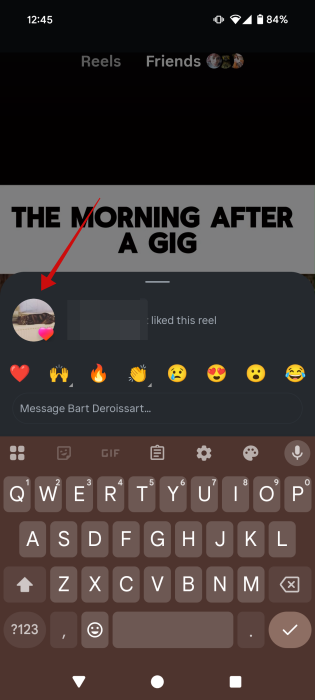
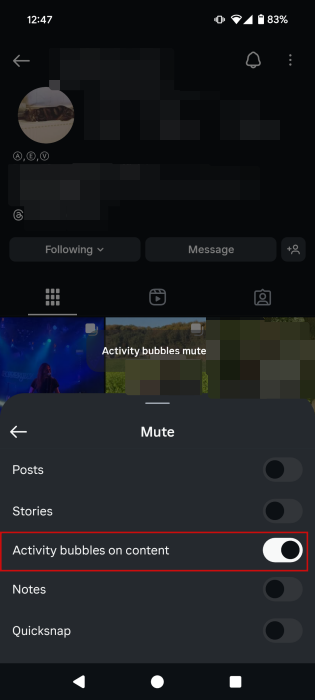
Now press on the Following button underneath their name and profile details. Select the Mute option from the menu that pops up at the bottom.
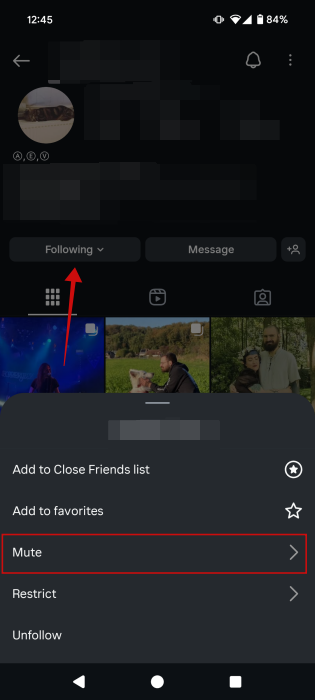
Turn on the Activity bubbles on content option.
Tip: easily get rid of ads on Instagram with this simple trick.
Further Customizing Feed in Reel Friends Tab
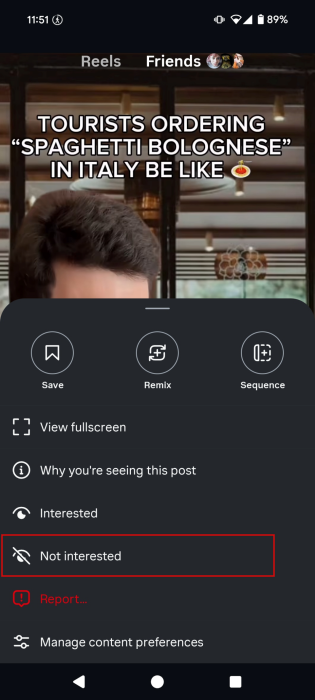
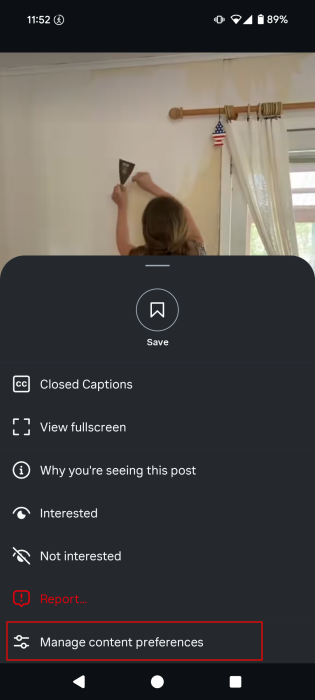
You can further customize the feed in the Friends tab. For instance, if you stumble upon a Reel on a topic that doesn’t interest you or that you’re not a fan of, you can tap on the three dots in the lower right part of the screen.

Select Not interested in the pop-up menu to tell Instagram to flag this type of content in the future and not show it to you. When you select this option for a reel, Instagram will automatically hide the clip from view. Keep in mind that this method is not guaranteed to work 100%. Some unwanted clips might still slip into your Friends feed from time to time.
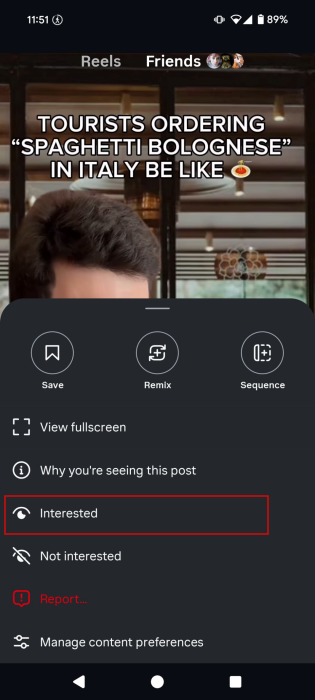
Alternatively, if you want to keep seeing similar videos, tap Interested.
In addition, there’s the option to access the Manage content preferences menu.
From here, you can control the amount of Sensitive content that slips into your feed. You can also view and manage your Not interested/interested libraries (which include ALL content you flagged on Instagram).
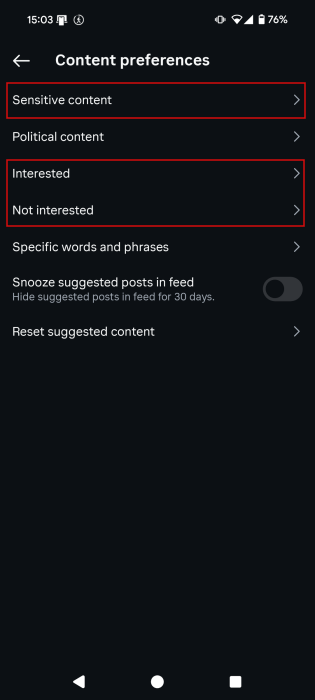
Note that not all the options in this menu apply to the Friends tab. For instance, the Reset suggested content one targets suggested posts which show up in the main Instagram feed.
Now, if you stumbled upon a video that offended you, tap the handle of its creator below to go to their profile.
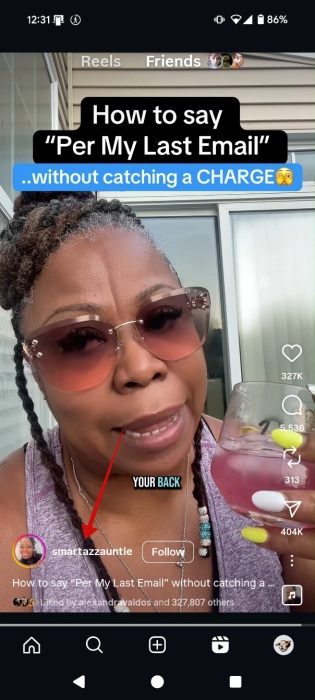
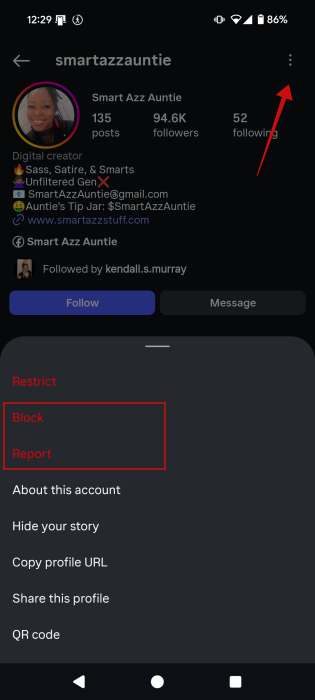
Press the three dots in the upper right corner and select Block. This will ensure you won’t see any more content from this particular account, even if your friends have liked their content. Alternatively, you can also opt to Report the clip.
Along with the new reels Friends tab, Instagram also introduced a map feature, which allows you to easily share your location with friends. You can learn how to use it here.








