Age verification is creeping into every area of the Internet, and now it could make downloading your favorite apps more complicated. Google first started age verification with YouTube. Now, you might start seeing Google Play Store age verification prompts to download apps too.
The Controversy Around Age Verification
On the surface, age verification is designed to protect children from accessing content they shouldn’t. Whether it is an adult site or an overly violent game app, some content just isn’t appropriate for kids.
The problem is now numerous sites and services are requiring age verification checks before you can use them. But, unlike showing your ID at a store to buy certain items, your ID or selfie is uploaded to a server and stored. Naturally, this has many users worried about the security of their information, especially for something as trivial as downloading an app.
Whether you like it or not, and yes it is a security nightmare, there’s not much you can do to bypass these. If you want to use the Google Play Store to download apps marked for a more mature audience, the only way to proceed is to verify your age.
Don’t blame Google for this. Google is just following the law in this case.
How to Verify Your Age for Play Store
Google Play Store age verification isn’t optional. Once you get the notification, you won’t be able to download that particular app until you proceed.
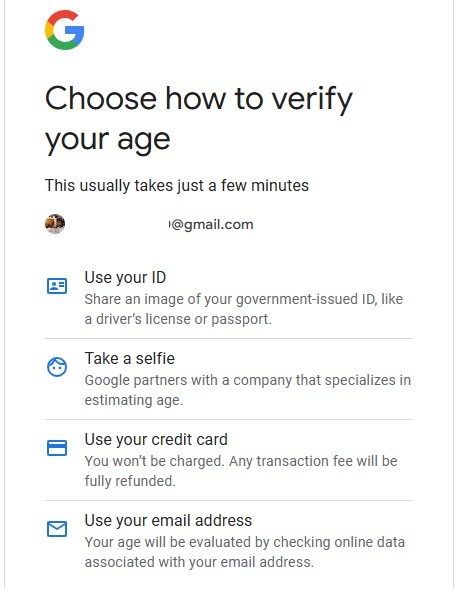
The good news is you don’t have to provide your ID in most cases. Google gives you multiple options:
- Government issued ID – Driver’s license, passport, etc. Google may also use a third-party service to verify the birthdate on your ID seems consistent with your picture.
- Take a selfie – Google uses Verifymy.io to estimate your age based on your picture. The company may utilize AI to determine your age. If you’re near 18 or just tend to look younger than your age, this method might backfire.
- Use a credit card – Google charges a tiny temporary fee that’s then refunded. Since you have to be 18 to get a credit card in your own name, this helps prove your age.
- Check your email address – If this is an email address you’ve used for years, Google can use it to verify your age based on the history of your email address online. If you’re using a fairly new email address, don’t use this method.
The most reliable methods are government ID or a credit card. If you’re worried about Google storing this information, opt for the email address, as long as it’s an older email address.
For most users, the process only takes 2-5 minutes. For me, I used the email address method and was verified in under five minutes.
If Google Play Store age verification fails, choose a different method and try again. If all methods fail, you’ll have to contact Google’s customer support. Until your age is verified, you might be locked out of any age-restricted content. In some rare cases, your account could be locked completely.
Verification Carries Over Between Services
If you were already dinged when trying to access certain content on YouTube when Google implemented age verification there, you won’t have to do it again unless you’re using a different email address.
Please note that age-restricted videos on YouTube isn’t the same as using restricted mode.
With YouTube, Google used AI to help estimate users’ ages based on activity, age of the account, and more. So, it’s possible you might have never had to deal with age verification there.
With the Google Play Store, it’s all based on the app’s age and content rating. So, even if you got to skip it on YouTube, you’ll likely have to do it on the Play Store.
Google Play Store Age Verification Not Required Everywhere
Currently, age verification is only required in certain states, regions, and countries. If your area hasn’t passed any age verification laws just yet, you don’t need to worry about it.
However, I’d suggest going ahead and verifying your age. Go directly to Google’s age verification page to proceed. Then, when your state does pass it, you’re already done.
Parents May Approve Apps if They Want
For child accounts, parents do have the option to approve age-restricted apps, if they want. Without parental approval, under-age kids won’t be able to download restricted apps.
Of course, parents must verify their age before proceeding. Once this is done, they can set up parental controls on their Android devices using Google Family Link.
Parents should make certain they’re using strong security measures to prevent children from bypassing the restrictions.
Bypassing Play Store’s Age Verification
Technically, you can use a VPN to try and download age-restricted apps. Set the VPN to an area that currently doesn’t require age verification.
However, Google already uses AI to gather data and create profiles about users. These include typical usage locations and account history. If something suddenly appears off, Google could lock your account until you verify it’s actually you.
If you’re caught using a VPN to bypass age verification, Google can suspend your account permanently. So, it’s not worth it.
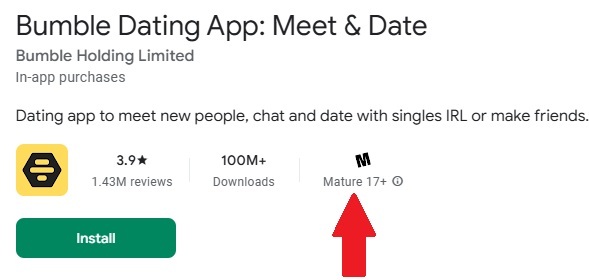
The best way to bypass these restrictions is to use another app store or avoid age-restricted apps. For instance, dating apps like Bumble are typically marked as Mature 17+, which will require age verification.
Most apps you want are also on Google Play Store alternatives. Use caution, though. Stick with reputable alternatives. There are even third-party app stores to use on Android TV. Sometimes, these alternatives may not have the latest version or update automatically. Otherwise, it’s the same apps.








