The Google Play Store might be the most popular source of Android apps, but searching it often leaves me frustrated. The built-in filters are useless and so many great apps never show up in results. That’s why I started using these Google Play Store search hacks to uncover the perfect apps.
Search Using Multiple Modifiers
We’re all guilty of generic Android app searches. For instance, I wanted a good sleep sounds app. What did I search for – “sleep sounds.” This didn’t narrow down my results.
Add in modifiers or keywords to further filter results. The Google Play Store treats spaces as the AND operator, meaning it searches for results with all your keywords. A better way to search for sleep sounds might be “free sleep sounds timer.” This searches just for apps with free options and built-in timers. Not perfect, but far less generic. You could also add in more modifiers, such as rain, fan, ocean, etc.
Use Quotation Marks
Next, utilize quotes. Just like with a standard Google search, you can use quotation marks to search for exact phrases. I find this works best if you’re searching for apps with similar names. This helps filter out the apps that don’t match your keyword exactly.
Use Keywords in Different Order
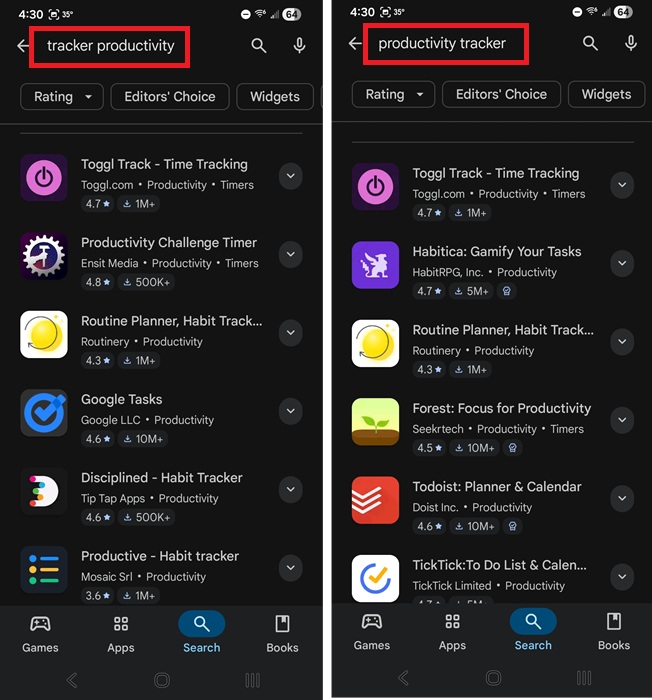
I know this one sounds odd, but the order you place your keywords in matters. For instance, I searched for “productivity tracker” and “tracker productivity.” While some results were the same, others were different. Experiment with placing your modifiers in different orders to see what other results appear.
Take Advantage of Suggestions
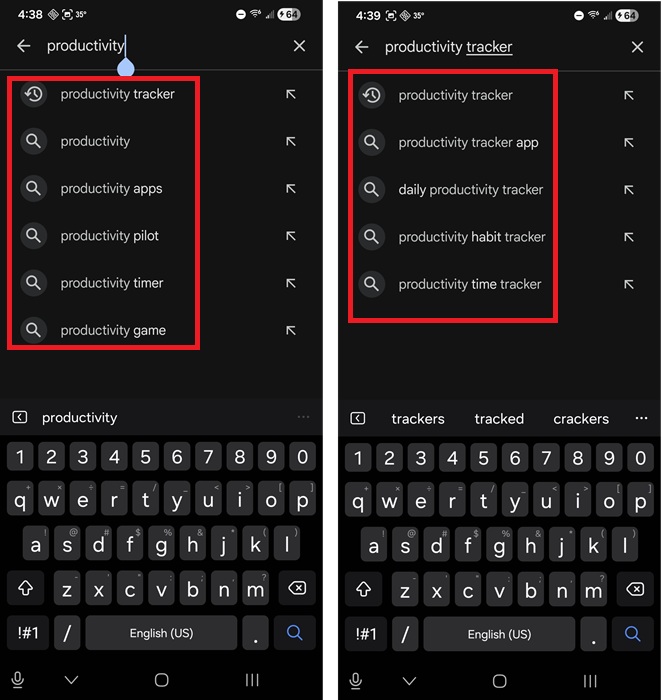
One of the easiest Google Play Store search hacks is suggestions. Google suggests common searches as you type. Start entering your query and see what options appear. This can help you rephrase and further filter the results. In the image below, I started by typing “productivity,” and got six suggestions. The more keywords you add, the more specific the suggestions get.
Use Any Filters Available
The reason I dislike the Play Store filters is they’re too generic. But, you can work with them a little.
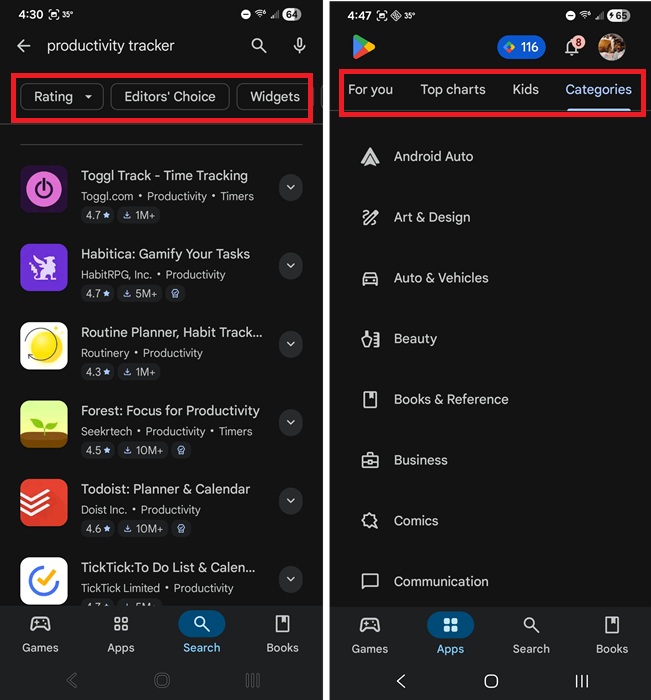
When you search for an app, you typically only see Rating, Editor’s Choice, Widgets, and Play Pass. Depending on your location and what tests the Play Store is running, you might also get the more helpful Price and Device filters. I also sometimes see New, Top Rated, and No ads.
For better results, I suggest selecting a main category, such as Games or Apps and then selecting Categories at the top. From there, select a category. This gives you sub-categories to further browse. Sadly, there aren’t better built-in filters after this point.
If you’re having issues getting results to appear, try reinstalling the Play Store.
Search Play Store With App Finder
If you still can’t find what you’re searching for, try App Finder. It has both a free and premium version, but I’ve never needed to upgrade. For me, it’s my go-to for finding apps. Think of it as a single app filled with Google Play Store search hacks.
When you first open it, it’s a completely different world than the Play Store. You’re not bombarded with the latest releases and suggestions. Instead, it’s a search box with multiple filters to choose from.
I suggest tapping Settings and ensuring the Search-Country is correct so you get relevant results for your country. You can also change the display options and screen zoom to make App Finder easier to use.
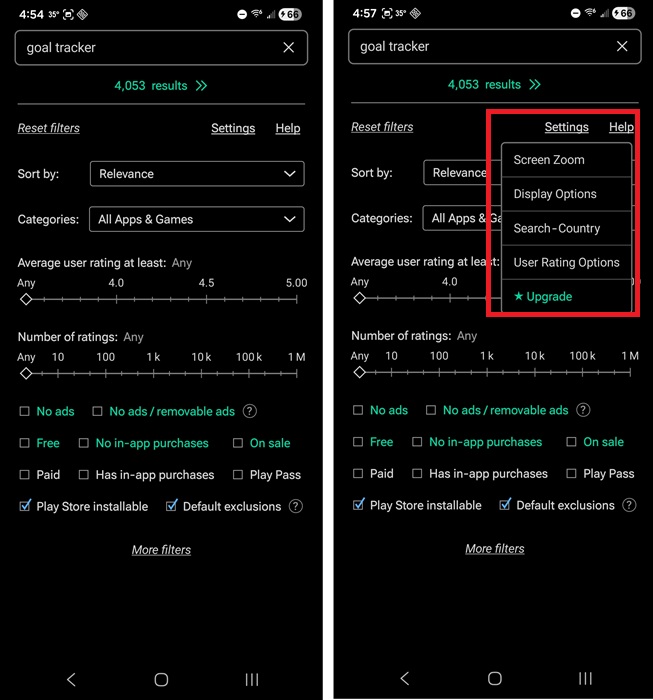
Use as many of the filters as you want. Please note that if you tap More filters at the bottom, you will find that a few filters are for premium users only.
Some of the filters offered include:
- Sort by – Relevance, user rating, downloads, date released
- Categories – You can even select multiple categories if you want
- Average user rating
- Number of ratings
- No ads and removable ads (App Finder admits this isn’t always accurate since developers must mark their apps correctly and some developers don’t do this)
- Free
- No in-app purchases / Has in-app purchases
- On sale
- Paid
- Play Pass
- Play Store installable (ideal if you only want to download from Google Play Store) – Uncheck it if you want to search Play Store alternatives too.
- Default exclusions – Attempts to filter out less useful apps. Uncheck this one if you’re search for a specific app that may not have many downloads.
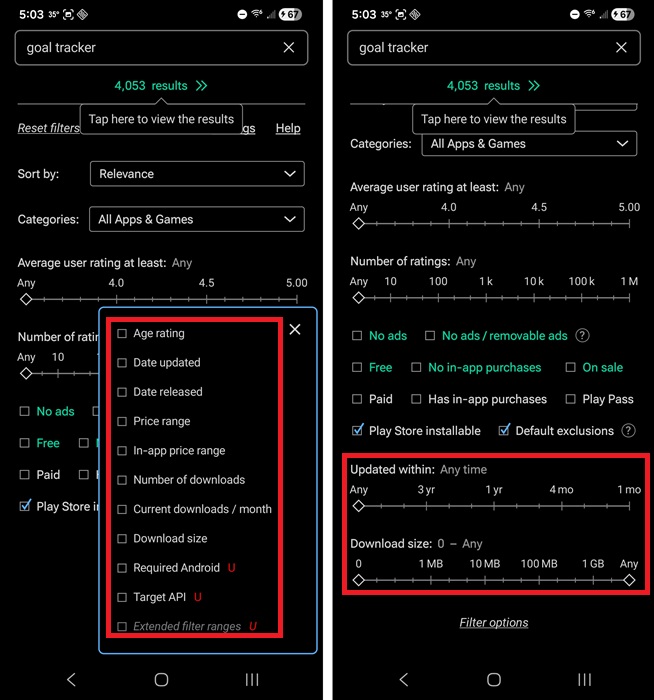
If you want to add more filters, tap More filters. I personally added Date updated and Download size. Once checked, these filters show up on the main screen. You may want to filter by age rating as well if you want to avoid age verification.
Once you’re ready, search for your app using your desired keywords. I like using the expanded option to view results to see more details. It’s the portrait icon at the top right. Tap the Settings cog to customize the view.
There is a downside. If you misspell anything, you might not get any results. The Play Store at least attempts to guess at what you were trying to spell.
My other favorite part of App Finder is every result lists the rating, number of ratings, date it was last updated, and whether it’s free/premium and has ads or not.
If the app is available in the Play Store, it’ll open automatically in the Play Store for you to download when you tap Play Store. If it’s not available in the Play Store, you’ll see alternate links instead.
I know not everyone wants to download another app just to search for apps. So, try out AppBrain or KPlaySearch. They’re both websites with more filters than the Play Store offers. And, they’re free to use. You can even add them as shortcuts on your Android home screen.








