Google Photos just rolled out new tools to turn photos into videos using Google AI or create fun, artistic makeovers. As a tech nerd who’s spent hours tweaking photos for social media, I’m stoked to see how these tools work, and how I can get pro-level shareable clips for Instagram or TikTok. Here’s a quick guide to get you started.
What’s New with Google Photos AI?
Google’s latest update lets you turn still images into 6-second videos or artistic styles like anime, sketches, comics, or 3D animations with a few taps.
They’re free, easy to use, and perfect for anyone who wants to spice up their photo game. This means you get quick, creative ways to share memories without needing pro-editing skills.
I love how they rival pricey apps like Canva for quick edits while offering simplicity. But here’s the rub: they’re still experimental, so expect hiccups here and there.
These features are rolling out in the U.S. on Android and iOS, with the Create tab launching in August 2025. If you want to create longer videos, you can explore our top apps for video creation.
Use the Photo to Video Feature
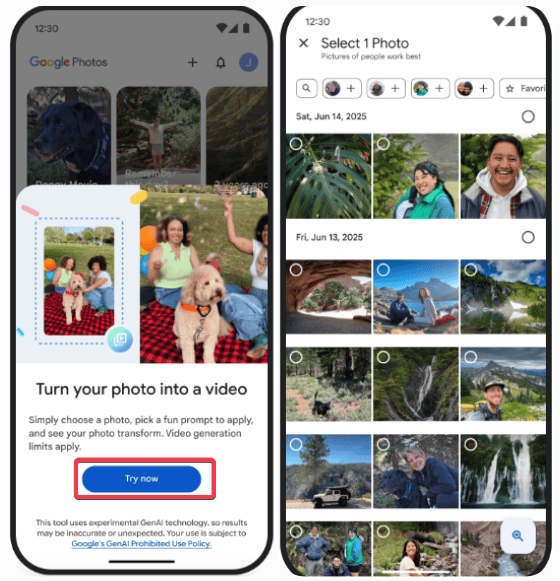
To turn photos into videos using Google AI is dead simple, but results vary. Open Google Photos, hit the + button in the gallery, and select a clear, high-quality photo.
Choose Subtle movements for a cinematic effect, or choose I’m feeling lucky to get a random effect.
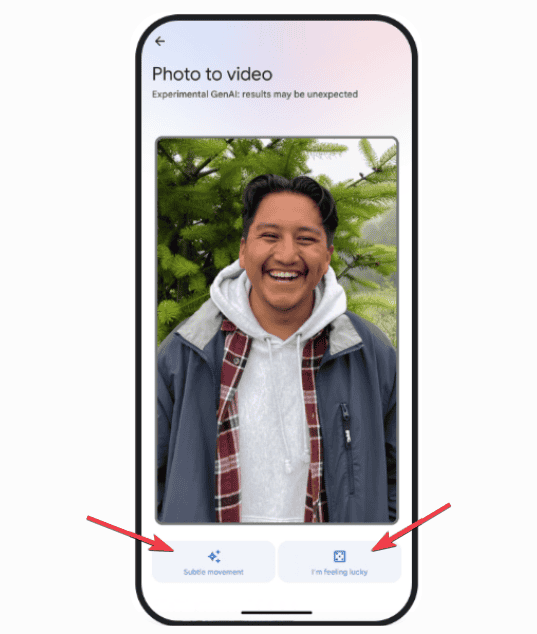
The app, powered by Google’s Veo 2, takes about a minute to generate a 6-second clip. If you like it, save it, and if not, click Regenerate to try again.
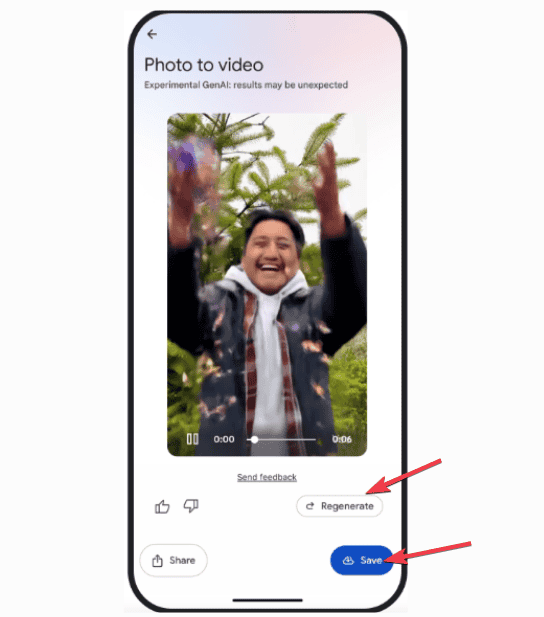
I found “Subtle movements” great with landscapes, but “I’m feeling lucky” can be a hit-or-miss, like a bad TikTok filter. You’ll need patience to regenerate until you get a perfect result.
For creators, this is a quick way to make shareable content, but the hit-or-miss quality means you’ll need patience. You could try TikTok’s AI Alive feature that offers similar effects with better consistency for now.
Remix Photos into Artistic Styles
The real fun is in the Remix feature, as you can style photos as anime, comics, sketches, or 3D animations. Hit the + button, select Remix, and tap Try now.
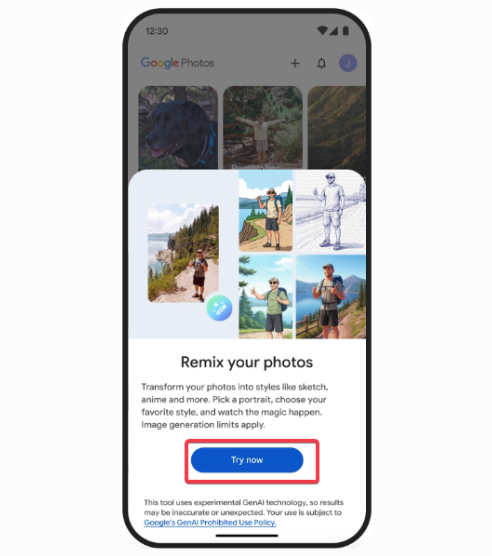
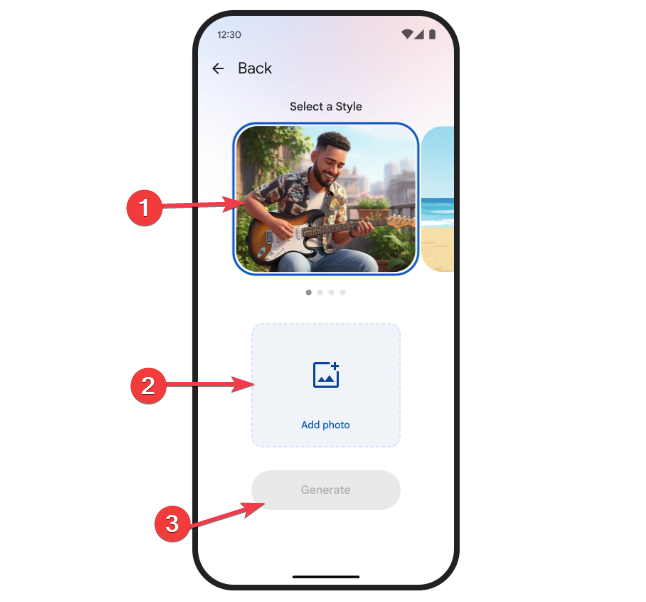
Choose a photo of a person or pet, select a style from the options, hit generate, and wait a sec.
If the result isn’t perfect, tap Regenerate until you’re happy with the result, and save it. It’s experimental, so play around.
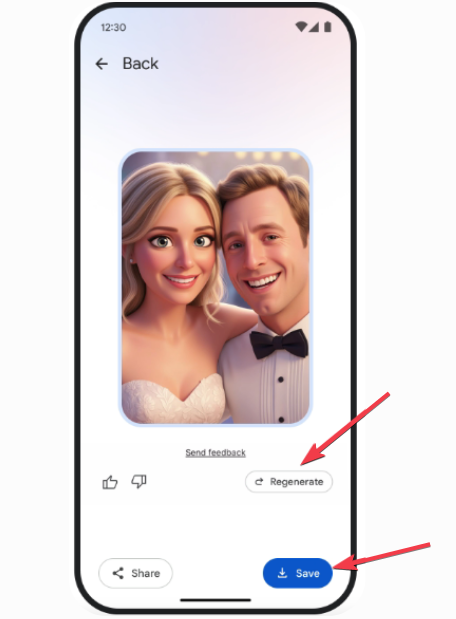
For fun, remix your pet pics into anime for a laugh or share with your followers. Cute pet anime is generally a blast for social media flair. If you’re curious for more editing options, try SmartShow 3D to turn photos into audiovisual videos.
Navigating the Create Tab
Starting in August 2025, the Create tab will be your one-stop for all Google Photos creative tools.
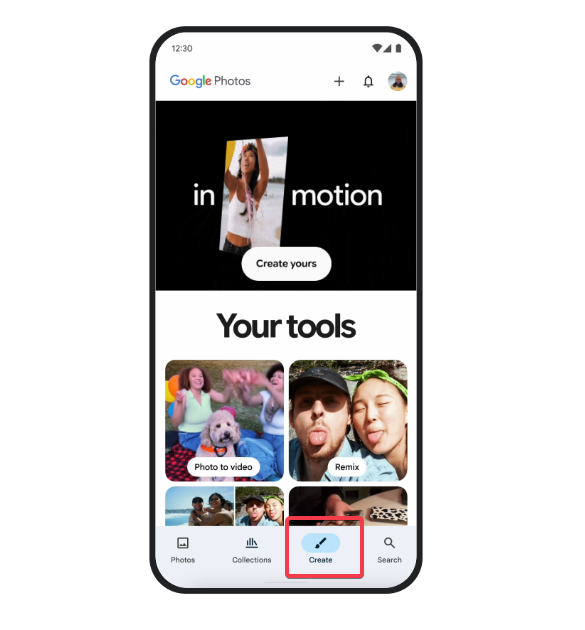
You’ll find it on the app’s bottom bar for easy access. It bundles Photo to Video, Remix, collages, and highlight videos. It’s a time-saver for anyone who loves quick edits and organizing their photos.
Besides, you can give feedback on results via thumbs-up or down buttons, which is cool to help Google improve the AI.
Limitations and Workarounds to Keep in Mind
To get the best results when you turn photos into videos using Google AI, keep the following in mind:
- The app is free, but you might hit daily usage limits, so go easy on spamming the regenerate button.
- Note that these generated videos will have SynthID watermarks for AI transparency. This might flout some platforms’ strict rules against AI content and cause an issue for you if you’re a content creator.
- If your video looks wonky, try with a high-quality photo or regenerate it.
- Try cropping the photos to a 9:16 ratio before uploading to get better video formatting.
- Use the feedback option to help Google fine-tune the glitches you experience.
These tools are perfect for short-form content creators, but you might hit quirks that make ditching paid apps like Canva impossible yet.
This update’s a solid start, with a high ceiling for improvement, but it’s not revolutionizing photo editing yet. So, if you’re ready to turn photos into videos with Google AI, follow the steps in this guide and share your best clips online.