Google Messages’ latest update came with a bunch of new features to make the user experience better. One of the major focuses is to redesign the Google Message gallery to make it more accessible and minimize the need to leave the app to access file storage or the camera. Let’s learn what this redesign brings and how you can use the new options.
The Google Messages Gallery Redesign
Previously, the gallery opened in a half-sheet interface with a tiny camera viewfinder on the left and recent 2-3 images on the right (swipeable). You could fully view the messages and text field, and even interact with messages while browsing the gallery. In the redesign, Google Messages has switched to a full-screen gallery with a big camera viewfinder at the top and 3-6 recent photos at the bottom (scrollable).
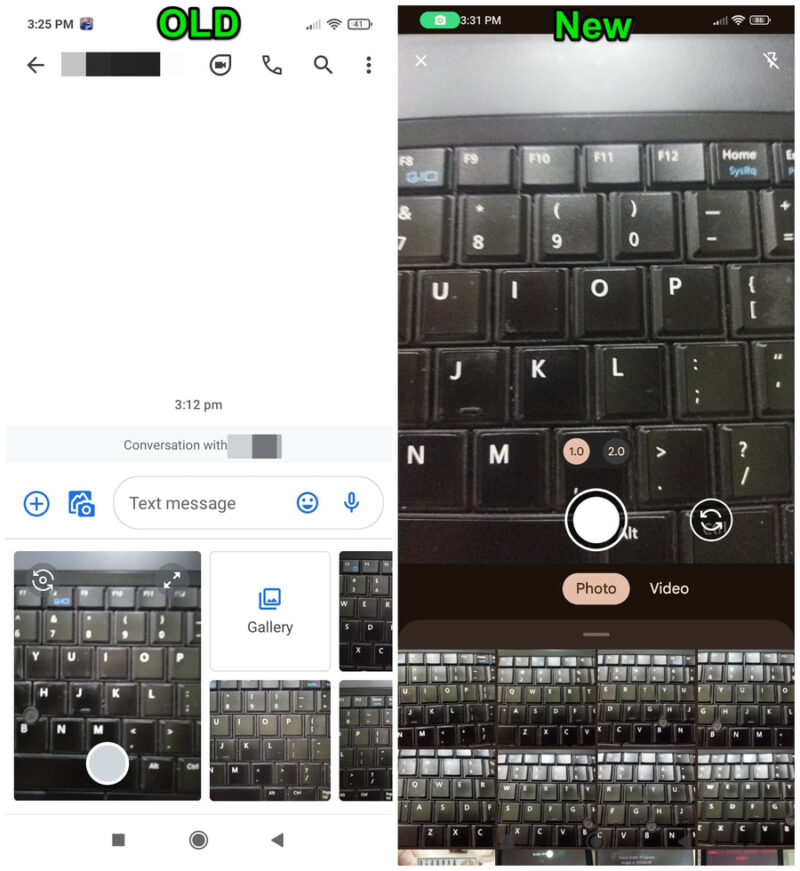
This takes full screen space, and the only way to view messages again is to close the gallery window. Overall, it makes taking photos on the spot easier with a big camera viewfinder, and you can also view a full preview of photos right in the gallery interface.
More importantly, it comes with two new long-awaited features: photo captions and the option to send full-resolution photos. Here’s how they work:
Note: both of these features need RCS messaging enabled to work.
Adding Captions to Photos
You can now add captions to photos in the gallery interface that will be attached to the photos. Just open the gallery in Google Messages and select a photo or take a new photo. It will show up in the large preview above with a “Write a caption” field at the bottom. You can fill this field to add your caption.
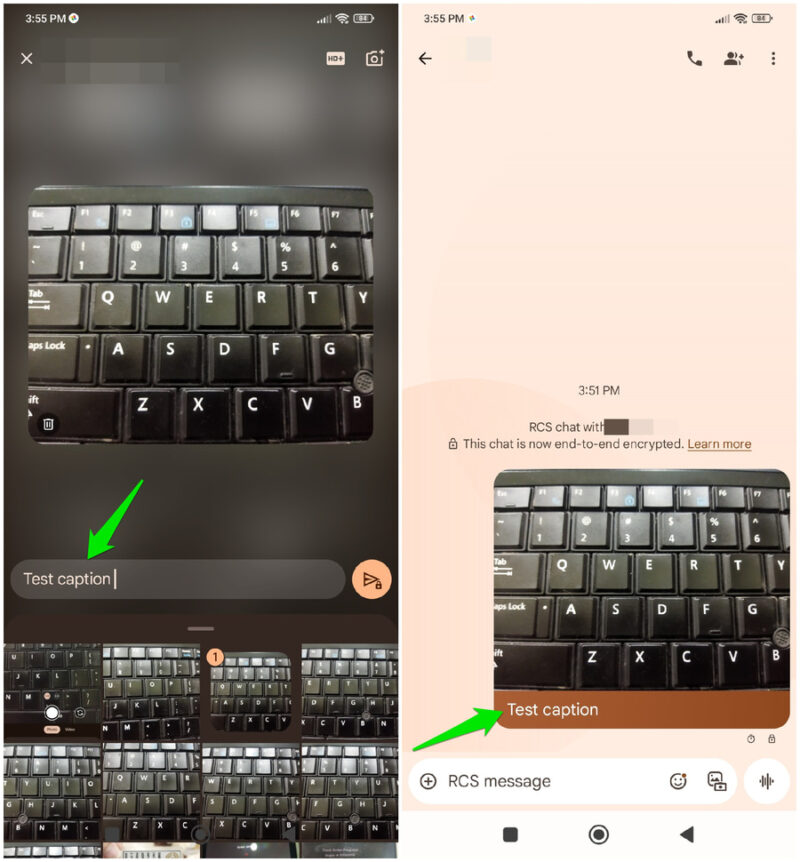
If you choose multiple photos, you can only select a single caption for all of them, and it will be displayed with the top photo.
Choose Image Quality
Google Messages used to have a setting “Send photos faster” that removed compression from all photos. In the redesign, Google has added an option to select photo quality while you are sending (the old option has been removed). This makes it easier to select the preferred option on the spot for individual photos.
In the gallery, select a photo or snap a new one to view in the preview pane. At the top, tap on HD+ and you get the option to choose Optimized for chat and Original Quality. The Original Quality option will send the photo as is, and Optimized for chat will compress the image for faster sending and less data usage.
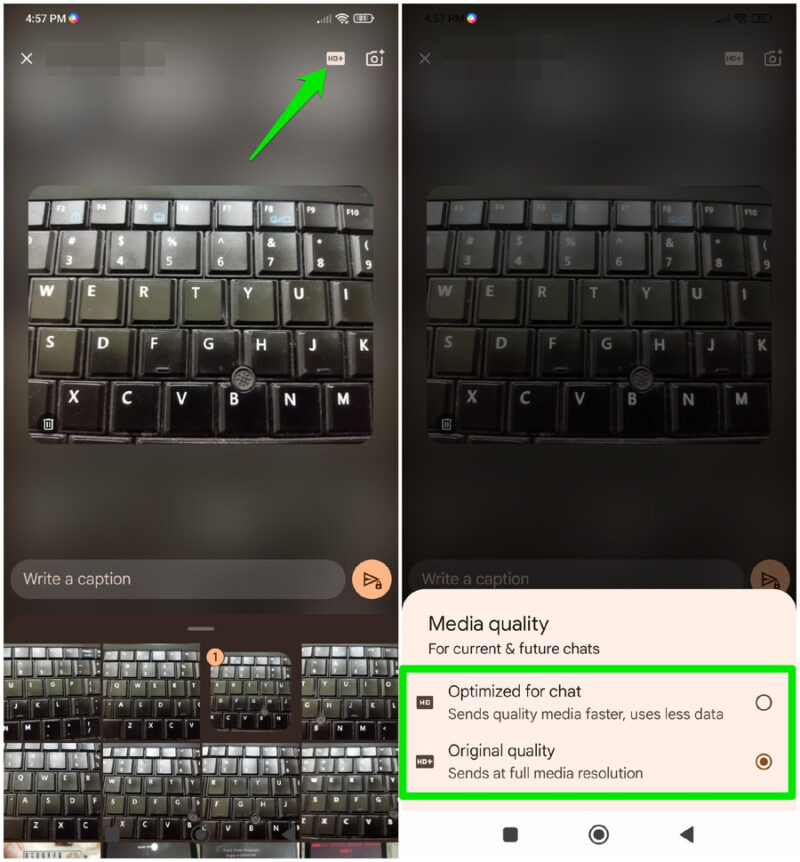
The quality setting will apply to all selected photos, and it’s disabled for videos.
Disable Camera Viewfinder in Google Messages Gallery
While the new redesign adds some much-needed features and a completely new gallery experience, it doesn’t mean all the changes are well-received by everyone. In fact, the addition of a big camera viewfinder has been criticized by many people on Reddit and other social media websites. Many find the viewfinder too distracting, and some are even concerned about using it in public with the camera pointed at people.
If you don’t like the big camera viewfinder either, you can disable it by removing Google Messages’ camera access. Here’s how:
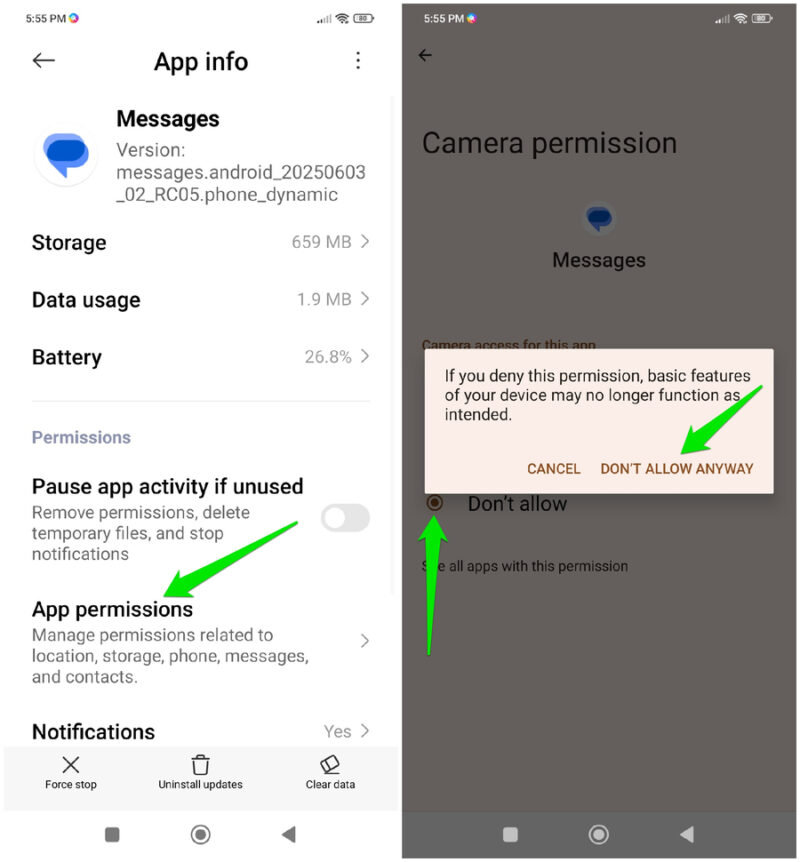
Tap and hold on the Google Messages app icon, and then tap on the App info button.
Here, go to App permissions -> Camera and select Don’t allow. Select Don’t Allow Anyway on the confirmation prompt.
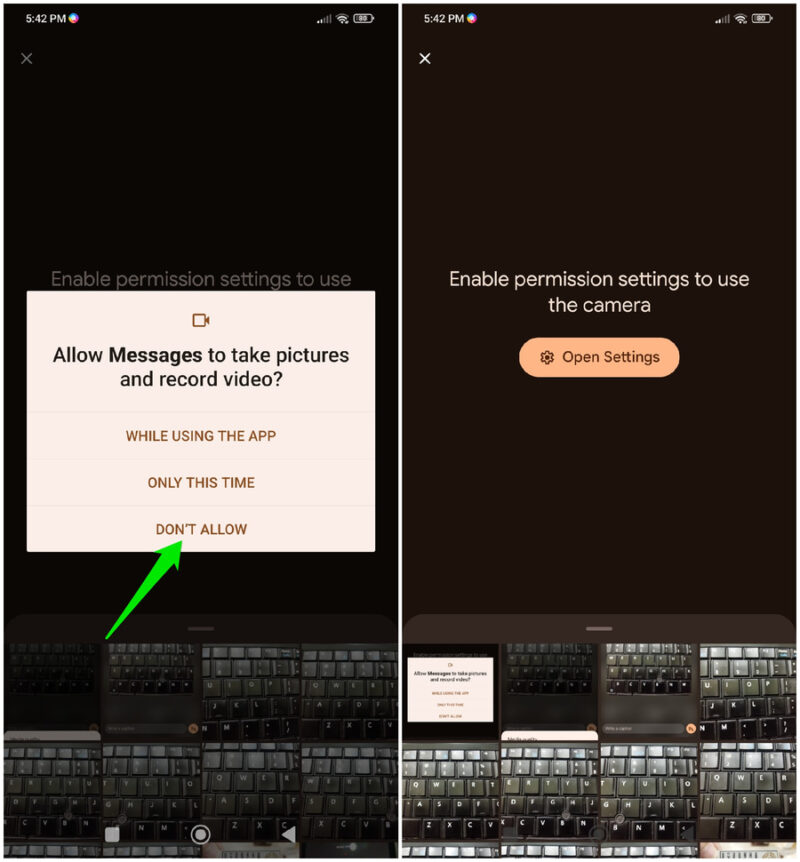
Now open the gallery again in Google Messages, and it will ask to enable camera permissions, select Don’t Allow here as well. This will disable the camera until you enable the camera permissions again.
The redesigned Google Messages gallery makes sharing media simpler, decreasing the need to dig through your file manager or open the camera app. While you can turn off the camera viewfinder, you are stuck with the full‑screen gallery. If you’re not sold on Google Messages, check out these alternative Android SMS apps.








