Ever squinted at a product label or struggled to make out a sign from across the room? If you’re using a Google Pixel, there’s a simple solution: the Magnifier app. This handy tool helps you zoom in and see things clearly. Here’s how it works.
Good to know: check how to run multiple AI models offline on your Android device.
Getting the Google Magnifier App on Your Device
You will need to download the Google Magnifier app from the Play Store as it doesn’t come preinstalled. However, only Google Pixel users will be able to find the app in the app store. If you don’t have a Pixel device, refer to the end of this article for some Magnifier app alternatives.
If you do have access to Google Magnifier, continue by installing the app on your phone like you would with any other app.
Read Fine Print Using the Google Magnifier App
Open the app on your phone. Point the device towards the specific text you want to read. Then pinch the screen to zoom.
The results are pretty exceptional, as the app in live view manages to enlarge text without blurring it and makes it highly legible. For instance, I’ve used the app to magnify the minuscule ingredients list on a shower gel I wanted to use. Another great use for this app is when you want to check something that’s far away, let’s say the flight board at the airport. If the environment is dark, you can opt to turn on the Flashlight from the app.
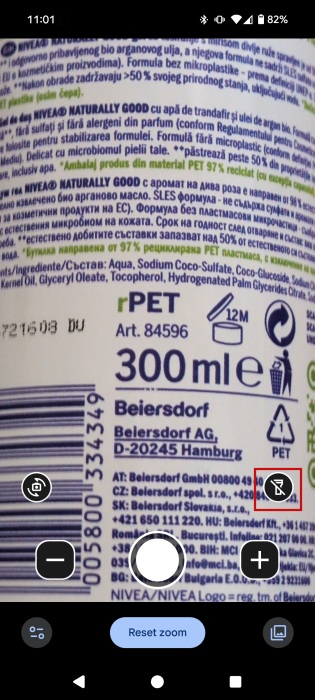
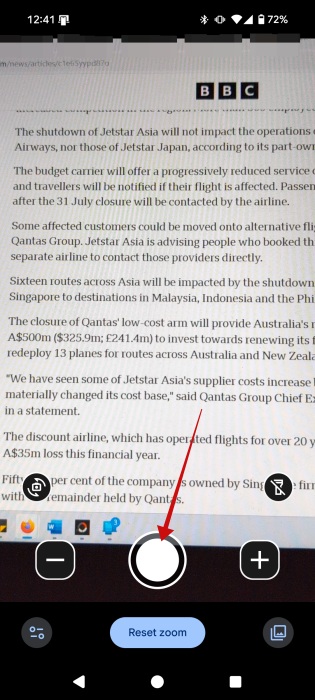
Alternatively, you can take photos of the text/signs you want to read. To do that, zoom in and then press the shutter button at the bottom.
If you’re looking for a particular word or sentence, you can search the image. Press the Find button.
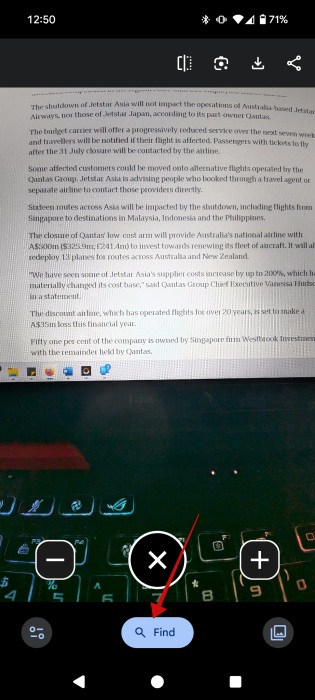
Type in the text, and Magnifier will show you where it appears in the text you’re viewing, which is super helpful.
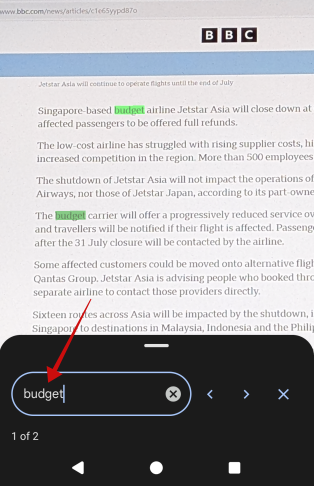
Note: in a recent update to the Magnifier app, Google has added the ability to search from the live screen. Basically, you no longer need to take a photo of the text to search it. I’m not currently seeing this option, so it appears the feature appears to be available in select regions. Alternatively, you can download the latest Magnifier version in the form of an APK.
Edit Your Magnified Images with the Magnifier App
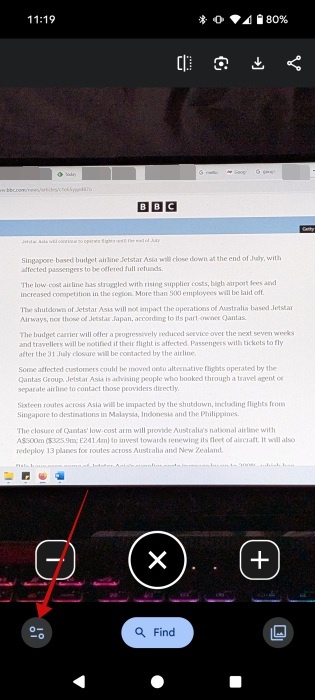
Once you snap a photo, you can continue to magnify it by pressing on the + button in the lower right. Google also gives you the option to edit the image (you can also do this in live view).
Type on the icon in the lower left corner to get started.
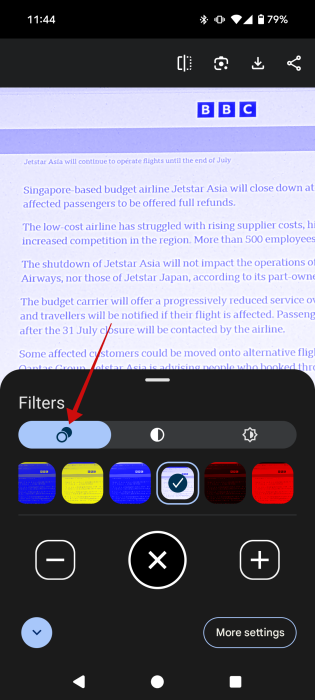
You can apply several filters from here to increase text visibility.
If you need further enhancements, you can play with Brightness and Contrast too.
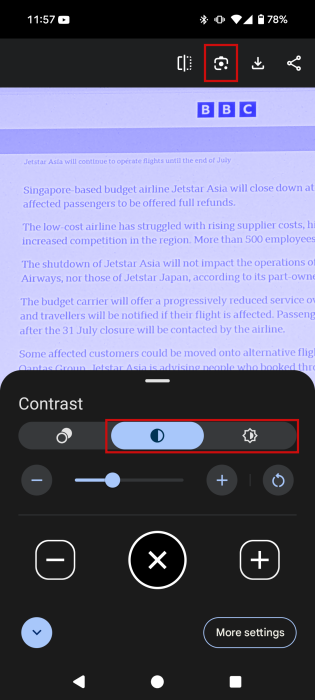
Once you’ve edited everything, you can either download the image or share it with others if you need to. Magnifier also has Google Lens baked in, so you can apply it to your images. For instance, it can help you translate signs that are in a foreign language.
Tip: here’s how you can quickly change voices in various Google apps.
Some Magnifier App Alternatives for Android Users
If you don’t have a Pixel phone, don’t worry, you can find quite a few Magnifier alternatives on the Google Play Store.
For instance, you can check the Magnifying Glass app by Penny Mobile. It’s easy to use and has both a live camera and a photo mode. It offers a flashlight option to improve visibility and lets you apply filters. You don’t get access to a Search feature, unfortunately, but if you just want to read the label on a product, this app can do the job in most scenarios.
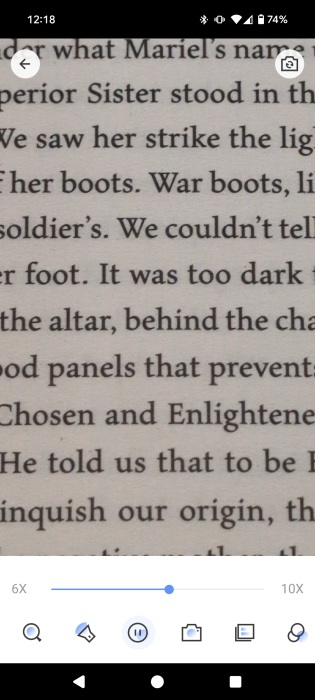
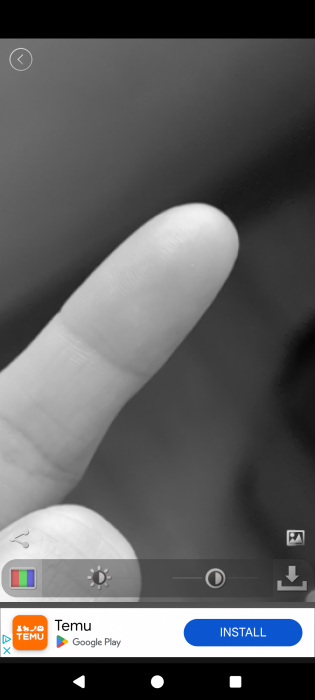
If you require something even more powerful, try the Magnifier & Microscope app by HANTORM. It has most of the features that the other app offers, plus a Microscope mode which delivers precise close-ups. You also get access to an autofocus feature that works rather well, although I prefer the manual one.
FYI: learn how to change app icon size on your Android phone.
Now, if your next step is to start copying the text from the image you’ve just snapped, hold on. Instead, try using these methods to help you extract text from images. Alternatively, check this list of apps that let you scan documents with your Android phone.








