If you love podcasts, you are in for a treat. Google has added a new AI podcasts feature in place of the robotic read-aloud feature of Chrome for Android that makes listening to webpages far more engaging. Let’s see how this feature works and how you can access it in Chrome for Android.
Introducing AI Podcasts in Chrome for Android
Borrowing the tech from NotebookLM, Google has implemented an AI podcasts feature in Chrome for Android in which two AI voices discuss the topic. The feature first summarizes the webpage and then two AI voices – one male and one female – talk about it in different chatty styles.
From our testing, the voice either talks about the summarized contents one after another, or one voice asks questions and the other answers using the contents. This style was consistent in all the posts we tested from different websites. However, based on how NotebookLM works, there is a good chance it can adapt other podcast styles, like one voice does most of the talking, and the other just makes small comments.
The tone also changes based on the contents of the post, like a serious tone for grim news or a curious tone for news about the latest features of an app. Additionally, it only works on pages with clean, parsable text, just like the original read-aloud feature; it won’t work on shopping websites or other purely visual pages.
Access and Use AI Podcasts in Chrome
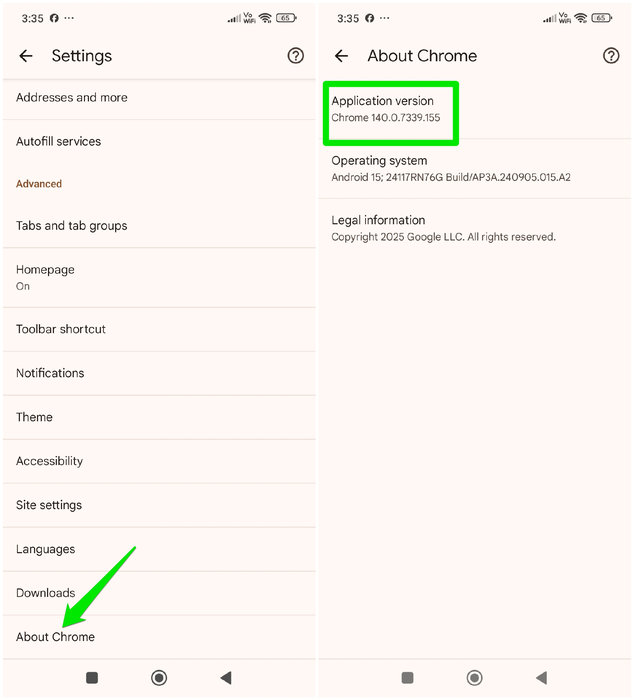
While this feature has hit the Chrome for Android public release, Google is still rolling out the feature based on region/device. So there is a chance you may not have access to it yet. To confirm, first make sure you have the latest Chrome version by going to Chrome Settings → About Chrome and checking Application version. It should be 140.0.7339.124 (or newer).
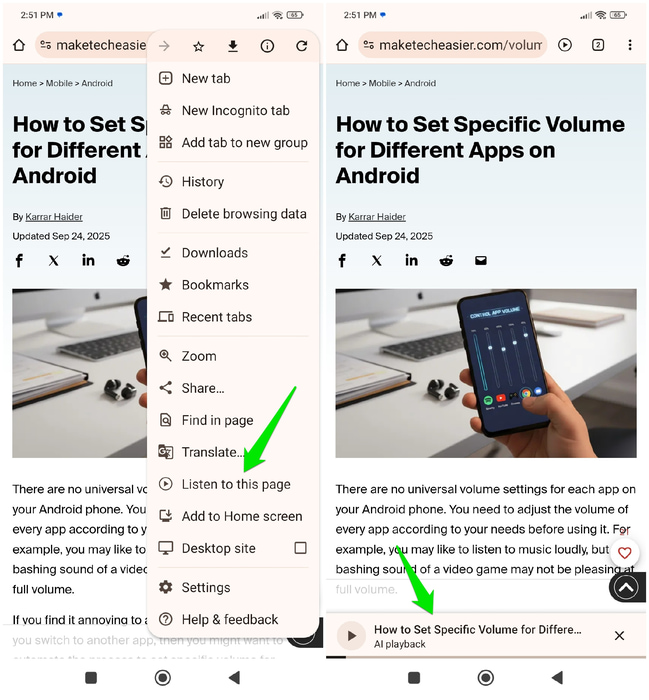
Now visit a post, tap on the main menu, and select Listen to this page. Chrome will take a few seconds to create an AI podcast and play it with a playback bar at the bottom.
You can tap on the playback to open all the controls. Here, you can skip forward/backward by 10 seconds, control the progress bar, adjust the playback speed, and switch back to the old read-aloud function. The playback will stay open and keep playing even if you move to different tabs, leave Chrome, or turn the screen off.
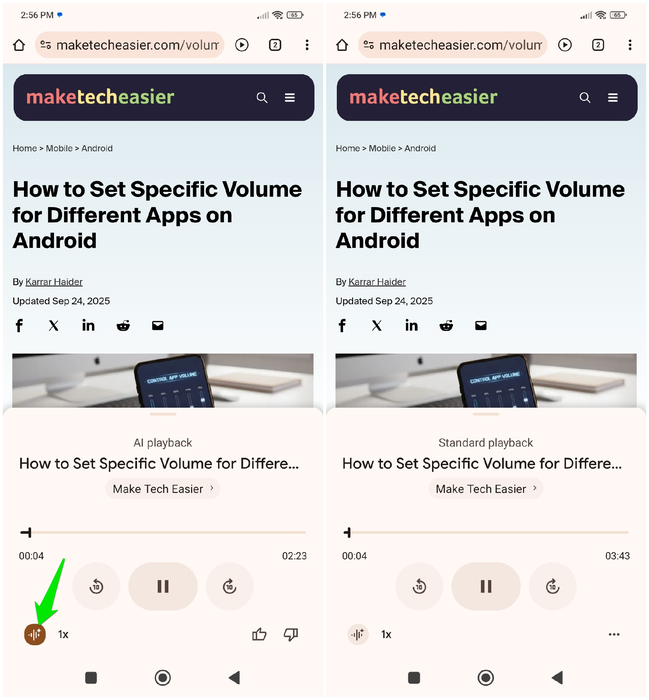
From testing, the audio summaries were generally 2-3 minutes long, even when the posts were very long. It seems this feature tries to keep the duration within a limit, regardless of content size. You can also change the conversation style and script by refreshing the page and opening Listen to this page again.
Add Toolbar Shortcut For Quick Access
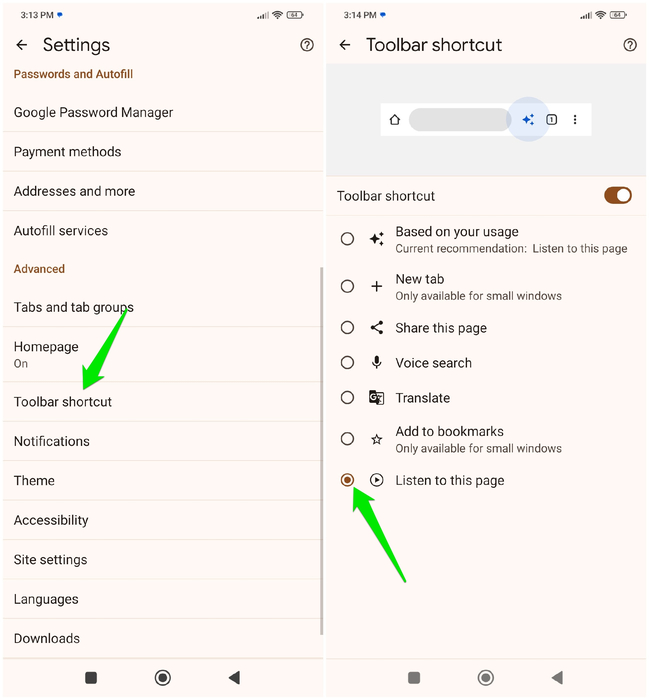
While accessing from the main menu is the standard method to use this feature, you can also add a toolbar shortcut. If you’ll be using this feature often, it will be much better to just tap the play button in the toolbar than to open the menu and select Listen to this page.
To do so, go to Chrome Settings → Toolbar shortcut and select the Listen to this page shortcut. Now you’ll see a play button on the toolbar for all webpages that can be converted to podcasts. However, it can take a second or two for the button to appear when you open a new page.
Overall, it’s a great addition to listen to news from your favorite websites in an engaging way instead of the robotic TTS word-to-word readings. Dynamic script and conversation style also make listening to the same story from different sources more enjoyable. If you like podcasts, you’ll love these free Android podcast apps as well.








