For many years, Google users have been demanding a feature that allows their trusted friends and family to help them when they’re locked out of their Google account. Gmail’s new “Recovery Contacts” feature helps you regain access by reaching out to someone you can trust and who knows how to help.
What Gmail’s “Recovery Contacts” Feature Does
While we’ve covered many solutions on how to regain Gmail account access on your own, it requires access to a recovery email and phone number. Or, a two-factor authentication on a device that may not be there with you at that moment.
Google saw this problem, so it added a “Recovery Contacts” feature where you pick a trusted friend or family member ahead of time to help you get your account back.
Your spouse, parent, kid, or a close buddy can now be your recovery contact when you suddenly find yourself locked out of your Google account.
Before using Gmail’s “Recovery Contact” feature, keep the following in mind:
- 7-day window: add your Gmail recovery contact at least 7 days before an emergency, or wait that long if you can’t access your account. Also, any open requests for such contacts will expire in 7 days.
- Maximum 10 recovery contacts: you can add a maximum of ten people as your recovery contacts. You won’t need that many; just 2-3 trusted ones are enough.
- Recovery contact must have a Gmail account: you can only contact Gmail users for help; no Yahoo, Outlook, Hotmail, or iCloud.
- Recovery contacts don’t have access to your account: they only get a temporary verification code which expires in 15 minutes.
The best use for this Google recovery method is helping non-techie family and friends who might forget their passwords or get locked out for trying to sign in many times. If you’re their emergency recovery contact, it makes life easier for them.
Setting Up Recovery Contacts in Gmail
On a desktop browser or a mobile device, go to the “My Account” page in Google.
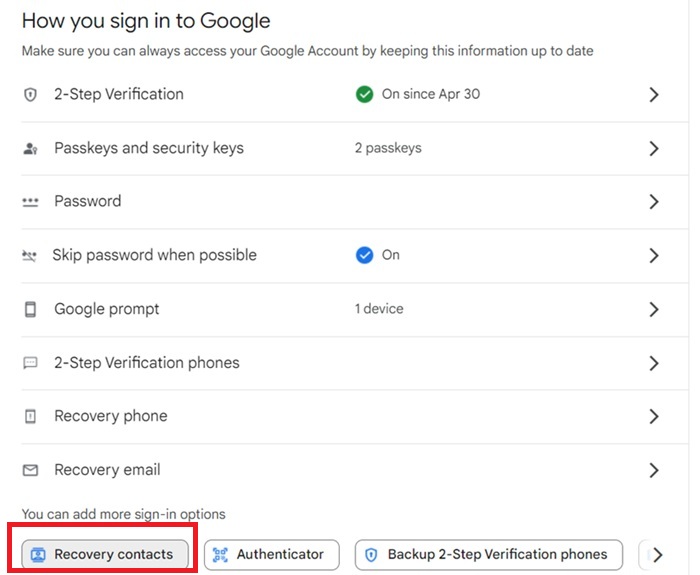
Go further down to Security -> How you sign in to Google. Click the Recovery Contacts menu as shown here.
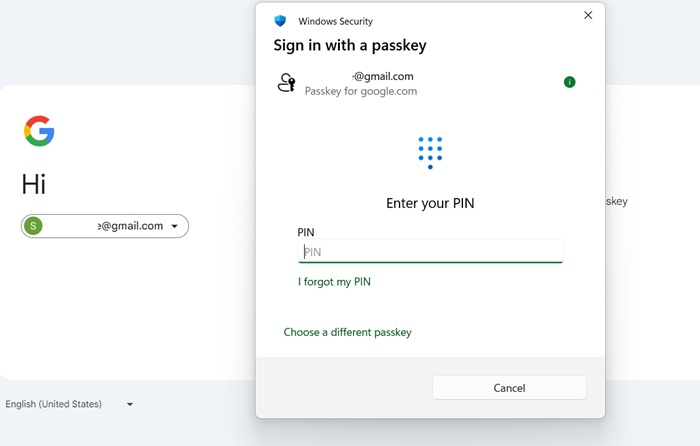
The user who needs help must provide their verification. This means providing a password, passkey, or a security answer as per their security settings.
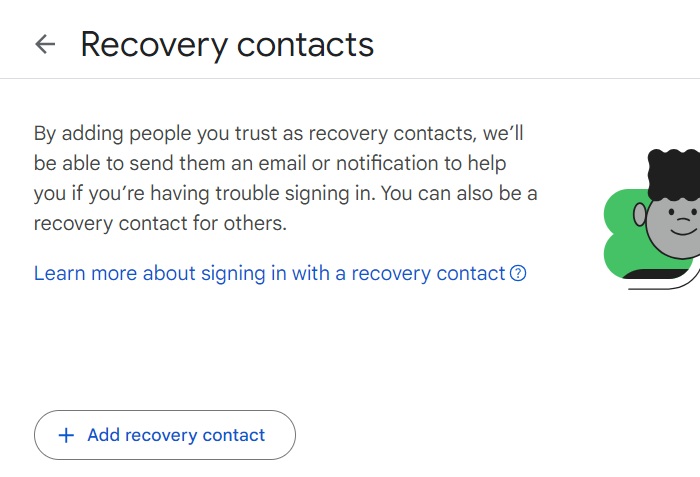
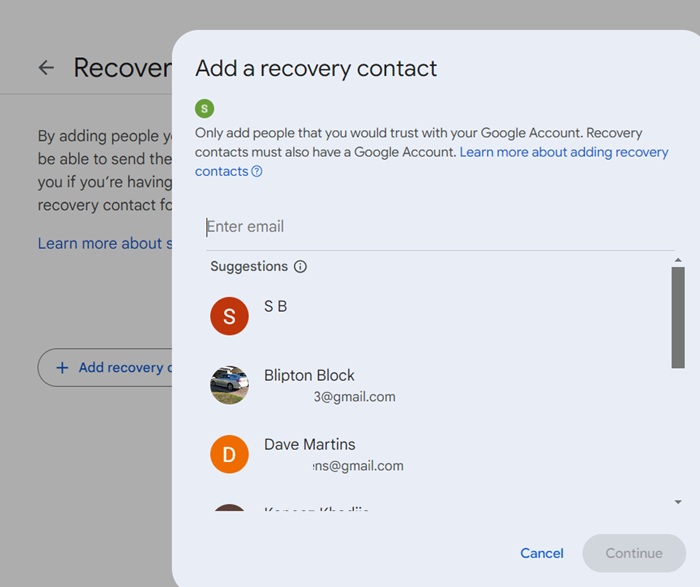
A new page opens. Click Add recovery contact at the bottom prefaced by a big plus sign. Add your preferred contact, and click Continue.
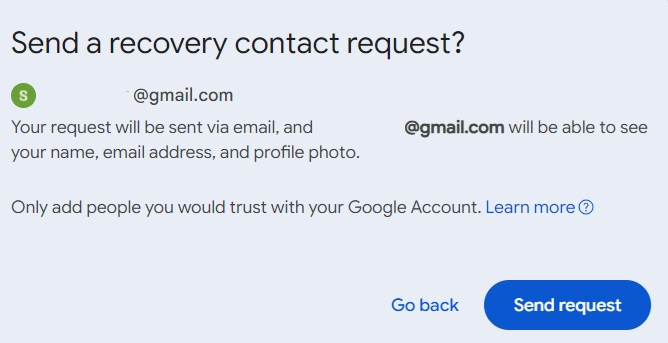
You will get a pop-up screen confirming that you want to send a recovery contact request. The friend’s email will be visible. Click Send Request to confirm.
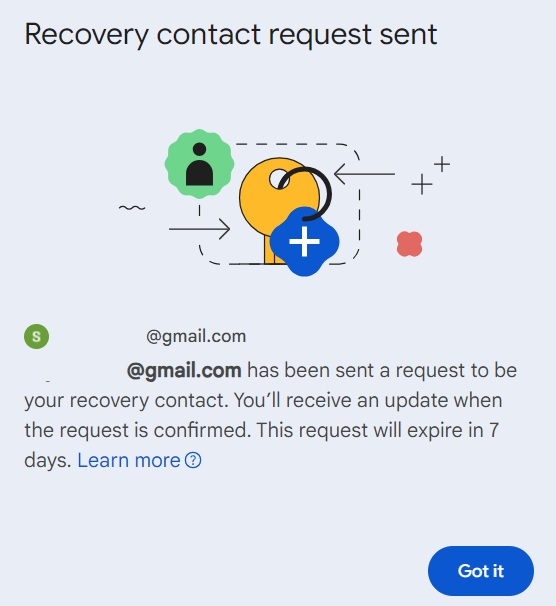
A final confirmation window lets you know that your request is on its way.
You can view Your open requests right on the Recovery Contacts page. You can delete them at any point.
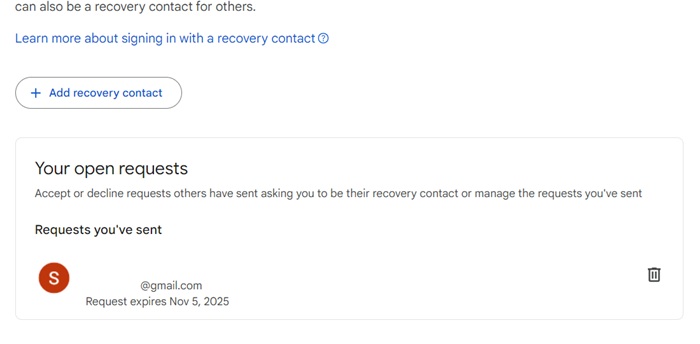
Remember your trusted contact has exactly 7 days before your invitation expires. It’s easier to tell your friend to be around you by phone, chat, or in person.
Related: do you fear your Gmail account has been hacked? There are some ways to regain access in that situation.
Accessing the Help of your Recovery Contact in an Emergency
During the setup process, your recovery contact friend or family member will receive an email on their Gmail. It clearly conveys that you want them to help out. They must click Review Request.
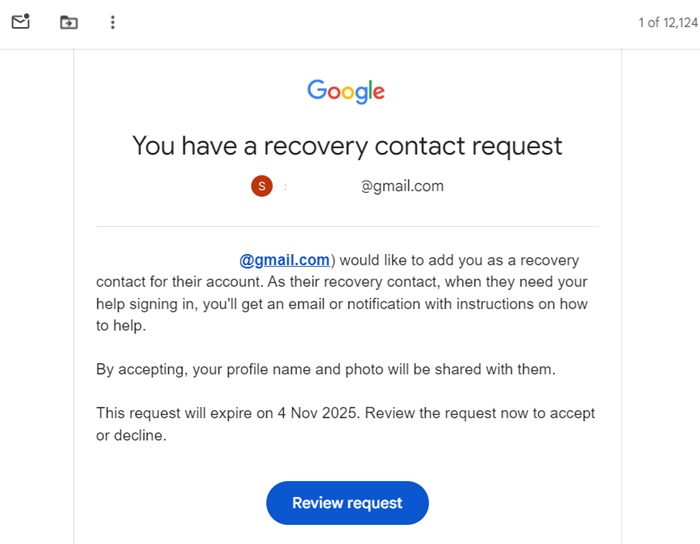
It will take them to their own “My Account” page. Here, they need to sign in using a password, passkey, or a security question.
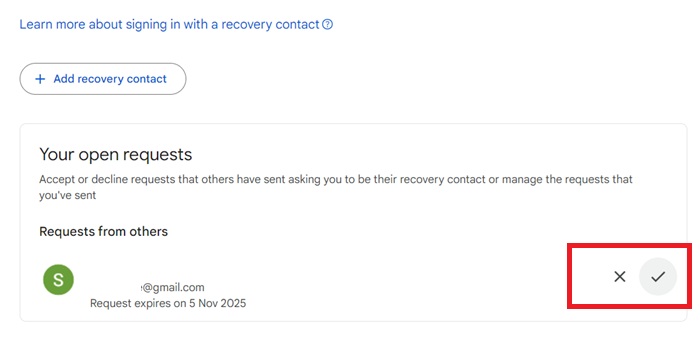
Here, on their Recovery Contacts page, your contacts can view the open request. Clicking a “check” symbol on the right end would open a pop-up window. Click Accept in that window.
Later, when your contact is unable to access their account for any reason, the solution is easy. All they have to do is keep clicking Try another way on the sign-in page.
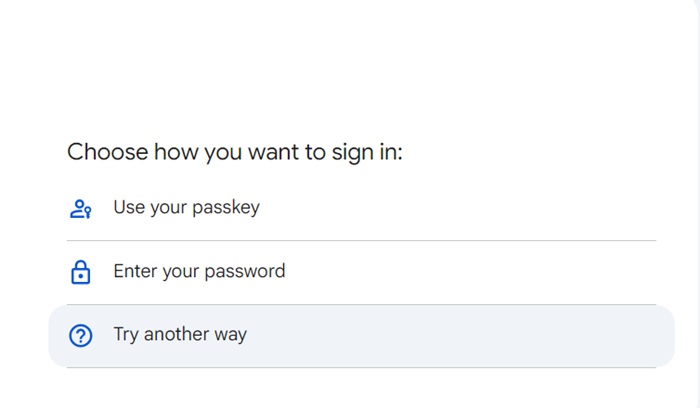
During recovery, Google presents recovery options. If standard methods fail, you’ll see an option to Reach out to a recovery contact. (this will only be visible 7 days after you add your first recovery contact.)
Tap or click Get number. It will expire in 15 minutes. You can see it on your screen. Convey that number to your trusted contact. They will not know it’s for recovery unless you explain it to them. Remember that Google doesn’t send unsolicited numbers for account recovery.
Your contact only receives a push notification where a list of three random numbers are displayed on their screen. They must match the one that you provided them, and this will help you log in to your Google account.
After you sign back in, ensure you set up a Google passkey or a two-factor authentication which you must upgrade, as well as a new Google password.
Losing access to your Google account, even temporarily, can be a serious inconvenience. As it is a lifeline to our essential online activities, we often turn to our close friends and family. The “Recovery Contacts” feature is a great way to ensure you never lose access to your Google account.








