Google has updated Gmail, and will be phasing out SMS codes for user authentication, replacing them with QR codes, passkeys, or authenticator apps. If you’re still relying on one-time SMS codes, a future update can disrupt access to your Gmail account. Prevent it by upgrading to a safer two-factor authentication (2FA) alternative in Gmail.
Why Google is Getting Rid of SMS 2FA for Gmail
Since 2021, Google has been using SMS codes as one of the methods for enforcing 2FA, or 2SV (two-step verification). It is often used by Gmail account holders who lack Internet access on their phones. But as of April 2025, even smartphone users receive a verification code by default if no other 2FA was set up.
Google now sees SMS-based 2FA as legacy and unsafe. While there is no formal announcement, Gmail spokesperson Ross Richendrfer has confirmed that newer authentication mechanisms like QR codes, passkeys, and Google Authenticator will replace SMS.
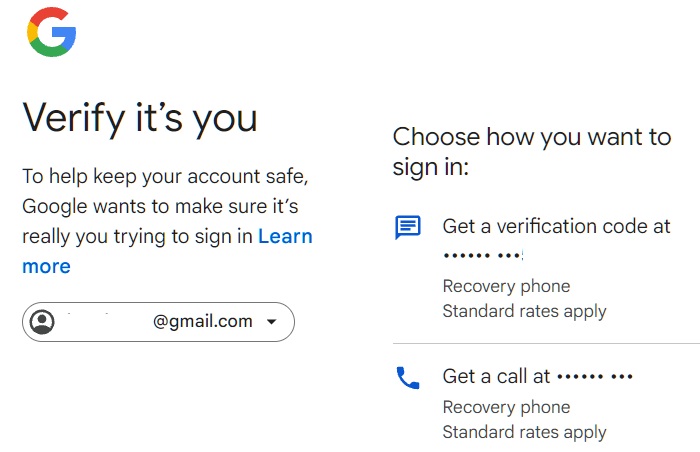
The main reason for this drastic change is the rise of new phishing attacks that steal SMS codes. Hackers are using SIM swapping or fake aliases like “[email protected]” to trick users into giving up their codes. AI tools that steal real-time SMS codes are adding to the problem.
This change could take place in the coming few months of 2025. If you primarily use SMS codes to sign in to Gmail, you could suddenly find yourself losing access to your Google accounts.
How to Find Out If You Are on SMS-Based 2FA
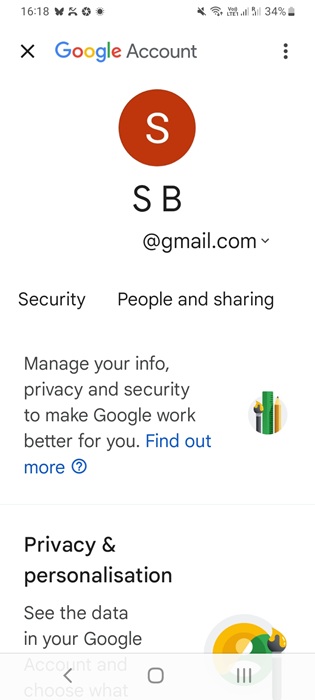
First, you need to check whether you’re currently using SMS codes for 2FA. On a web browser, sign in to your Google account and open the My Account page. For Android, open the Google Play app, tap the user icon, then select Google Account. iOS users must open Google app from the App Store, tap their profile icon, then select Manage your Google Account.
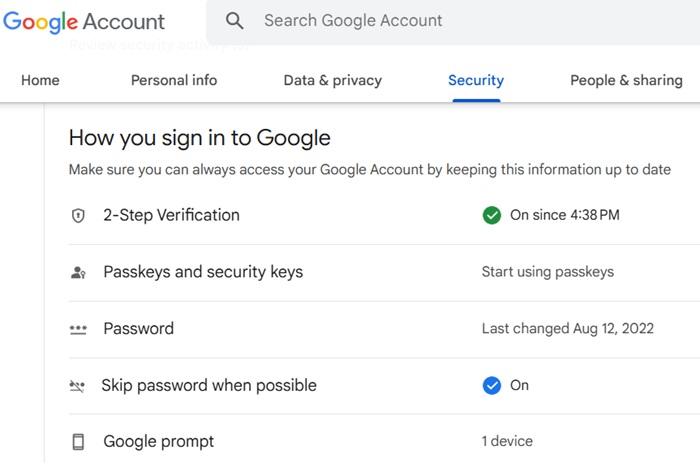
From the Security page/tab, go to How you sign in to Google -> 2-Step Verification. Also, ensure that it has a green check symbol.
In the next screen, you will see various methods for 2-Step Verification under Second Steps.
- Passkey or Authenticator is Default: if you see at least one green checkmark next to Passkeys and Security keys or Authenticator, that is the default 2FA mechanism. Even if SMS codes disappear as an option in the future, it will not affect your Google account access.
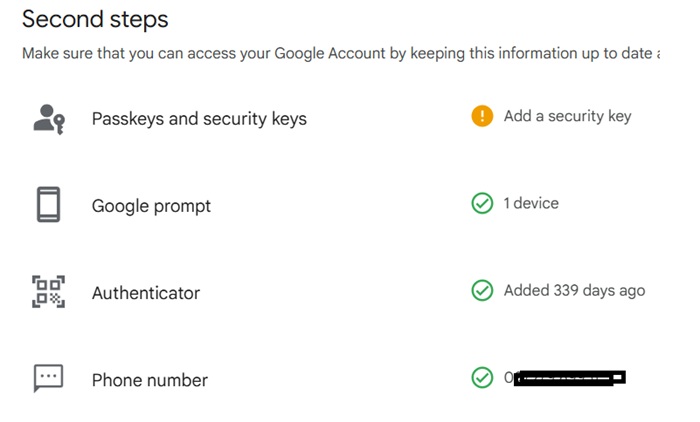
- SMS 2FA is Default: if you see no green checkmark next to Authenticator or Passkeys and Security keys, it means SMS is the default 2FA. Also, verify the green checkmark next to Phone number.
Alternatives to SMS 2FA in Gmail
Finally, it’s time to upgrade from SMS-only 2FA. We have to switch to any of the following alternatives. After that, SMS codes will not show as default.
1. Google Authenticator
If you’re setting an authenticator-based 2FA for the first time, use a desktop browser. Go back to How you sign in to Google, and click Authenticator. In the next step, click Get Started or Add /Change authenticator app.
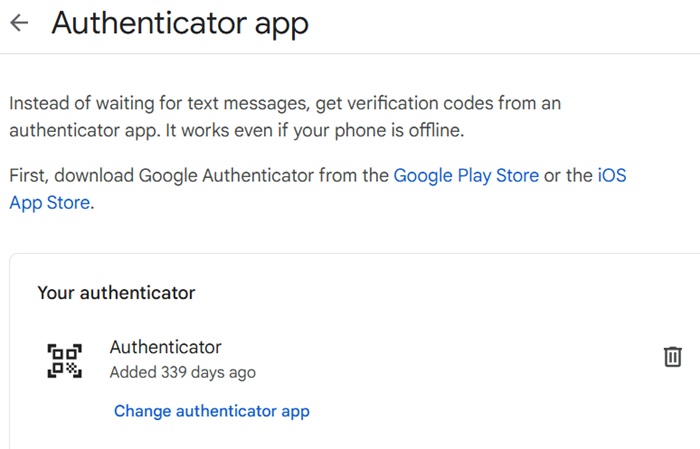
Next, on your Android or iOS phone, download the Google Authenticator app from Google Play, or App Store. The authenticator on computer as shown above will display a QR code. Scan it using your phone.
The remaining steps of QR code verification and confirming have been explained here. You will get time-based OTPs that change every 30 seconds.
2. Passkeys
Passkeys let you sign in to your Google account on any device using your fingerprint, face, screen unlock mechanism (PIN or pattern), or security key.
For this, you need to set up a passkey. Not all devices are eligible, and instead of a desktop browser, it’s better to use a mobile device.
Again, start by visiting the Security page of your Google account. Select Passkeys under How you sign in to Google. Here, click Create a passkey.
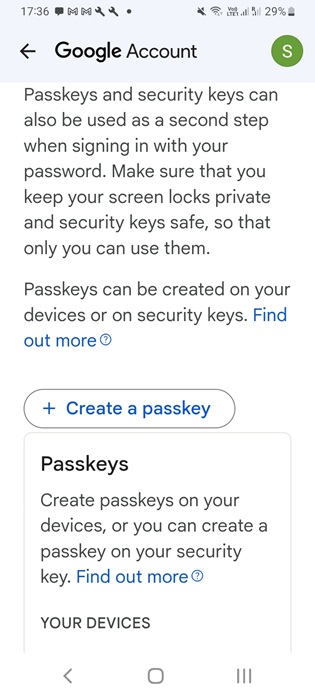
On your smartphone, you will have to finish a prompt to set up the passkey. You can use a fingerprint, face, PIN, pattern, or a physical security key (if you have one). The remaining steps are right here.
Once you choose either of the above two methods, they will become the default for your Google account and replace SMS codes for future authentication.
Switching from SMS 2FA on Gmail to other newer alternatives is the best way to protect your Google account. At any point, do not remove your primary phone number from Google account. A few years ago, removing your phone number from your Google account was completely fine. However, doing so now can lead to Gmail login errors, such as “you’ve tried to sign in too many times.”








