
Git is a version control system that helps you track changes in your code and collaborate with others easily. Git offers different commands to perform different tasks. One important command is git status, which shows the current state of your files, including changes that are staged, not staged, or untracked. In this article, we will discuss how to use the git status command to manage your git workflow efficiently.
Related: if you are new to Git, check out our beginner’s guide to Git.
What is git status
The git status command retrieves the current state of your project. It provides a list of files that are prepared for committing, files with modifications that have not been staged, and newly created files that Git is not tracking. Moreover, it helps you see what’s going on in your working directory and what actions you might need to take next.
Importance of Using the Git Status Command
Here are some advantages that show the importance of using the git status command:
- It displays the files that have been altered, staged, or are not being tracked.
- It retrieves an overview of the project’s present status.
- It helps us understand what changes are ready to be committed.
- The git status command helps avoid committing unwanted files by mistake.
- It keeps your workflow clean and organized.
- It reminds you to include or exclude files from the staging area.
- It is useful for troubleshooting merge conflicts.
When to Use git status
Run the git status command whenever you want to inspect the current status of your working directory and staging area. Developers often use this command after making changes to files. Moreover, it allows us to identify the files that have been altered, those staged for committing, and those that remain untracked. Running the git status command before committing ensures that we include all intended changes and avoid accidentally committing unwanted files.
Moreover, the git status command can be used before switching branches or pulling new changes, as it shows whether your working directory is clean or has pending updates.
How to Use the Git Status Command
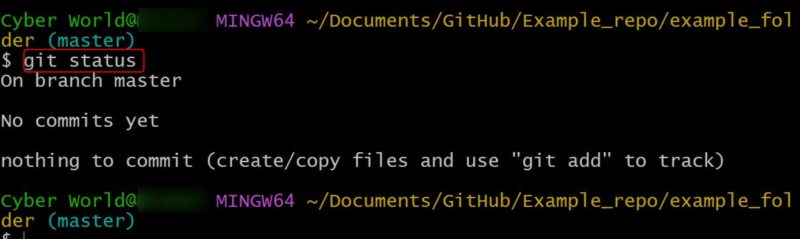
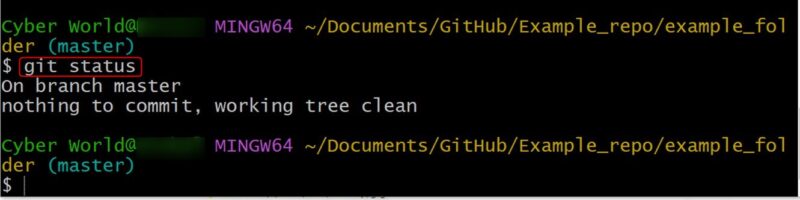
You can run the git status command to check the present state of any git repository:
git statusThe output indicates that there are no modifications or untracked files in the repository. This means our working tree is clean.
Let’s create a new empty file in our git repository:
touch new_file.txt
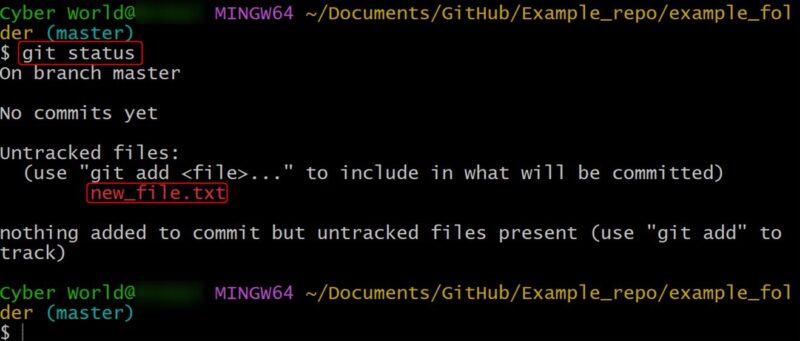
After creating the file, confirm the status of your Git repository by using:
git statusThe output shows Untracked files: new_file.txt. This means the file named “new_file.txt” exists in the repository, but Git is not tracking it yet:
Apply the git add command to move untracked files into the staging area:
git add new_file.txt
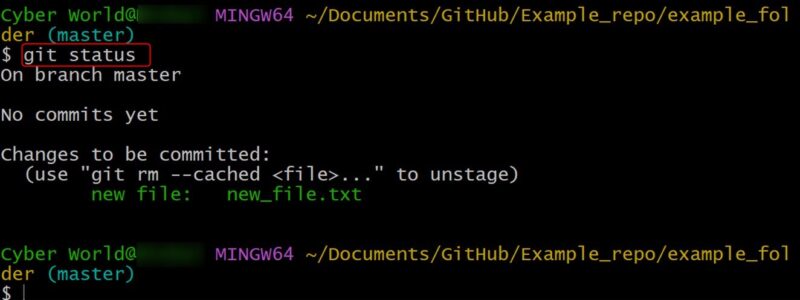
Then, use the git status command to monitor the present state of your repository. The output now displays pending changes for commit: a newly added file named new_file.txt. This indicates that the “new_file.txt” has been successfully staged and is ready to be committed:
To save the staged modifications, execute the command below:
git commit -m "My first commit"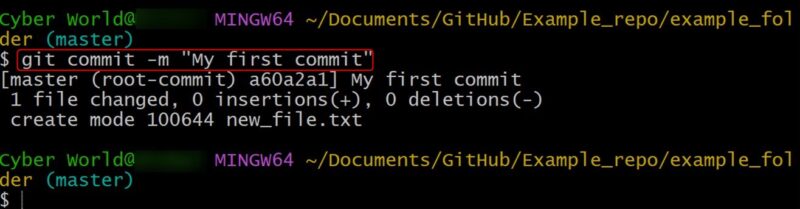
Replace “My first commit” with any custom message of your choice. After this, verify the current status with git status
The message “nothing to commit, working tree clean” confirms that the file was successfully added to the repository:
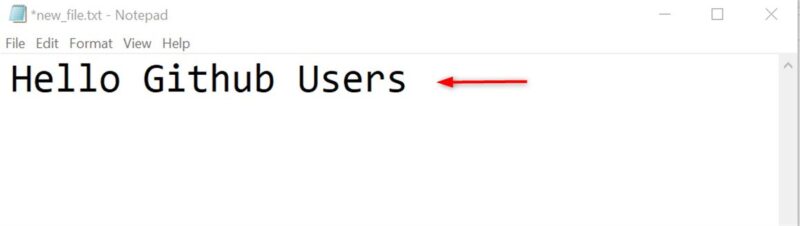
Open “new_file.txt” in a text editor, make some changes to it:
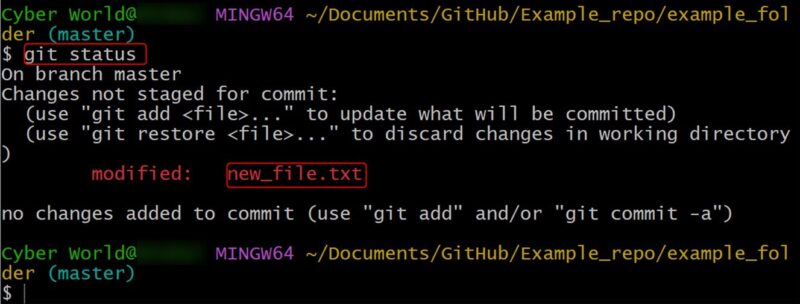
Then execute the git status command to check the status of the file when it’s edited. This time, it shows Changes not staged for commit: modified: new_file.txt. This indicates that the file has been updated but hasn’t been added to the staging area yet:
Add the updated file to the staging area by executing the following command:
git add new_file.txt
Then, apply the changes by running the command below:
git commit -m "file has been modified"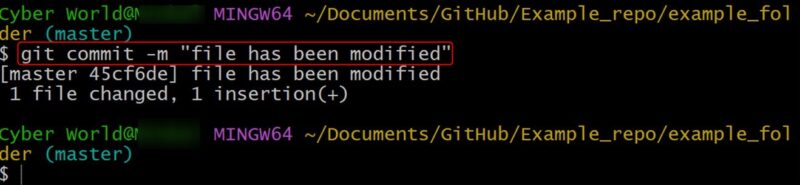
Then, verify the current git status:
git statusThe output snippet indicates that the working tree has been cleaned:
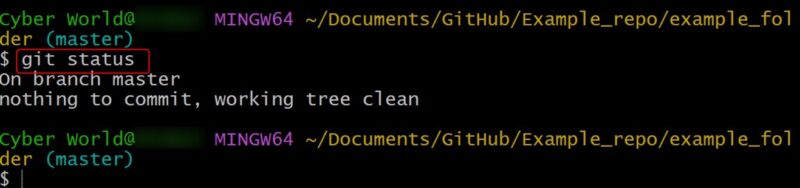
Let’s remove a file by executing the rm command:
git rm new_file.txt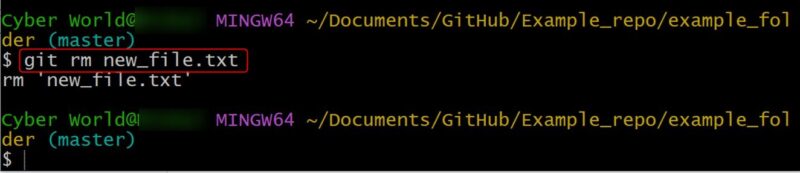
In the output, git returns the message Changes to be committed: deleted: new_file.txt:
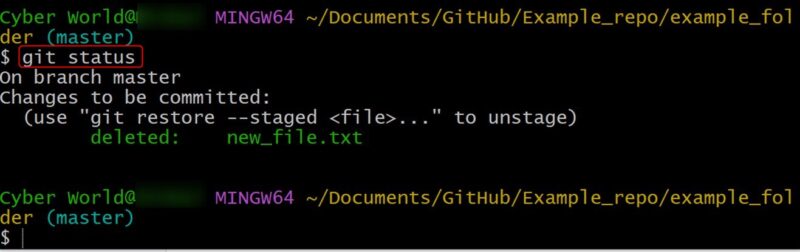
After this, you can use the following command to permanently record the file deletion in the repository’s commit history:
git commit -m "file has been deleted"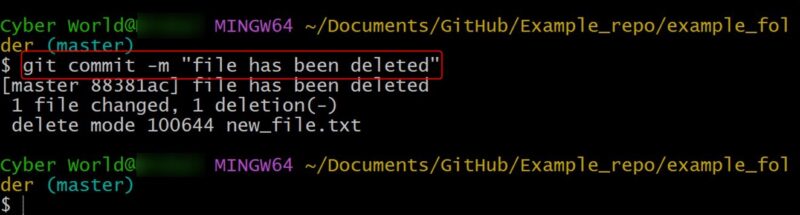
Finally, check the status by executing the command below:
git status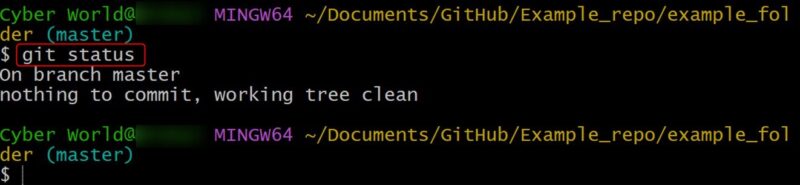
Useful git status Options
You can use different options with the git status command to change how the output is displayed. For example:
- We can use
git status --shortto get a concise summary. - The
git status -ulets us control how untracked files appear. git status -u=normaldisplays untracked files in the usual way.git status -u=allshows every individual file inside untracked directories.- If you prefer a cleaner view without untracked files, you can use
git status -u=no. - The
git status --porcelainoption provides output in a machine-readable format, which is especially useful for scripting and automation tasks.
Final Thoughts
The git status command provides a clear and detailed overview of the current working directory and staging area. It helps you to understand which files are modified, staged, untracked, or ready to be committed. Using this command, you can keep your workflow organized, avoid committing unwanted changes, and ensure you are always familiar with your project’s current state.
Other than git status, you should also learn about git cache command to manage the cache in your git folder.








